Repository navigation
Help admin
Proclaim's control room. Everything that is not day-to-day content editing lives here: maintenance tools, global settings, import and migration, styling, and your visitor numbers.
Components → Proclaim → Administration
| I want to… | Go to |
|---|---|
| Fix something that looks broken | Administrations Tools → DataBase Fix |
| Back up my content | Administrations Tools → Backup / Restore |
| Change how Proclaim behaves everywhere | Administrative Parameters and System Defaults |
| Style Proclaim to match my site | Custom CSS |
| Bring in a spreadsheet of old sermons | CSV Import |
| See how many people are watching | Analytics |
| Find out why YouTube stopped working | YouTube Status |
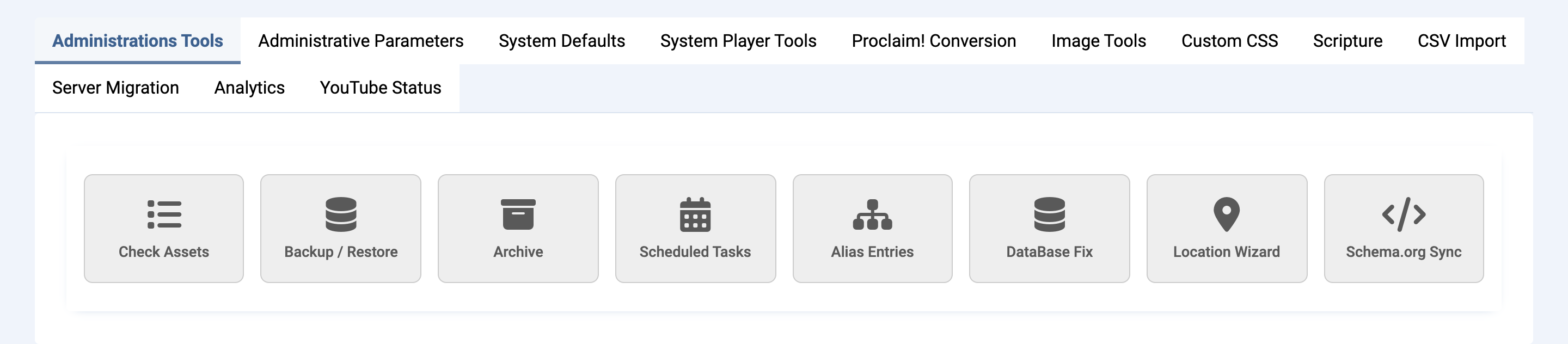
There are thirteen. Most sites use three or four of them and never touch the rest.
The maintenance buttons. This is the tab you want when something is wrong.
| Button | What it does |
|---|---|
| DataBase Fix | Checks Proclaim's tables and repairs structural problems. Run after every update |
| Backup / Restore | Exports Proclaim's data, and restores it. See Help-cwmbackup |
| Archive | Moves old messages out of everyday lists without deleting them. See Help-cwmarchive |
| Check Assets | Reports and tidies permission records. See Help-cwmassets |
| Alias Entries | Regenerates URL aliases |
| Location Wizard | Guided setup for multi-campus locations |
| Scheduled Tasks | Proclaim's scheduled jobs, such as playlist sync |
| Schema.org Sync | Refreshes structured data used by search engines |
Tip
If a page misbehaves after an update, DataBase Fix is the first thing to try. It is quick and never deletes content.
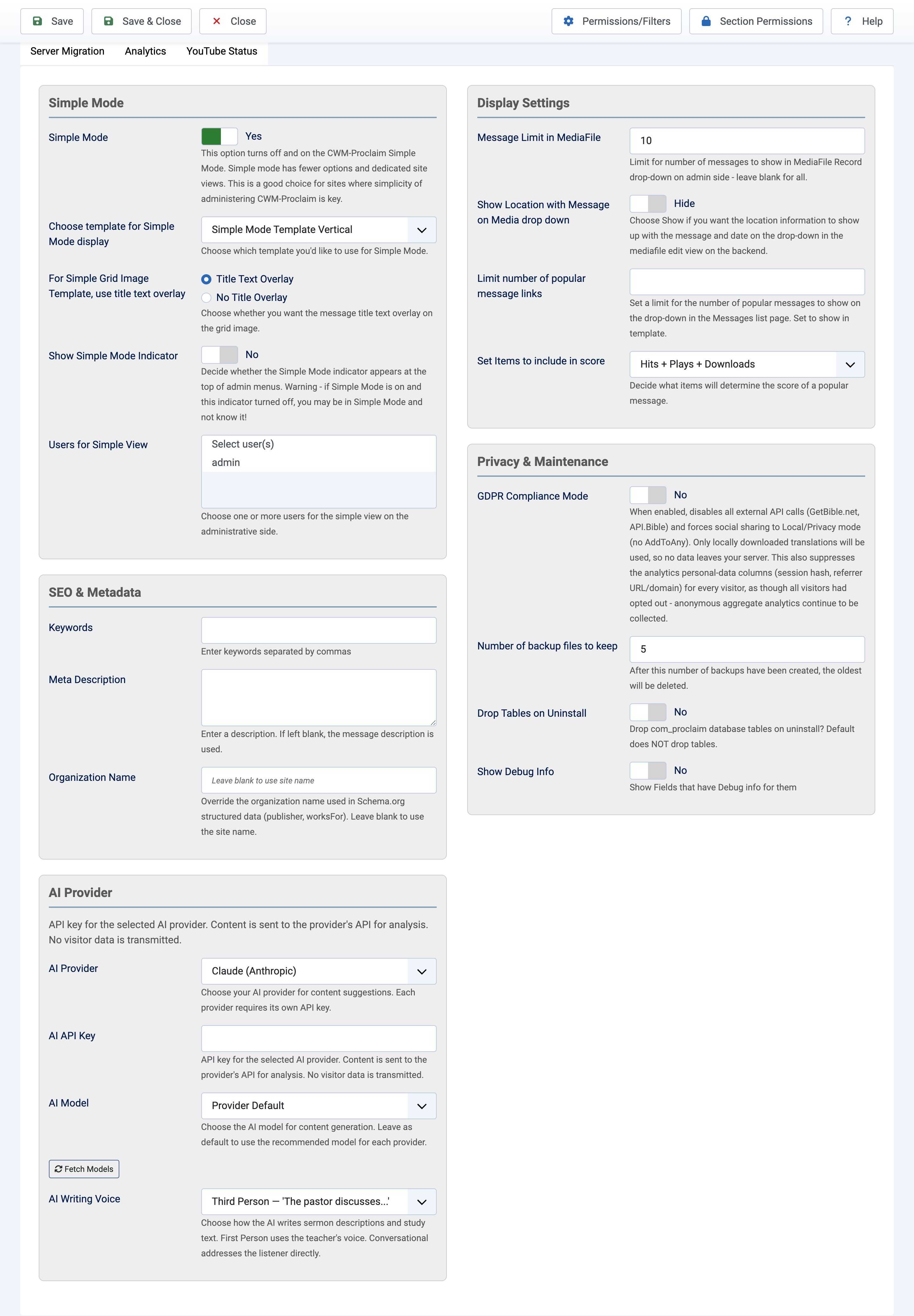
Global behaviour for the component — how Proclaim treats uploads, defaults and integrations. Includes the AI provider settings used for topic suggestions.
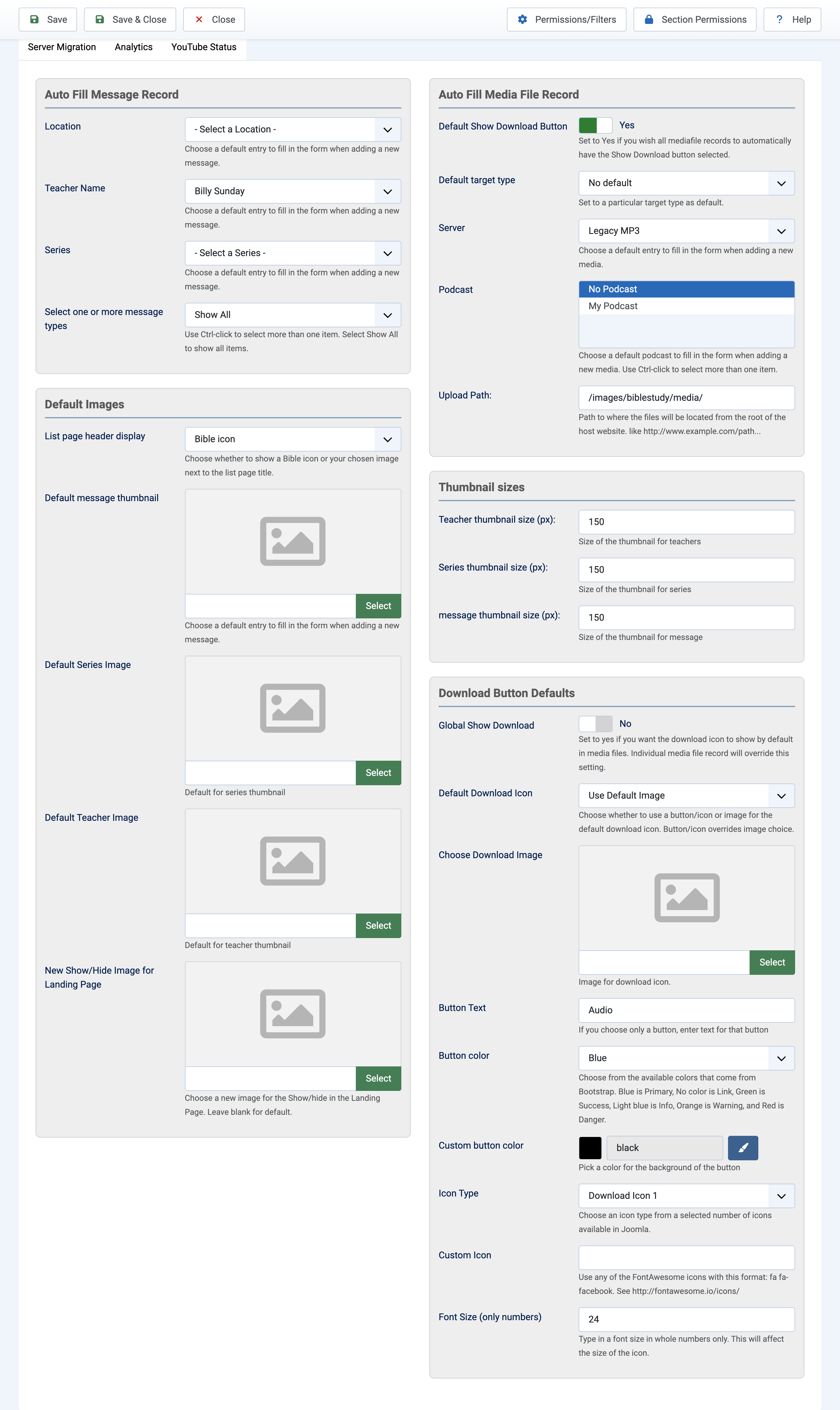
The starting values new records get, so you are not setting the same things on every message.
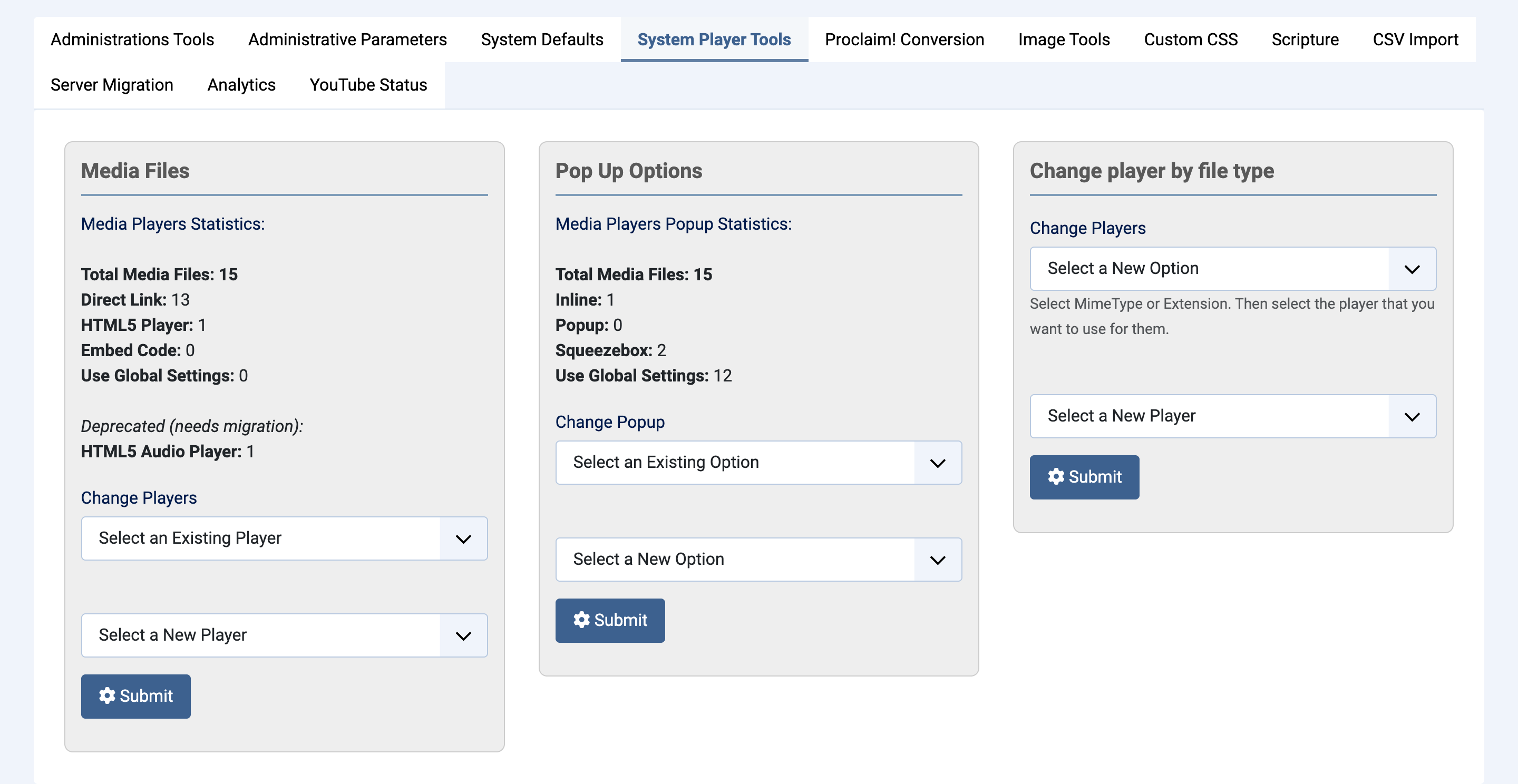
Bulk changes to media players and popups across existing records — useful after switching how you host media.
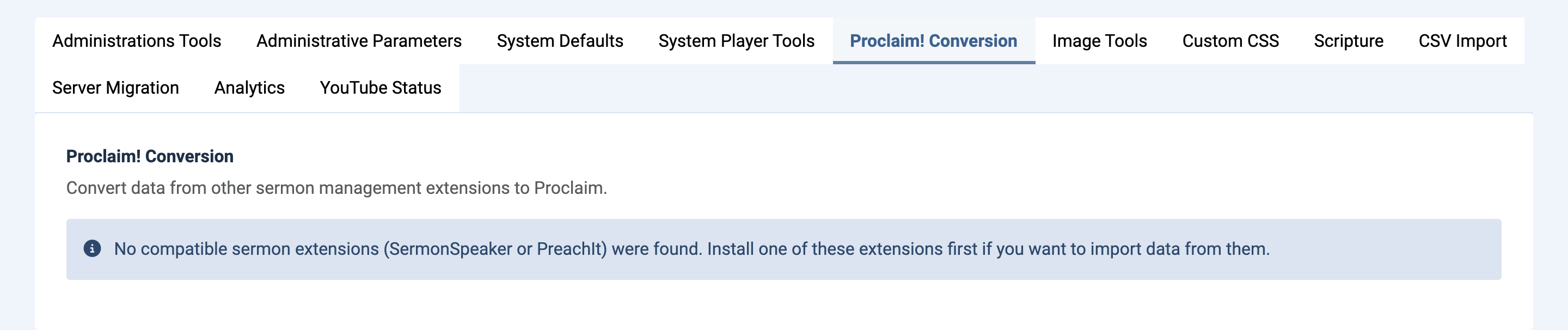
Converts data from a Proclaim or Biblestudy install. See Guide-Import-and-Migrate.
Appears only when there is a 9.x install to bring forward. See Upgrading-From-9x.
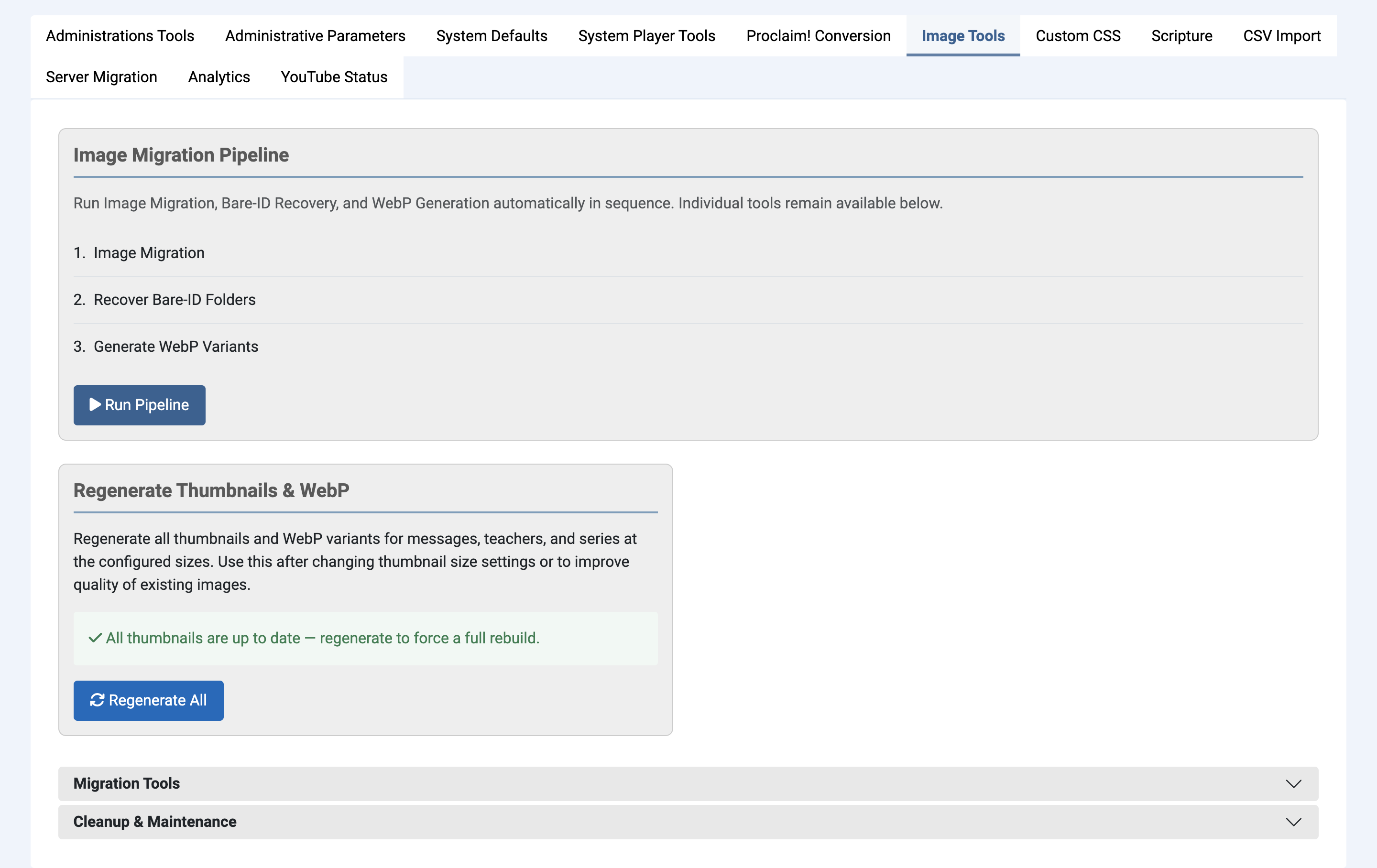
Bulk image work — regenerating thumbnails and tidying up image records.
Your own CSS for every Proclaim page on the site. It is stored in Proclaim's settings rather than a file, so an update leaves it alone and a backup includes it. See Guide-Control-How-Proclaim-Looks.
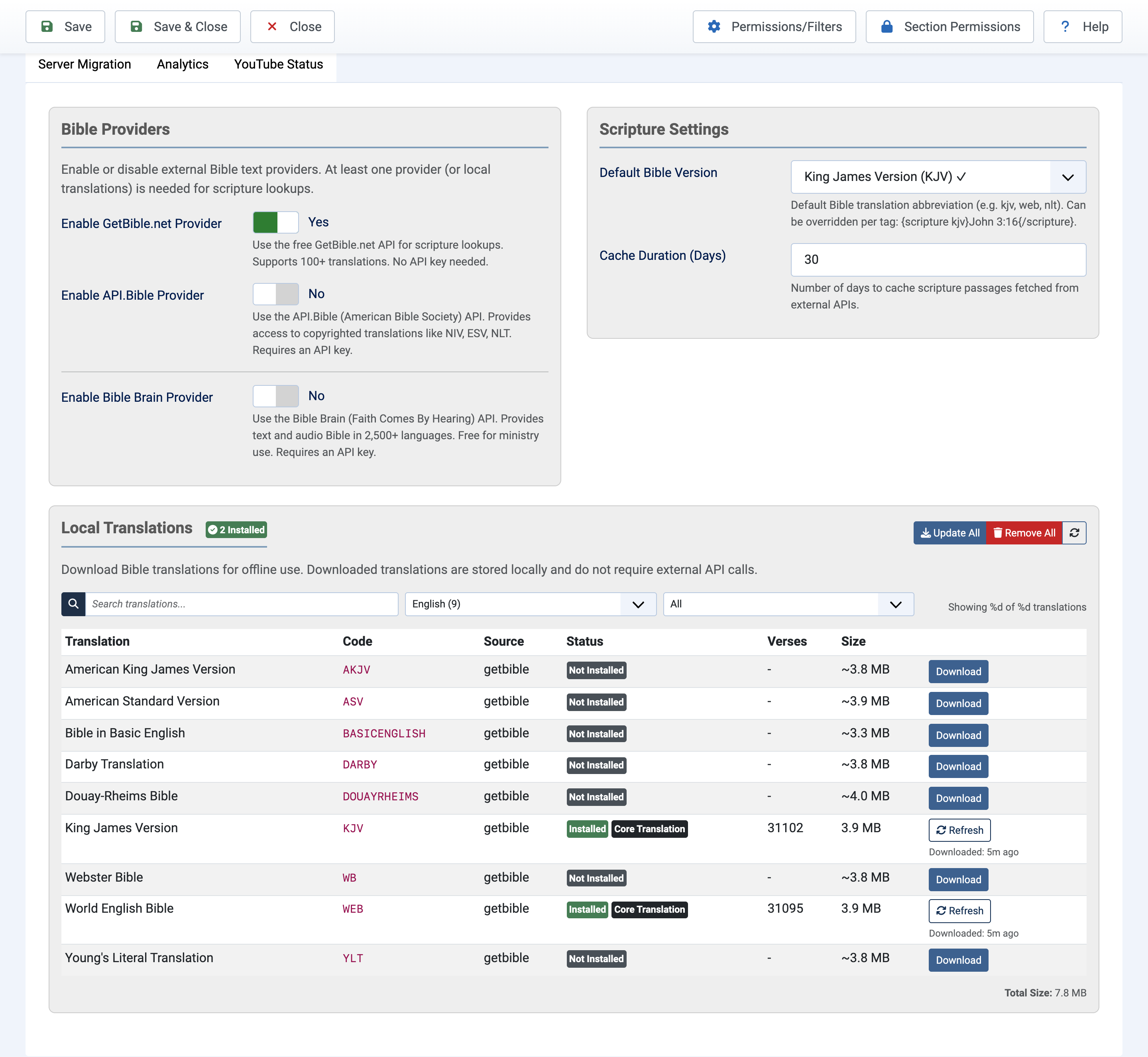
Settings for scripture lookup and the Bible versions offered on the message form.
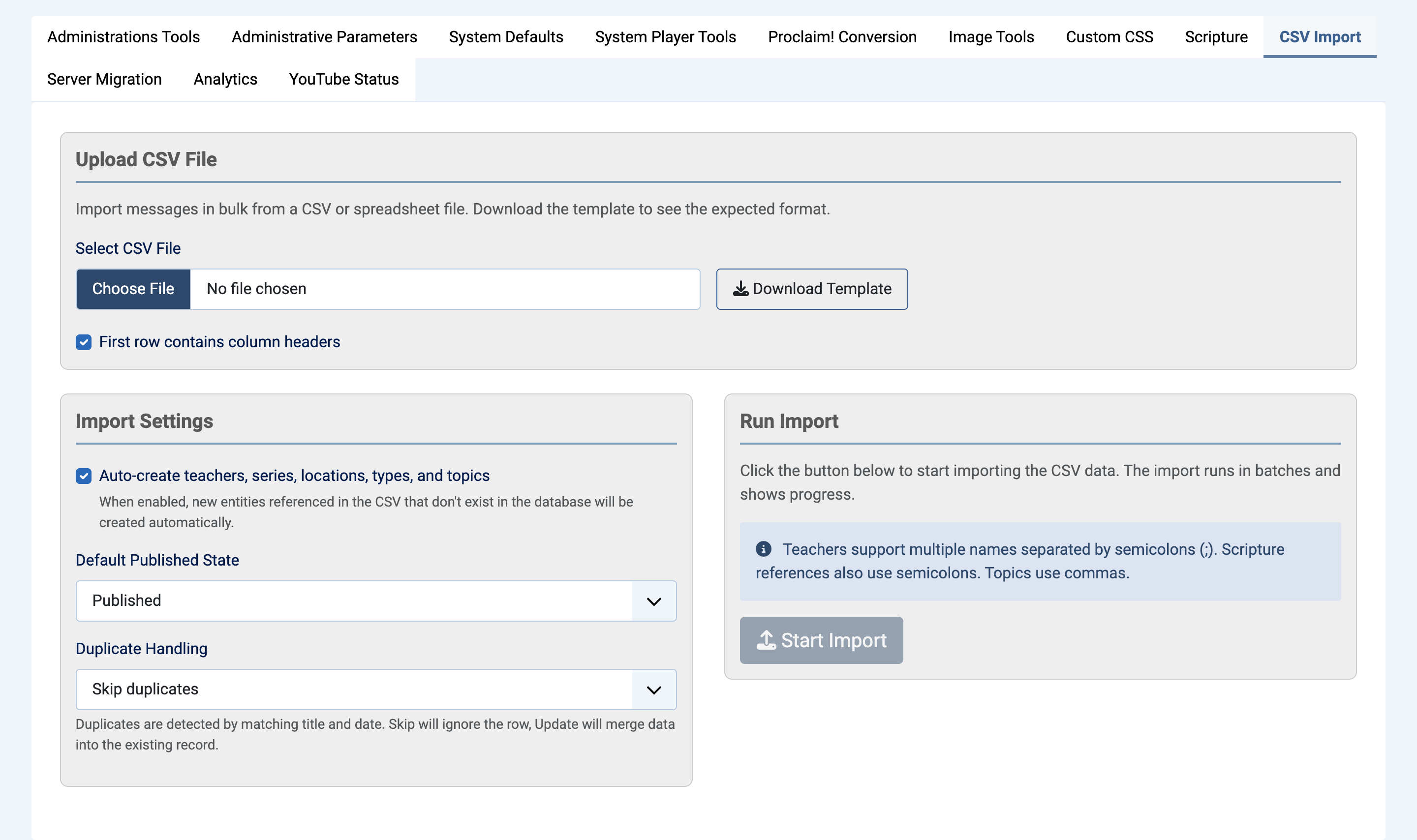
Bulk import of messages from a spreadsheet, creating teachers and series it does not already have. See Guide-Import-and-Migrate.
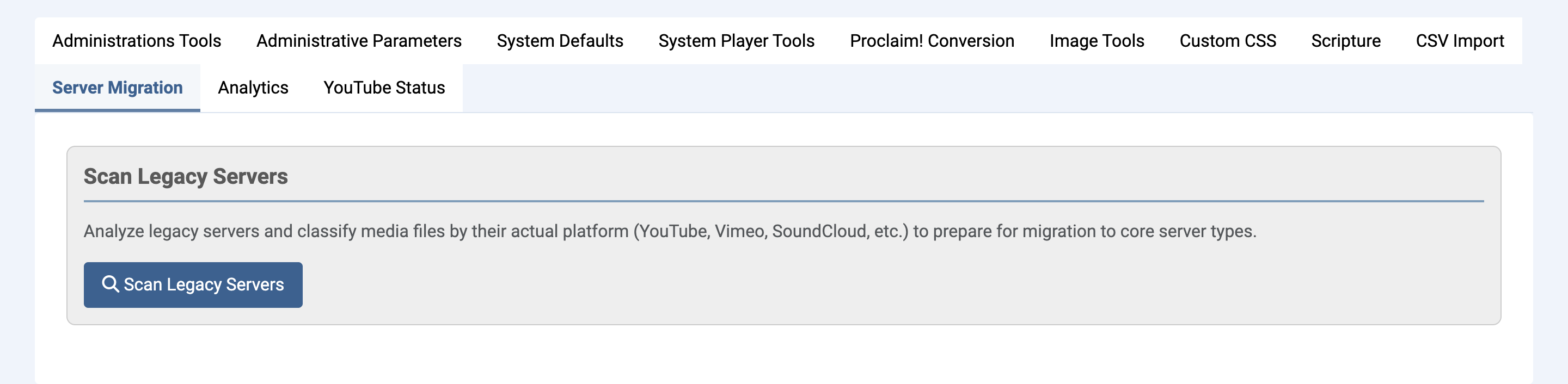
Moves media records from one server to another — for example when your recordings move from your own site to YouTube.
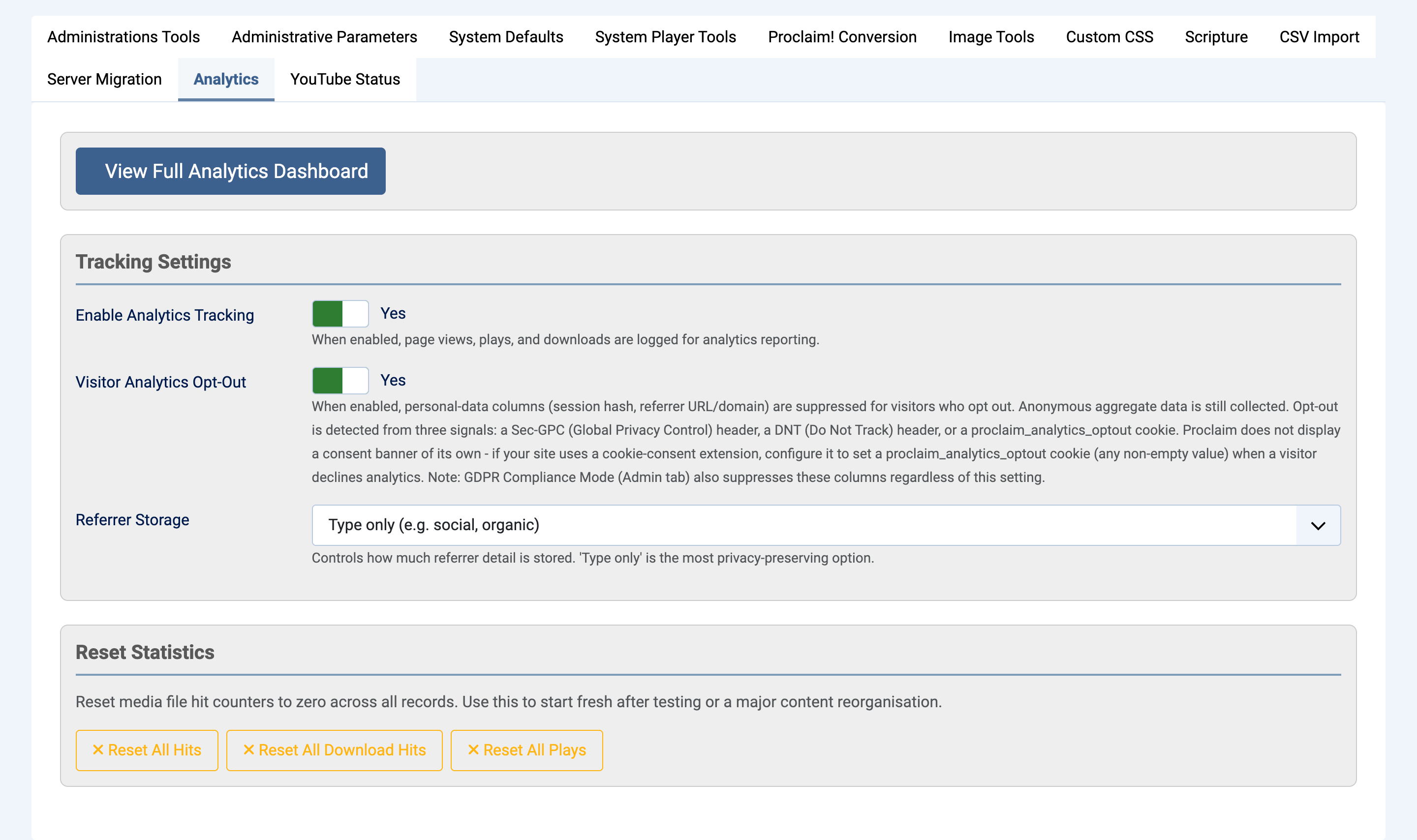
Views, media plays, downloads and podcast downloads over time. GDPR-aware, so visitors who opt out are not counted. Reports can be printed.
Your YouTube API quota and recent sync activity. Check here when YouTube data stops updating — a hit quota stops sync silently.
Toolbar
| Button | What it does |
|---|---|
| Save / Save & Close | Saves the settings on this screen |
| Options | Opens Joomla's Component Options for Proclaim |
| Section Permissions | Per-section permissions. See Help-cwmpermissions |
| Help | Opens this page |
Administrative Parameters tab
System Defaults tab
Custom CSS tab

CSV Import tab
Analytics tab
YouTube Status tab

Other tabs
Administrations Tools tab
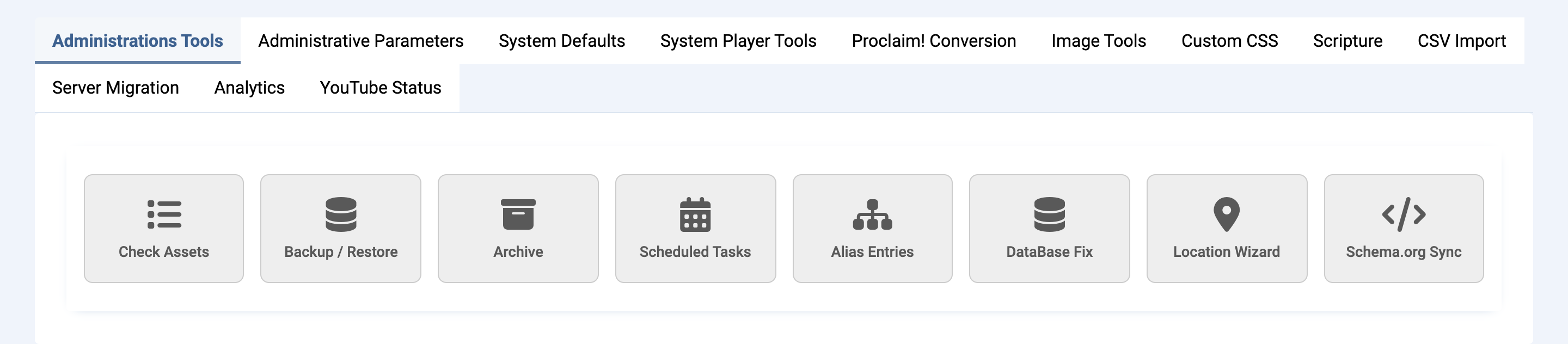
The maintenance buttons — DataBase Fix, Backup / Restore, Archive, Check Assets, Alias Entries, Location Wizard, Scheduled Tasks and Schema.org Sync.
- DataBase Fix and Check Assets never delete your content. When you are not sure what is wrong, they are safe first moves.
- Take a backup before updating Proclaim, before a large import, and before any upgrade.
- Proclaim has two settings screens: this one, and Joomla's Options via the toolbar. Custom CSS and most maintenance live here.
| What you see | What to check |
|---|---|
| A page errors after an update | Run DataBase Fix, then reload |
| Permissions behave oddly | Check Assets, then run Clean Up if counts are above zero |
| YouTube data stopped updating | YouTube Status — you have probably hit the daily quota |
| Analytics are empty | Tracking may be off in Options, or visitors have opted out |
- Guide-Maintain-Your-Site — a maintenance routine that works
- Help-cwmbackup — backup and restore
- Help-cwmarchive — archiving
- Help-cwmassets — permission records
- Help-cwmpermissions — per-section permissions
- Guide-Import-and-Migrate — CSV import, migration and upgrades