Repository navigation
Help message
The Message edit screen is where you create or edit a sermon, Bible study, or teaching message. Messages are the core content entity in Proclaim, bringing together teachers, scripture references, media files, series, topics, and more.
Components → Proclaim → Messages, then click New or click an existing message title.
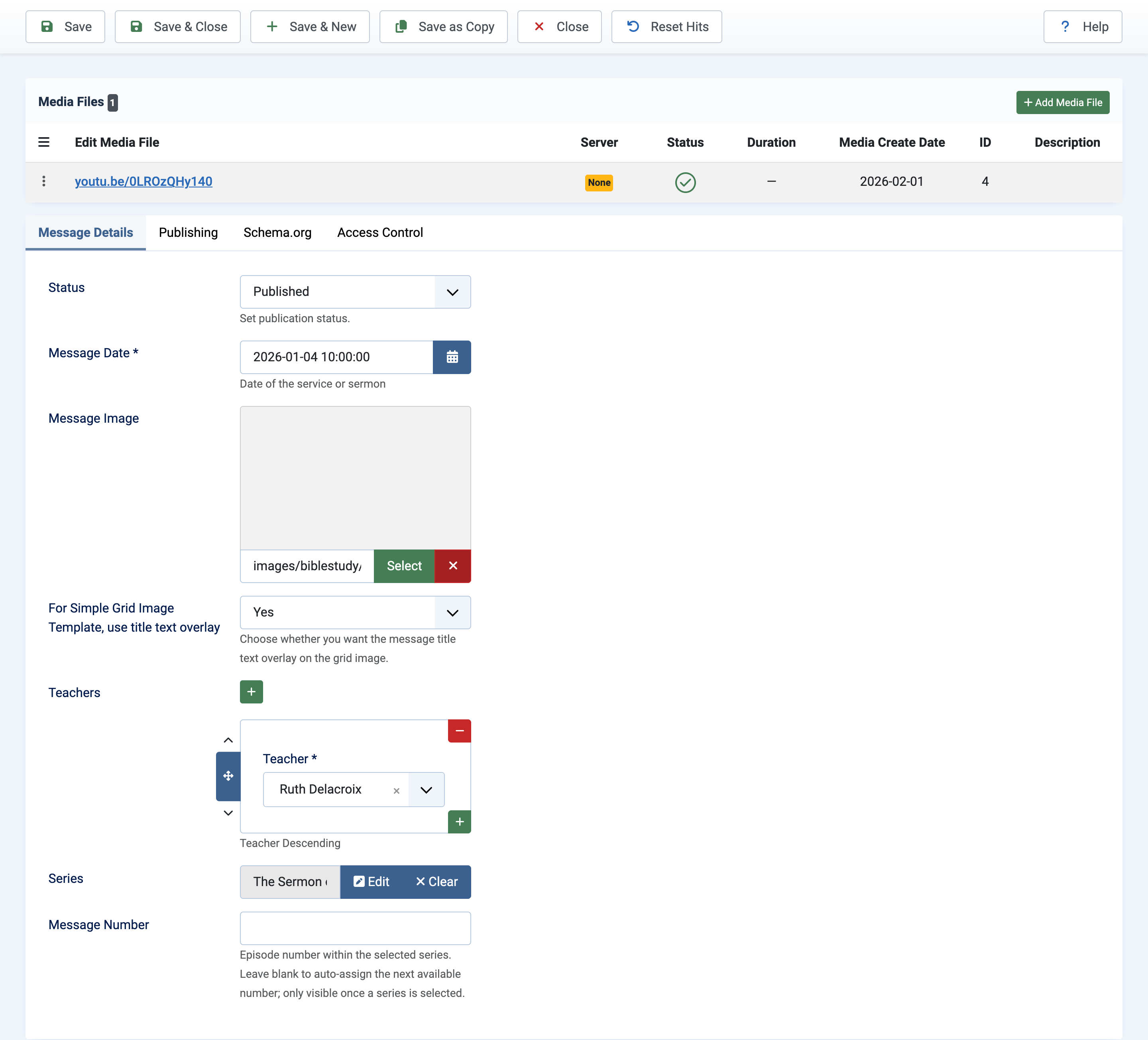
At the top of the edit screen, a collapsible card displays all media files attached to this message. For new (unsaved) messages, you must Save first before media files can be added.
| Element | Description |
|---|---|
| Add Media File | Opens the media file editor pre-linked to this message. Appears after the message is saved. |
| YouTube Sync | Syncs metadata from YouTube (appears only when a YouTube media file is attached). |
| Media Table | Shows each attached file with columns: Name, Server (color-coded badge), Status, Duration, Create Date, ID. Click a name to edit that media file. |
When an AI provider is configured in Component Options (Claude, ChatGPT, or Gemini), the AI Assist button appears at the top of the Details tab. It opens a modal that generates:
- Topic suggestions — AI-recommended topics based on the message title, scripture, and content
- Study Introduction — A generated summary you can review and apply
- Study Text — Generated study notes you can review and apply
- YouTube Chapters — Timestamp-based chapter markers (when YouTube media is attached)
Three checkboxes next to the button control which content types are generated: Topics, Introduction, and Study Text.
When a media file linked to this message uses a YouTube server, the YouTube Sync button appears. It opens a modal that can:
- Import YouTube video tags as topics (matched to existing topics or created as new ones)
- Import the video description into the Study Introduction
- Import YouTube chapter markers
When Simple Mode is enabled in Component Options, the message form is streamlined: the Item Information tab is hidden, AI Assist controls are hidden, and only essential fields are shown.
| I want to… | Go to |
|---|---|
| Create a sermon record | Fill in the essentials |
| Add scripture references | Add scripture |
| Attach audio or video | Attach media |
| Look up one field | Screen Reference |
Only three things are actually required:
- Title — what the sermon is called.
- Message Date — when it was given. This drives ordering on the site.
- Teachers — select + and choose at least one.
Everything else is optional and can be added later.
The Scriptures field is a repeatable list, one row per reference, up to twenty.
- Select + to add a row.
- Start typing a book name and choose from the suggestions.
- Enter the reference, for example
John 3:16-18. - Pick a Bible Version if you want the passage text shown.
Note
Only Bible versions with an active provider appear in the list. A short list means few providers are configured.
The Media Files card sits at the top of the form.
- Save the message first — the card cannot add files to an unsaved record.
- Select Add Media File, choose a Server, and fill in what it asks for.
- Save & Close to come back here.
Full detail: Help-mediafile · Guide-Add-Audio-and-Video
Toolbar
| Button | Action |
|---|---|
| Save | Saves and stays on the edit screen |
| Save & Close | Saves and returns to the messages list |
| Save & New | Saves and opens a blank form |
| Cancel | Discards changes and returns to the list |
| Reset Hits | Resets the hit counter for this message (existing messages only, requires edit permission). Displays a confirmation dialog since this cannot be undone. |
| Help | Opens this help page |
Message Details tab

The Details tab is the primary editing area, split into a left content column and a right sidebar column.
| Field | Description |
|---|---|
| Title | Required. The message title as it appears on the frontend. |
| Alias | URL-friendly slug. Auto-generated from the title if left blank. |
| Study Introduction | Short summary displayed in list views (rich text editor). |
| Scriptures | Repeatable subform for scripture references (see below). |
| Secondary Reference | Free-text field for additional scripture notes. |
| Study Text | Full message text/notes (rich text editor, full width below). |
The scripture field is a repeatable table where each row represents one scripture reference. Up to 20 references can be added per message.
| Column | Description |
|---|---|
| Scripture Reference | Free-text field with autocomplete. Type a book name (e.g., "John") and suggestions appear. Enter references like "John 3:16-18" or "Romans 8:28-30". |
| Bible Version | Dropdown of available Bible translations. Only translations with active API providers are shown. |
Working with scripture rows:
- Click the + (Add) button to add a new scripture row.
- Click the - (Remove) button on any row to delete it.
- Use the drag handle to reorder scripture references.
- The first scripture reference is treated as the primary reference for display.
| Field | Description |
|---|---|
| Hits | Read-only view count for this message. |
| Status | Published, Unpublished, Archived, or Trashed. |
| Study Date | The date the message was delivered or published. |
| Image | Message image via Joomla media picker. |
| Primary Teacher | Hidden legacy field (maintained for backward compatibility). |
| Teachers | Subform for assigning multiple teachers (see below). |
| Series | The sermon series this message belongs to. Uses a modal picker with Select (browse existing series), New (create a series without leaving the form), Edit (edit the selected series in a popup), and Clear buttons. |
The Teachers field is a repeatable table supporting up to 10 teachers per message.
| Column | Description |
|---|---|
| Teacher | Dropdown list of all published teachers. Select the teacher for this row. |
Working with teacher rows:
- Click the + (Add) button to add another teacher.
- Click the - (Remove) button to remove a teacher row.
- Use the drag handle to reorder teachers.
- The first teacher in the list is considered the primary speaker and is displayed prominently on the frontend.
- A message can have zero teachers (e.g., panel discussions) or up to 10.
Item Information tab
The Item Information tab contains classification, filtering, and metadata fields. This tab is hidden in Simple Mode.
| Field | Description |
|---|---|
| Location | Where the message was delivered. In multi-campus setups, this controls which campus sees the message. |
| Study Number | Optional reference number for the message (e.g., lesson number in a series). |
| Comments | Enable or disable visitor comments on this specific message. |
| Access | Joomla view access level. Controls who can see this message on the frontend. |
| Language | Language assignment for multilingual sites. |
| Topics | Tag-based subject classification. Multiple topics can be selected from the dropdown. |
| Suggest Topics | Button that uses AI to analyze the message content and suggest relevant topics. Matched existing topics can be added directly; new keyword suggestions can be created as new topics. |
| Message Type | Classification by format (e.g., Sunday Sermon, Wednesday Study, Devotional). |
| Thumbnail | Legacy thumbnail field (hidden, maintained for backward compatibility). |
Schema.org tab
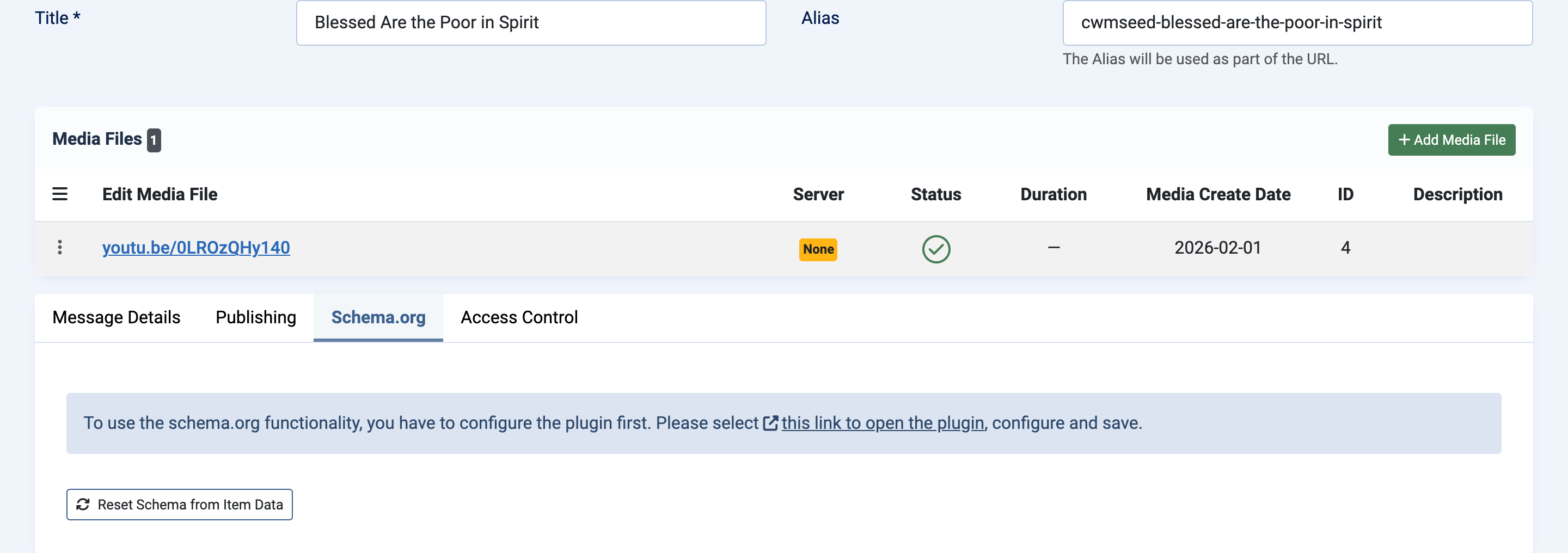
Structured data for search engines. Proclaim publishes each message as a
SermonPage so search results can show the speaker, date and series.
Values left blank fall back to the message itself.
Publishing tab
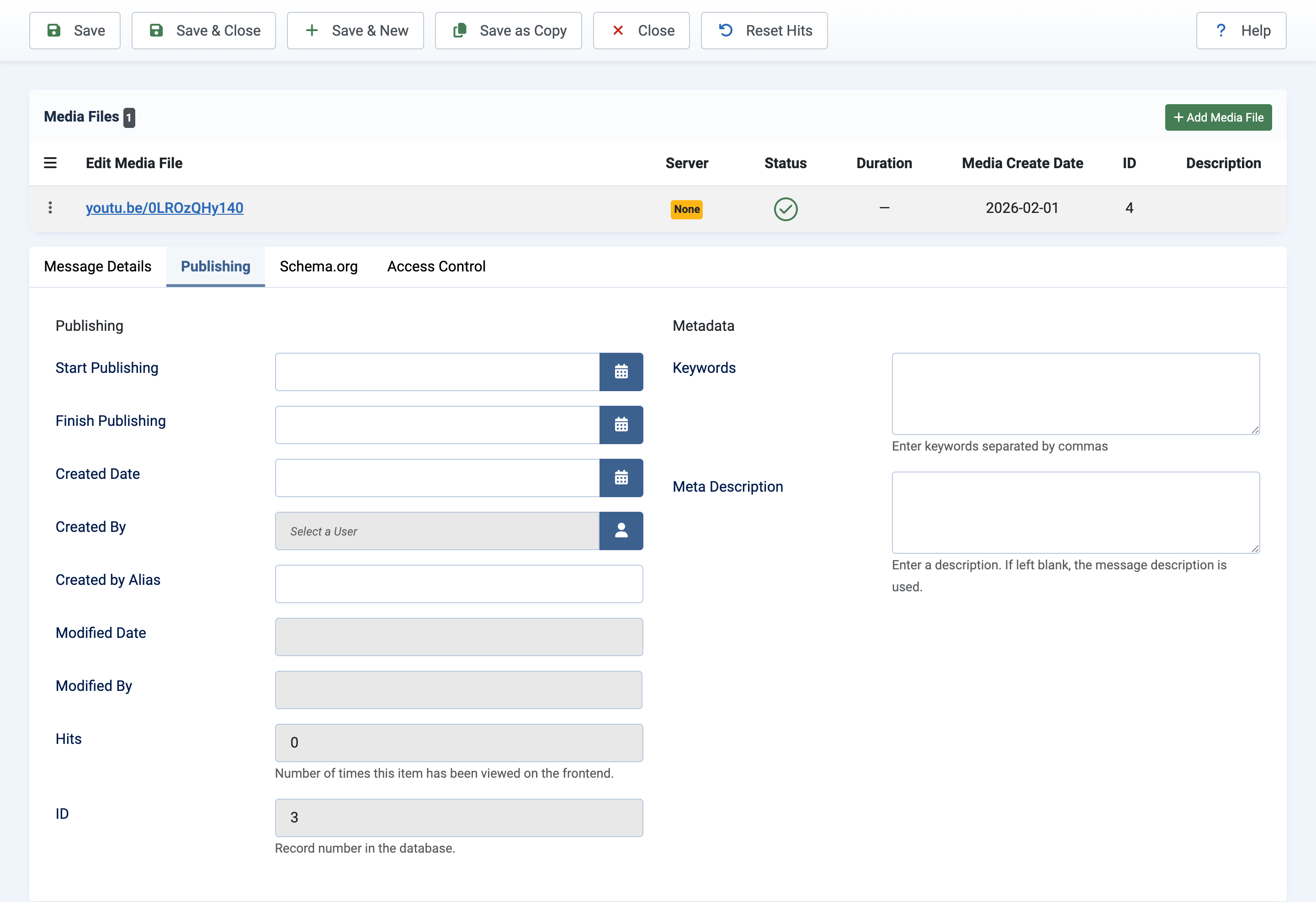
Standard Joomla publishing fields: Created Date, Created By, Created By Alias, Modified Date, Modified By, Publish Up/Down dates, Meta Keywords, Meta Description.
Access Control tab
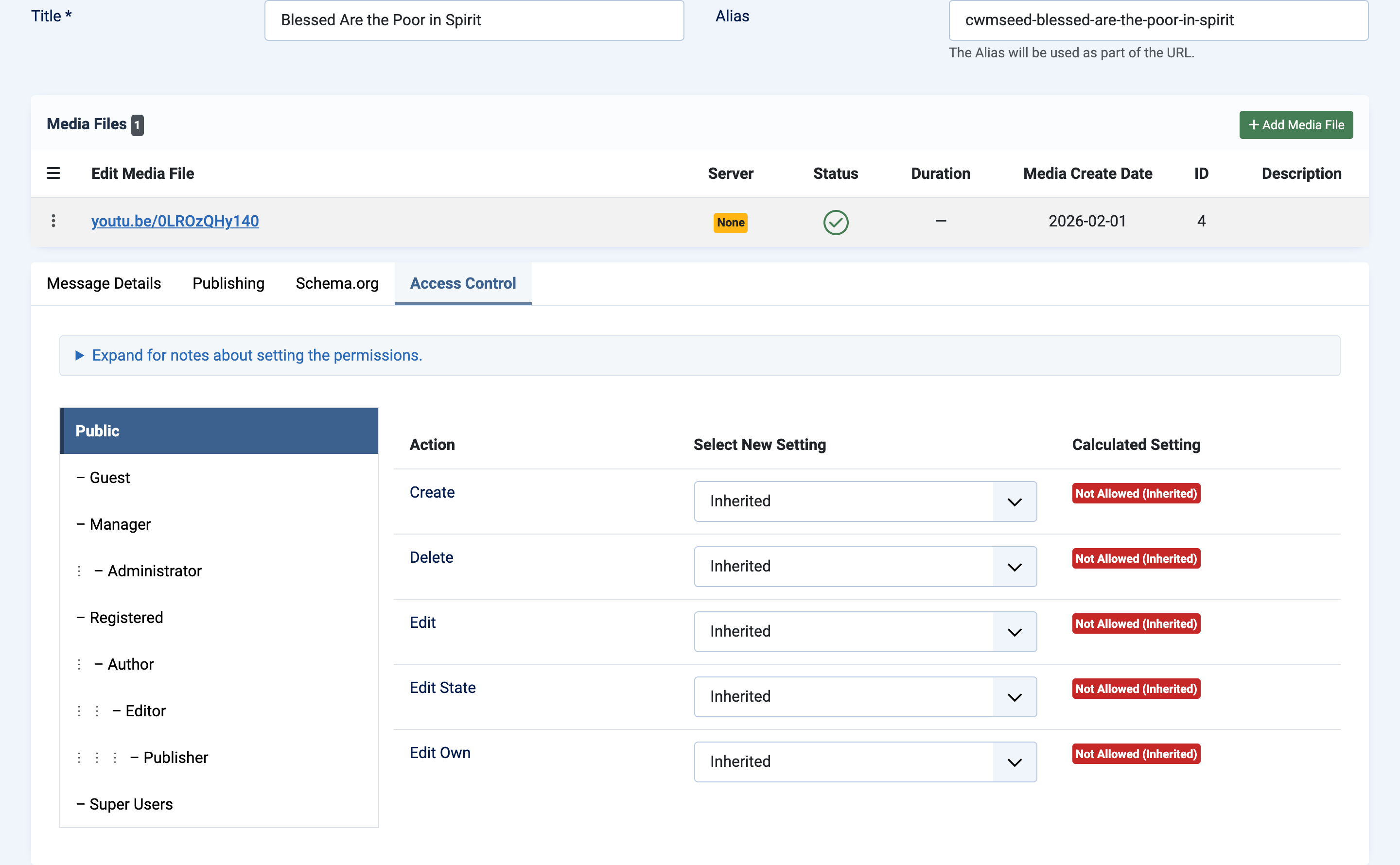
Per-item access control for Delete, Edit, and Edit State permissions. Only visible to users with core.admin permission.
- Save the message first before adding media files — the Add Media File button only appears after saving.
- Assign multiple teachers using the subform rows — the first teacher is considered the primary speaker.
- Use Topics liberally to help visitors find related content through filtering.
- The Study Introduction appears in list views; the full Study Text appears on the detail page.
- Scripture references support multiple entries via the repeatable subform — add as many as needed (up to 20).
- Use the Suggest Topics button on the Item Information tab for AI-powered topic recommendations.
- Help-messages — Messages list view
- Help-mediafile — Media file entry (attach media to messages)
- Help-teacher — Teacher entry
- Help-serie — Series entry
- Help-topic — Topic entry