Repository navigation
Help mediafile
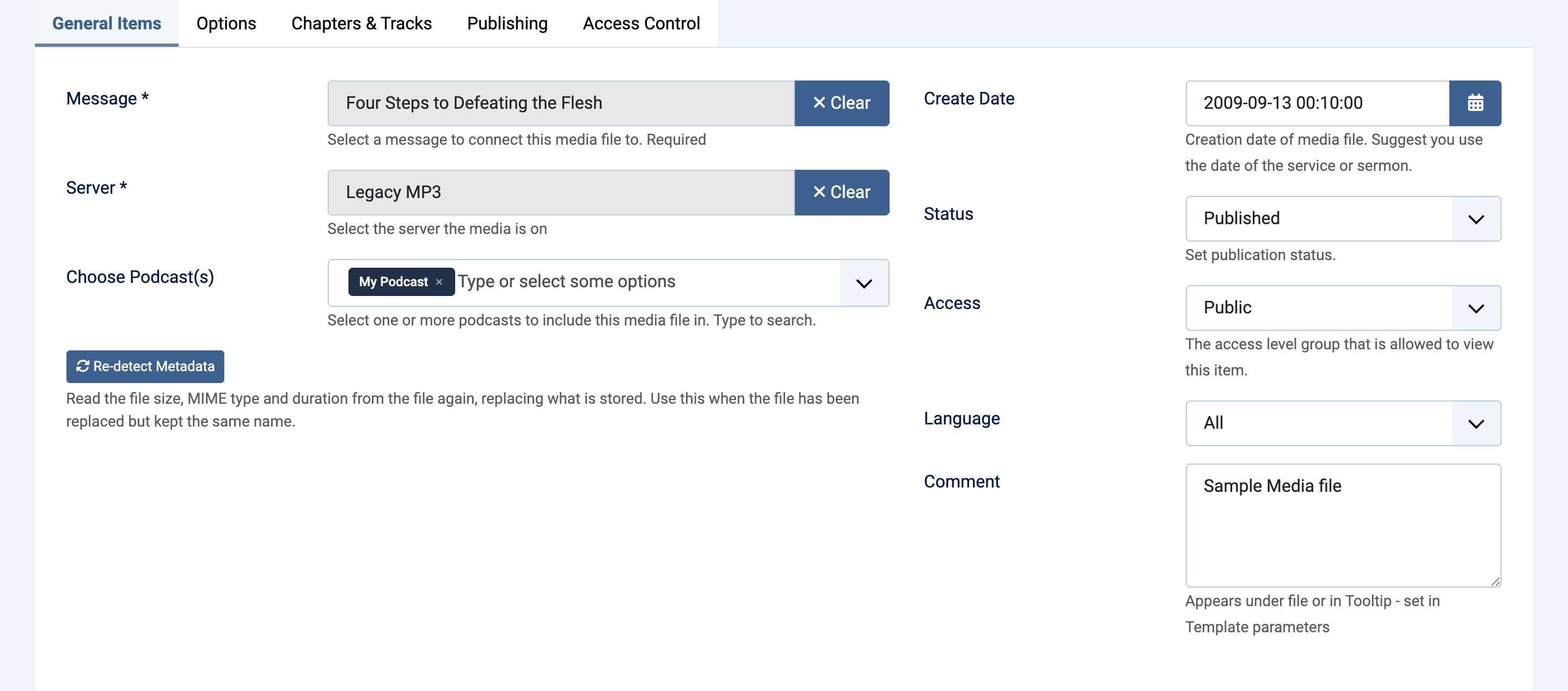
The Media File edit screen creates or edits a media file record. Media files are the content resources (audio, video, documents) attached to messages. The form dynamically adapts based on the selected server type, showing different fields for each hosting platform.
Components → Proclaim → Media Files, then click New or click an existing resource name.
| I want to… | Go to |
|---|---|
| Attach a recording to a message | Create the media file |
| Put it in a podcast | Add it to a podcast |
| Look up one field | Screen Reference |
- Choose the Study this recording belongs to.
- Choose the Server that hosts it. The form reloads with that server's own fields.
- Fill those in — a file for Local, a video ID or URL for YouTube.
- Fill in Duration and file size if you know them; visitors see both.
- Save & Close.
Set Podcast(s) to one or more podcasts and this recording becomes an episode in each of their feeds.
Full detail: Guide-Set-Up-Podcasting
Note
Access controls who sees the play button. It does not lock the underlying file, which stays reachable by its direct URL.
Toolbar
| Button | Action |
|---|---|
| Save | Saves and stays on the edit screen |
| Save & Close | Saves and returns to the media files list |
| Save & New | Saves and opens a blank form |
| Cancel | Discards changes and returns to the list |
| Help | Opens this help page |
General Items tab

| Field | Description |
|---|---|
| Study | Required. The message this media file belongs to (modal picker). |
| Create Date | Date the media file was created or uploaded. |
| Server | Required. The hosting platform. Changing this reloads the form with server-specific fields. |
| Podcast(s) | Multi-select to include this media file in one or more podcast RSS feeds. |
| Content Origin | Ministry content or externally sourced. |
| Status | Published, Unpublished, or Trashed. |
| Access | Joomla view access level. |
| Language | Language assignment. |
| Comment | Optional description shown near the media button on the frontend. |
Podcast downloads: When this media file belongs to a podcast that has Track Downloads enabled, each podcast-app download is counted (deduplicated per listener per 24 hours, bots excluded) and rolled into the Podcast Downloads total on the Analytics dashboard. See Podcast → Track Downloads.
Server-Specific Fields
Fields below the Server dropdown change based on the selected addon:
| Server Type | Key Fields |
|---|---|
| Local | Filename (file picker), File Size, Duration (HH:MM:SS) |
| YouTube | Video ID or URL, Duration (auto-detected via API) |
| Vimeo | Video URL (oEmbed auto-detection of title, duration, thumbnail) |
| Wistia | Video URL (oEmbed auto-detection) |
| Page video URL, Watch URL, fb.watch, Reels URL | |
| Rumble | Rumble video URL or embed code |
| Dailymotion | Dailymotion video URL |
| SoundCloud | Audio track URL |
| Resi | OAuth-authenticated stream or VOD |
| Direct Link | Full URL to media resource, MIME type |
| Google Drive | Google Drive file URL (Docs, Sheets, Slides, generic files) |
| Embed Code | Raw HTML embed code |
| Article | Joomla article reference |
| VirtueMart | VirtueMart product reference |
| DOCman | DOCman document reference |
| Legacy | Path-based file reference (older installations) |
Options tab

Server-addon-specific display and player settings:
| Field | Description |
|---|---|
| Media Image | Thumbnail/poster image for this media file |
| Button Display | None, Button, Button + Icon, or Icon only |
| Button Text | Custom label for the media button |
| Button Type | Bootstrap style (Primary, Success, Info, etc.) |
| Button Color | Custom color via ColorPicker |
| Icon Type | Icon to display alongside the button |
| Player Width/Height | Dimensions of the embedded player |
| Popup | Open media in a popup window |
| Autostart | Begin playing automatically |
Chapters & Tracks tab

| Field | Description |
|---|---|
| Chapters | Repeatable subform for chapter markers. Each row has Time (H:MM:SS or MM:SS) and Title. Chapters render as a clickable list below the player on the frontend. |
| Subtitle Tracks | Repeatable subform for VTT/SRT caption files. Each row has Label, Language Code (RFC 5646, e.g. "en"), VTT File URL (upload or external), and Kind (Captions or Subtitles). |
| Platform Import | When the media file's server supports it, buttons appear to Import Chapters or Download Captions from the platform (e.g., YouTube). |
Frontend behavior:
- Chapters render as clickable buttons below the player; clicking seeks to that timestamp
- Active chapter is highlighted during playback
- Subtitle tracks are added as
<track>elements on HTML5 video/audio for native browser captions - If a subtitle track is available, an interactive transcript panel renders below the player with click-to-seek, active cue highlighting, and search/filter
Publishing tab

Created Date, Created By, Modified Date, Modified By.
Access Control tab

Per-item access control for Delete, Edit, Edit State.
- Select the server first — the form fields change entirely based on server type.
- For YouTube, entering a valid video ID enables auto-detection of duration and metadata.
- For Vimeo, paste the video URL and metadata is fetched automatically via oEmbed.
- A single media file can belong to multiple podcasts via the multi-select field.
- The Access level on a media file is separate from its parent message — both must allow access.
-
Chapters use the
0:00 Labelformat recognized by YouTube, Vimeo, and most platforms for automatic chapter markers. -
Subtitle tracks support
.vtt(WebVTT) and.srtformats. Upload via the Browse button or enter an external URL. - When a media file is deleted, locally stored VTT caption files are automatically cleaned up from disk.
- Server-Addons — the fields each server type adds to this form
- Help-mediafiles — Media files list view
- Help-messages — Messages that media files attach to
- Help-server — Server configuration