Repository navigation
Help messages
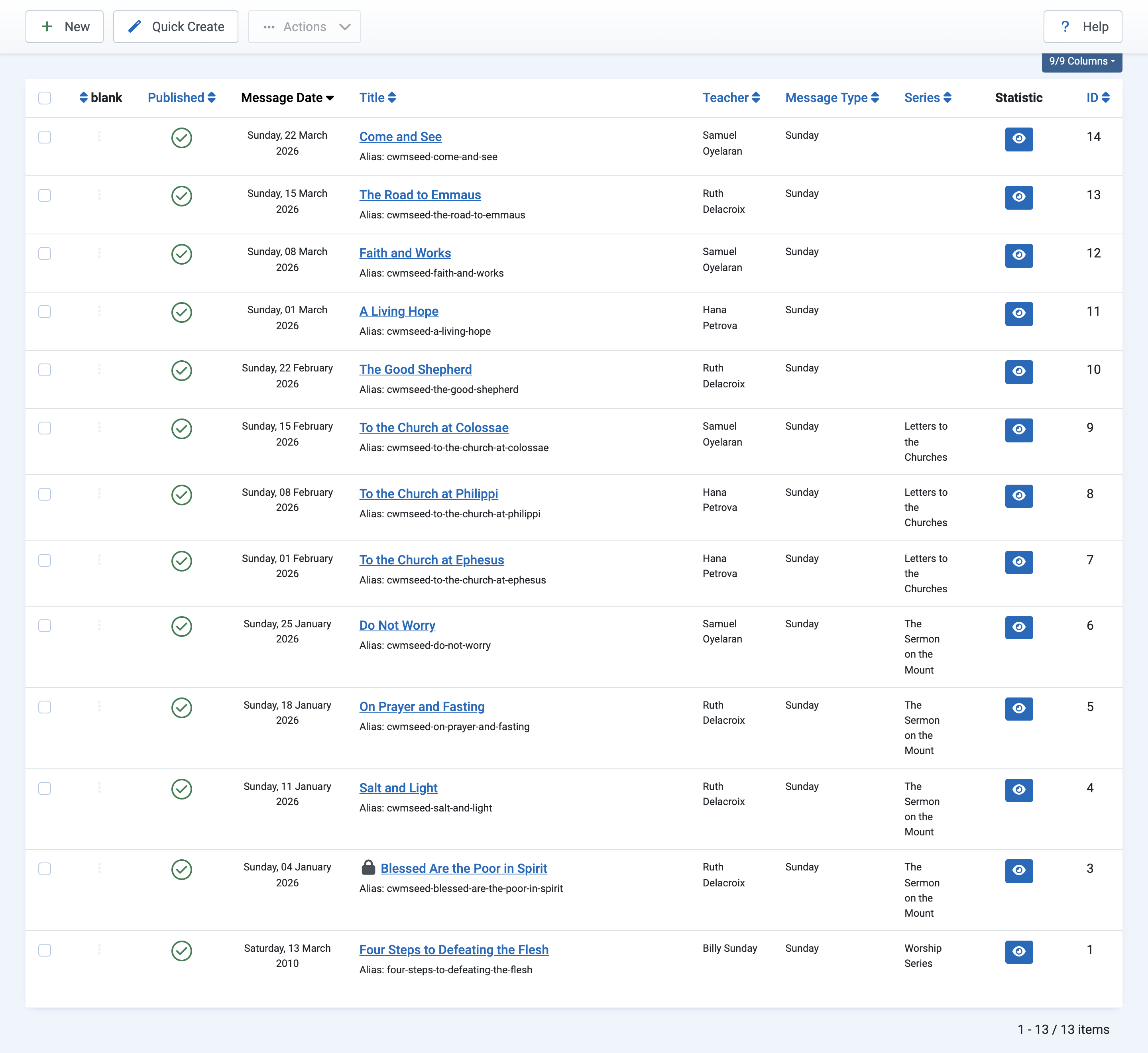
The Messages list view displays all sermons, Bible studies, and teaching messages in Proclaim. From this screen you can create, edit, publish, archive, and batch-process messages.
Components → Proclaim → Messages
| I want to… | Go to |
|---|---|
| Add a sermon | Add a message |
| Find one message among hundreds | Find a message |
| Change many messages at once | Change several at once |
| Look up a column or filter | Screen Reference |
- Select New.
- Fill in the Title and Message Date, and add at least one Teacher.
- Save, then use the Media Files card to attach audio or video.
- Save & Close.
Quick Create is the faster route when you only need a title, date and teacher — useful when catching up on a backlog.
Full detail: Help-message
- Type in the Search box to match titles. To jump to a known record, search
id:42. - Select Filter Options for teacher, series, topic, message type, location, year and status.
- Select a column heading to sort by it. Select again to reverse.
Tip
Set Status to All if a message seems to have vanished — it is usually unpublished, archived or trashed rather than gone.
- Tick the messages you want.
- Use Actions to publish, unpublish, archive, check in or trash them.
- Use Batch to set a teacher, series, topic, message type or location across all of them at once.
Important
Batch changes apply immediately to every ticked row and cannot be undone in one step. Check the selection before confirming.
Toolbar
| Button | Action |
|---|---|
| New | Opens a blank message form |
| Actions | Dropdown: Publish, Unpublish, Archive, Check In, Trash, Batch |
| Help | Opens this help page |
Columns
| Column | Description |
|---|---|
| Checkbox | Select items for batch operations |
| Ordering | Drag-drop handle for manual ordering |
| Status | Publication status icon (click to toggle) |
| Title | Message title (click to edit) |
| Teacher(s) | Assigned teacher name(s) |
| Series | Associated series name |
| Study Date | Date the message was delivered |
| Access | Joomla view access level |
| ID | Unique database identifier |
Filters
| Filter | Description |
|---|---|
| Search | Free-text search (supports id: syntax for ID lookup) |
| Status | Published, Unpublished, Archived, Trashed, or All |
| Teacher | Filter by specific teacher |
| Series | Filter by specific series |
| Message Type | Filter by message classification |
| Year | Filter by study date year |
| Location | Filter by location (multi-campus) |
| Access | Filter by view access level |
| Language | Filter by language |
Batch Operations
Select one or more messages, then click Actions → Batch:
| Option | Description |
|---|---|
| Language | Change language assignment |
| Access Level | Change view access level |
| Teacher | Assign a different teacher |
| Series | Move to a different series |
| Message Type | Change the message classification |
| Location | Assign to a different location |
- Use the
id:123search syntax to quickly find a message by its database ID. - Click column headers to sort by that column.
- In multi-campus deployments, non-super-admin users only see messages matching their authorized view levels.
- Help-message — Message edit form
- Help-mediafiles — Media files list
- Help-teachers — Teachers list
- Help-series — Series list