Repository navigation
Help comment
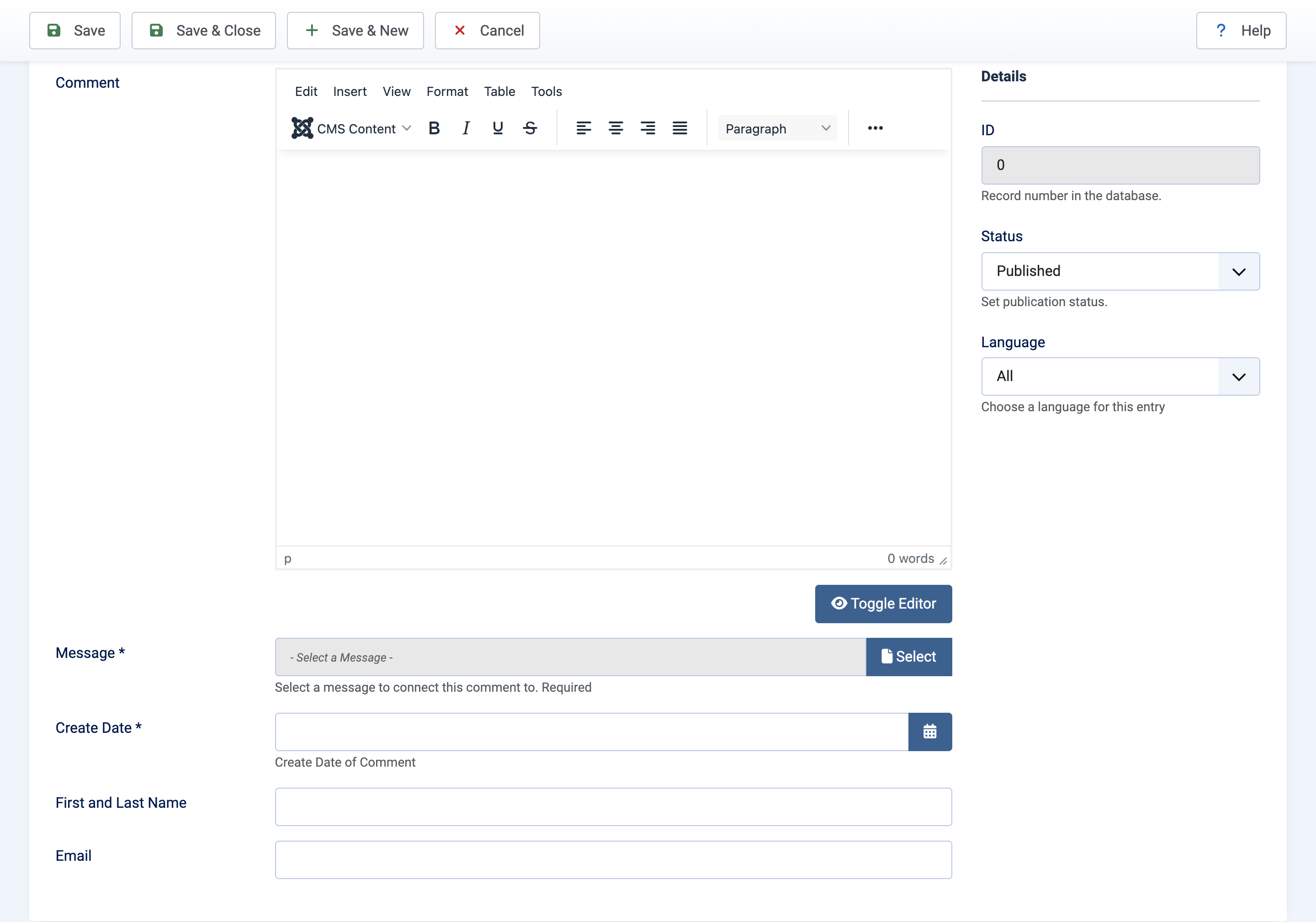
The Comment form creates or edits a comment associated with a specific message. Comments provide feedback and discussion on individual sermons. This form also serves as the moderation interface for reviewing submitted comments.
Components → Proclaim → Comments, then click New or click an existing comment.
| I want to… | Go to |
|---|---|
| Read and edit what a visitor wrote | Review the comment |
| Look up one field | Screen Reference |
- Read the comment text in full.
- Correct it if you need to — you are allowed to, but light-touch editing keeps trust.
- Set Status to Published to show it, or trash it.
- Save & Close.
Note
Editing someone's words and then publishing them under their name is worth doing sparingly. Trashing is usually the fairer option.
Toolbar
| Button | Action |
|---|---|
| Save | Saves and stays on the edit screen |
| Save & Close | Saves and returns to the comments list |
| Cancel | Discards changes and returns to the list |
| Help | Opens this help page |
Fields
| Field | Description |
|---|---|
| Study | Required. The message this comment belongs to (modal picker). |
| Full Name | Name of the commenter. |
| Commenter's email address. | |
| Comment Text | The comment body (editor). |
| Comment Date | Date and time the comment was submitted. |
| Status | Published (approved) or Unpublished (pending/rejected). |
| Language | Language assignment. |
Details tab

The comment text and who wrote it.
Access Control tab
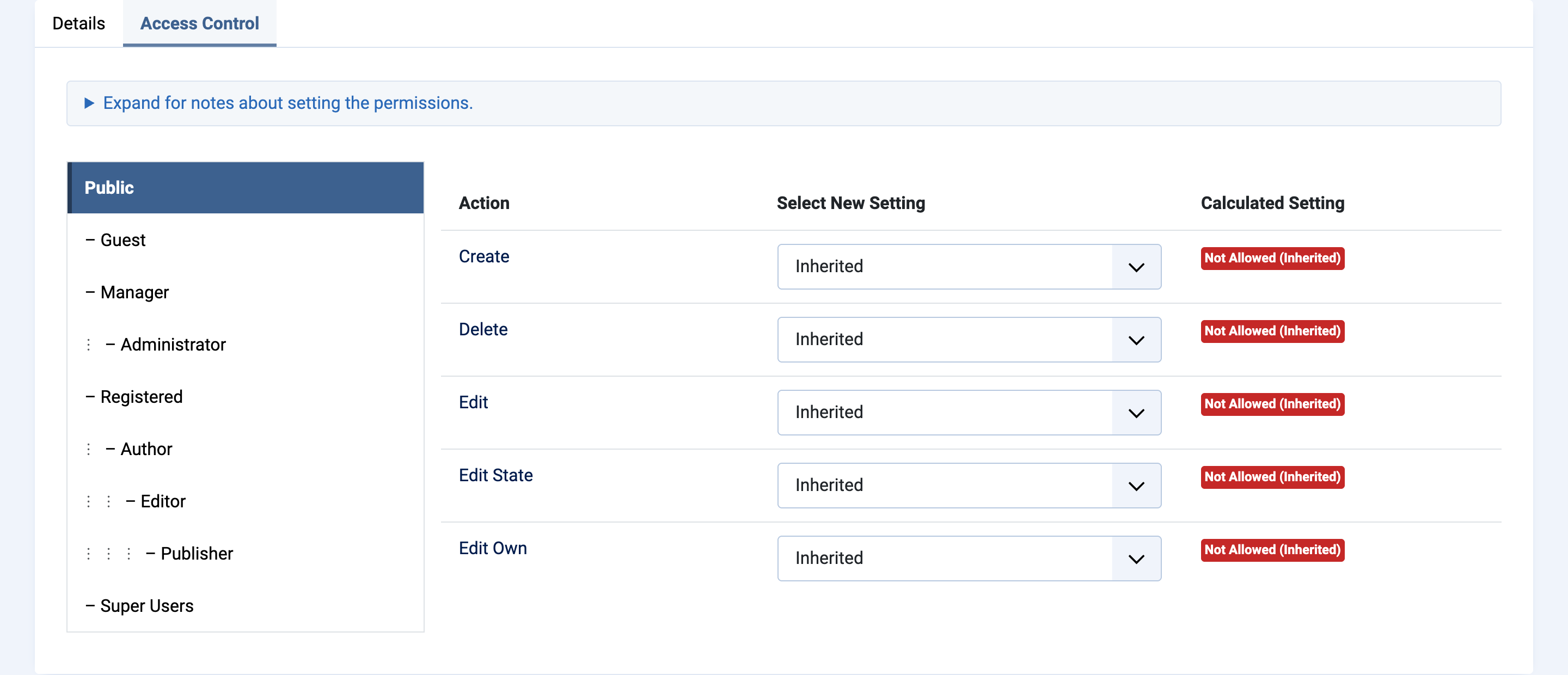
Who may view and edit this comment.
- Use Status to moderate comments: Published = visible, Unpublished = hidden.
- Setting a comment to Unpublished hides it without deleting it, allowing you to reconsider moderation decisions.
- Review pending comments regularly to keep discussions active.
- Help-comments — Comments list (moderation interface)
- Help-message — Message edit form