Repository navigation
Creator Model
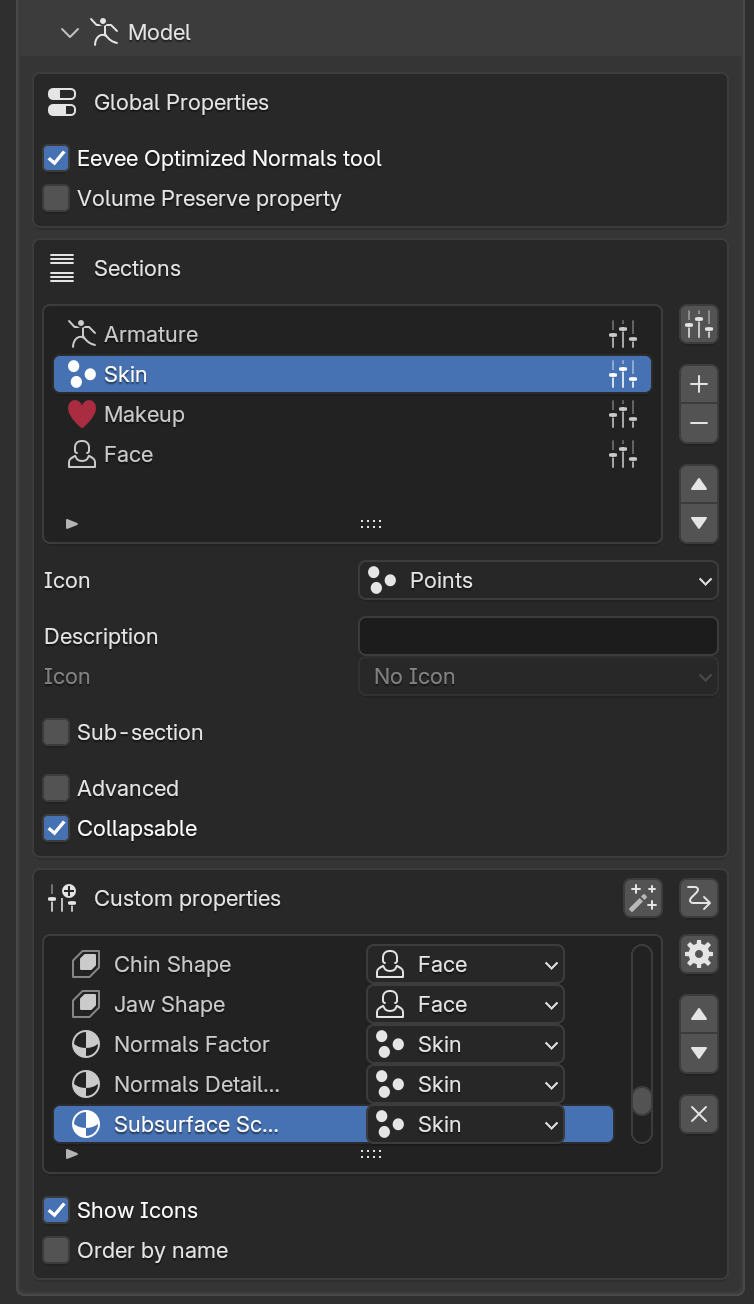
The Model panel contains the model-wide settings and the Custom Properties of the model, organized in Sections. Custom Properties can point to anything in the model (body, outfits, materials, other objects), not only to the Body.
Global Properties add buttons to the user UI that switch on/off settings affecting the whole model:
- Eevee Optimized Normals — switch the materials to optimized Normal nodes, faster in the Eevee Viewport.
- Volume Preserve — toggle the Preserve Volume option of the Armature modifiers of the model.
Note
The Eevee Optimized Normals tool modifies the Normal nodes of all materials in the scene. It should be disabled when using Cycles to avoid rendering artifacts.

You can add Custom Properties to the Model panel. To do this:
- Enable Configuration Mode.
- Right-click any Blender property. A menu like in the picture will appear.
Available options:
-
Add to MustardUI Properties Adds the property to the Model panel, either without a Section or directly in one of the existing Sections.
-
Add to MustardUI Outfit/Hair Adds the property to a specific outfit, outfit piece or hair. See Outfits Custom Properties.
-
Link to Property Links the selected property to an existing MustardUI property. Useful to create one UI control that modifies multiple linked properties. Only properties of the same type can be linked (e.g., BOOLEAN → BOOLEAN). The existing properties are grouped in submenus (Properties sections, Outfits and Hair), to find them quickly.
Tip
The minimum and maximum values given to new Float and Int properties can be set in the add-on settings (Developer Settings → Limits of new Properties): use the limits of the property, always 0 to 1, or a mix of the two. They can always be changed later in the property settings.

Sections allow you to organize custom properties in the Model panel.
It is also possible to flag a Section as Sub-Section, which will be shown in the UI accordingly. This can be done only if there is a Section above the current in the Sections list. Moving any Sub-Section above the parent Section will disable its status of Sub-Section.
Note
The section box appears only if at least one additional property has been added.

With the Assign button as in the image, Custom properties can be assigned to Sections.
- Each property can belong to only one section.
- Properties not assigned to a section appear at the top of the Model panel.

After adding properties to MustardUI, you can modify them in the Configuration menu.
From this panel you can:
- Use Custom Properties Smart Check (magnifying glass icon)
- Fix the paths of the properties (driver icon), see Troubleshooting
- Modify the order of properties
- Delete properties
- Change settings based on property type, see panel below
Additional options:
- Show icons in the UI (not recommended if using sections)
- Sort properties by name instead of list order
Note
Properties without a Section are shown at the top of the Model panel, in a Properties box. They are not considered an error.
Warning
If some custom properties show a Warning icon, it might be that the paths are corrupted. Please check the Troubleshooting guide to solve these issues.

In this panel several settings related to single custom properties can be modified.
At the bottom, it is also possible to manually modify the path of the custom property if Debug is enabled in the addon settings.
Note
To apply the changes to the custom property path, rebuild the custom properties.
This operator automatically adds properties from your materials or shape keys to the UI.
Important
Follow the MustardUI naming convention for nodes/shape keys:
-
Shape Keys:
-
"MustardUI Float - PropertyName"for float properties -
"MustardUI Bool - PropertyName"for Boolean properties
-
-
Material Values:
- Value node:
"MustardUI Float - PropertyName"or"MustardUI Bool - PropertyName" - RGB node:
"MustardUI - PropertyName"(for color)
- Value node:
The Re-build Custom Properties button in the Development panel (Developer Tools enabled) recreates all the custom properties and their drivers from the stored settings. With Keep Current Values (enabled by default) the current value of every property is restored after the rebuild; if disabled, all the properties are reset to their default value.