Repository navigation
Model Toolkit Outfits
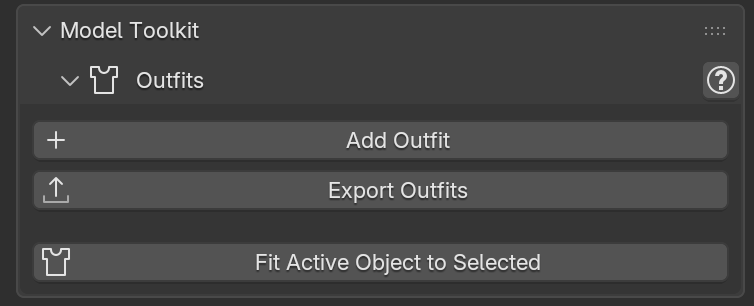
Tools to add, share and fit outfits on a model.
Adds the selected Objects to the model, ready to use:
- Select the outfit Objects (e.g. imported or modelled for the model).
- Click Add Outfit and choose where to add them:
- New Outfit — create a new Outfit. Enable One Outfit per Collection to create an Outfit for each collection of the selected Objects, named after it.
- Outfit — add the pieces to an existing Outfit.
- Extras — add the pieces to the Extras.
- Review the list of pieces: each piece can be renamed, and Objects parented to a piece are kept as its children.
The tool can also prepare the pieces to follow the body:
- Transfer Weights — transfer the weights of the deform bones from the body. With Overwrite, the deform bones Vertex Groups already on the pieces are replaced.
- Transfer Shape Keys — transfer the body Shape Keys (e.g. body morphs) to the pieces, choosing them from a list. See Transfer Shape Keys for the options, including Link.
- Fit to Body — push the parts of the pieces clipping through the body out of it, as a Shape Key or applied to the mesh. See Fit to Body.
- Corrective Smooth and Shrinkwrap — add these modifiers after the Armature modifier.
- Rebind Modifiers — bind again, in rest pose, the Surface Deform modifiers of the pieces.
Appends Collections or Objects from another .blend file and adds them to the model as Outfits, with the same options as Add Outfit. It is also available as the Import button next to the Outfits list in the user Outfits panel.
- Import Custom Properties — add the Outfit custom properties of the pieces, if appended from a file written by Export Outfits.
- Remove Broken Drivers — remove the drivers of the appended data that use something missing in the current file.
Exports Outfits and Extras pieces to a .blend file, together with their custom properties, so they can be added to another model with Add Outfit from File.
- One File per Item — write each Outfit and Extras piece to its own file.
- Pack Images — pack the images in the file, to share it without the texture files.
- Compress — write a compressed .blend file.
- Delete Exported — delete the exported Outfits and Extras pieces from the model after the export.
Fits the Active Object (e.g. an outfit) to the other selected Objects (e.g. the body), pushing out the parts clipping through them. This is a live preview tool.
Main settings:
- Result — create a Shape Key with the fit, or apply it to the Mesh and all its Shape Keys.
- Skin Distance — minimum distance of the outfit from the body.
- Pull Distance — pull towards the body the outfit parts within this distance from it, for a tighter fit.
- Max Depth — maximum clipping depth to consider. Increase it if some vertices are not pushed out.
- Body Vertices — also consider the body vertices passing through the outfit faces.
- Smooth, Stiffness and Iterations — how much the fit is spread on the neighbouring vertices, and how much the outfit keeps its shape.
- Smooth Sharp Features — smooth the sharp creases of the outfit near the body (e.g. steps under a strap).
- Self Collisions — keep the outfit layers on the side they had before the fit.
- Vertex Group and Rigid Vertex Group — restrict the effect, and move the rigid parts (e.g. buttons) without deforming them. Enable Child Objects to move the meshes parented to the outfit too.
- Auto Influence — restrict the effect around the intersections between the meshes.
Tip
Use Fit to Body before Accessory Physics if the accessory intersects the body.