Getting Started
Everything below assumes Minecraft 1.21.1 with NeoForge 21.1.249 or newer, on Java 21.
Drop workbay-neoforge-1.21.1-<version>.jar into mods/ on both the client and the server. There is no library mod to add.
Optional, and worth having:
- JEI or EMI - lets you drag an ingredient straight into a link filter.
- Mekanism - adds chemical links, and is tested against every Workbay build.
4 glass, 4 Shopsteel and an ender pearl. That is deliberately cheap: the Workbay is meant to arrive around the time you build your first furnace, not as an endgame block.
Everything beyond the block itself - upgrades and Rooms - is built on a Housing: four Shopsteel, four obsidian and an Eye of Ender. There is only one Housing and only one recipe for it; what changes between upgrades is the single item in the middle of the frame.
Put a Housing in your inventory and every upgrade and Room recipe appears in your recipe book. (JEI and EMI list them from the start regardless.)
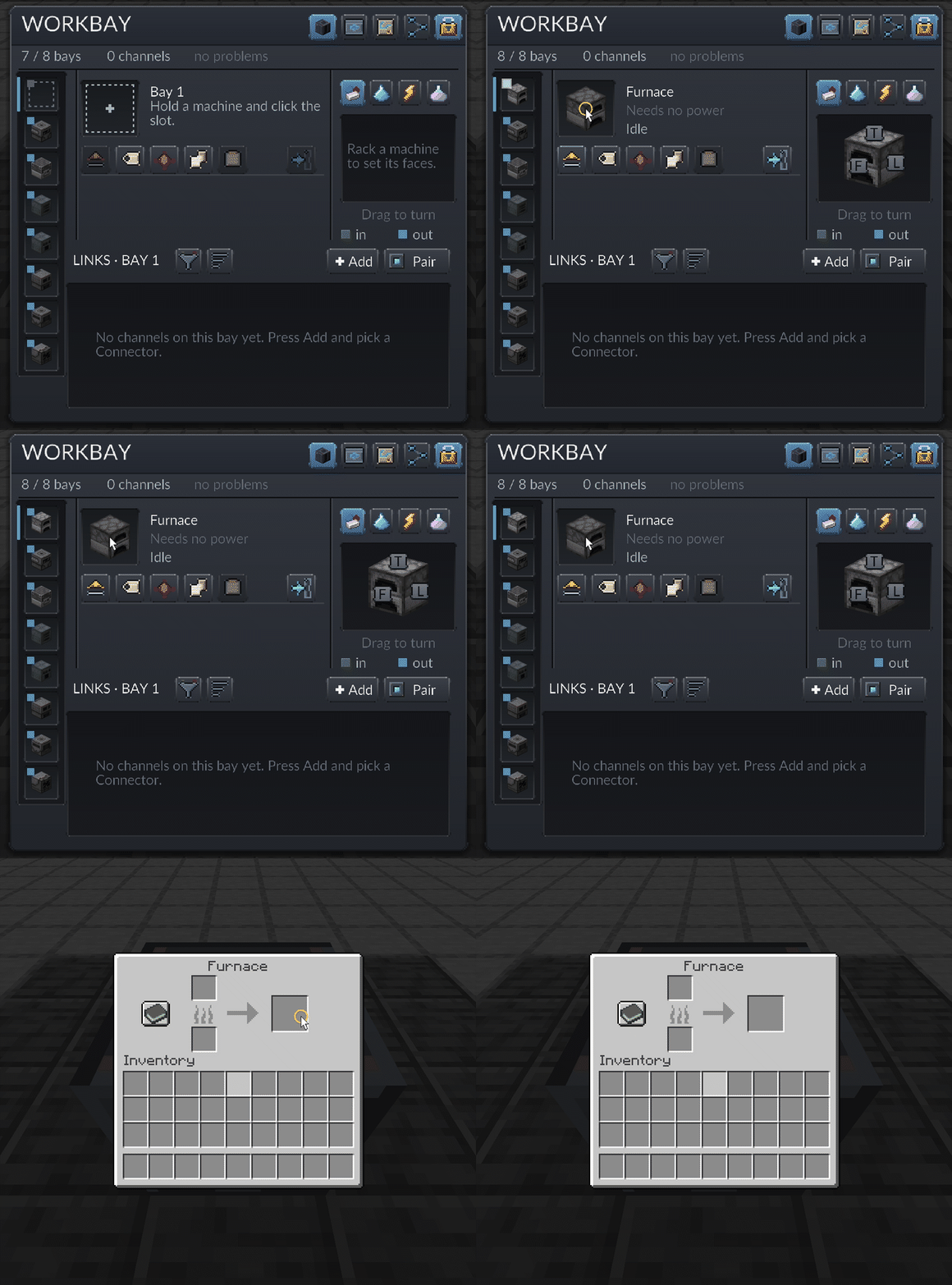
- Place the Workbay and right-click it.
- Hold the machine you want hosted - a furnace, a Mekanism machine, most single-block machines from any mod.
- Pick an empty bay in the left column, then click the large dashed slot beside the machine name.
The machine is now in the private dimension. It is the same block entity it was on the floor: same recipes, same speed, same behaviour. Select its bay and press Open its screen, and the machine's real screen opens from where you stand.
If a server has turned
remoteScreensoff inconfig/workbay-mixins.properties, that button reads Enter bay instead and walks you to the machine. See Server Configuration.
A fresh Workbay has two bays. Each Expansion Plate upgrade adds one, up to a ceiling of eight - see Items.
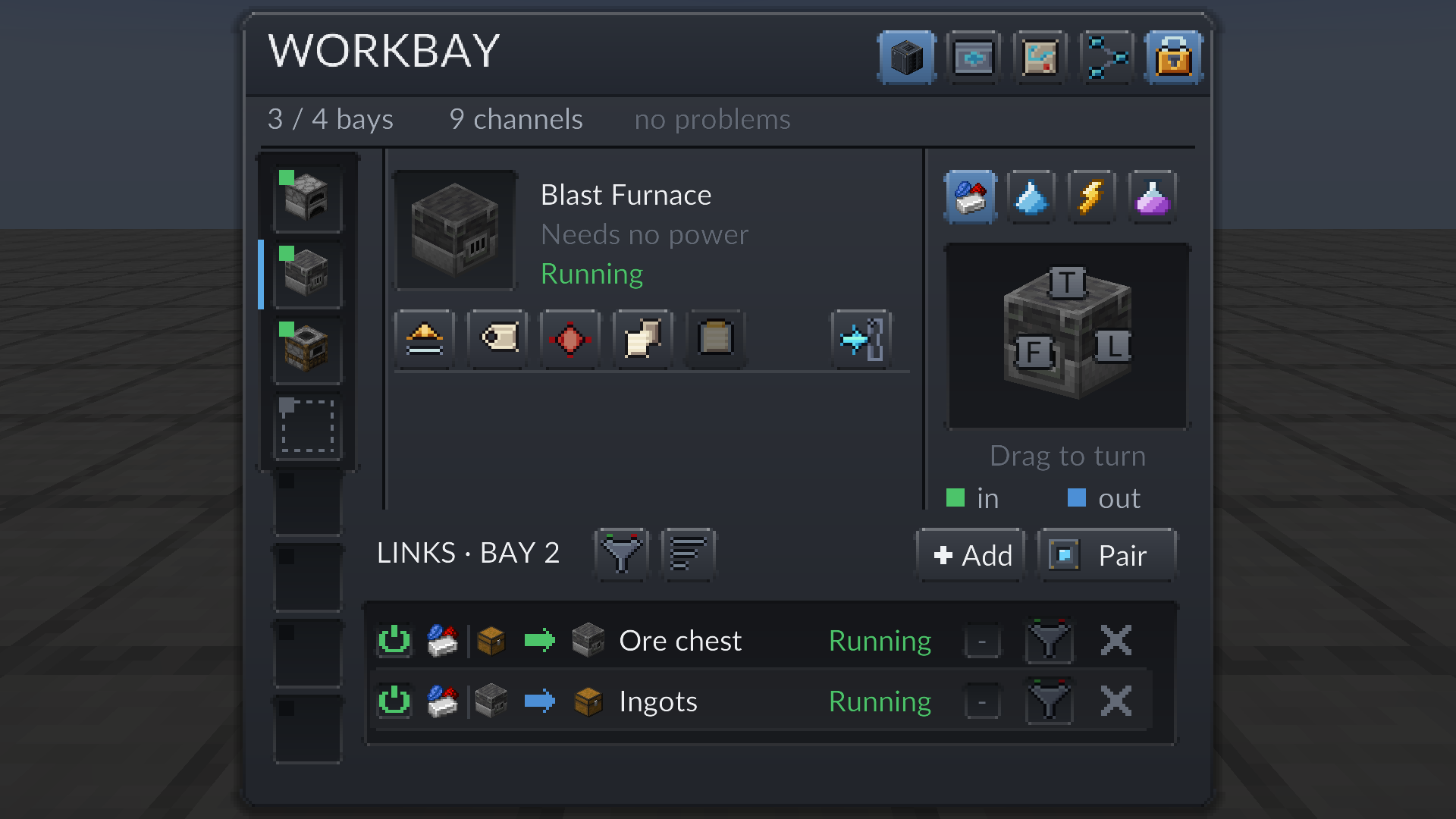
| Part | What it shows |
|---|---|
| Top line | Bays used, how many channels exist, and whether anything is wrong - 8 / 8 bays, 1 channel, no problems. The channel count is every configured channel, not only the moving ones. |
| Left column | One entry per bay. The small square is that bay's state: green running, blue idle, amber no ports, grey empty, dark locked. |
| Centre | The racked machine, whether it needs power, and its state - Running in green when it is working. |
| Face cube | One set of faces per resource. Drag to look at the block from another angle; click a face to cycle it in (green), out (blue) or off. Leave every face unset and links use whichever face answers. |
| LINKS | The channels on the selected bay, with Add to create one and Pair to pair a held Connector. |
The icons in the top-right corner switch screens.
- UPGRADES - more bays, faster links, cross-dimension links, chunk loading. See Items.
- FLOW - the whole network drawn as a map. See Connectors and FLOW.
- NETWORKS - which network this block is holding, and how to move one between blocks. A Workbay holding no network opens straight here. See Networks and Locking.
Every item in the mod explains itself in its tooltip when you hold Shift.
If a block will not go into a bay, ask the game:
/workbay why <block id>
It answers whether that block can be hosted, and if not, which rule stopped it. See Machines and Bays.
Next: Machines and Bays and Connectors and FLOW.

 Playing
 Running a server
 Developing
 Help
Help