Panadapter and Waterfall
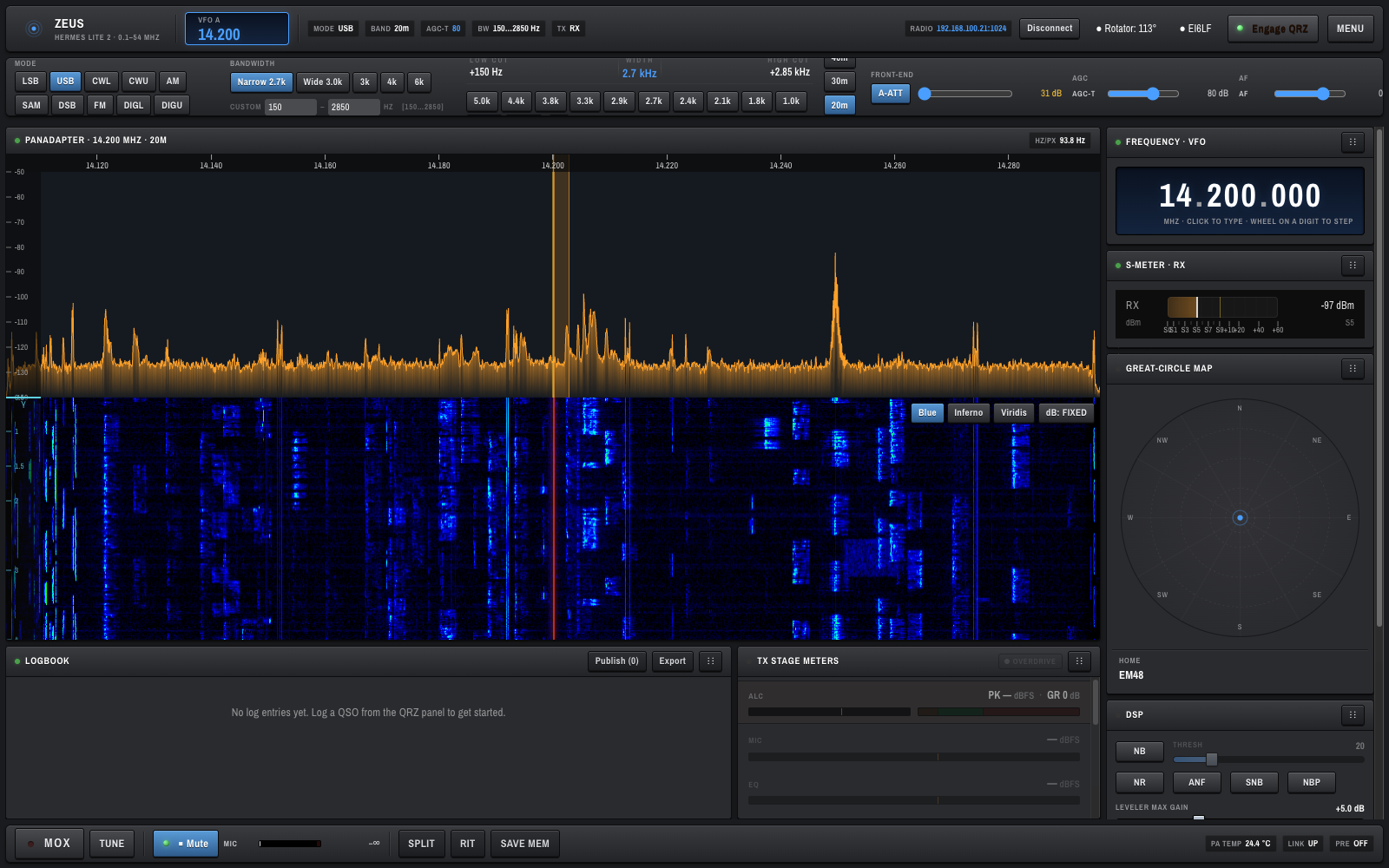
The hero panel in the middle of the window is split into two stacked displays:
-
Panadapter (top) — a live WebGL spectrum plot of the RF around the VFO, in OpenHPSDR Zeus's signature amber
#FFA028. - Waterfall (bottom) — a scrolling coloured history of the same spectrum.
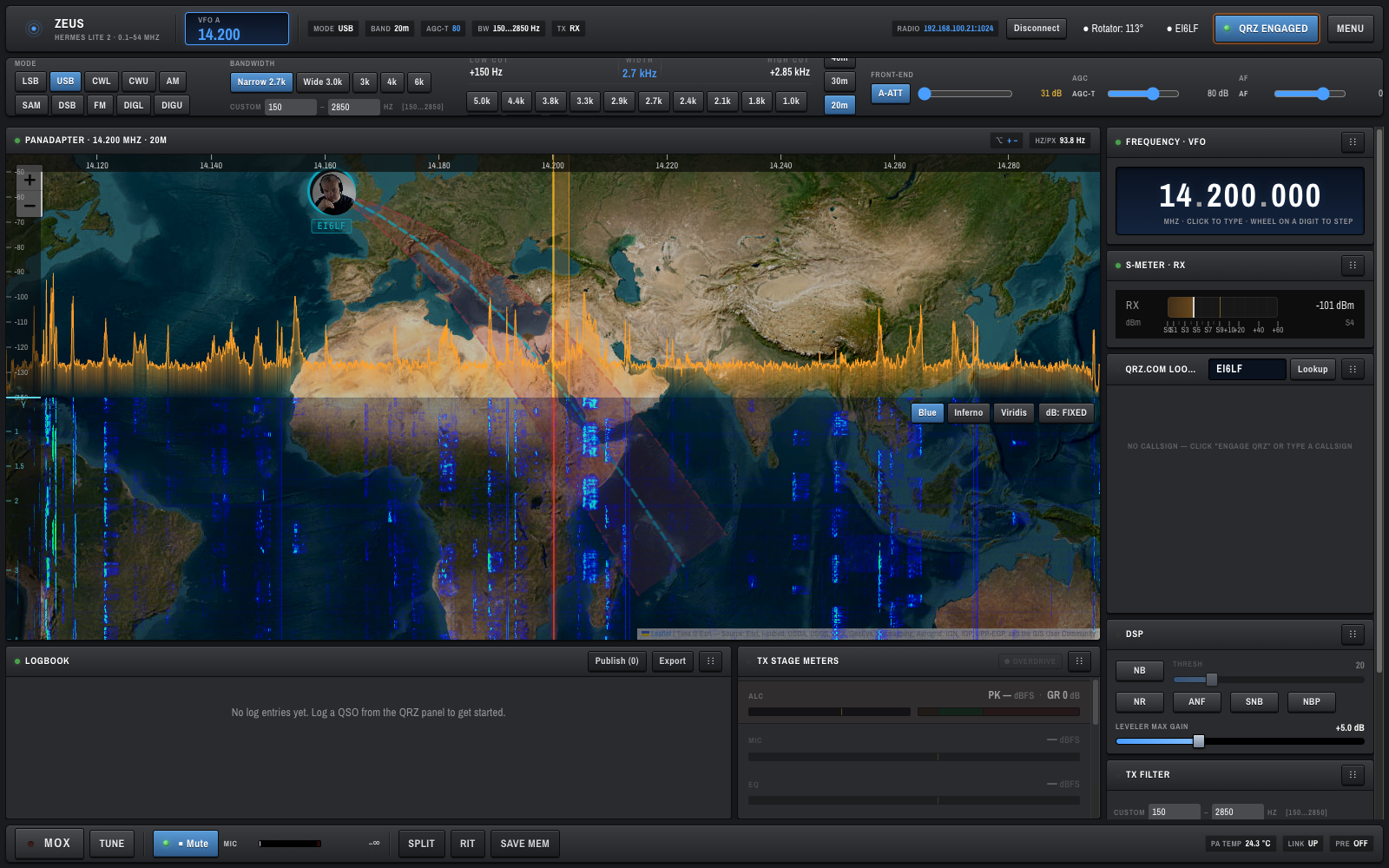
If QRZ Engaged is on and a callsign is selected, a great-circle world map renders behind the waterfall (see QRZ Lookup and World Map). The amber trace and waterfall remain live on top of the map:
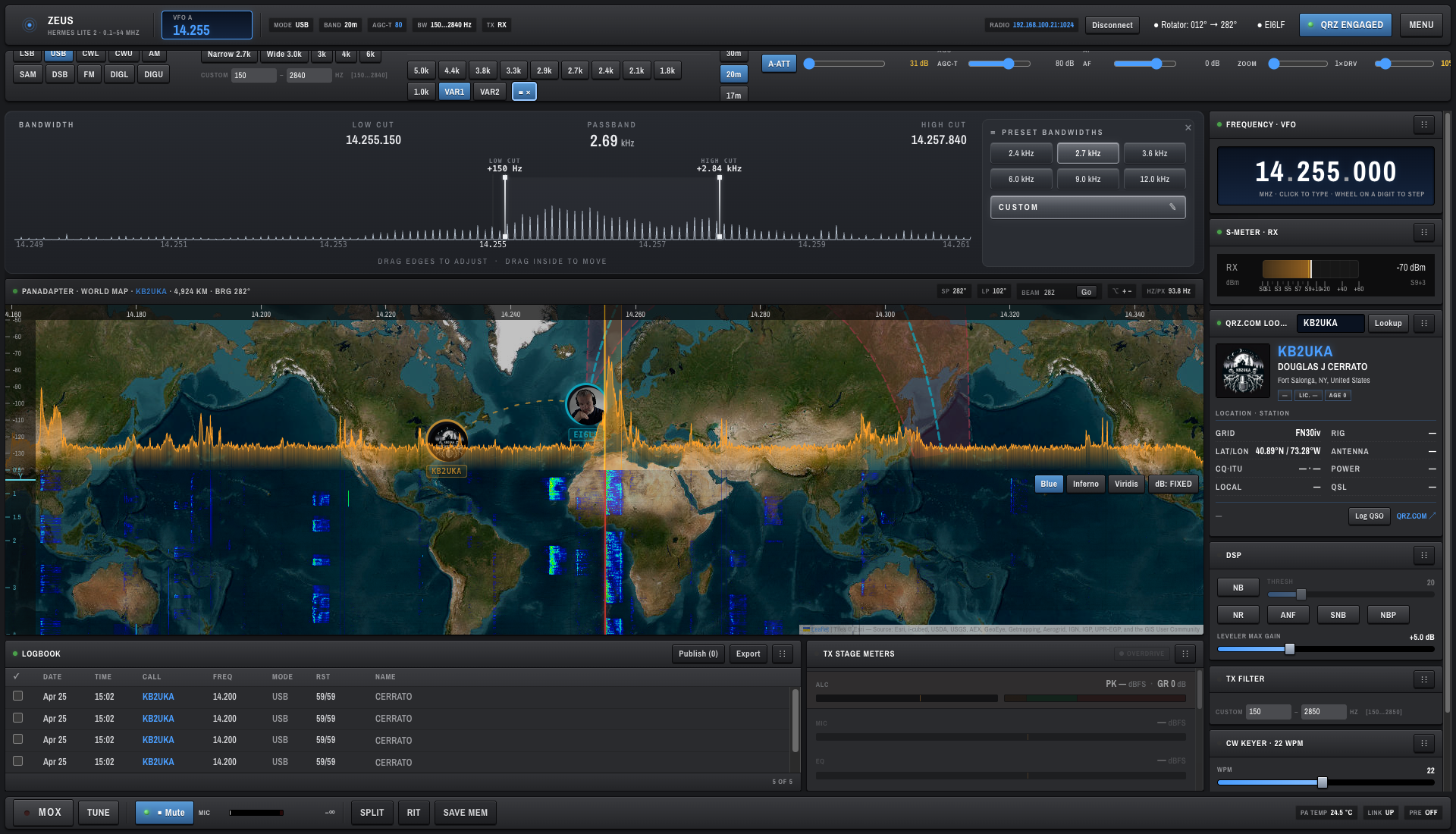
Open the Advanced filter ribbon (the ≡ button at the end of the FILTER bank) and the panadapter shares the screen with a graphical passband editor — see Bandwidth and Filters:
Spinning the dial used to move the spectrum in discrete steps. As of v0.9.0 the panadapter glides to the new centre: the view animates smoothly as you tune, the receiver "catches up" faster after a big jump so the display isn't smeared, and the filter passband and dial marker stay pinned to the centre line throughout. There's nothing to configure — tuning simply feels continuous now.
The thin strip above the plot carries the panel title and, when QRZ is engaged, rotator controls.
| Item | Meaning |
|---|---|
PANADAPTER · <freq> MHz · <band> |
Panel title with the live VFO and band. With QRZ engaged this becomes PANADAPTER · WORLD MAP · <callsign> · <distance> · BRG <°>. |
<callsign> |
Currently selected QRZ contact (e.g. KB2UKA). |
<distance> |
Great-circle distance to that contact, e.g. 4,924 km. |
BRG <°> |
Bearing from your station to the contact. |
SP <°> |
Short-path bearing — clickable, copies into the BEAM input. |
LP <°> |
Long-path (antipode) bearing — also clickable. |
BEAM <°> |
Target azimuth input (0–359). Type a number, press Go to command the rotator. |
+ − |
Map zoom controls (visible while the map overlay is engaged). |
| HZ/PX | Frequency resolution per pixel — 93.8 Hz at 1× zoom on a typical viewport. |
A translucent rectangle on the panadapter shows the currently active RX filter — narrower for CW, asymmetric for SSB / DIG, symmetric for AM / SAM / DSB / FM. It follows the VFO as you tune.
The ticks along the bottom edge are labelled in MHz (14.249, 14.250, …). Spacing narrows as you zoom in.
The left edge shows signal strength in dBm (-50, -70, -90, …, -130). These correspond to the noise floor and peaks you see on the plot.
When connected, the panadapter is interactive.
| Gesture | Action |
|---|---|
| Click | Tune VFO to clicked frequency (snaps to 500 Hz). |
| Click + drag | Pan the spectrum left / right. A 3 px slop separates a click from a drag. |
| Mouse wheel | Tune VFO in 500 Hz notches (40 px per notch). |
| Alt + drag | Pan the world map instead of the spectrum. The spectrum canvas yields pointer events while Alt is held — click-to-tune is paused. |
| Alt + wheel | Zoom the world map. |
| ← / → | Nudge VFO ±500 Hz per press (auto-coalesces while held). |
| ↑ / ↓ | Zoom panadapter in / out (range 1×–8×, integer steps). |
The wiki used to say "hold M to enter map mode". That was wrong — the map modifier is Alt, not
M. Hold Alt to interact with the map; release to resume click-to-tune.
The waterfall scrolls downward from the top, with time advancing as you watch. The colour palette is selectable from the toggle row in the bottom-right of the waterfall:
- Blue — OpenHPSDR Zeus default, dark blue → cyan → green → yellow → red.
- Inferno — Matplotlib-style, dark purple → red → yellow.
- Viridis — Matplotlib-style, dark blue → green → yellow.
Next to the palette toggles is a dB: FIXED / dB: AUTO button. FIXED clamps the colour-map to a fixed -120 .. -30 dBFS range; AUTO continuously tracks the 5th / 95th percentile of recent waterfall samples for adaptive contrast.
The waterfall does not have its own interactive controls, but it shares the panadapter's zoom and pan — everything stays aligned to the frequency axis.
On narrow screens the panadapter and waterfall remain the centrepiece. A vertical zoom slider appears on the right edge in place of the desktop ZOOM control in the strip.