QRZ and World Map
OpenHPSDR Zeus integrates with QRZ.com to look up callsigns, display operator photos, show the station on a world map, and drive your rotator to the right beam heading.
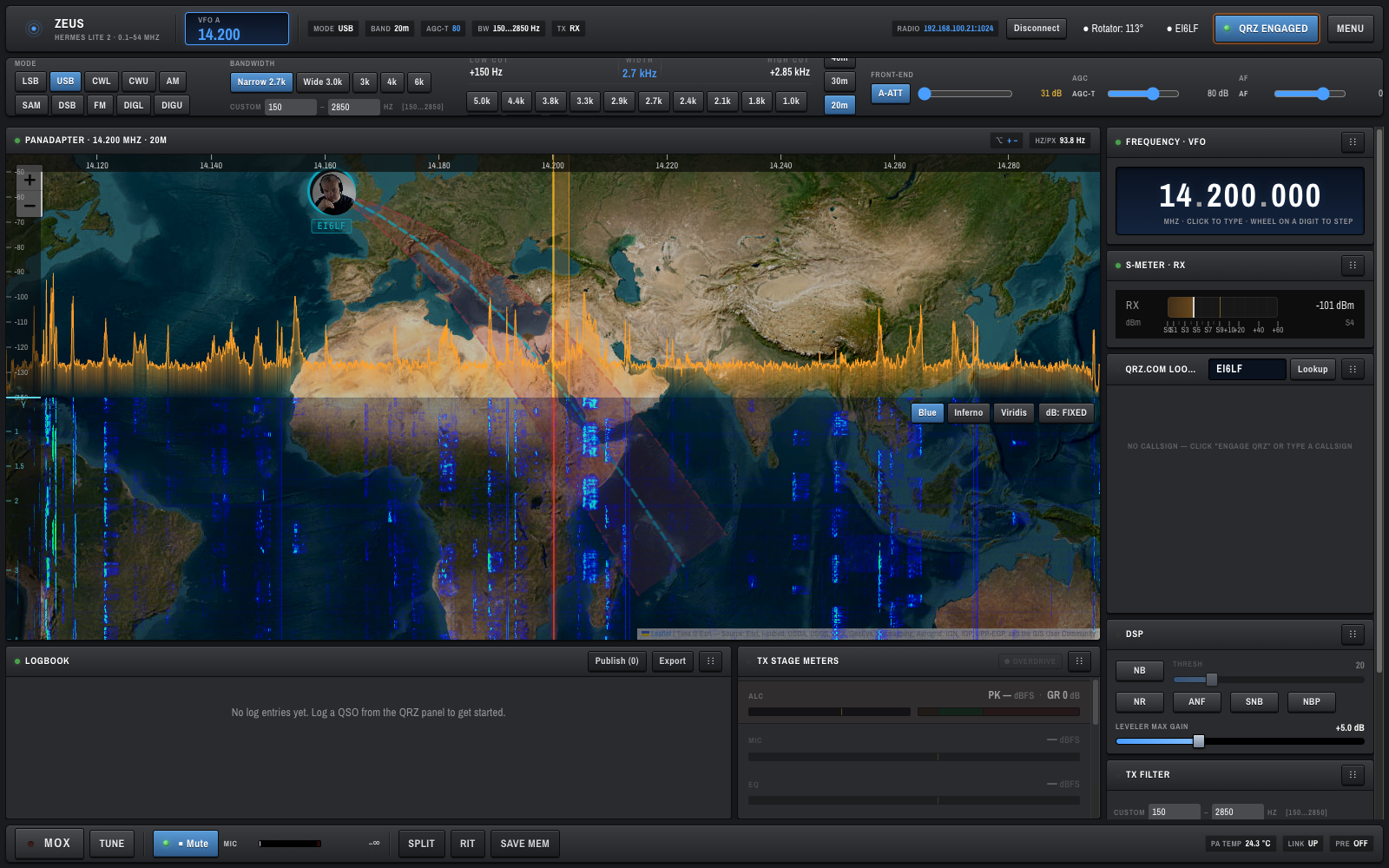
Click QRZ Engaged in the top bar.
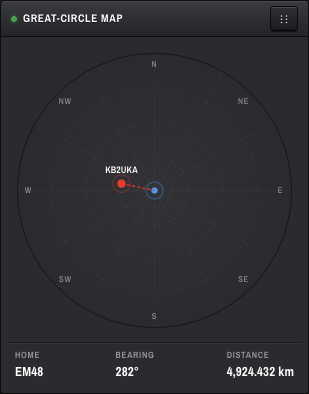
- Off — the right-column card is a simple GREAT-CIRCLE MAP compass; no lookups happen.
- On — the right-column card becomes the QRZ.COM LOOKUP panel and the panadapter grows a translucent world map behind the waterfall, with the contact's portrait pinned at their grid square.
The map is Esri World Imagery (free satellite tiles via ArcGIS Online), so the geography you see is photorealistic rather than the stylised OSM look. It is rendered with Leaflet inside the panadapter region.
You need a valid QRZ.com XML subscription for photos and extended data. Without a subscription OpenHPSDR Zeus still does basic resolution but with less detail; the QRZ pill in the top bar goes green when your credentials are active.
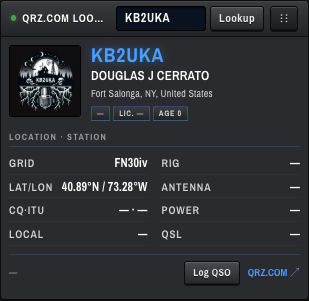
At the top:
- Callsign input — type the call of the station you are working.
- Lookup button — fires the request.
While looking up, the card shows a soft scan animation on the portrait.
Once resolved, the card shows:
- Portrait — operator photo (or initials if no photo is on file).
- Callsign + name + location with country flag.
- Tags — licence class, licence age, operator age.
-
Details block —
GRID,RIG,LAT/LON,ANTENNA,CQ·ITU,POWER,LOCAL,QSL. Missing fields render as—. - QRZ.COM ↗ link — opens the full QRZ profile in a new tab.
- Log QSO button — creates a logbook entry prefilled with callsign, name, frequency, mode, RST, grid, country, and zones. See Logbook.
When a QRZ contact is selected and QRZ is engaged, a Leaflet map is drawn behind the panadapter with:
-
Your-station pin — at your home grid (e.g.
IO63VDfor EI6LF). -
Contact pin — at their grid (e.g.
FN30ivfor KB2UKA). - Great-circle line — short-path bearing from you to them.
- Distance and bearing read-outs in the panadapter header.
The horizontal sweeping lines you see across the map are decorative — they are not the actual day/night terminator. A real terminator may be added later.
To pan and zoom the map, hold Alt and drag / scroll on the panadapter:
- Alt + drag — pan the map.
- Alt + wheel — zoom the map.
- The
+ −buttons in the panadapter header are an alternative. - Click-to-tune is paused while Alt is held — the spectrum canvas yields all pointer events to the map for as long as Alt is down.
The previous wiki said "hold the M key" — that was wrong. The actual modifier is Alt (
e.altKey). There is noM-key binding.
These live in the panadapter header (visible once a contact is on the map):
| Control | Purpose |
|---|---|
SP <°> |
Short-path bearing from you to the contact. Click to copy into the BEAM input. |
LP <°> |
Long-path bearing (antipode). Also clickable. |
BEAM <°> |
Free-text azimuth (0–359). |
| Go | Commands the rotator to the BEAM azimuth. Disabled if no rotator is configured. |
The rotator connection status is shown in the Rotator pill in the top bar (e.g. Rotator: 113°). Click it to configure ROTCTLD host/port — see Top Bar and Status.
The world map, rotator pill, QRZ pill, and Engage QRZ button are all hidden on narrow screens. The QRZ lookup card itself remains usable in the side stack.