Repository navigation
Audio Settings
ShadePlay guide › Advanced settings
The advanced Audio page: each track's switch, volume, timing and bitrate, the devices, the audio format and the never-record list.
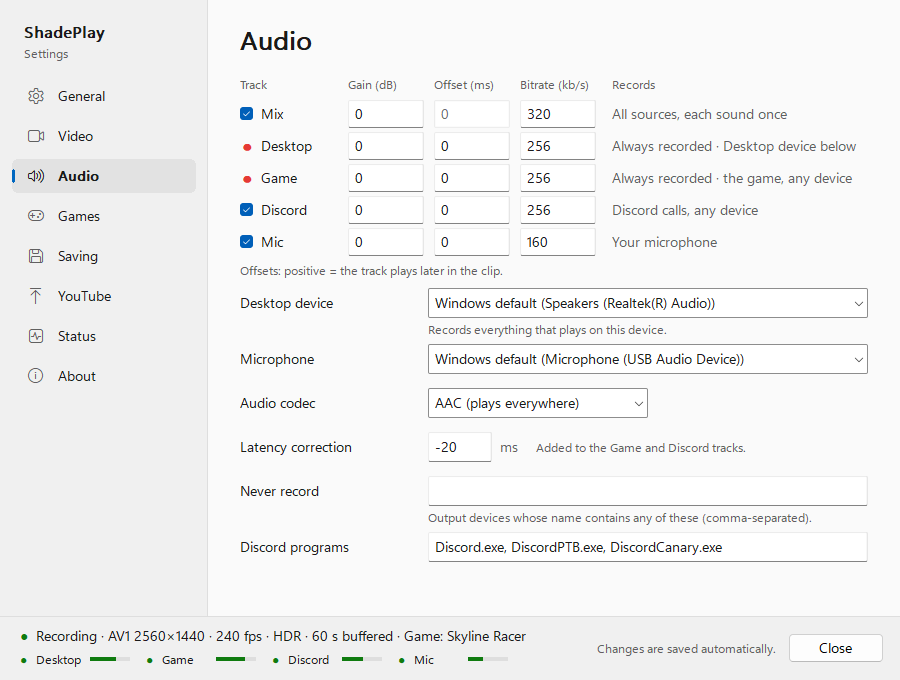
One row per track, in the order they are in the file. What each track holds: Audio tracks.
| Column | Range | Default | What it does |
|---|---|---|---|
| Track switch | on / off | on |
Mix, Discord and Mic can be switched off. Desktop and Game have a red dot instead of a switch and read Always recorded. Switching the Mix off saves clips without it; the other tracks are still there. |
| Gain (dB) | −60 to +24 | 0 | Makes a track louder or quieter, in the track itself and in its share of the Mix. |
| Offset (ms) | −1000 to +1000 | 0 | Moves a track in time. Positive means the track plays later in the clip. The Mix has no offset of its own: it follows the other tracks' offsets. |
| Bitrate (kb/s) | 32 to 512 | Mix 320, Desktop, Game and Discord 256, Mic 160 | The track's bitrate for AAC and Opus. Ignored (and greyed) for FLAC. |
The Records column says what each track holds: All sources, each sound once, Always recorded · Desktop device below, Always recorded · the game, any device, Discord calls, any device, Your microphone.
Gain, offset, bitrate, the audio codec and the Mix switch are applied when a clip is saved, so they also apply to the replay that is already in memory.
| Setting | Default | What it does |
|---|---|---|
| Desktop device | Windows default | The output device the Desktop track records: the same setting as What you listen on on the simple page. Records everything that plays on this device. Devices on the never-record list are shown greyed with — never recorded and can't be picked. |
| Microphone | Windows default | The microphone the Mic track records. |
| Audio codec | AAC (plays everywhere) | Opus, or FLAC (lossless, large). AAC is the safe choice for players, editors and upload sites. |
| Latency correction | −20 ms |
Added to the Game and Discord tracks. Recording one program's sound runs a little ahead of the speakers; this lines the Game and Discord tracks up with the Desktop track. The default is a compromise between measured setups. Range −1000 to +1000. |
| Never record | empty | Output devices whose name contains one of these words (comma-separated, any case) are never recorded. See below. |
| Discord programs | Discord.exe, DiscordPTB.exe, DiscordCanary.exe |
The programs the Discord track records. With none listed, the page warns No Discord program is listed, so calls won't be recorded.
|
Some output devices carry something other than sound, for example a bass shaker that plays game vibration. The never-record list keeps such a device out of every clip:
- enter a part of the device's name, for example
Shaker; several entries are separated by commas; - a listed device can't be chosen as the Desktop device, and it isn't offered under What you listen on;
- the Game and Discord tracks record a program's sound on every device, so for the seconds a game or Discord plays on a listed device, that track is muted (in its own track and in the Mix);
- while the list has any entry, a device whose name Windows can't give is treated as listed too, so a device that must not be recorded is never recorded by mistake.
If Windows makes a listed device your default output, the tray menu warns
⚠ Sound from your default output isn't recorded – fix it…
(Sound and microphone).
Next: Games and clip names
See also: Audio tracks · Sound and microphone · Settings file, logs and command line