Repository navigation
Video Settings
ShadePlay guide › Advanced settings
The advanced Video page: codec, frame rate, quality, HDR, the monitor and the encoder's details.
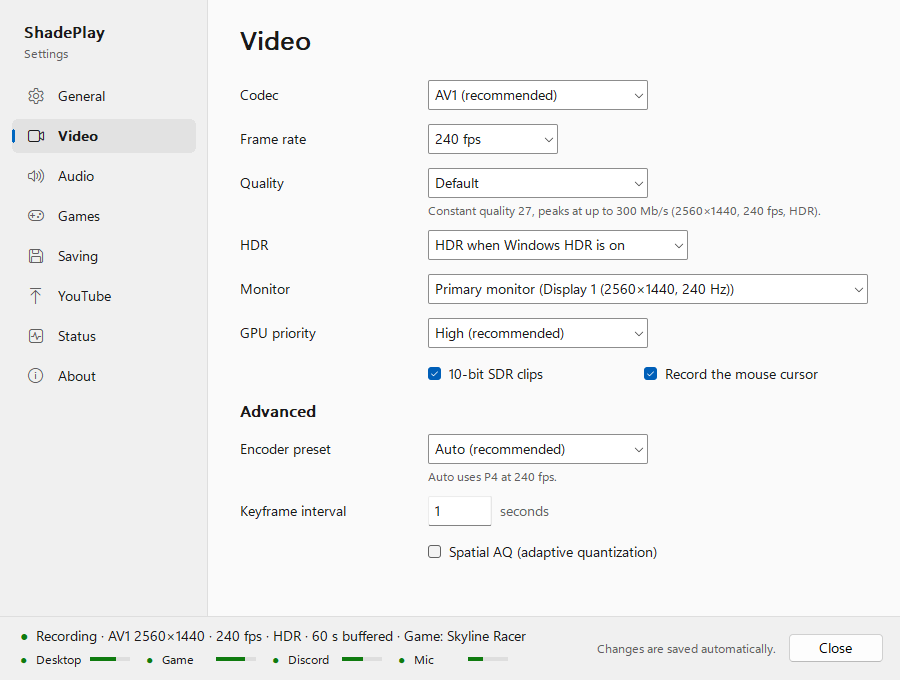
| Setting | Choices | Default | What it does |
|---|---|---|---|
| Codec | AV1 (recommended), HEVC (H.265), H.264 (SDR, 8-bit only) | AV1 | The video format. AV1 gives the best quality per bit on recent cards. HEVC works on older NVIDIA cards too. H.264 plays everywhere but is SDR and 8-bit only. |
| Frame rate | 60, 120, 144, 240, 360 fps, or Custom… (10 to 500) | 240 | Frames per second in your clips. |
| Quality | Lite (smaller files), Default, High, Insane (very large files), Fixed bitrate | Default | The four levels are the settings page's slider. Fixed bitrate takes an average in Mb/s (5 to 2000) and peaks up to 1.5 times that. |
| HDR | HDR when Windows HDR is on, Always SDR (tone-mapped) | HDR when Windows HDR is on | See HDR clips. |
| Monitor | Primary monitor (<name>) or a monitor by name | Primary monitor | Which monitor is recorded. See Monitors and displays. |
| GPU priority | High (recommended), Normal | High | High keeps capture smooth while a game loads the graphics card. Never real-time. |
| 10-bit SDR clips | on / off | on | Smoother gradients in SDR clips. HDR clips are always 10-bit; H.264 is always 8-bit. |
| Record the mouse cursor | on / off | on | Windows' screen capture doesn't include the pointer, so ShadePlay draws it into the picture itself. |
The line under Quality says what the level means for your screen, for example
Constant quality 27, peaks at up to 300 Mb/s (2560×1440, 240 fps, HDR). or, for a fixed bitrate,
150 Mb/s average, peaks at up to 225 Mb/s. How big clips get:
Quality, frame rate and buffer length.
Graphics cards without an AV1 encoder (for example NVIDIA GeForce cards older than the RTX 40 series) record HEVC
instead, by themselves. Once ShadePlay knows, AV1 is shown as AV1 (not on this GPU) and can't be picked, and the
page says This GPU can’t encode AV1, so clips are recorded as HEVC. Your saved setting stays AV1, so a card swap
needs no change.
These change how the graphics card's encoder works. The defaults suit almost everyone.
| Setting | Choices | Default | What it does |
|---|---|---|---|
| Encoder preset | Auto (recommended), or 1 (fastest) to 7 (best quality), shown with your card's own names (NVIDIA P1 to P7; AMD Speed, Balanced, Quality; Intel Fastest to Best) | Auto | The encoder's speed / quality trade-off. The line under it says what Auto picks, for example Auto uses P4 at 240 fps.; above 300 fps it adds , with split-frame encoding. |
| Keyframe interval | 0.25 to 10 seconds | 1 | Seconds between keyframes. A clip starts at a keyframe, so shorter means more exact clip starts and a bit more file size. |
| Spatial AQ (adaptive quantization) | on / off | off | Spends more bits on flat areas. It made files 25-70 % bigger at the same quality in tests, and it uses the card's shader cores (a little of the game's graphics time). It is never used above 300 fps, where split-frame encoding needs it off. |
Any change on this page restarts the encoder with the new settings as soon as it is saved (by itself, about half a second after your last change, or when you leave a box you typed in). The replay starts over for the new settings, and a clip never mixes two settings (Changes that start a new recording).
Next: Audio settings
See also: Graphics cards and encoders · HDR clips · Quality, frame rate and buffer length