Repository navigation
The Settings Window
ShadePlay guide › Using ShadePlay
The settings window's one simple page, control by control, how it saves your changes, and the About page.
- Double-click the tray icon.
- Or choose Settings… in the tray menu.
- Or open ShadePlay from the Start menu, or the desktop shortcut if you made one. If ShadePlay is not running, this starts it too.
- Or run
ShadePlay.exe --settings.
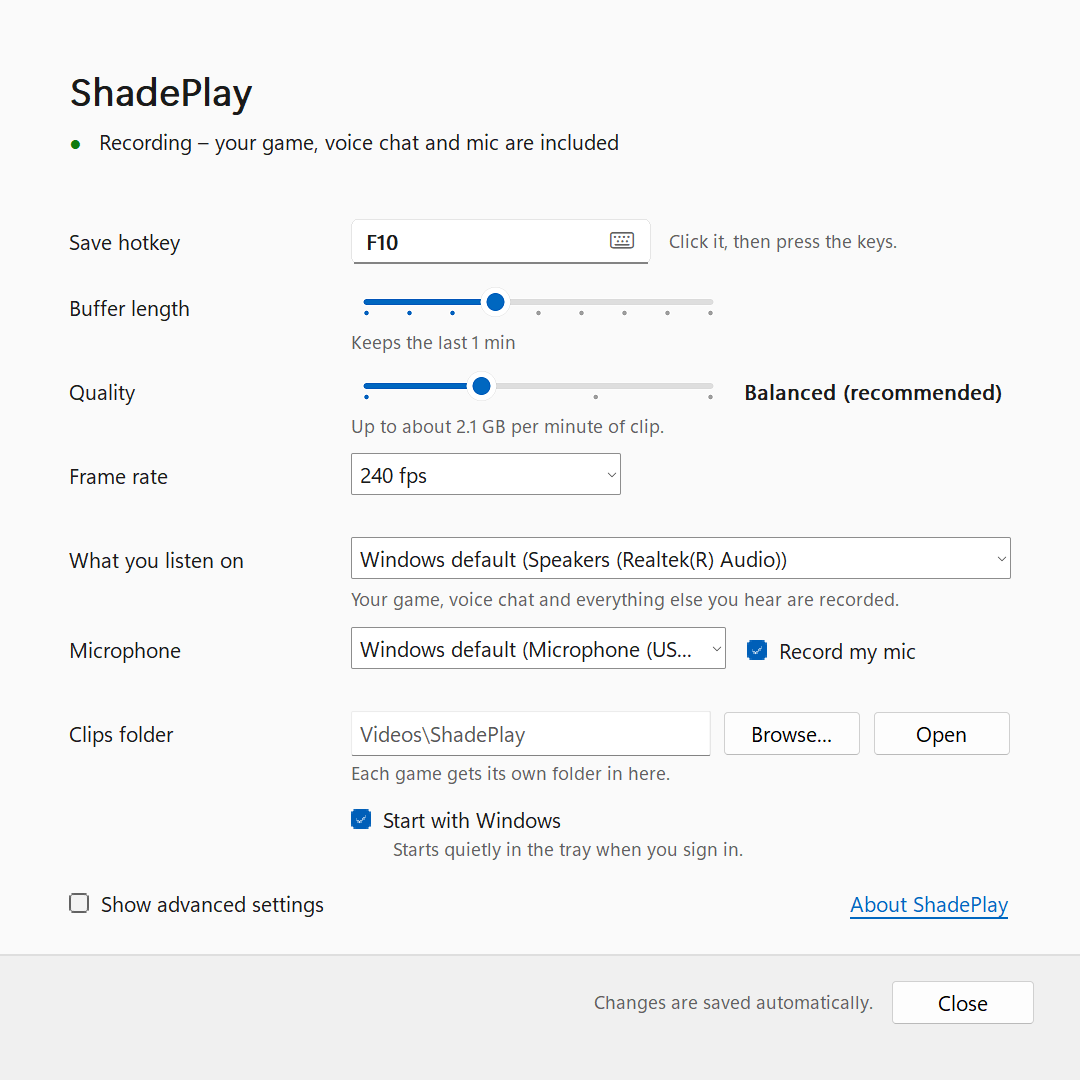
The window is called ShadePlay settings and follows Windows' light or dark mode. Closing it doesn't stop ShadePlay: it keeps recording in the tray.
A coloured dot and one line in plain words say what ShadePlay is doing, for example
Recording – your game, voice chat and mic are included. When your PC's memory keeps clips shorter than your buffer
length, a second line says so. Every status text: Is it recording?.
Every control, top to bottom:
| Control | What it does | Starts as |
|---|---|---|
| Save hotkey | The key that saves a clip. Click the box, then press the keys. More in The save hotkey. | F10 |
| Buffer length | How much time before the key press a clip holds: 15 s, 30 s, 45 s, 1 min, 1 min 30 s, 2 min, 3 min, 4 min or 5 min. The line under it says, for example, Keeps the last 1 min. |
1 min |
| Quality | One slider: Smaller files, Balanced, High quality, Best quality. The line under it says how big clips can get, for example Up to about 2.1 GB per minute of clip.
|
Balanced (recommended) |
| Frame rate | Frames per second in your clips: 60, 120, 144, 240 or 360 fps. More than your monitor shows gains nothing. | 240 fps |
| What you listen on | The speakers or headset you hear your games on. Everything you hear there is recorded. | Windows default |
| Microphone | Which microphone is recorded. | Windows default |
| Record my mic | Switches your microphone's track on or off. | On |
| Clips folder | Where clips go; each game gets its own folder in there. Browse… picks a folder, Open shows your clips. Empty means Videos\ShadePlay. |
empty |
| Start with Windows | Starts ShadePlay quietly in the tray when you sign in. | On |
| Show advanced settings | Shows every other setting. | Off |
| About ShadePlay | The version, the licence and the notices. |
More about the sliders: Quality, frame rate and buffer length. About the two sound choices: Sound and microphone.
-
What you listen on says
Windows default (<device>)for the Windows default output, which follows Windows when you change the default. A device you chose that is unplugged shows asSaved device (not connected), and the setting is kept. The line under it readsYour game, voice chat and everything else you hear are recorded.(or, with the voice chat track switched off in advanced mode,Your game and all you hear on it are recorded. Voice chat is off (advanced).). -
Microphone shows
Saved microphone (not connected)the same way. - A fixed bitrate set in advanced mode shows as
Custom (advanced settings)next to Quality; moving the slider picks a quality level again. - A buffer length or frame rate set in advanced mode or in the settings file that is not on the slider or in the list is kept until you move the slider or pick another value.
-
Start with Windows has a line under it:
-
Starts quietly in the tray when you sign in.when it works; -
Off in Settings > Startup. Tick it to turn it back on.when you turned ShadePlay off in Windows' Startup apps. Ticking it turns it back on; - for a copy that may not register itself (see Start with Windows), the box is greyed and the line says why.
-
- Show advanced settings is saved as soon as you tick or untick it, like every other setting. The advanced settings keep working when they are hidden. See Advanced settings overview.
There is no Apply or OK button. Every change is saved and takes effect by itself; the note at the bottom of the window
says Changes are saved automatically. and briefly Saved. after a change was saved.
- A tick, a pick in a list, a slider, the Browse… folder picker or a new hotkey is saved about half a second after your last change, so arrowing through a list or stepping a slider saves once.
- A typed value (a folder, a number, a name) is saved when you leave the box: click or Tab elsewhere in the window, press Enter in it, change the page or close the window. Nothing is used while you are still typing, and switching to another program (Alt+Tab, a game) doesn't count as leaving the box.
- Close (or Esc, or the window's X) saves what is still waiting and closes the window.
- A value that can't be used is highlighted with a red message and is not saved: ShadePlay keeps using the saved
value, while your other changes are still saved. When the reason is on a part of the window you can't see, a
banner says what to fix, for example
Not saved: What you listen on – ShadePlay can’t record that device – pick another one. - Closing the window while a value can't be used asks once, for example Clips folder isn't valid, so it wasn't saved., with the reason, Keep editing and Close anyway (which keeps the saved setting). When the value is fine but clashes with another setting, the question says so, for example Clips folder can't be used with “Copies folder”, so it wasn't saved.
- A new hotkey another program already uses, or Start with Windows when Windows won't turn it on, is not saved
(
Not saved:and the reason); your other changes are still saved. - If ShadePlay can't save at all (for example
config.jsoncan't be written), a banner saysCouldn't save the settings:and the reason. It tries again with your next change. - If settings change elsewhere while the window is open (the tray menu, or someone editing
config.json), the window shows the new values. A box you are still typing in, or a value that can't be used, is kept, and the window saysSettings were changed elsewhere (tray menu or config.json). Your edits were kept. - Changes to quality, frame rate, codec, HDR or the monitor start a new recording: see changes that start a new recording.
When a newer version of ShadePlay is available, a yellow bar appears at the top of the window, in the simple and the advanced view, with Update now, What's new and Skip this version. Until you answer it once, it also asks Install updates automatically when no game is running? with Yes and No. The same bar shows a running update and says why one failed. It never pops up by itself; you see it when you open the window. Its texts: Updates.
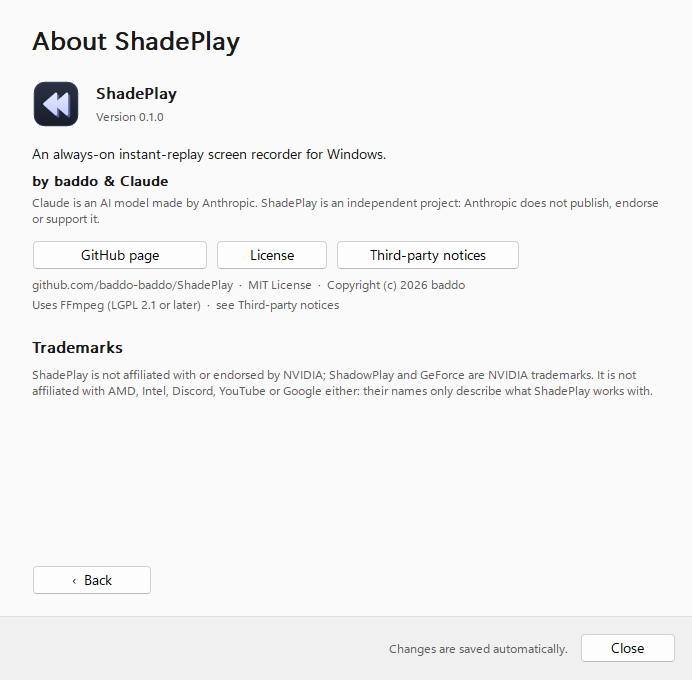
About ShadePlay (in advanced mode, About in the page list) shows:
- the version, for example
Version 0.1.0; -
An always-on instant-replay screen recorder for Windows.andby baddo & Claude; -
Claude is an AI model made by Anthropic. ShadePlay is an independent project: Anthropic does not publish, endorse or support it.; -
GitHub page, License and Third-party notices. The last two open
LICENSE.txtandTHIRD-PARTY-NOTICES.txt, which the installer puts next to the program; the notices list the third-party parts, such as ShadePlay's own LGPL build of FFmpeg, and where their source is. A copy run without Setup opens the copies built intoShadePlay.exeinstead (unpacked into%LOCALAPPDATA%\ShadePlay\ffmpegwhen you click); -
github.com/baddo-baddo/ShadePlay · MIT License · Copyright (c) 2026 baddo; -
Uses FFmpeg (LGPL 2.1 or later) · see Third-party notices; - Trademarks: ShadePlay is not affiliated with or endorsed by NVIDIA; ShadowPlay and GeForce are NVIDIA trademarks. It is not affiliated with AMD, Intel, Discord, YouTube or Google either: their names only describe what ShadePlay works with.
In simple mode, ‹ Back returns to the settings page.
Next: The save hotkey
See also: Advanced settings overview · Is it recording? · Quality, frame rate and buffer length