Repository navigation
Games and Clip Names
ShadePlay guide › Advanced settings
The advanced Games page: which game the Game track follows, how a game is detected, and your own names for each game's clips.
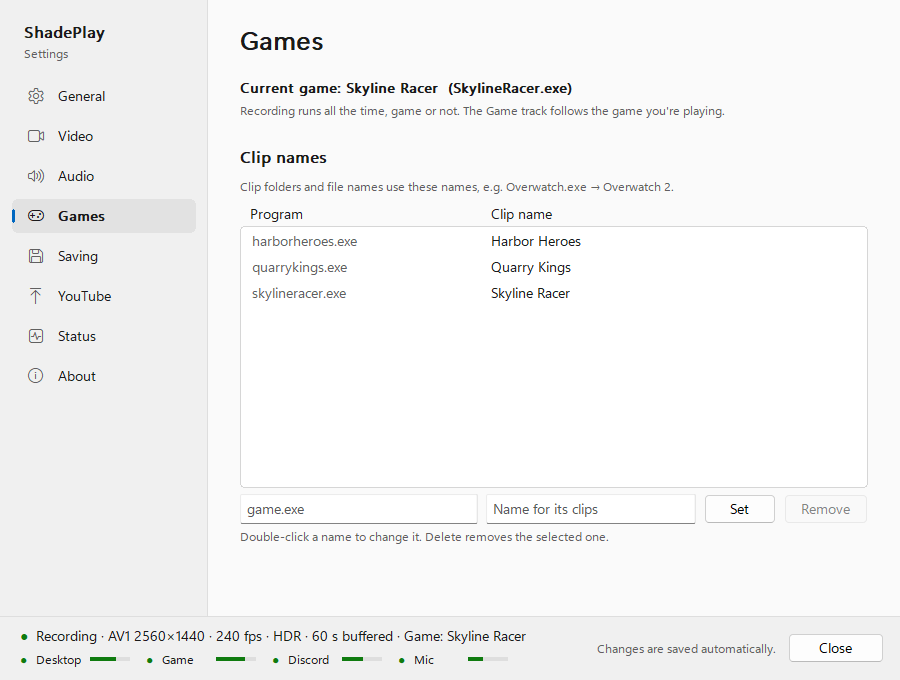
ShadePlay records all the time, game or not. The detected game only decides two things: whose sound goes on the
Game track, and what the clips are called. The page's first line says which game that is right now, for example
Current game: <game> (<game>.exe), or Current game: none right now.
The program in front is the game when one of these is true:
- its window covers the whole recorded monitor (fullscreen or borderless);
- it lives in a game library folder: Steam, Epic Games, Xbox, Riot Games, Battle.net, the Roblox player and others (known tools in those folders don't count);
- you gave it a clip name on this page, or it is on the hidden
games.alwayslist in the settings file.
Some programs never count, even fullscreen: File Explorer, browsers, Discord, game launchers, media players and photo
viewers, remote-desktop and streaming apps, Windows' own overlays, and ShadePlay itself. The full list is the hidden
games.never key in the settings file (Settings file, logs and command line).
How long a game stays the game:
- until its program exits, or another program that counts as a game is in front for 3 seconds (30 seconds for a windowed program that counts only because of its library folder);
- a game that was pushed aside by an overlay or a quick alt-tab is the game again at once when it comes back to the front within 2 minutes.
Clips are named after the game automatically (how). When a game's clips get an odd name, give it your own:
- In the left box, type the program's file name, for example
game.exe(a full path works too;.exeis added when you leave it out). The box shows game.exe in grey until you type. - In the right box, type the name for its clips.
- Click Set (or press Enter). The name is saved by itself.
The list shows Program and Clip name. Double-click a name to change it; Remove (or the Delete key) removes
the selected one. The page's own example is Overwatch.exe → Overwatch 2.
A program you name also counts as a game, so its sound goes on the Game track, even when it runs in a window.
That's the fix for a windowed game that isn't detected. Two exceptions, with a warning on the page: a Discord program
keeps its clip name but its sound stays on the Discord track, and a program on the hidden games.never list keeps its
clip name but never counts as a game.
Next: Saving and the after-save command
See also: Clips, folders and names · Audio tracks · Settings file, logs and command line