Repository navigation
The Tray Menu and Notifications
ShadePlay guide › Using ShadePlay
The tray icon's menu, item by item, the notifications ShadePlay shows, and its three sounds.
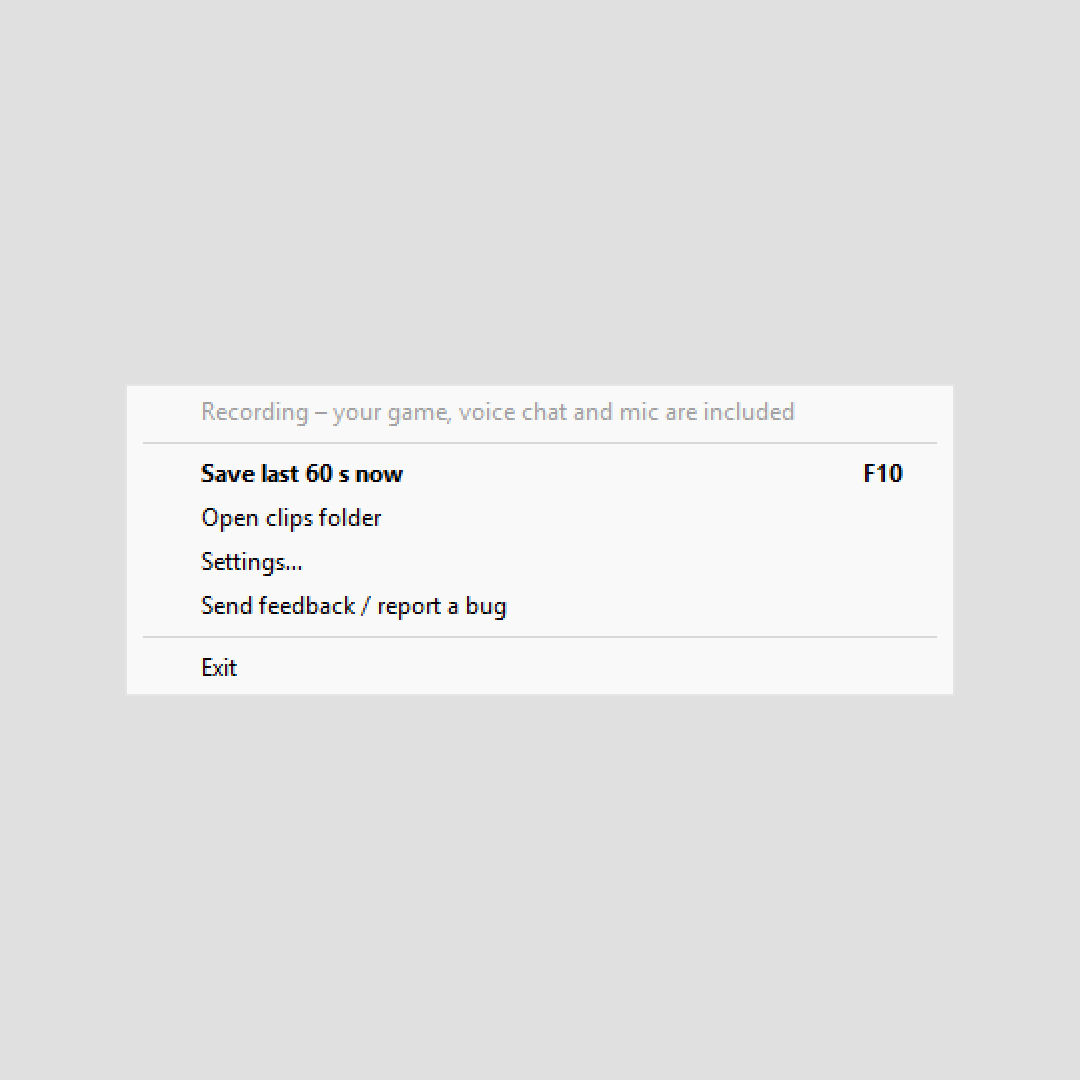
- Right-click or left-click the icon: the menu.
- Double-click it: the settings window.
- With the keyboard (Win+B, then the arrow keys to the icon), Enter or the menu key opens the menu.
What the icon's colours mean: Is it recording?.
When a newer version of ShadePlay is available, two items and a separator come first: Update to X.Y.Z (downloads, checks and installs it; ShadePlay comes back in the tray a few seconds later; while a game runs or a YouTube copy is being made, it asks first in the settings window) and What's new (the release page in your browser). While the update runs, the first item reads Updating to X.Y.Z… and is greyed; if it fails, it reads Update to X.Y.Z failed – open settings and opens the settings window, which says why. See Updates. Then:
-
The status line (grey, for reading only), for example
Recording – your game, voice chat and mic are included. All status texts: Is it recording?. While a YouTube copy is being made, a second grey line shows its progress, for examplePreparing YouTube copy… 42%. -
Warnings, only when something needs you. Each starts with ⚠ and says what to do. Those you can fix in Windows open the right place when you click them; the others are greyed:
Warning Clicking it, or what to do ⚠ Windows turns game sound down during calls – fix it…opens Windows Sound settings, Communications tab (how to fix) ⚠ Windows blocks your mic – allow it…opens Windows' microphone privacy settings (how to fix) ⚠ Sound from your default output isn't recorded – fix it…opens Windows Sound settings, Playback tab ⚠ Another recording app is running – turn it offturn off the other app's recording or instant replay (why) ⚠ F10 is used by another app – choose another hotkey in Settings(and two other hotkey warnings)see The save hotkey ⚠ Clips are shorter than your buffer length – not enough memorysee Buffer length ⚠ Start with Windows didn't work – try again in Settingssee Start with Windows ⚠ Your clips folder can't be reached – saving to Videos\ShadePlaysee Choosing another folder ⚠ The settings file has an error – the previous settings are usedsee Troubleshooting -
Save last 60 s now, with your hotkey on the right (F10). It saves a clip, like the hotkey. The number follows your buffer length. It is the menu's default item.
-
Open clips folder opens your clips folder in File Explorer.
-
Upload last clip to YouTube… and Cancel YouTube copy, only while the YouTube helper is switched on.
-
Settings… opens the settings window.
-
Send feedback / report a bug opens the project's GitHub "new issue" page in your browser, where you pick a form. Nothing is attached or sent automatically. If no browser opens, the settings window opens with the address:
The browser didn't open. Go to https://github.com/baddo-baddo/ShadePlay/issues/new/choose yourself.See Feedback and bug reports. -
Exit stops recording and closes ShadePlay.
That is the whole menu. With Show advanced settings on, it also has submenus for quality, codec, frame rate, buffer length, HDR and audio, and more: see Advanced settings overview.
Exit first lets clips that are still being written finish (up to 90 seconds; the status line says
Finishing 1 clip before closing…), then stops recording and removes the icon. A YouTube copy that is being made is
stopped; you can make it again later.
There is no pause: ShadePlay records until you choose Exit, and it starts again at your next sign-in (while Start with Windows is on). To start it sooner, open ShadePlay from the Start menu.
ShadePlay shows Windows notifications for what you need to know, and nothing else:
| Notification | When |
|---|---|
| ShadePlay is recording | Once, on the very first start: the hotkey check. |
| Test your save hotkey | After you choose a new hotkey. |
| Hotkey works | When the check received the key. Click it to open the clips folder. |
| Clip saved | After each save: Saved 60 s of <game>. Click to show it. Clicking shows the clip in File Explorer. It can add The recording restarted, so it ends N s before you pressed the key. or The clips folder was offline: saved to <folder>.
|
| Clip not saved / Clips not saved | A save failed, with the reason (Troubleshooting). |
| ShadePlay is not recording | Nothing could be recorded for a whole minute. |
| ShadePlay is running | You started ShadePlay again while it was running. |
| Settings not saved | The settings file couldn't be written. |
| Start with Windows failed | Windows refused the start-up entry. |
| A warning, for example Game sound gets quieter during calls | The first time a warning from the list above appears in a session. Click it to go where you can fix it. |
| Preparing YouTube copy, YouTube copy ready, Upload to YouTube, YouTube copy failed | Only with the YouTube helper. |
Good to know:
- Each warning notification appears once per session; the warning stays in the tray menu while it lasts.
- Notifications wait for your game. While a fullscreen game, a presentation or Do Not Disturb is on, Windows holds notifications back, and ShadePlay doesn't show them. The sounds still tell you whether a clip was saved.
- Notifications that answer something you just did, such as ShadePlay is running after you start it again or Hotkey works, show even then.
- Show notifications (advanced mode, General page) or the tray menu's Sounds and notifications > Notifications switches them off. The first-start hotkey check then doesn't run.
- No update ever shows a notification. An available update shows only the red ! on the icon, the two menu items and the bar in the settings window. After an automatic update, ShadePlay shows no notifications for its first 5 minutes unless you do something.
| Sound | When |
|---|---|
| A short tick | You pressed the hotkey (or chose Save last 60 s now). |
| A two-note chime | The clip is saved, or the hotkey check worked. |
| A low tone | A clip could not be saved. |
The sounds play on the Windows default output. ShadePlay takes them out of your later clips while it records that device. Switch them off with Play sounds (advanced mode, General page) or Sounds and notifications > Sounds.
Next: Start with Windows, updates and uninstalling
See also: Is it recording? · Advanced settings overview · Troubleshooting