Repository navigation
YouTube Helper
ShadePlay guide › Advanced settings
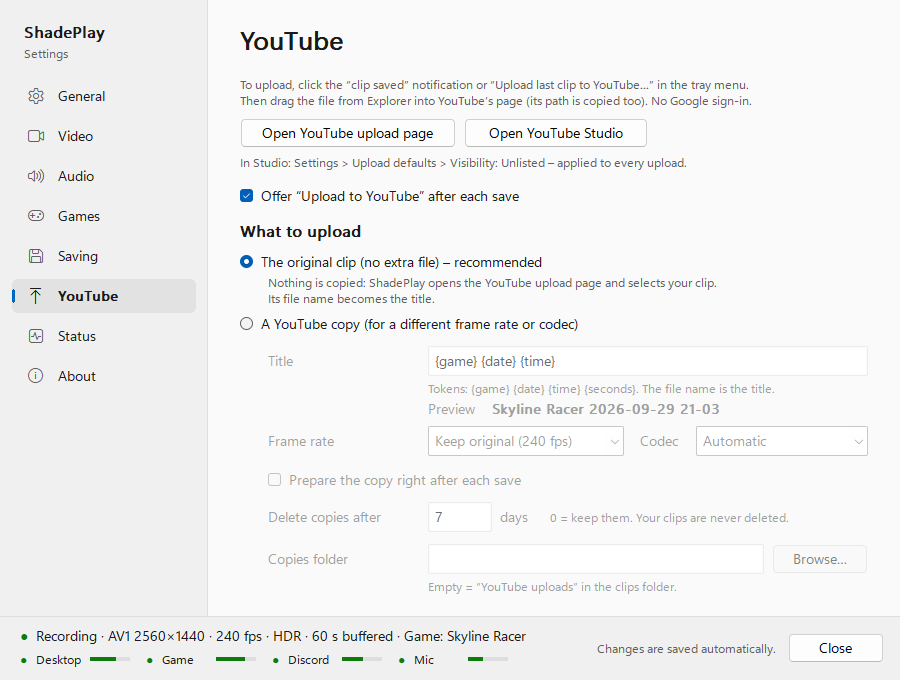
The advanced YouTube page: an optional helper that opens YouTube's upload page with your clip ready to drag in. It is off by default.
When the helper is on and you click the Clip saved notification (or the tray menu's Upload last clip to
YouTube…), ShadePlay:
- opens
https://www.youtube.com/uploadin your default browser, where you are signed in to YouTube; - opens a File Explorer window with the clip selected (its path is copied too);
- you drag the file into YouTube's page.
ShadePlay has no Google sign-in and never uploads anything itself. YouTube's own upload settings apply. To make every upload unlisted, set it once in YouTube Studio: Settings > Upload defaults > Visibility: Unlisted. The page has buttons for both: Open YouTube upload page and Open YouTube Studio.
A program that uploads for you needs its own Google API project. Uploads from such a project stay private until Google has audited it, and every user would need a Google Cloud setup. Opening YouTube's own page in your browser needs none of that, and your Google account never touches ShadePlay.
Tick Offer "Upload to YouTube" after each save. Then:
- clicking the
Clip savednotification starts the upload (without the helper, it shows the clip in File Explorer); - the tray menu gets Upload last clip to YouTube… (usable once a clip was saved since ShadePlay started).
| Choice | What happens |
|---|---|
| The original clip (no extra file) – recommended | Instant. Nothing is copied: ShadePlay selects the saved clip itself, with HDR and all its sound tracks. Its file name becomes the video's title. YouTube keeps its HDR. |
| A YouTube copy (for a different frame rate or codec) | ShadePlay first makes a copy with the settings below, with only the Mix sound track, then selects that. |
A 240 fps HDR clip uploads fine as it is, so the original clip is the right choice for almost everyone.
These apply only to A YouTube copy and are greyed otherwise.
| Setting | Default | What it does |
|---|---|---|
| Title | {game} {date} {time} |
The copy's file name, which YouTube takes as the title. Tokens: {game} the clip's name, {date} like 2026-09-27, {time} like 17-42, {seconds} the clip's length. Cut at 100 characters. Preview shows the result. |
| Frame rate | Keep original | Keep original repackages every frame (about a second, no re-encoding). 60, 50 or 30 fps re-encode on the graphics card (about 15 seconds per minute of clip). HDR is kept either way. |
| Codec | Automatic | Automatic keeps the clip's codec (AV1 stays AV1, HEVC stays HEVC); or AV1, HEVC (H.265). |
| Prepare the copy right after each save | off | Makes the copy in the background at low priority after each save, so the upload page opens at once when you click. Works only while Offer is ticked. |
| Delete copies after | 7 days | Copies older than this are deleted when ShadePlay starts and once a day. 0 = keep them. Your clips are never deleted.
|
| Copies folder | empty | Where the copies go. Empty means a YouTube uploads folder inside your clips folder. It can't be the clips folder itself or a folder above it, because old copies are deleted from it. |
Copies are made one at a time, below normal priority. While one is being made, the tray shows its progress
(Preparing YouTube copy… 42%) and Cancel YouTube copy. ShadePlay deletes only copies it made itself, and only
while their size and date are still what it wrote.
| Notification | When |
|---|---|
| Upload to YouTube | The upload page and the clip were opened: Drag the clip into the YouTube page (path copied). |
| Preparing YouTube copy | You asked for a copy that isn't ready yet: The YouTube upload page and the file open when it is ready. Cancel it from the tray menu.
|
| YouTube copy ready | The copy is made and opened: Drag it into the YouTube upload page (path copied): <file>
|
| YouTube copy failed | The copy couldn't be made, with the reason. |
Next: Status page
See also: Playing, sharing and YouTube · Clips, folders and names · Privacy