Repository navigation
Downloads and Offline Listening
Download music before a flight or a trip with unreliable service. Downloads shows the music saved on the current device and the progress of pending work. Prefetched audio is managed separately in Audio Cache.
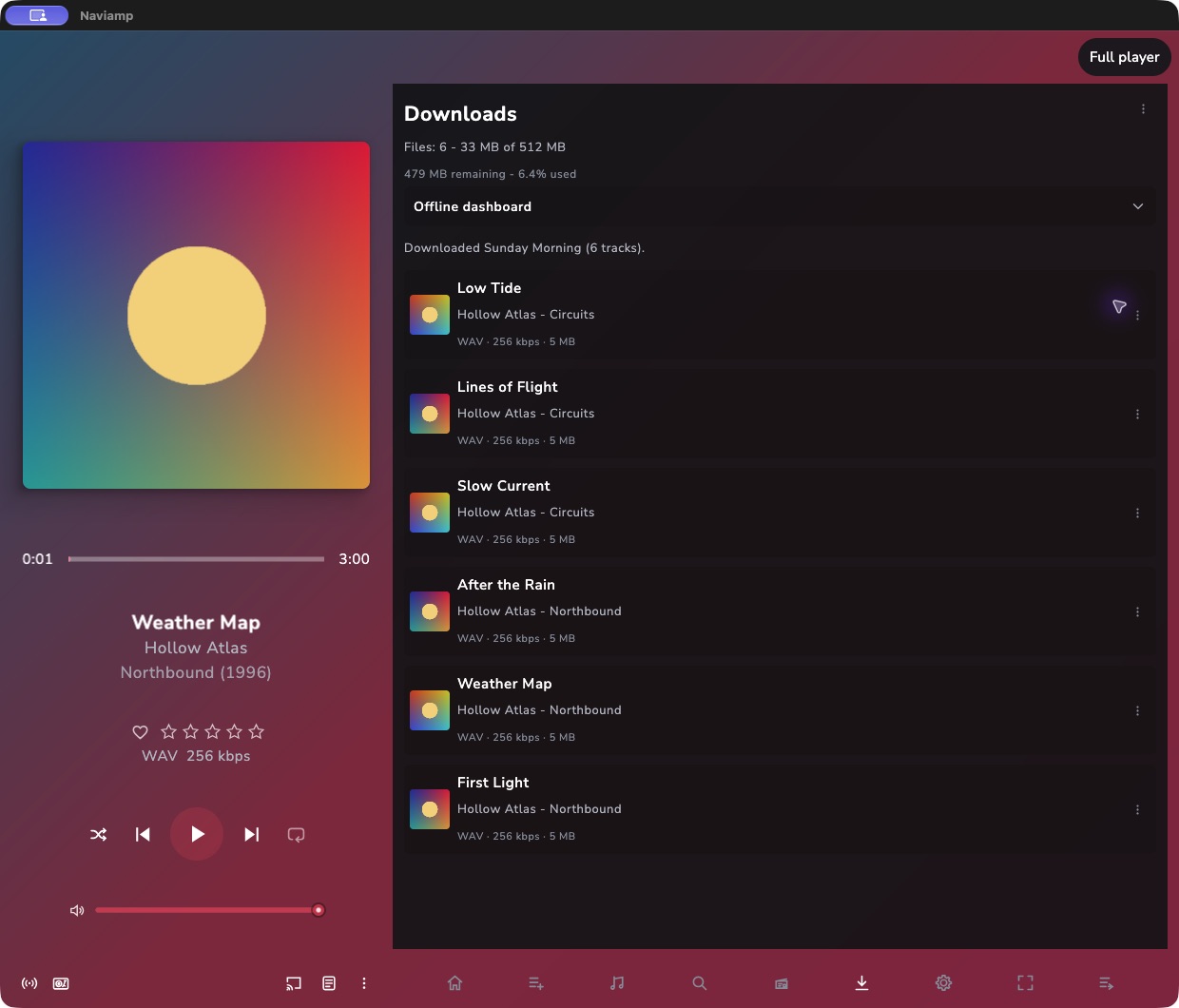
Narrow Downloads view
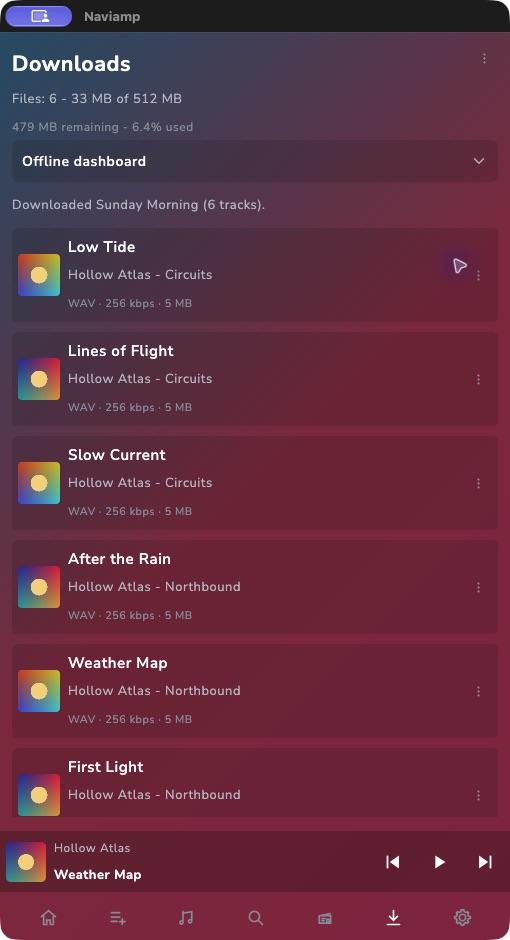
- While connected to Navidrome, open an album, track, or playlist that offers Download.
- Choose Download, then open Downloads and let it finish. Verify the music is listed as saved before you leave.
- If you want to test the trip setup, enable Offline Mode or disconnect from the network and play a downloaded track. Open the offline dashboard if the app cannot reach your server.
- Use the Downloads menu to remove copies from the device when you need space. The source music remains on the server.
If a playlist has changed on the server, verify the specific tracks you plan to take. Availability depends on what has finished downloading to this device.
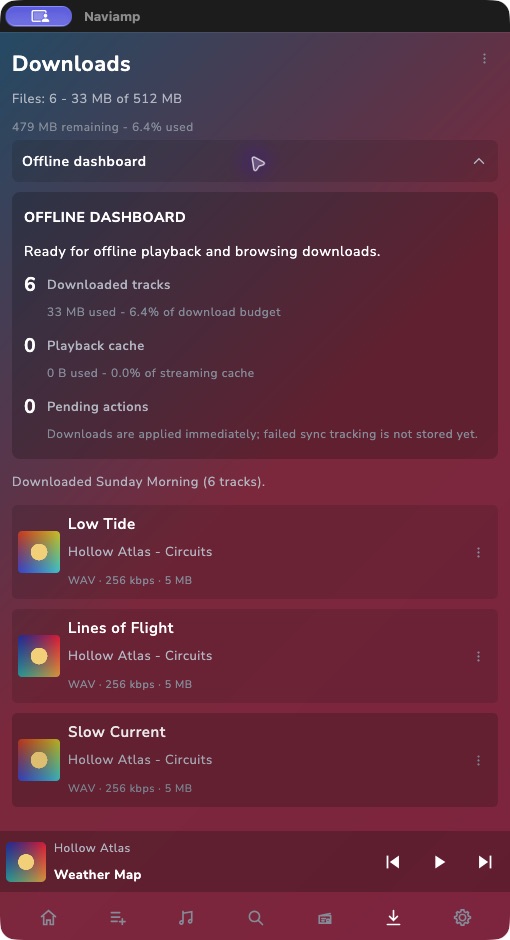
On Downloads, expand Offline dashboard to check saved tracks, storage usage, and pending actions. The demo playlist Sunday Morning has six saved tracks.
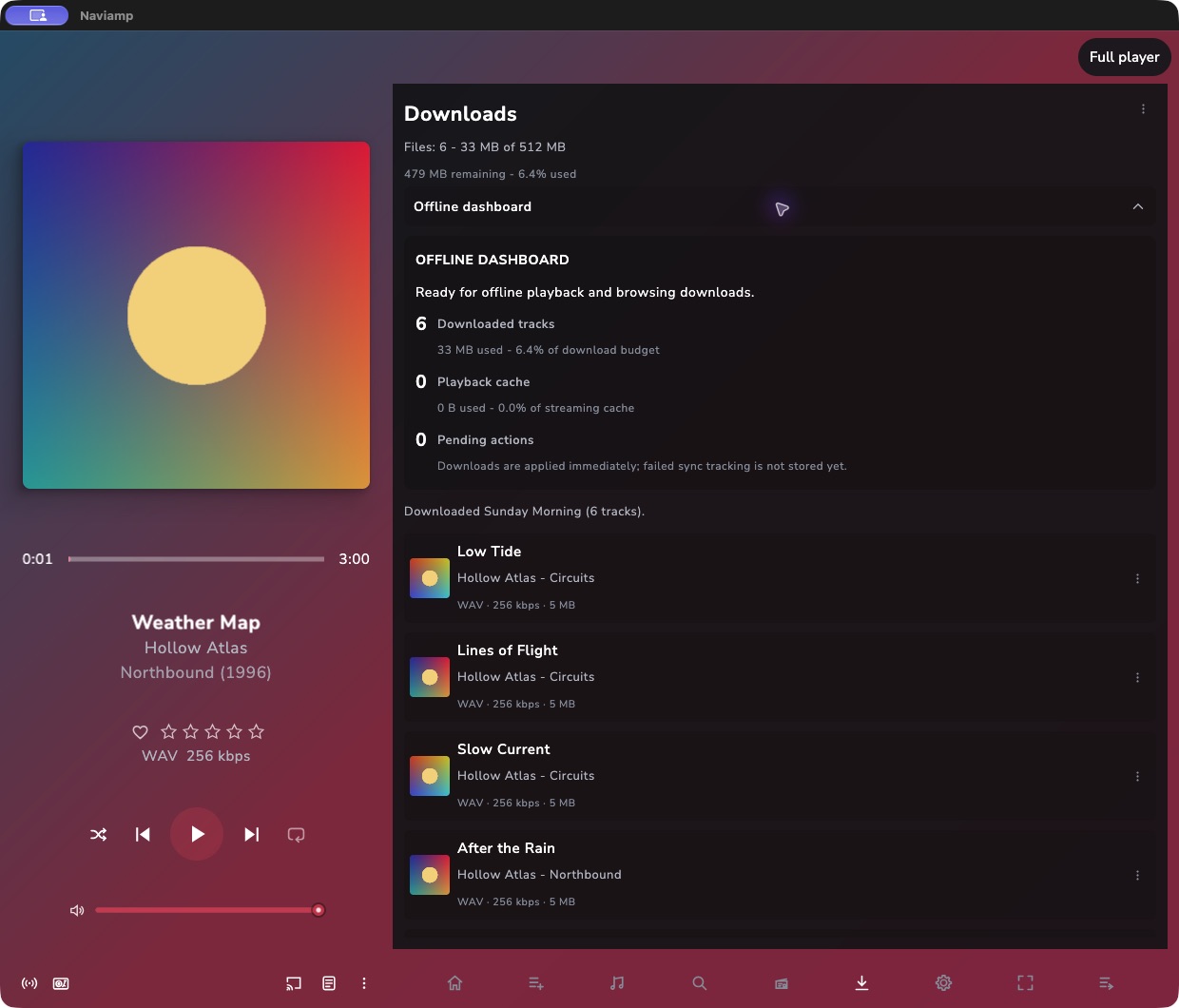
Narrow offline dashboard
Use Keep downloaded when you want Naviamp to maintain offline copies for a supported collection. On an artist page you may be offered Favorite albums only or All albums by this artist. Review the proposed track count and estimated storage before confirming. When you choose Stop keeping downloaded, the app can keep existing files or remove unneeded copies.
- Saved Files controls the requested quality of new downloads. Maximum favors original quality, while transcoding requires server support. Use the quality prompt if you also want to replace existing saved copies.
- Downloaded Track Playback chooses whether Naviamp tries the downloaded file or the server first.
- Offline Mode limits search to downloaded tracks.
- Download Storage Budget limits the space for saved files. Storage chooses a location on hosts that support alternatives.
- Allow downloads on mobile data, where available, controls whether downloads can use cellular data.
See Storage and diagnostics for the distinction between downloads and prefetch storage.