Repository navigation
Settings Source and Sync
Path · Settings → Source
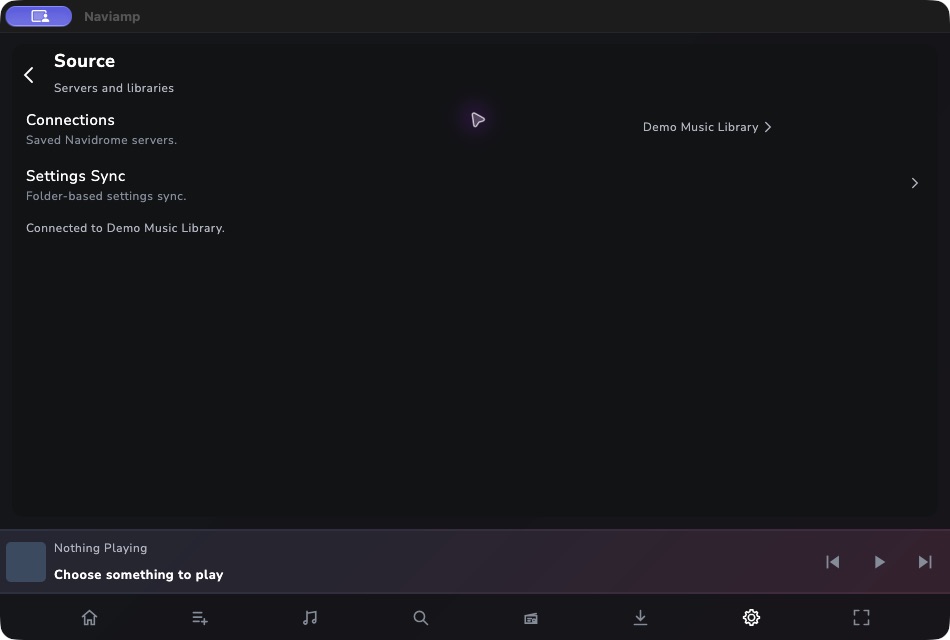
Open Connections to create, edit, activate, or remove a saved connection. Edit the active connection if your server address or credentials have changed. The saved-credential prompt tells you when leaving a password blank reuses it.
Saved Navidrome connection example
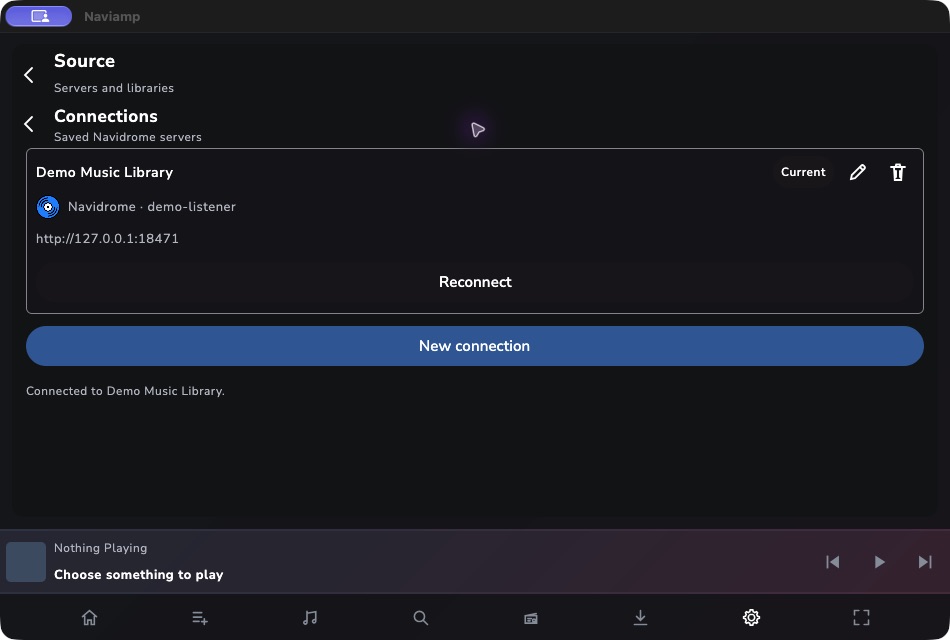
| Control | What it changes |
|---|---|
| Connection name | An optional label for identifying this server or account in Naviamp. |
| Provider | Select Navidrome for a Navidrome server. The provider selection determines the connection and capability checks. |
| Server URL | Your server’s base address, including scheme, port when needed, and any public reverse-proxy prefix. |
| Username / Password | The account Naviamp uses to connect. If the form offers API key for your provider, use a player key generated by that server. |
| Libraries | Choose the accessible Navidrome libraries to include when the server offers more than one. |
| Aurral companion | Attach Aurral 3.x discovery in Naviamp 2.12.0 or later. Companion walkthrough |
| Control | When to use it |
|---|---|
| Fallback URLs | Add another address for the same server. For example, enter a reachable remote address and a LAN alternative for use at home. Use labels to identify them. |
| Headers | Add a proxy header only if your setup requires it. Mark secret values as secret when entering them. |
| Trusted certificate or CA file | Import the private CA or certificate your server administrator gives you and keep TLS verification enabled. |
| Client certificate PKCS12 file and password | Import a client identity when the server or proxy requires mutual TLS. |
| Skip TLS certificate verification | Changes certificate validation for that connection. Use a trusted certificate or CA for a private deployment. |
See Getting started for a complete connection example.
Settings Sync uses a folder you choose. For two devices to share changes through a cloud-backed folder, both devices need file access to that same synced location.
- Open Settings → Source → Settings Sync → Choose sync folder.
- Choose the intended folder and use Sync now to exchange supported settings.
- Turn on Auto-sync changes if you want subsequent changes synced automatically where supported. Use Export local settings when you want an explicit export.
- On another device, choose the same folder or use the available import action for an existing settings file. Confirm the resulting settings and supply connection credentials again if prompted.
Portable settings include supported preferences, and may include connection metadata. Keep the file private. Re-enter passwords, secret headers, and certificate credentials on a device that needs them. Downloads, cache files, and actual device storage paths are managed per device. Check Downloads and offline listening before switching devices or reinstalling.