Repository navigation
Now Playing and Queue
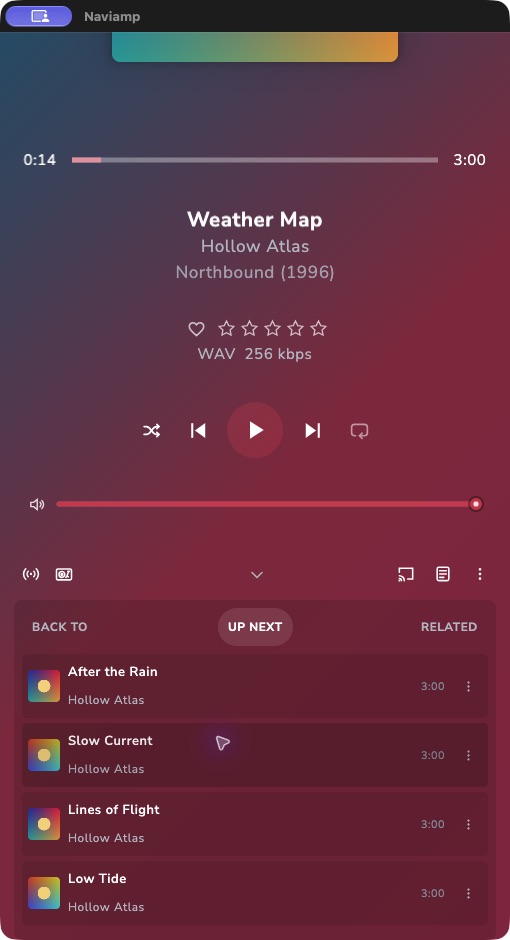
Open the current track from the playback bar or mini-player. In a wide window, use Queue to open the queue beside the player. In a narrow window, open the player and scroll below the controls to see the queue.
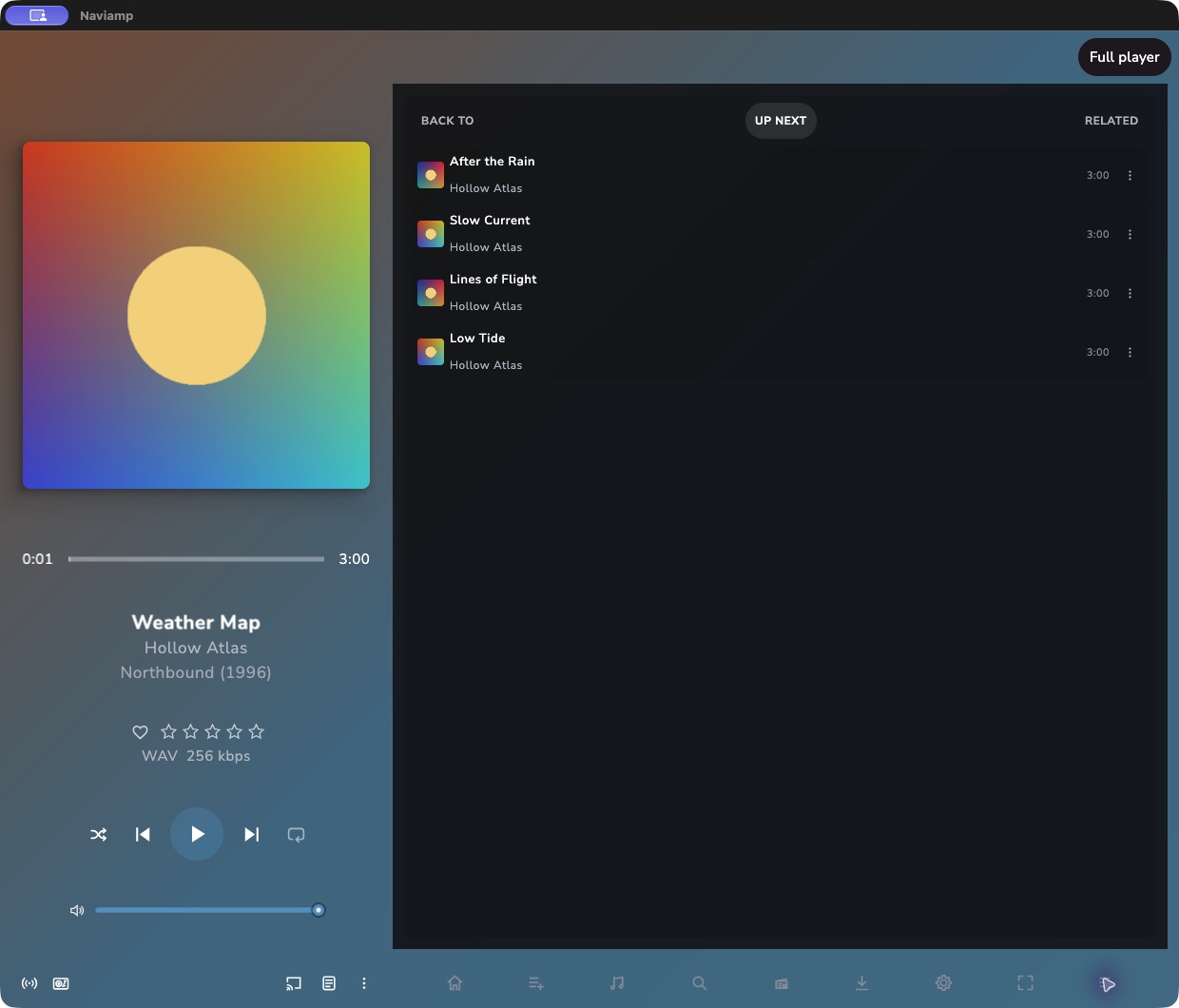
On Android TV, see Now Playing and the queue on Android TV for the remote steps and screenshots.
| Control | What it does |
|---|---|
| Play/Pause, Previous, Next | Control the current track and advance or go back through the queue. Previous can restart the track first or go straight back. |
| Progress or waveform | Seek to a position in a seekable track. Waveform display and detail are configurable. |
| Shuffle and Repeat | Change the queue’s playback order or repeat the queue or current track, as offered. |
| Volume and output | Adjust volume and choose an available output or playback destination. Platform controls and local audio device settings vary. |
| Favorite and rating | Star the current track or give it a separate one-to-five-star rating when the server supports ratings. |
| Lyrics | Open the lyrics panel. Plain, line-synced, and word-synced views depend on the lyrics Naviamp finds. |
| Track information | Inspect available format, sample rate, bitrate, and other metadata. For a live station, use Stream Details. |
| Album and artist names | Open the corresponding library page or choose from the supplied artist credits. |
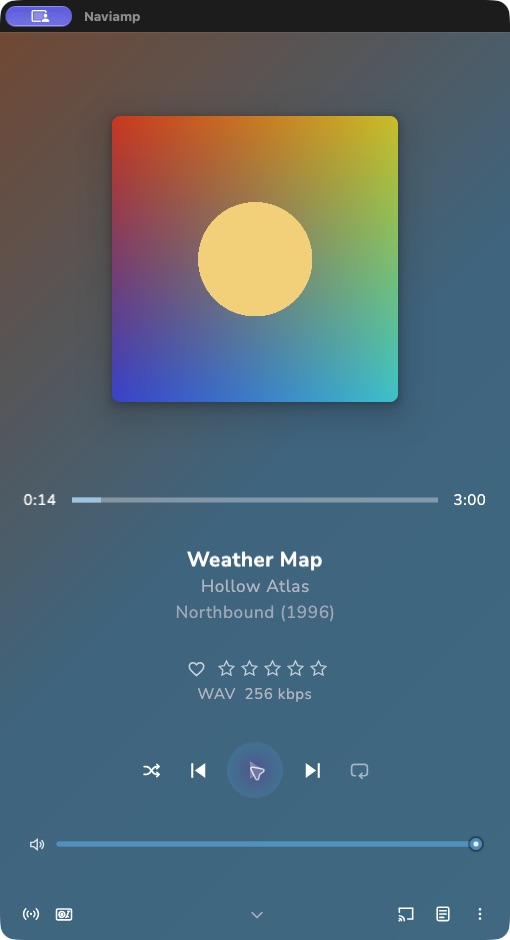
On desktop, open Toggle visualizer where available to switch to a reactive presentation. Use the visualizer controls to select a style and return to the album view. To play somewhere else, open the destination picker and choose an available Cast receiver or compatible paired Naviamp target. The available choices depend on the build and network. Select local playback to bring the controls back to this device.
- Back To shows earlier items in the current playback queue.
- Up Next shows the queued tracks ahead of the current song. Use the row menu and reorder controls to change what plays next.
- Related surfaces tracks connected to the current song when the server provides compatible similarity data.
Choose Play Next to insert a track after the current one. Use Add to Queue to add it after the existing upcoming tracks. Settings can change what happens if you select a song already farther down Up Next.
To keep a queue you’ve assembled, use its save-to-playlist action and name it. You can reopen it from Playlists.
See Experience settings for queue and display behavior and Playback settings for audio processing.