Repository navigation
Internet Radio
Internet Radio plays live network broadcasts. Open the station list from the app’s Internet Radio entry, or use Recent Internet Radio on Home to return to a station you played.
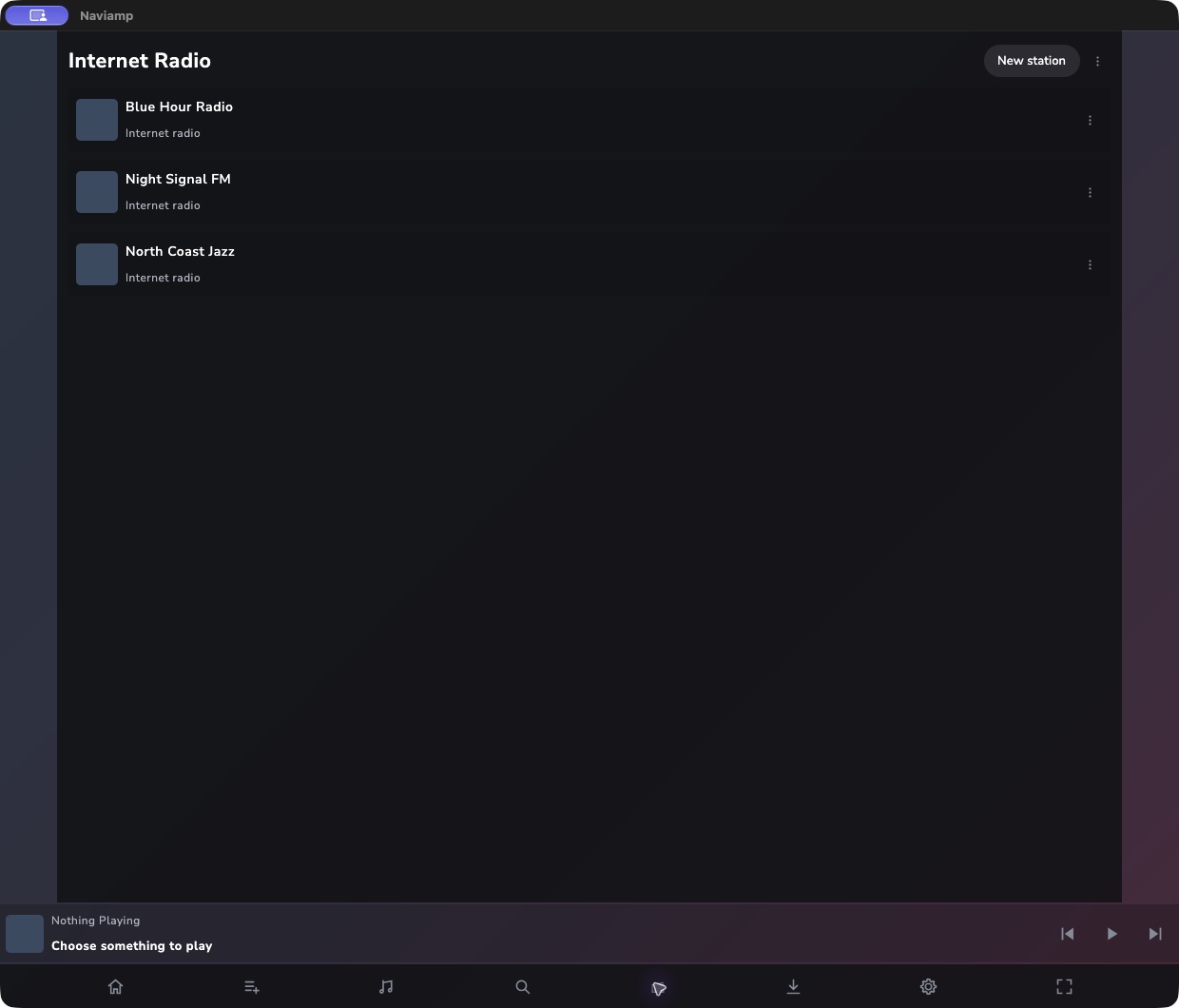
Narrow Internet Radio view
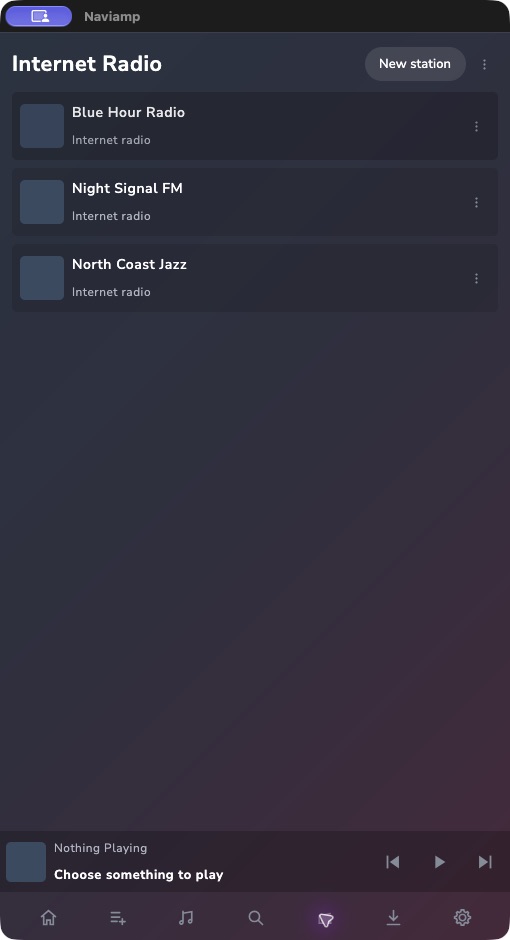
- Open Internet Radio and choose the add-station action. For an existing entry, open its menu and choose Edit station.
- Set a station name and enter the station operator’s direct audio Stream URL. If they also provide a listening website, enter that separately as the Home page URL.
- Save the station and select it to start playback. Station creation, edits, and deletion depend on the server’s station support and your account’s permissions.
For example, use the MP3 or AAC stream address listed by your local station. If you paste the station’s homepage as the stream address, Naviamp may receive a web page instead of audio.
During station playback, open Stream Details from the player. Depending on what the broadcast sends, it can show station information, the current title or program, artwork, and audio properties. Stations can keep playing with only their name or fallback artwork when they send limited metadata. Live streams generally have no fixed track length to seek through.
If playback fails, check whether the stream address still works and whether the device can reach it. For radio generated from your own files, see Mixes and discovery.