Repository navigation
Settings Playback
Path · Settings → Playback
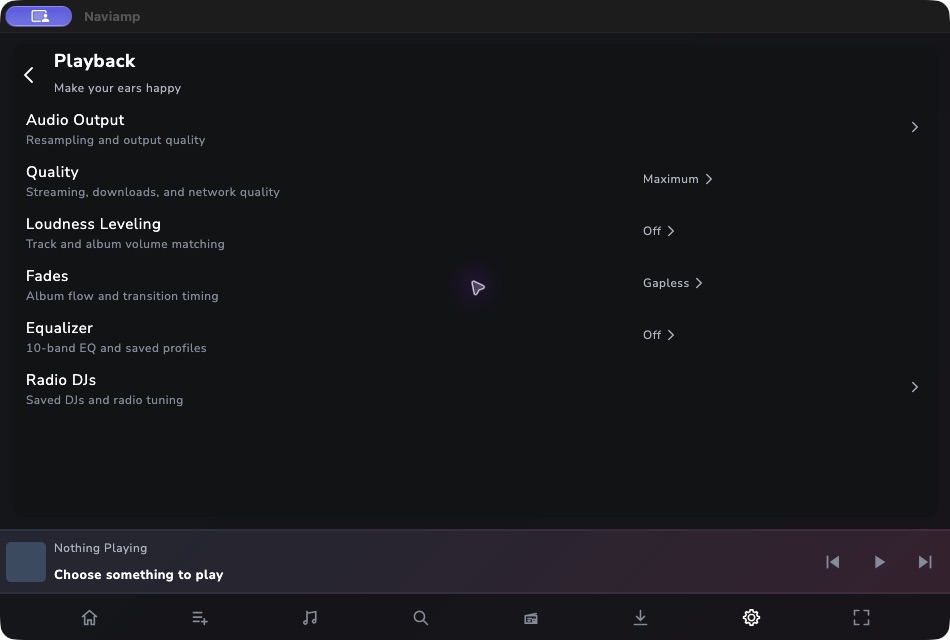
| Setting | What it changes |
|---|---|
| Audio Device | Follow the system output or pin a device where the host exposes device selection. If a pinned output is missing, Naviamp can fall back to the OS default. |
| Sample Rate Matching | Disabled, Smart, and Strict control how Naviamp handles tracks with different sample rates. Strict may reopen the device as the rate changes and disables crossfade. |
| Sample Rate Converter | Choose resampling quality when the input and output rates differ. |
| Stereo Downmix | Convert supported multichannel audio to a peak-safe stereo output. |
Set Wi-Fi / wired and Mobile data preferences independently where both are shown. Maximum favors original quality. For transcoding, choose a codec and bitrate your server supports. Upgrade cached audio on Wi-Fi lets Naviamp fetch upcoming music at the current Wi-Fi quality instead of reusing a lower-quality mobile cache entry. Saved Files controls downloaded copies separately.
Try keeping Maximum on Wi-Fi and choosing a lower bitrate for cellular streaming. Check track information during playback to see the properties Naviamp can report for the actual stream.
| Setting | What it changes |
|---|---|
| Replay Gain | Off leaves track volume unchanged, Track levels songs independently, and Album preserves volume differences within an album. The source needs useful ReplayGain metadata. |
| Preamp | Adjusts the reference gain used by ReplayGain. |
| Inspector | Shows ReplayGain details in track information for comparison and troubleshooting. |
- Gapless aims to keep transitions continuous, which helps with live albums and tracks that flow into one another.
- Crossfade overlaps consecutive tracks for the selected time. Turn it off for an uninterrupted album sequence or when using Strict sample-rate matching.
- Playback Profile overrides for an album or playlist are available from the item’s actions when offered. Use them to give one continuous album different transition or loudness behavior from the rest of your music.
Enable the equalizer to shape supported local playback with a 10-band curve. Start with a built-in Preset, adjust the bands and preamp, then save the curve as a Saved Profile if you want to reuse it. Use the flat curve as a baseline when evaluating a change.
Create a named DJ, select or edit it, and adjust the tuning options available for your radio method. Familiarity adjusts how much familiar music is favored. Artist Spread controls variety across artists. Stay in decade favors the seed era. Artist Runs and its run-length controls change how artists are grouped during playback. For example, make a familiar single-artist preset and a separate mixed-artist preset. Mixes and discovery