Offline Mode and PWA
TREK can be installed as a Progressive Web App (PWA) and used without an internet connection for previously synced trips.
TREK must be served over HTTPS — the install prompt does not appear on plain HTTP.
iOS (Safari):
- Open TREK in Safari.
- Tap the Share button.
- Select Add to Home Screen.
Android (Chrome / Edge):
- Open TREK in the browser.
- Tap the browser menu.
- Select Install app or Add to Home Screen.
Once installed, TREK launches in standalone mode (fullscreen, no browser UI) using the TREK icon.
TREK uses Workbox service-worker caching plus an IndexedDB database (Dexie) for structured trip data. The following content is available offline after the first sync:
Service-worker cache (Workbox)
| Content | Cache name | Strategy | Duration | Max entries |
|---|---|---|---|---|
| CartoDB / OpenStreetMap map tiles | map-tiles |
CacheFirst | 30 days | 1 000 |
| API responses (trips, places, bookings, etc.) | api-data |
NetworkFirst (5 s timeout) | 24 hours | 200 |
Cover images and avatars (/uploads/covers, /uploads/avatars) |
user-uploads |
CacheFirst | 7 days | 300 |
| App shell (HTML / JS / CSS) | precache | Precached | Until next deploy | — |
Note: The API cache excludes sensitive endpoints —
/api/auth,/api/admin,/api/backup, and/api/settingsare always fetched from the network.
IndexedDB (Dexie) — structured trip data
On login, after each trip-list refresh, and on WebSocket reconnect, TREK runs a background sync that writes full trip bundles into IndexedDB:
- Trips, days, places, packing items, to-dos, budget items, reservations, accommodations, trip members, tags, and categories.
- Non-photo file attachments (PDFs, documents, etc.) are downloaded and stored as blobs in IndexedDB.
- Map tiles are pre-fetched into the service-worker
map-tilescache for zoom levels 10–16 across each trip's bounding box (capped at ~50 MB of tiles per sync).
Sync scope and eviction
- Only ongoing and future trips are cached (trips whose
end_dateis today or later, or has no end date). - Trips that ended more than 7 days ago are automatically evicted from IndexedDB on the next sync.
The Offline tab gives you control over what is stored on this device and lets you go offline deliberately.
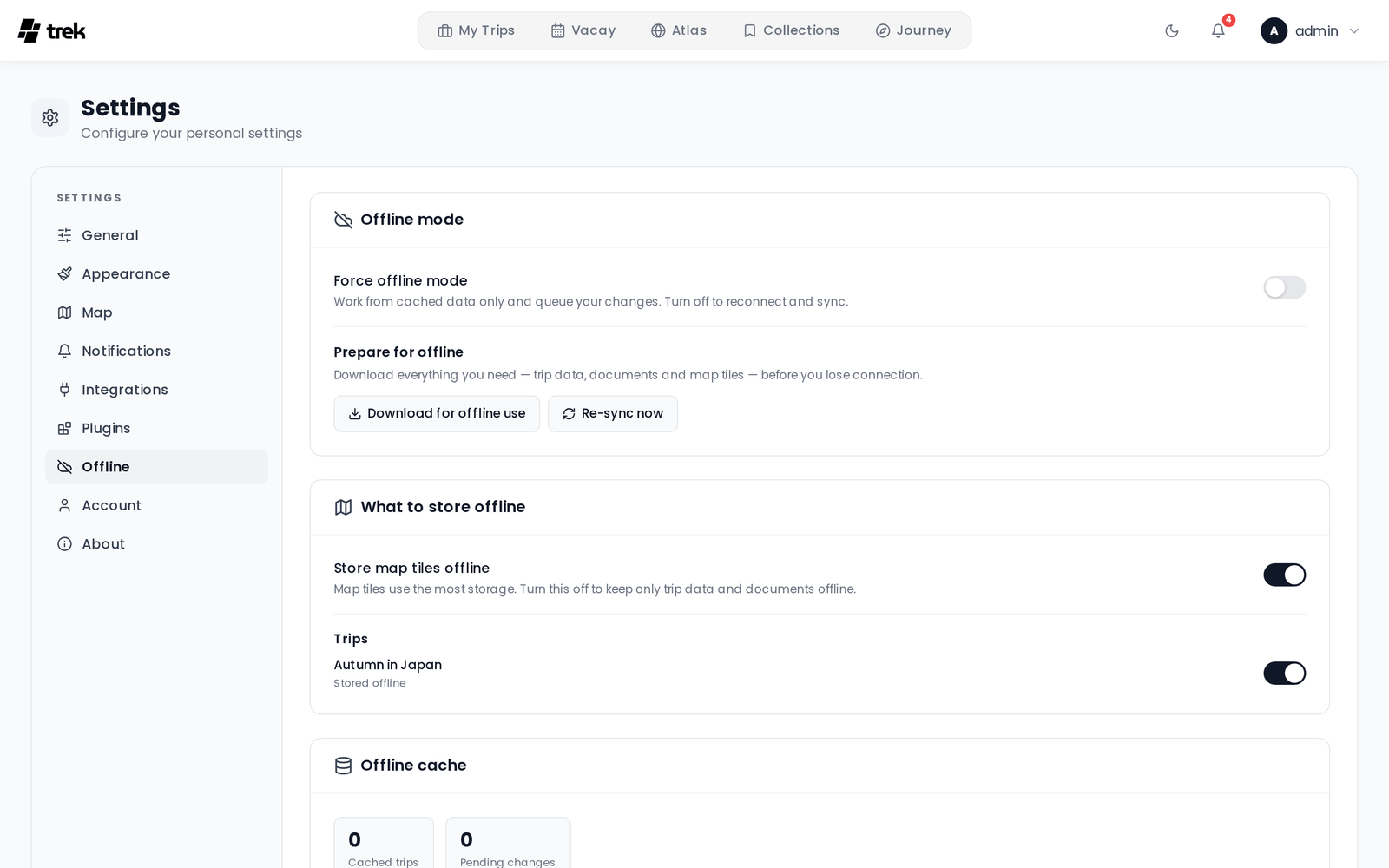
- Force offline mode — a switch that first downloads everything you need (see Prepare for offline below) and then routes the whole app to the local cache, queueing every change you make. Flip it back off to reconnect: queued changes are replayed and the cache is refreshed. The override is remembered across app restarts, so a session forced offline before a flight stays offline when the PWA relaunches.
- Prepare for offline → Download for offline use — a one-tap, progress-tracked download of trip data, documents and map tiles for every trip you keep offline. Unlike a background sync it waits for the downloads to finish, so the completion state means you really have everything.
- Re-sync now — refreshes the cache from the server. Disabled while offline.
- Store map tiles offline — map tiles use the most storage by far. Turn this off to keep only trip data and documents on the device; the pre-downloaded tile cache is cleared immediately.
- Per-trip toggle — each trip has its own on/off switch. Turning a trip off evicts its cached read data from the device (your unsynced edits are kept and still sync).
If a change you made offline collides with a newer change on the server, it is surfaced as a conflict instead of silently overwriting anything. The conflict list lets you keep mine or keep theirs per item. A default rule (Ask me each time / Always keep my version / Always keep the server version) is configurable under When a conflict happens. Conflict detection covers places and packing items.
The stats panel shows cached trips, pending changes, conflicts and failed changes. Clear cache removes all offline data from IndexedDB (you can re-sync any time while online). Each cached trip entry shows its date range, place/file count and last successful sync.
- Offline editing is supported for places and packing items (with conflict detection). Other entities — budget, to-dos, reservations, days — require connectivity to edit; while forced offline those edits still go to the live server when a connection is actually present.
- A change you made offline that deletes an item wins over a concurrent server edit of that same item ("delete wins"); only edit-vs-edit conflicts are surfaced for resolution.
- The conflict token has one-second resolution, so two edits to the same field within the same second can't be told apart and fall back to last-write-wins (only relevant to sub-second races; normal offline windows are unaffected).
- New trips created while offline are queued and synced when connectivity is restored.
- Photo uploads require connectivity; non-photo file attachments are pre-cached automatically during sync.
- Real-time collaboration features require an active WebSocket connection.
- Mapbox GL / vector tiles are not pre-downloaded; raster (Leaflet) tiles are. With map-tile storage off, individually viewed tiles may still be cached opportunistically by the service worker.