Reservations and Bookings
Track all your trip bookings — hotels, restaurants, events, tours, and more — in one place.
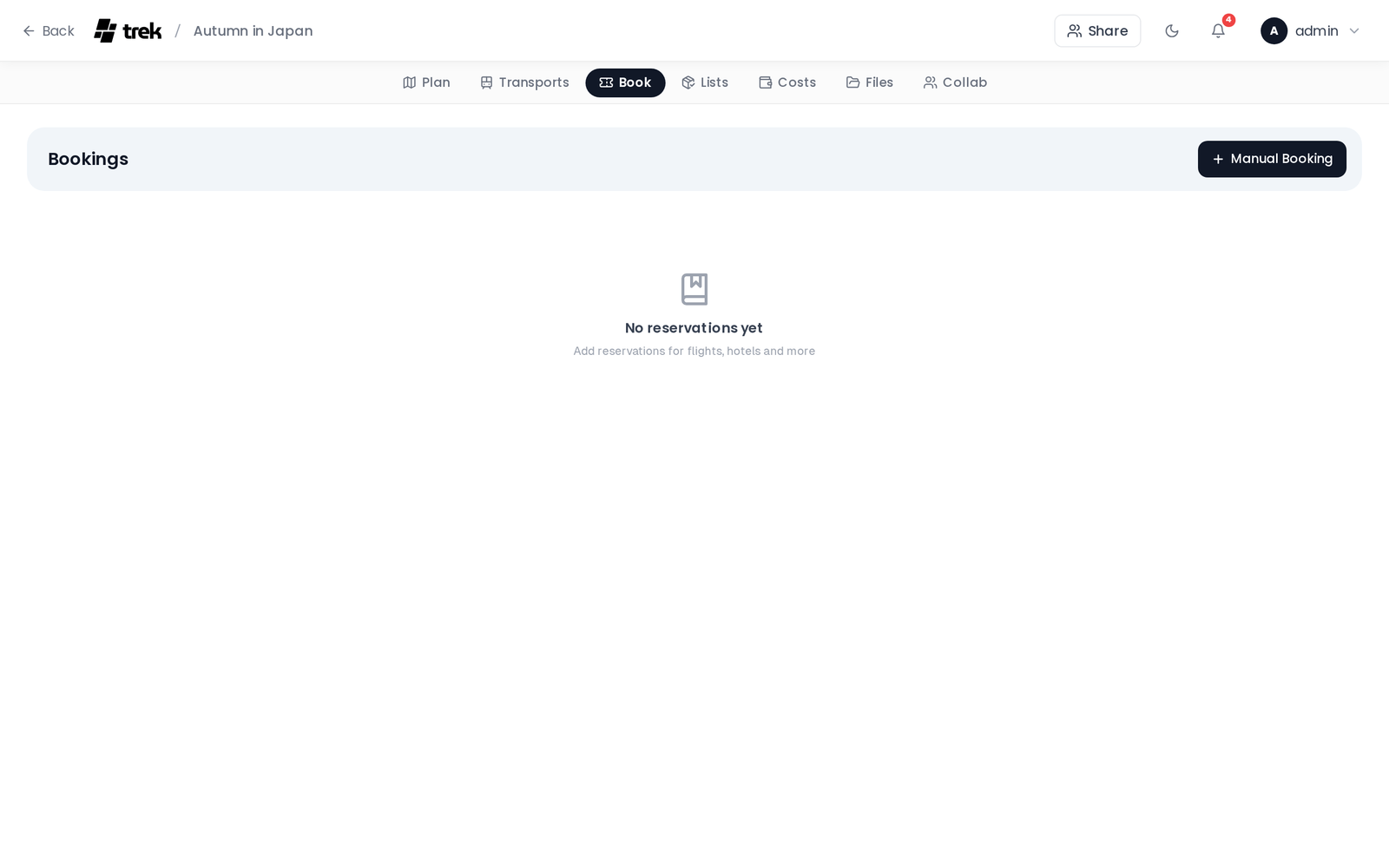
Open your trip in the planner and select the Reservations tab. The panel lists all bookings grouped by status, with a type filter bar at the top.
TREK supports nine reservation types:
| Type | How to create |
|---|---|
| Flight | Transport modal |
| Train | Transport modal |
| Car | Transport modal |
| Cruise | Transport modal |
| Hotel | Add button in Reservations panel — see Accommodations |
| Restaurant | Add button in Reservations panel |
| Event | Add button in Reservations panel |
| Tour | Add button in Reservations panel |
| Other | Add button in Reservations panel |
Transport types (Flight, Train, Car, Cruise) are created through the dedicated Transport modal, where you can enter endpoint and transit-specific fields. All other types are created directly from the Reservations panel.
Reservations are grouped into two collapsible sections: Pending and Confirmed. You can collapse or expand each section independently — the open/closed state is saved per trip so it persists across page reloads. Status is set when you create or edit a reservation.
On desktop, a type filter bar lets you show only specific types. Filter selections are kept for the current browser session.
Each card displays:
- Status dot — green for Confirmed, amber for Pending
- Type chip — icon and label for the reservation type
- Needs review badge — an amber badge shown on reservations flagged by importers that may need your attention
- Title — the reservation name
- Edit and delete buttons — visible only if you have edit permission
Admin: Edit and delete buttons are gated by the
reservation_editpermission. Members without this permission see read-only cards.
- Date and time range — start date, and end date/time if set
- From → To — origin and destination endpoints, shown for transport types
- Confirmation code — displayed in monospace. If you have Blur booking codes enabled in Display Settings, the code is blurred by default and revealed on hover or tap
-
Type-specific metadata:
- Flights: airline name, flight number
- Trains: train number, platform, seat
- Hotels: check-in window, check-out time (see Accommodations)
- Location / address — for non-hotel, non-transport types
- Linked accommodation — hotel name, if this reservation is linked to an accommodation record
- Day-plan assignment — the day and place this reservation is linked to
- Notes
- Attached files — shown as clickable download links
Click Add (or the + button) in the Reservations panel. Fill in the form:
- Type — choose Hotel, Restaurant, Event, Tour, or Other
- Title — required
- Link to day-plan assignment — optional; search across all days and places, grouped by day. Not available for Hotel type
- Start date and time — not shown for Hotel type
- End date and time — not shown for Hotel type
- Location / address — not shown for Hotel type
- Confirmation code
- Status — Pending or Confirmed
- Hotel-specific fields — shown only for Hotel type, immediately after status: hotel place, check-in day, check-out day, check-in time (window start and end), and check-out time. See Accommodations
- Notes
- Files — attach from your device (PDF, Word documents, text files, images) or link an existing trip file. Files added before saving are uploaded automatically after the reservation is created
- Price and budget category — shown only when the Budget addon is enabled. Entering a price greater than zero automatically creates a linked budget entry. See Budget-Tracking
TREK can parse booking confirmation emails, PDFs, and pass files and create reservations automatically using KDE Itinerary.
| Format | Extension |
|---|---|
| Booking confirmation email | .eml |
| PDF ticket or confirmation | .pdf |
| Apple Wallet pass | .pkpass |
| HTML confirmation page |
.html, .htm
|
| Plain-text email | .txt |
Up to 5 files, 10 MB each, per import.
- Open the Reservations tab.
- Click the Import (download) button in the toolbar — the button is only shown when the extractor is available on your server.
- Drag and drop your files onto the upload area, or click to browse.
- TREK parses each file and shows a preview list of the detected reservations with type, title, dates, endpoints, and confirmation number.
- Deselect any items you do not want to import by clicking the × on their card.
- Click Confirm to create the selected reservations.
All created reservations appear immediately in the panel and are broadcast to all connected trip members in real time.
- Hotels — a reservation and a linked accommodation row in the day plan (check-in/check-out dates are read from the confirmation).
- Hotels / Restaurants / Events — the venue is auto-created as a place with coordinates when the extractor returns location data.
- All types — a budget entry is created if the Budget addon is enabled and a price is present.
The Import button is hidden when the kitinerary-extractor binary is not available. The binary ships inside the official TREK Docker image. If you run TREK from source, install the libkitinerary-bin package (Debian trixie / Ubuntu 25.04+) or set KITINERARY_EXTRACTOR_PATH to the binary's full path. See Environment-Variables.
Items that the extractor could only partially parse are flagged Needs review — an amber badge on the card. Review these reservations after import and fill in any missing fields manually.
KDE Itinerary only recognises structured tickets. For confirmations it can't read — plain-text emails, unusual PDF layouts, vendors it doesn't know — TREK can optionally hand the file to an AI model instead. The optional AI Parsing addon runs only for the files Itinerary returns nothing for, parses them in the background, and flags every result for review before you save it. It works with a self-hosted local model, so booking data need not leave your server. See AI-Booking-Import.
With the AirTrail integration addon enabled and your instance connected under Settings → Integrations, the reservations toolbar shows an AirTrail button. It lists the flights from your AirTrail account — flights inside the trip dates come pre-selected — and imports each one as a flight reservation that stays in sync with AirTrail both ways.
When selected flights form a connection — each leg departs from the airport the previous one landed at, onward within 24 hours — the picker groups them and offers to import them as one flight with a layover. The offer is on by default; untick it to keep separate bookings. A joined booking keeps each leg's own airline, flight number, times and seat, the connection airport becomes a layover stop on the route, and each leg files into its own day in the planner. Since a stop is not a destination, the layover country no longer shows up as visited in Atlas.
AirTrail itself has no multi-leg flights, so a joined booking is imported without live sync (it shows the Not synced badge). Its source flights stay recognised — the picker will not offer them for import again. The same applies when you add a stop to a synced single flight by hand: the booking detaches from AirTrail instead of syncing a shape AirTrail cannot represent.
Each card has a pencil icon to open the edit form and a trash icon to delete. Deleting requires confirmation in a dialog before the record is removed.
Reservation changes (create, update, delete) are broadcast instantly to all connected trip members via WebSocket, so everyone sees the latest state without refreshing.
See also: Transport-Flights-Trains-Cars · Accommodations · Budget-Tracking · Documents-and-Files · Trip-Planner-Overview