Connection Commands
SSH Pilot can open the way to a host before it connects, and run OpenSSH commands around the session. This is configured in the Commands tab of the Connection Editor (right-click a connection > Edit Connection > Commands).
The tab has two separate groups:
-
Port Knocking and Pre-Connect — what SSH Pilot runs itself, before OpenSSH is involved. Choose one: a built-in port knock sequence, or a shell command (fwknop, VPN dial-up, cloud firewall rule). This is the only part that applies to non-SSH protocols that still dial out (e.g. Docker over
ssh://, Mosh). -
SSH Commands — OpenSSH directives, sent to OpenSSH: Local Command (runs locally after connecting) and Remote Command (runs on the host upon login). These are hidden for protocols SSH Pilot does not build an
sshcommand for.
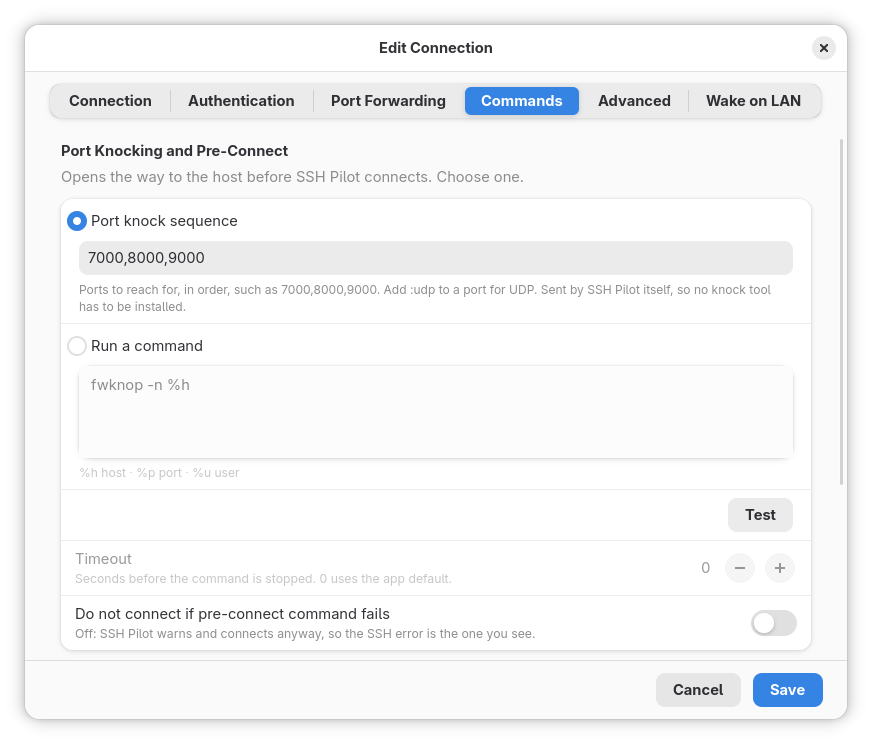
Commands tab: pick a port knock sequence or run a pre-connect command, then test it
The group header says it plainly: "Opens the way to the host before SSH Pilot connects. Choose one."
Two radio options, mutually exclusive:
| Option | What it is | Needs installed? |
|---|---|---|
| Port knock sequence | Ports to reach for, in order, e.g. 7000,8000,9000. Sent by SSH Pilot itself over plain sockets. |
Nothing. Works in the Flatpak. |
| Run a command | Any shell line that has to run first — fwknop, a VPN dial-up, or a knock and a VPN together in one line. |
Whatever binary the command uses (fwknop, tailscale, aws, …). Under Flatpak it runs on the host via flatpak-spawn --host. |
Both halves stay saved when you switch, so comparing the two and switching back destroys nothing. Only the selected one runs.
Enter the sequence in knock(1) syntax so it can be pasted from existing notes or knockd.conf:
- Separators are commas or whitespace:
7000,8000,9000or7000 8000 9000. - Protocol defaults to TCP. Add
:udpto a port for UDP:7000:udp,8000,9000(:tcpis also accepted explicitly). - Up to 32 ports. An empty field means "no knock".
- A sequence that will not parse is marked with an error highlight while you can still fix it. Pressing Test gives the precise reason.
There is deliberately no delay setting and no pause after the last knock — SSH dials immediately, and the SSH SYN's own retransmit covers the firewall's rule-insertion race. The daemon paces knocks ~0.2 s apart internally so the firewall's packet log stays ordered.
Note
A knock has no acknowledgement: a knocked port is supposed to be silent (DROPped or refused). "Sent" only means the packets reached the network. Whether the firewall opened is only knowable by connecting.
Anything else that has to run first. Typical contents:
fwknop -n %h
tailscale up --accept-routes
aws ec2 authorize-security-group-ingress --group-id sg-0123456789abcdef0 --protocol tcp --port 22 --cidr $(curl -s https://checkip.amazonaws.com)/32- Runs through a login shell (
sh -lc), soPATHadditions (/opt/homebrew/bin,/usr/local/bin) and expansions like$(which wget)work. - Tokens are expanded before the command runs (shell-quoted, so a space in a hostname stays a hostname):
-
%h— host,%p— port (defaults to22when the connection names none),%u— user. -
%%is a literal percent; an unknown%xis left alone, sodate +%Hsurvives. - This avoids hardcoding a hostname that rots the first time the connection is re-pointed.
-
-
fwknopstays a command on purpose: Single Packet Authorization is a real encrypted protocol with replay protection, not a port sequence, and cannot be reimplemented as knocks.
Test tries whichever half is currently selected, using the host / user / port fields as they stand (not the last saved values), through the same daemon path a real connection uses. The result appears beside the button:
- Knock:
Sent in 0.6s.(packets went out — see the note above) orCould not be sent. - Command:
Ran successfully in 0.4s.,Exited with status 1 after 0.4s.,Timed out after 30.0s., orCould not be started.— plus the command's own output when there is any. - Editing either field clears a stale result.
Seconds before the command is stopped. 0 uses the app default.
- Range 0–3600 s;
0follows the app default (30 s). - Applies to Run a command only (it dims with the command field) — a knock is a handful of packets, not a process.
Off by default.
- Off: SSH Pilot warns (toast + terminal notice) and connects anyway, so the SSH error is the one you see. A pre-step veto tells you far less than OpenSSH's own diagnostics, which is why this is the default.
-
On: a failed knock or command refuses the launch — terminal, SFTP, forward, SCP,
ssh-copy-id, and remote-command launches alike. - A failing run never strands you on a bug: an internal fault in the pre-connect step lets the launch continue.
-
Stored as app metadata (
connections.json:pre_command,pre_command_knock,pre_command_mode,pre_command_timeout,pre_command_abort) — not an SSH directive, so it is not written into~/.ssh/configand applies to every protocol. -
Runs for every launch kind, not just terminal tabs: terminal, SFTP browsing, port forwards, SCP transfers,
ssh-copy-id, and Host Info probes all trigger it. That is why SFTP to a knock-gated host works. -
Serialized per connection and coalesced (~5 s window): opening three tabs at once knocks once instead of firing three interleaved sequences that some
knockdconfigurations score as a failure. - Vault/credential safety: if the connection uses a password or key in a locked vault (Bitwarden, KeePass, master password), SSH Pilot prompts before running the pre-connect step, so time spent typing does not eat a short firewall window.
-
Status text follows the running half:
Sending the port knock…vsRunning pre-connect command…; a failure names the half that failed rather than blaming a command you never configured.
Port knocking protects SSH servers from internet-wide scans by keeping port 22 closed until a valid knock sequence or encrypted packet is received.
Your server runs knockd and requires TCP 7000, 8000, 9000 to open port 22:
- Select Port knock sequence.
- Enter
7000,8000,9000. - Press Test — expect
Sent in …s., then connect.
Mixed UDP/TCP:
7000:udp,8000,9000
Tip
If the firewall needs a moment after the knock, do not add sleep to a knock sequence — there is nowhere to put it. Just connect: the SSH handshake retries while the rule lands. sleep only applies to Run a command lines, e.g. fwknop … && sleep 1.
Select Run a command and enter one of:
fwknop -n %h
fwknop -n myserver
fwknop -n myserver --wget-cmd "$(which wget)"Select Run a command. Whitelist your current dynamic IP before connecting:
AWS EC2 Security Group:
aws ec2 authorize-security-group-ingress --group-id sg-0123456789abcdef0 --protocol tcp --port 22 --cidr $(curl -s https://checkip.amazonaws.com)/32Hetzner Cloud Firewall:
hcloud firewall add-rule my-firewall --direction in --protocol tcp --port 22 --source-ips $(curl -s https://ipinfo.io/ip)/32Select Run a command. Ensure the tunnel is up before connecting:
Tailscale:
tailscale up --accept-routesWireGuard:
sudo wg-quick up wg0Need a knock and a VPN? Write both in the one command line — that combination is exactly what the command half is for.
The Local Command field corresponds to the OpenSSH LocalCommand option. It runs on your local workstation after the SSH connection has successfully connected.
OpenSSH requires PermitLocalCommand yes to execute local commands. SSH Pilot configures this automatically when a Local Command is specified.
In ~/.ssh/config:
Host my-server
    HostName 198.51.100.25
    PermitLocalCommand yes
LocalCommand notify-send "Connected to %h"-
Desktop Notifications:
notify-send "SSH Pilot" "Connected to %h as %u"
-
Open Local Browser:
If you have a local port forward configured (e.g.
8080:localhost:8080), you can launch your browser automatically:xdg-open http://localhost:8080
OpenSSH supports tokens in LocalCommand:
-
%h-- Remote hostname -
%p-- Remote port -
%r-- Remote username -
%u-- Local username
The Remote Command field corresponds to the OpenSSH RemoteCommand option. It runs on the remote server immediately upon logging in.
In ~/.ssh/config:
Host dev-box
    HostName 198.51.100.25
    RemoteCommand tmux new -A -s main
RequestTTY yes-
Attach or Create a tmux Session:
tmux new -A -s work
-
Run a System Monitoring Tool:
btop # or htop -
Launch a Custom Admin Menu:
/usr/local/bin/admin-menu.sh
Note
When using interactive commands (such as tmux, htop, or shell menus), SSH Pilot automatically requests a pseudo-terminal (RequestTTY yes) so you can interact with the terminal normally.
Packets never reached the network — a down VPN, no route, or an unresolvable host. A refused or dropped knock is the normal case and reports success. Check:
- Can you resolve and route to the host at all?
- Is the VPN the knock must travel over actually up?
- Press Test — a knock failure there reproduces without opening a connection.
- Ensure the required tool (
fwknop,aws,tailscale, etc.) is installed on your local computer (the built-in knock sequence needs nothing installed). - On macOS with Homebrew, the login shell (
sh -lc) loads/opt/homebrew/binand/usr/local/bin. Otherwise give the full path (e.g./opt/homebrew/bin/fwknop). - Under Flatpak the command runs on the host — install the tool on the host, not in the sandbox.
- Test first: press Test in the Commands tab, then try connecting so you know which half failed.
-
For
fwknop: if the client is behind NAT, ensure it discovers the public IP correctly (e.g.--resolve-http-ip). - Check the gate switch: with Do not connect if pre-connect command fails on, a failing pre-connect refuses the launch; with it off (default), the SSH error is the primary signal.
Pre-connect execution is traced in daemon.log (see docs/diagnostics.md in the repo). Launch with --debug/--diagnostics and look for:
port knock starting kind=terminal ports=3 [connection=… session=…]
port knock finished ports=3 duration_ms=412 kind=terminal
pre-connection command starting kind=terminal timeout_s=30 coalesce_s=5 [connection=… session=…]
pre-connection command finished exit=0 duration_ms=412 stdout_bytes=0 stderr_bytes=0 kind=terminal
-
kind=is the launch it belongs to:terminal,sftp,forward,scp,remote_command, orcopy_id. - Knock ports, command text, and output are DEBUG-only (a sequence is a door code; a command line may carry a secret).
- Connections -- Managing connection profiles and settings
- Terminal -- Tabs, split view, and session handling
- Security -- Credential management and secure storage
- Port Forwarding -- Local, remote, and dynamic SOCKS tunnels