Repository navigation
BestPracticeForWOLFRPGEN
Translate a WOLFRPG engine game and embed the translation into the game. After that, the game runs without any translation tool.
flowchart LR
  A(["Prepare the game"]) --> B("Create a project")
  B --> C("Translate with AGENT")
  C --> D("Generate the translation")
  D --> E(["Copy back into the game"])
- You completed the [Basic Tutorial] one time
- A clean copy of the game: not injected by
MTooland not translated before - Download
UberWolf_0.6.4.zipandWOLF_RPG_Editor3_Pro_3.732_EN.zipfrom the [WOLFRPG Toolset]. You can also use the_ZHversion of the editor - Download
LGBaseFont.zipfrom [LGBaseFont]
⚠️ We recommend that you make a full copy of the game folder and work on the copy
🔍 Check whether you need an upgrade
Right-click
Game.exe, selectProperties-Details, and checkFile version:
- Starts with 3: skip steps 1 and 2, and start from
3. Create a Project- Does not start with 3: complete steps 1 and 2 in order
💡 If the game folder already has a
Datafolder, skip this step
- Extract
UberWolf_0.6.4.zipand openUberWolf.exe - Drag
Game.exeonto the top button - Click the unpack button and wait until the log shows that the unpack is complete
- Delete
Data.wolfand all other.wolffiles, or move them somewhere else. If you keep them, the game loads the data two times
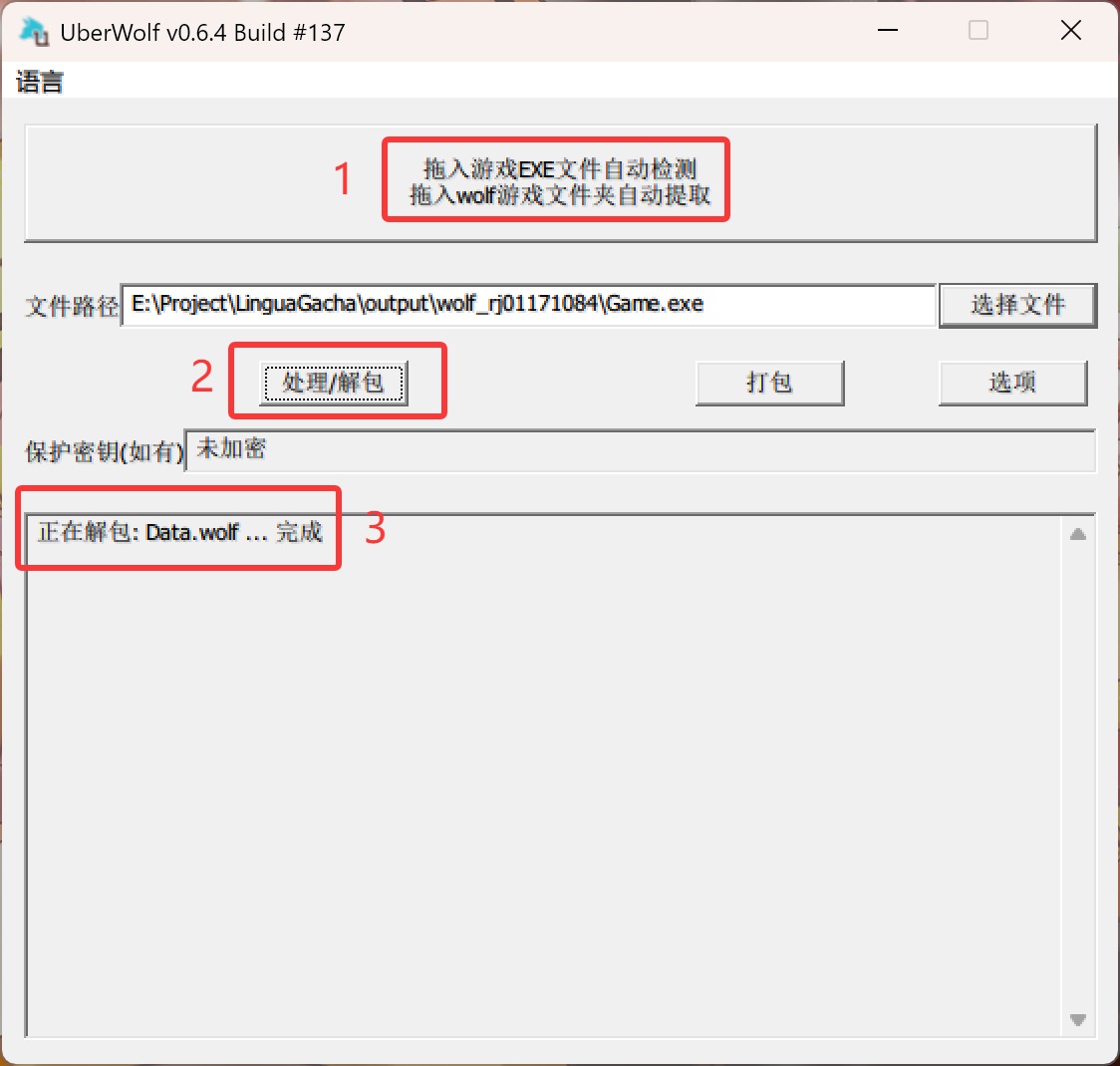
✅ Result: the game folder has a
Datafolder and no.wolffiles
💡 Only run this step when the check above says an upgrade is needed
- Extract
WOLF_RPG_Editor3_Prointo the game folder and overwrite files with the same names - Double-click
EditorPro.exeand click the data conversion button - When a confirmation prompt shows, select
No - After the conversion completes, close the editor. Delete
Backup_Before_Ver3andData\Backup_Before_Ver3, or move them somewhere else
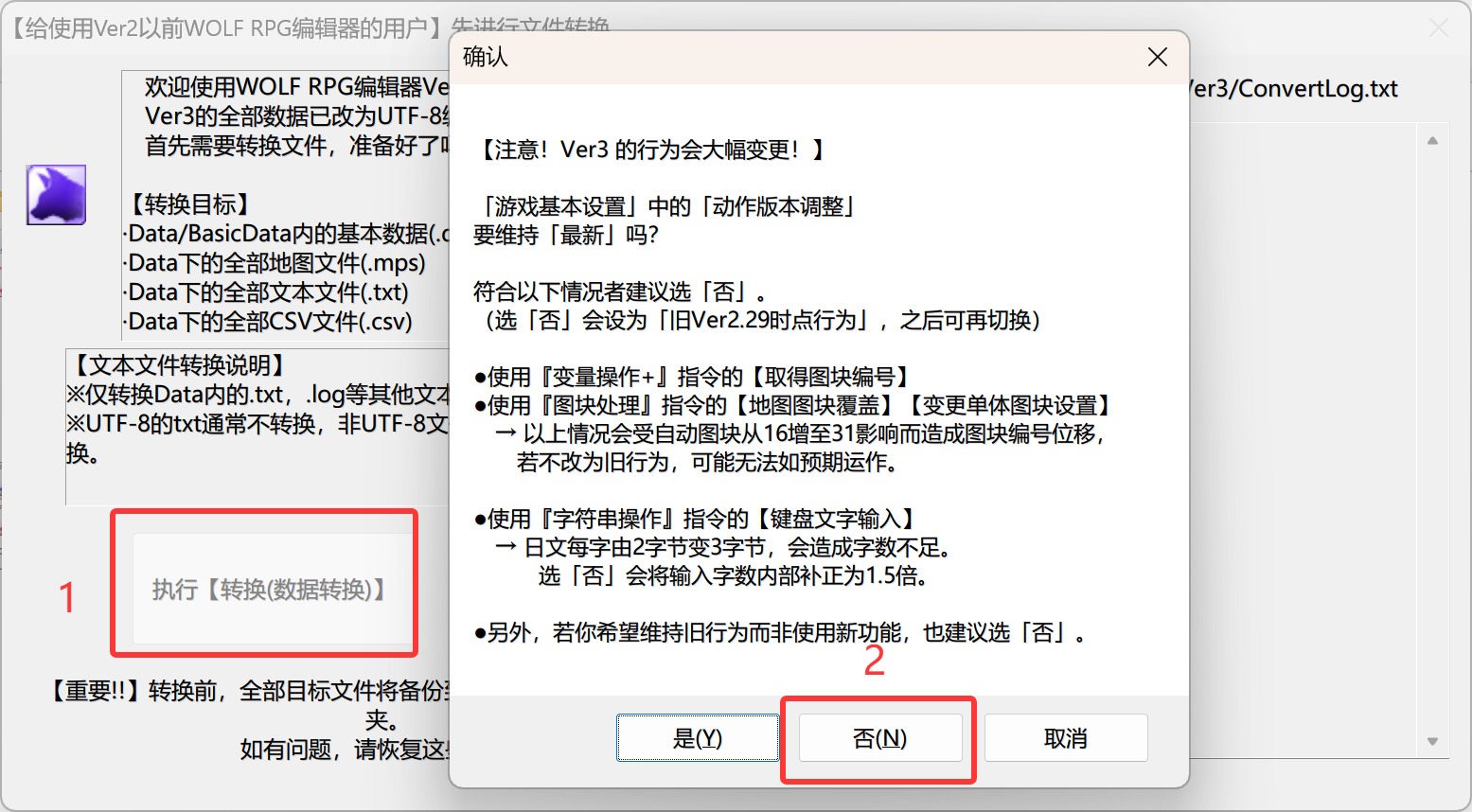
✅ Result: from now on, start the game with
GamePro.exe
- Open
Project Home - Drag the game folder into
Create Project - Click
Create Project
✅ Result: the game folder has a new
backup_lgfolder
⚠️ backup_lgcontains the original game files. Do not delete it
In AGENT, click in sequence:
| Step | Instruction | Purpose |
|---|---|---|
| ① | Help me extract terminology |
Keeps character, place, and item names consistent |
| ② | Help me translate the full text |
Translates the game text |
| ③ | Help me review and correct the translation |
Finds errors and code problems |
💡 AGENT loads the
wolfrpgskill automatically and processes text by the engine rules. No extra setup is necessary💡 After terminology extraction, check the character names and genders
- Click
Generate Translation - Open the
{project name}_Translated/{game folder name}/folder - Copy all of its contents into the game folder and overwrite files with the same names
- Start the game
✅ Result: the game shows the translation and runs correctly
- Extract
LGBaseFont.ttffromLGBaseFont.zip - Open
Toolbox-Modify Game Font - Drag in the game folder and
LGBaseFont.ttf, then clickModify - Start the game
✅ Result: the game shows the translation with
LGBaseFont
For any problem that you see in the game, give AGENT a screenshot:
| Problem | What to say |
|---|---|
| Text is not translated | This UI text is not translated, here is the screenshot, find it and translate it |
| The game shows an error | The game shows an error, here is the screenshot, help me find the translations that cause it |
| Text shows as boxes | The text in the game shows as boxes, here is the screenshot, how do I fix it |
After AGENT corrects the problem, do step 5 again. If you changed the font, do the extra step again.
💡 Text that shows as boxes usually means that you did not change the font yet. Do the extra step
💡 To restore the original game, copy the files from
backup_lgover the game folder
How do I know if a game is WOLFRPG?
- Drag the game folder into
Create Project. If the app identifies it, it is WOLFRPG - You can also give AGENT a screenshot of the game folder:
This is the game folder, tell me which engine it uses and which tutorial to read
Does the translated game still need LinguaGacha?
- No. The translation is written into the game files
I still use the old Translator++ workflow. Does it still work?
- Yes.
LinguaGachastill supports.transfiles, but forWOLFRPGgames we recommend the native workflow above