Repository navigation
The Panel
The panel is CopyPaste. It appears with Ctrl+Alt+V (Windows) or ⌃⌥V (Mac) over whatever you were doing, and what you choose is pasted into that same app, not into a window you then have to close.
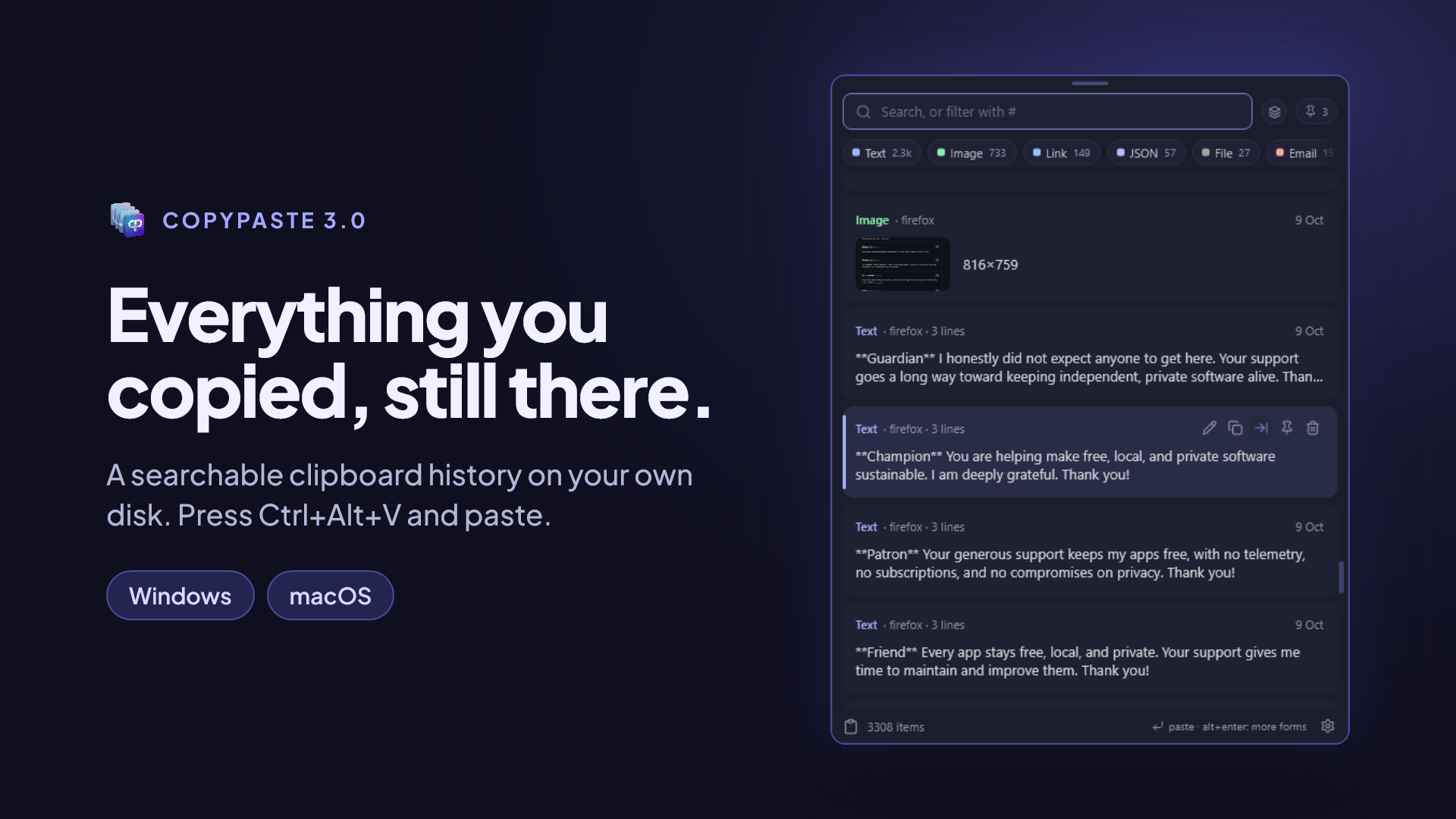
The search box has the focus the moment the panel opens: just type. No need to click.
Search:
- ignores accents and case:
cancionfinds "Canción"; - looks through what you copied, the name you gave a card, and the text read inside your images (more in Content kinds);
- shows the thumbnail of a matching image right in the results.
If nothing turns up, the panel suggests trying fewer letters.
Three ways to narrow the list to one kind of thing:
-
With
#in the search box. Type#image,#link,#folder,#color… and a space: the word becomes a tag and filters instead of searching. Spanish names work too (#imagen,#enlace), with or without accents. Combine it with text:#link github. The full list of tags is in Content kinds. -
With the strip of kinds above the list. A click switches kind; turn on the layers button, or hold
Ctrl(⌘on a Mac) while clicking, and clicks add kinds instead of swapping them. -
With the keyboard.
TabandShift+Tabstep through the filters.Alt+GorAlt+T(⌘Gor⌘Ton a Mac) open the picker to choose the kind.
With the search box empty, Backspace removes the last tag.
And two quick views: Ctrl+1 shows everything and Ctrl+2 only what's pinned (⌘1 and ⌘2 on a Mac).
The newest item is on top, grouped into Now, Today, Yesterday and Earlier, and each card shows how long ago you copied it.
Copy the same thing twice and it isn't duplicated: the existing card moves back to the top.
Each kind is shown the way that suits it, and you can switch the view for each one:
| Kind | Views |
|---|---|
| Images | Grid or rows |
| Video | By its cover or compact |
| Audio | As a waveform or compact |
| JSON | By its keys or raw |
| Files, links and folders | Grouped or newest first |
The panel remembers which view you chose for each kind.
Click a card (or press →) and it unfolds in place with a preview of what it holds: the full text, the image at a larger size, the JSON laid out. Another click folds it back.
An open card shows buttons with their keys: ⏎ to paste, ⇧⏎ to paste as plain text and Alt ⏎ (⌥⏎ on a Mac) for paste as…. You can click them.
Double click pastes the card straight away.
Hover over a card, or select it with the arrow keys, and its actions appear:
| Action | Shortcut (Windows · Mac) | What it does |
|---|---|---|
| Open |
Ctrl+O · ⌘O
|
Opens the file, image, link, email or phone number with the app your system already uses |
| Give it a name |
F2 or Ctrl+E · ⌘E
|
A name you can find it by later |
| Copy without pasting | Puts it on the clipboard for you to paste yourself, later, wherever you like | |
| Paste as |
Alt+Enter · ⌥⏎
|
Offers other ways to paste it. It's the highlighted action |
| Pin |
Ctrl+P · ⌘P
|
Keeps it on top and safe from every automatic cleanup |
| Delete |
Delete · ⌘⌫
|
Removes it from the history |
Links open through LinkUnbound if you have it installed, so it can pick the browser; otherwise in your default browser.
If the file behind a card no longer exists (you deleted or moved it), the card says Not found and only lets you name, pin or delete it.
That terminal command you use every day, your shipping address, your email signature: name them with F2 and search for them by that name. No more scrolling down the list to find them.
What you pin stays on top and nothing removes it on its own: not your retention period, not the size limit, not Empty the history. It only goes if you delete it.
Drag an image, file, folder, audio or video card straight into another app: a web page's upload zone, a chat, an editor or a folder.
An image arrives with the name you gave its card, or a unique one, so an upload form never rejects a second image for having the same name as the first (image.png).
Paste an image into a terminal and it arrives as the path to its file, which is what a terminal knows how to take. Editors with their own terminal, like VS Code, keep receiving the image.
On Windows, an image pasted into a browser arrives with its own name, the same as when you drag it.
Esc, or click another window. If you'd rather it didn't close when you click elsewhere, turn off Settings › General › Hide when you click elsewhere.
See also: Keyboard shortcuts · Paste as…