Repository navigation
Appearance and sounds
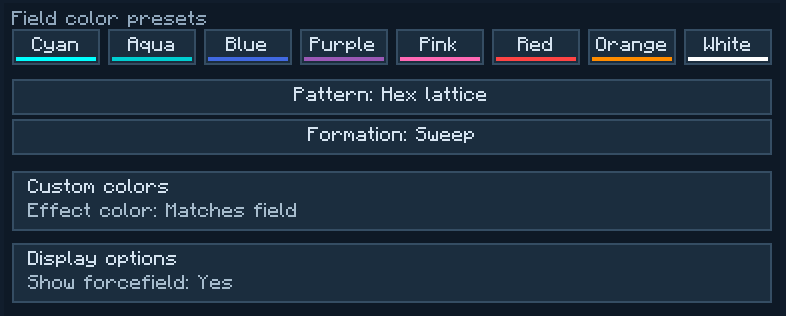
Pattern is what the powered field looks like. Formation is how a wall or bridge appears when it starts. On a Projection Tower the animation control is called Projection.
- Right-click an emitter and open Appearance. Pick a Field color preset. To enter your own color, open Custom colors and use six hexadecimal digits, for example
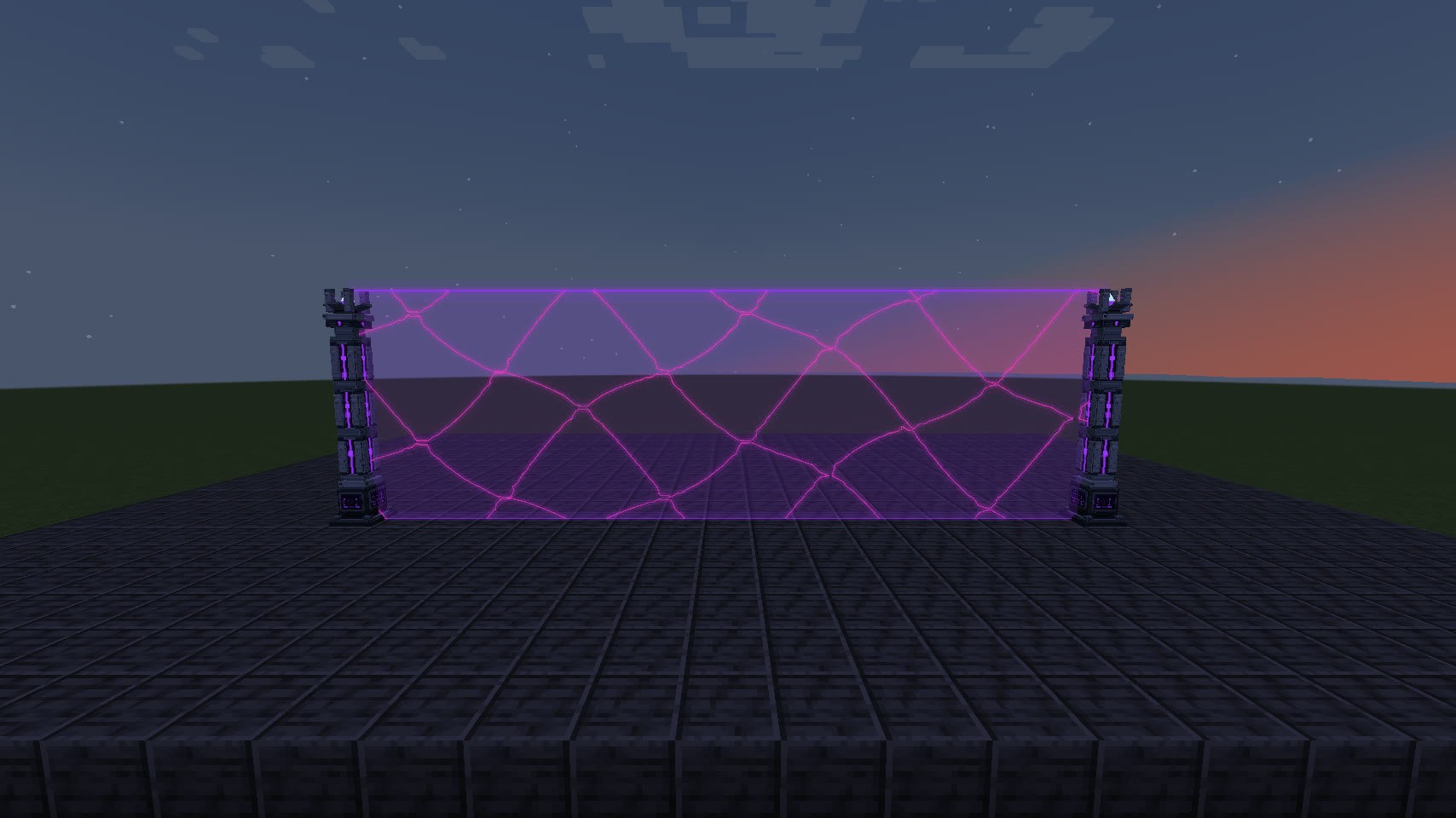
52E5FFfor cyan. - Use Pattern to cycle through Hex lattice, Smooth glow, Drifting pixels and Plasma. The plasma pattern in the picture below makes the difference between the field and the bright veins easy to see.
- In Custom colors, change Effect color from Matches field to Separate color. Pick the second color. It affects details such as plasma veins, impacts and fizzle particles.
- Switch the field on and try throwing a projectile against it with Projectiles enabled under Blocking.
Choose Formation for a wall or rail, or Projection for a tower. To see it again, switch the field off and back on under Overview. On a raised bridge, step onto solid ground first.
A tower takes four seconds to form. Walls and rails also have six four-second projection effects. Those become active at the end of the animation. Sweep, Dissolve / reform and Fade on walls and rails become active as the field builds.
Open Appearance → Display options. Show forcefield controls the visible surface. Light nearby blocks controls block light. A hidden field can still stop entities and run its sensor. Use Overview → Enabled to switch the field off entirely.
Open Sounds to cycle Sound set. Switch Power on / off sounds, Impact sounds or Damage sounds individually. Use All field sounds to silence the network.