Repository navigation
Colour Paint
Colour Paint is a drawing program in colour. A picture is 320 x 240 pixels, and each pixel can be any of 256 colours. While Colour Paint runs, the screen is in the 320 x 240 mode, so the menus and boxes look larger than usual.
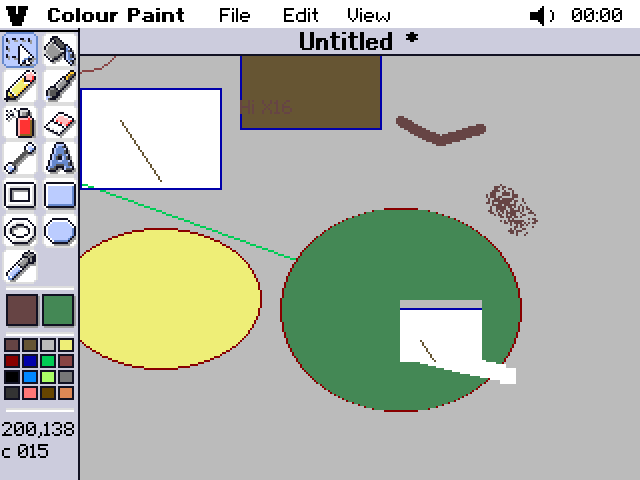
Colour Paint comes with Paint; both are in /VERANDA/APPS.
Use Paint for large black and white pictures with patterns, and Colour
Paint for small pictures in colour.
- Double-click Colour Paint in
/VERANDA/APPS. - Double-click a Colour Paint picture: Colour Paint opens it.
Colour Paint needs 21 free RAM banks. Close other programs first if it says there are not enough.
- The menu bar: Colour Paint, File, Edit and View.
-
The picture's name in the band above the picture. A
*after it means there are changes that are not saved. -
The column on the left:
- the tools, two a row: selection, fill, pencil, brush, spray, eraser, line, text, rectangle, filled rectangle, oval, filled oval and the eyedropper. The chosen tool sits on a blue plate.
- the two colour wells: colour A (left) draws, and colour B (right) fills the inside of a filled rectangle or a filled oval.
- the recent colours: the last 16 colours you chose for colour A. Click one to make it colour A again.
- the status: where the pointer is in the picture (in pixels from its top left), and the number of the colour under it (0-255).
- The picture: the rest of the screen shows 280 x 212 pixels of it. The arrow keys scroll it by 8 pixels.
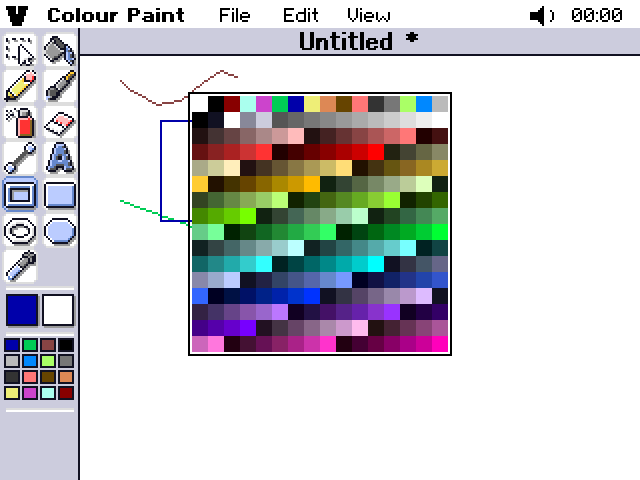
Click a colour well: a box with all 256 colours opens, 16 x 16. Click a colour to put it in that well. A click outside the box closes it.
The eyedropper tool takes the colour of the pixel you click as colour A.
- Selection: drag out an area. Then use Cut, Copy or Paste in the Edit menu.
- Fill: click in an area. The area of that colour around the click gets colour A. A large area can take a second or two.
- Pencil: draw thin lines as you drag.
- Brush: paint with a round tip, 5 pixels across, as you drag.
- Spray: hold the button down to spray dots around the pointer.
- Eraser: rub out 8 x 8 pixels at a time, to colour 0 (the paper).
- Line: drag from one end to the other.
- Text: click where the text goes and type a line (up to 40 characters), then press Return. The text is in colour A.
- Rectangle and oval: drag a frame in colour A.
- Filled rectangle and filled oval: drag a shape: the edge in colour A, the inside in colour B.
- Eyedropper: click a pixel to make its colour colour A.
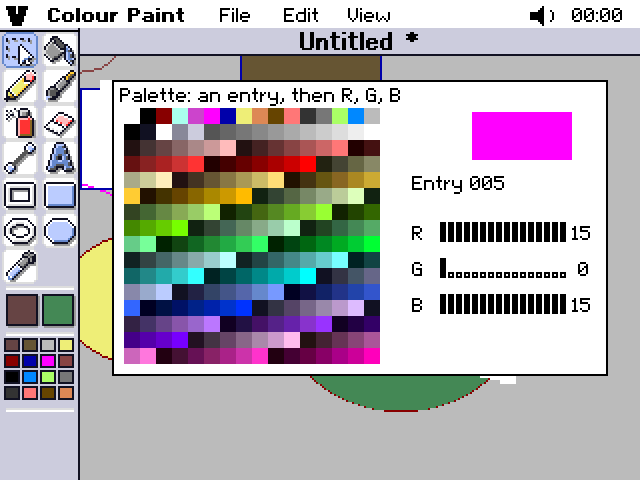
View > Palette... opens the palette editor. Click one of the 256 colours, then click the bars to set its red, green and blue (16 steps each). The picture changes at once. Colours 0, 1 and 17-20 are used by the menus and the mouse pointer, so they cannot be changed. A click outside the box closes it.
The palette is saved with the picture.
| Menu | Items |
|---|---|
| Colour Paint | About Colour Paint, Desk accessory... |
| File | New (Ctrl N), Open... (Ctrl O), Save (Ctrl S), Save as..., Export for Paint..., Export as BMP..., Print... (Ctrl P), Quit (Ctrl Q) |
| Edit | Undo (Ctrl Z), Cut (Ctrl X), Copy (Ctrl C), Paste (Ctrl V) |
| View | Whole picture (Ctrl W), Palette... |
- Edit > Undo takes back the last change. Undo again puts it back.
- Cut and Copy keep the selected area, with its colours. Cut leaves colour 0 behind. Paste shows the area floating under the pointer; click to put it down.
- Copy also puts a black and white copy on Veranda's clipboard, for other programs. When another program has put a picture on the clipboard since, Paste pastes that one, in colour 1 (black).
- View > Whole picture shows all of the picture, without the menus and the column, until you click or press a key.
-
Save and Save as write a Colour Paint picture (a GEOS
document,
Name.cvton the card). The first Save goes to/DOCUMENTS. Long names are fine. - Open opens Colour Paint pictures and also Paint pictures. A Paint picture opens at half size, in black and white.
-
Export for Paint... writes a black and white Paint picture of the
top left 296 x 232 pixels. Each pixel becomes 2 x 2 dots, more of
them black the darker its colour is. The name gets
BWat the end unless you change it. -
Export as BMP... writes the picture as a BMP file (8 bits a pixel,
with its 256 colours) for a PC.
.bmpis added if the name has no dot. -
Print... writes the picture to a PDF file, A4, in black and
white dots as in Export for Paint.
.pdfis added if the name has no dot. Print the PDF on a PC. Printing takes about 20 seconds.
- One size of picture: 320 x 240.
- One step of undo.
- The text tool has one font, the system font.
- View does not show Colour Paint pictures. Export them as BMP files to view them.