Repository navigation
Device Protocol Profile Editor
Trackers often report compact keys such as io32 or axisX. A Device Protocol Profile translates these into readable names, units, and values. The same profile can be assigned to several vehicles.
- Open Settings → Device Protocol Profile Editor.
- Choose Selected Profile.
- Choose Open Visual Field Mapping Editor.
- Choose an automotive system or search for a field by label, Traccar key, AVL ID, or unit.
- Select a field card to open its details.
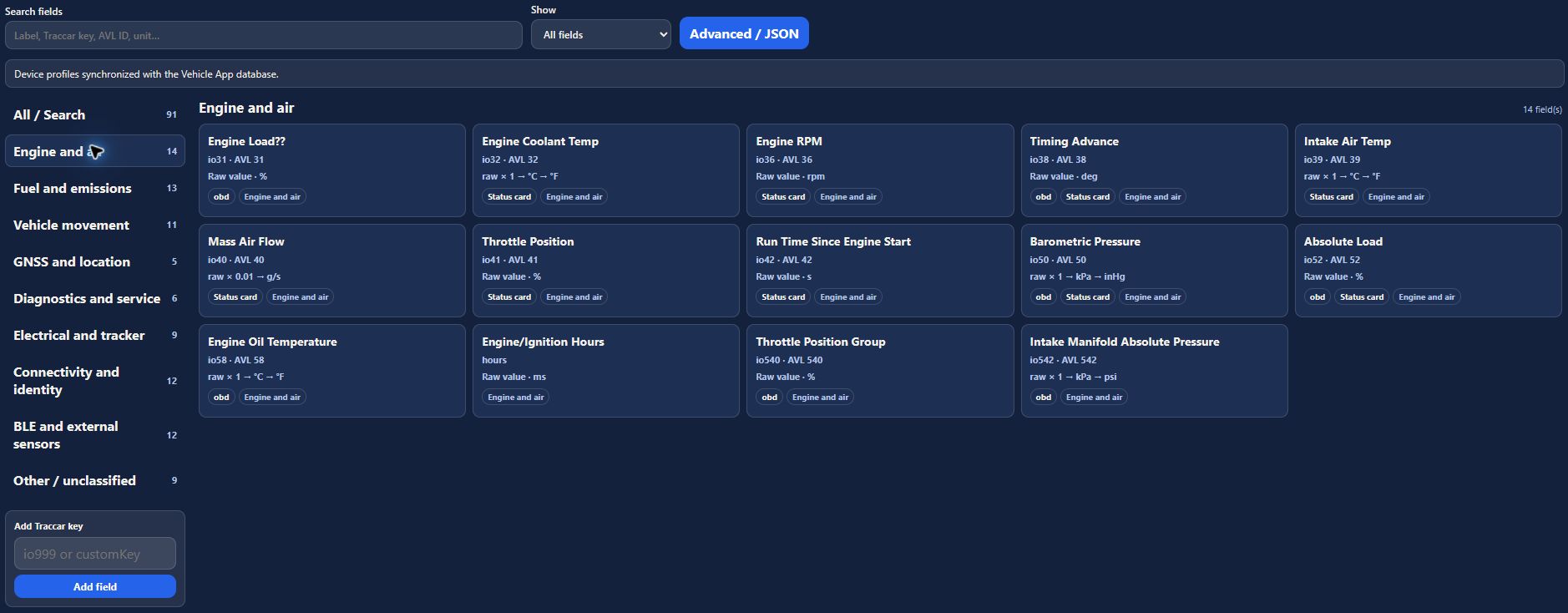
Use Show to filter all fields, unlabeled fields, fields with conversions, or status card fields. Advanced / JSON opens the underlying mapping representation.
Each field card shows its readable label, source key, AVL ID when present, and conversion summary. Details include value type, source group, automotive system, quantity, status card field, units, scale, offset, precision, sentinel values, and a legacy conversion.
| Setting | Meaning |
|---|---|
| Source key | The attribute received in a Traccar position. |
| Label | The readable field name. |
| Value type | Number, text, or identifier. |
| Source unit | What the tracker actually sends. |
| Canonical unit | The physical base unit used for normalization. |
| Canonical scale and offset | Convert raw input to the canonical value. |
| Quantity | Identifies the measurement for display-unit conversion. |
| Sentinel values | Special raw values that should not be read as ordinary measurements. |
| Status card field | Stable key used for status-card preferences. |
canonical value = raw value × scale + offset
The app can then convert the canonical value to Imperial or Metric display units. Confirm the source meaning and unit before defining a conversion. Tracker model and configuration can change the interpretation of an AVL field.
Enter a value under Raw sample. The preview shows the raw, canonical, Imperial, and Metric results. For the coolant mapping shown here, a sample of 90 °C displays as 194 °F in Imperial units and 90 °C in Metric units.
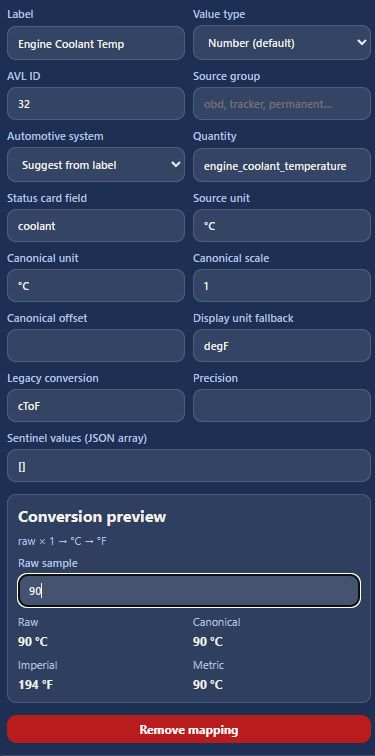
An uncertain field can remain raw until its meaning is confirmed. The example profile leaves AVL 12/13 as device-configured values rather than inventing units.
Use Save to save while staying in the editor, Save and Close to save and exit, or Back to Settings to return. If prompted about unsaved changes, choose whether to save, discard, or keep editing.
Check the synchronization status. The observed deployment reported Device profiles synchronized with the Traccar Scope API database. Changes to a shared profile affect every vehicle assigned to it, so review the conversion preview before saving.
Settings and vehicle setup explains how to assign a profile to a vehicle.