Repository navigation
Telemetry Graphs
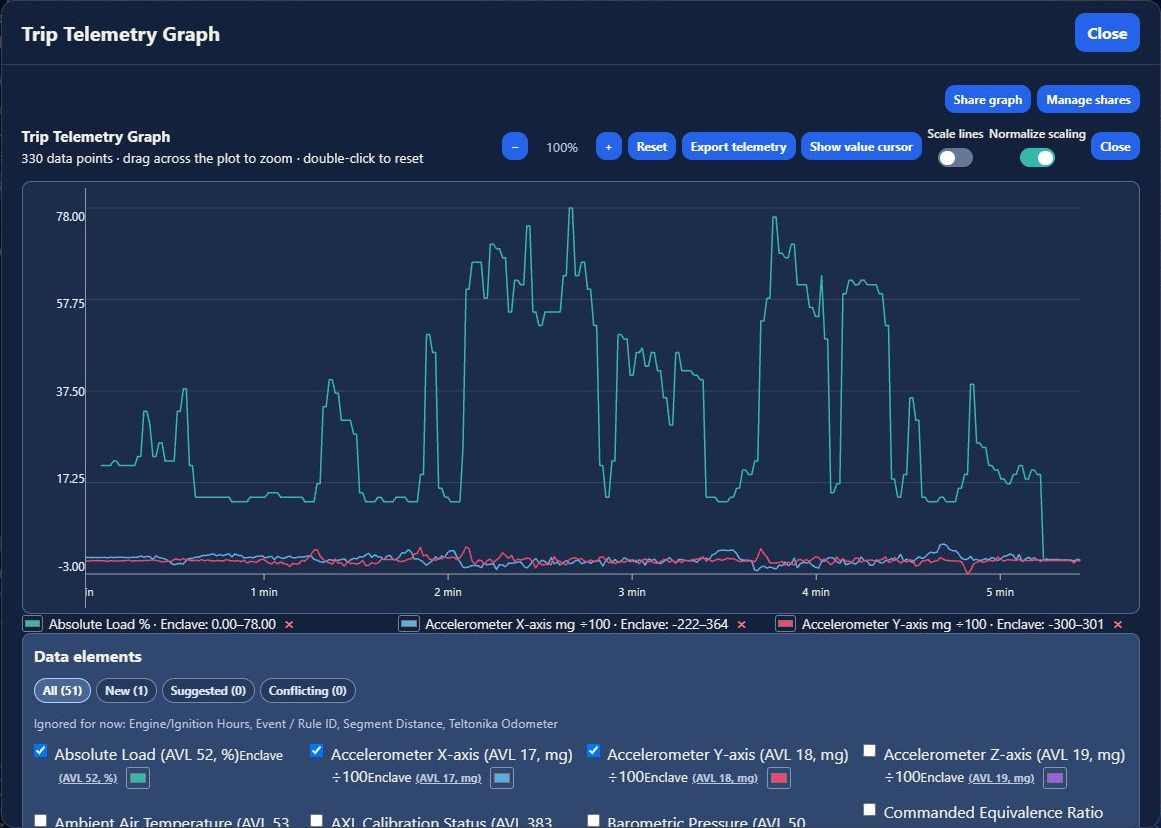
Use telemetry graphs to compare recorded values over a trip or selected days.
- Open Trips, expand a month, and open a day.
- Choose the graph icon beside a day or trip. For a combination, choose Select, check whole days and/or individual trips, then choose Graph selected.
- Under Data elements, check one or more numeric fields.
- Use the color control beside a field to distinguish its line.
On a phone, the graph opens in a scrollable task. Scroll down to Data elements; Close returns to the trip workspace. When editing a field, use Return to graph to go back to the plot. Unsaved field edits offer Keep editing or Discard.
The available fields come from the recorded positions and their protocol mappings. An Unmapped label means the field does not have a recognized translation in the current context. Fields listed as Ignored for now are excluded from the graph.
- Drag across the plot to zoom into a time interval.
- Use Zoom in, Zoom out, or Reset to adjust the view.
- Double-click the plot to reset the zoom.
- Choose Show value cursor to inspect values along the graph.
- Use Scale lines and Normalize scaling to adjust how lines are displayed together.
- Uncheck a data element, or use its legend remove button, to remove its line.
When normalization is enabled, read the field's unit, range, and cursor values as well as the axis. Differently scaled fields can share a plot; the vertical axis alone should not be treated as the physical value of every line.
Export telemetry opens the graph's export workflow. Share graph and Manage shares provide sharing controls. Review the data and intended audience before creating a public share; graph access can disclose vehicle activity.
See Device Protocol Profile Editor if a field's name, conversion, or units need review.