Repository navigation
Mobile Guide
Open your installation's Traccar Scope address in a phone or tablet browser. The compact interface appears when the available width is below 1024 CSS pixels; wider windows use the desktop workspace. Browser zoom and orientation can change which layout fits.
| Bottom button | What it opens |
|---|---|
| Map | The map with a small device/status strip. |
| Devices | Your permitted trackers and their map-visibility checkboxes. |
| Trips | Months containing days, with trips nested under each day. |
| More | Status, Notifications, data transfer, Settings, My profile, and Sign out. |
The top bar shows the selected device, Traccar connection state, and point timestamp. Tap the device name to open Devices. An old point timestamp can represent a historical selection; check it before treating a value as live.
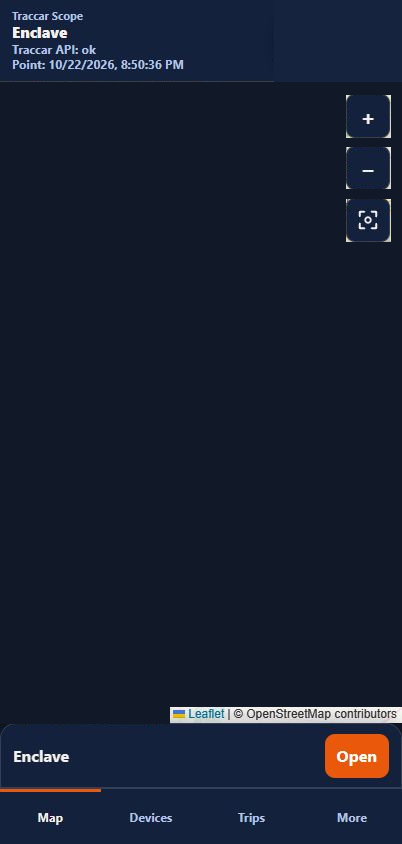
The map image is covered for privacy. The visible +, −, fit control, status strip, and bottom navigation are the actual app controls. The fit control fits visible devices or resumes map follow after manual panning.
- Open reveals the status sheet from the small strip.
- Devices, Trips, and More open a sheet sharing the workspace with the map.
- Expand gives the sheet the full workspace and hides the map from interaction.
- Reduce returns to the shared map/sheet view.
- Map, in the sheet heading or bottom navigation, returns to the map and preserves the current device and trip context.
Scroll within the sheet for longer lists. The map and list use their own space, so the map controls stay in the visible map area.
Choose Devices, then use a checkbox to show or hide that tracker's map data. Tap its name to select it and return to the map/status strip. Choosing a device and toggling its visibility are separate actions.
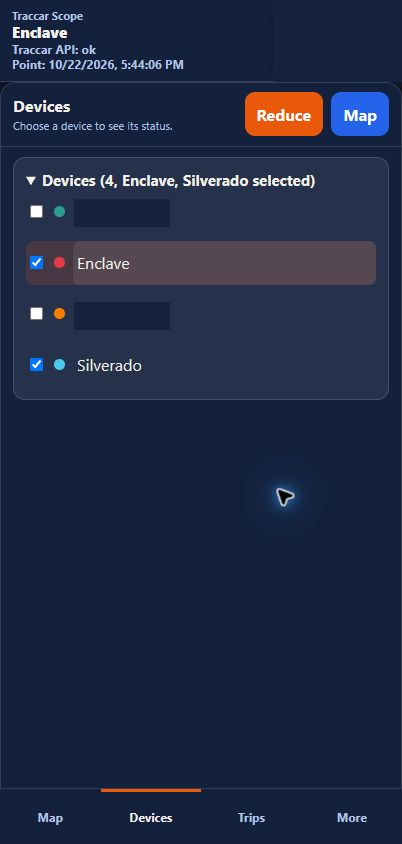
Only devices permitted to your account should appear. Use Open, or More → Status, to inspect the selected device's values. Expand its Vehicle Status card with + if needed.
Choose Trips, expand a month, then a day. Each day's trips appear directly beneath it. A trip row highlights its route; its details, tags, and notes appear below that day's trip rows. Use Expand to browse a long list, then Map to inspect the route.
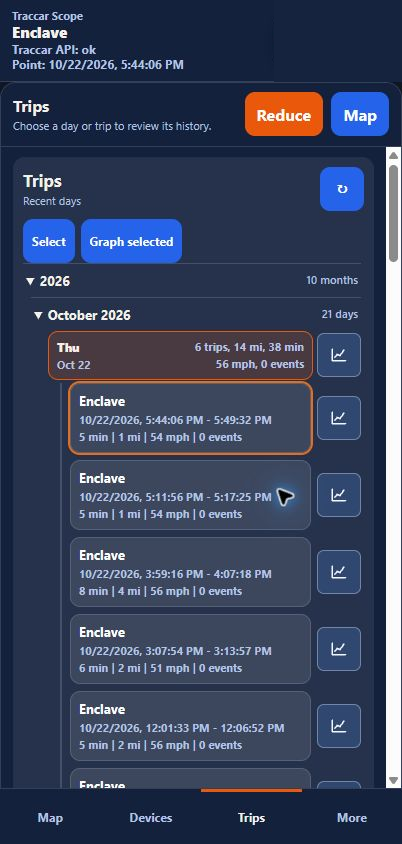
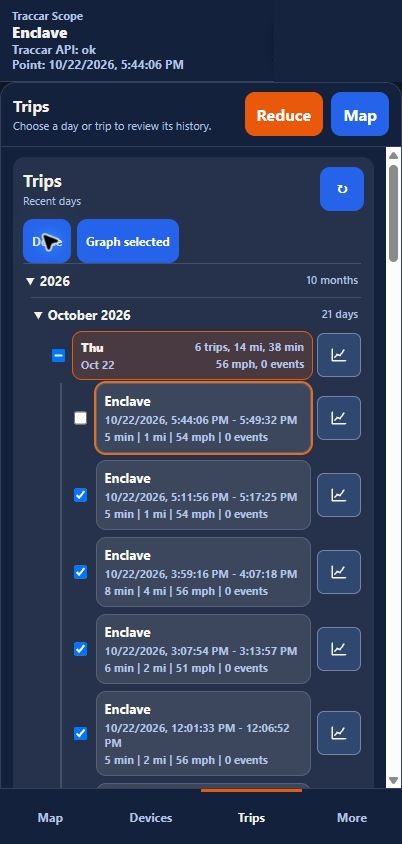
The graph icon beside a day opens the whole day. The icon beside a trip opens that trip. Select reveals checkboxes so you can combine whole days and individual trips, then choose Graph selected. Done closes selection mode.
For note saving, tags, and event details, see Trips.
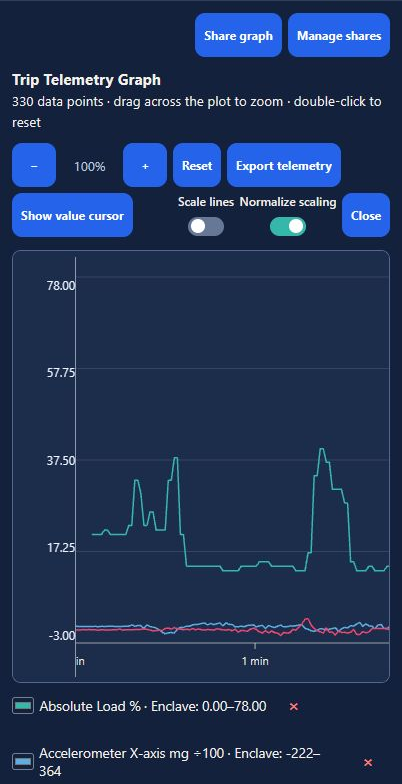
Graphs open in their own task window. Scroll to Data elements to choose numeric fields, and use the plot's zoom controls to examine an interval. Close returns to the workspace. Field editing has a Return to graph action; closing an unsaved editor offers a chance to keep editing or discard the draft.
The phone keyboard can take much of the screen. Scroll the active form to reach its fields and actions, then dismiss the keyboard when you need more space. Rotating the phone or using browser zoom can also help.
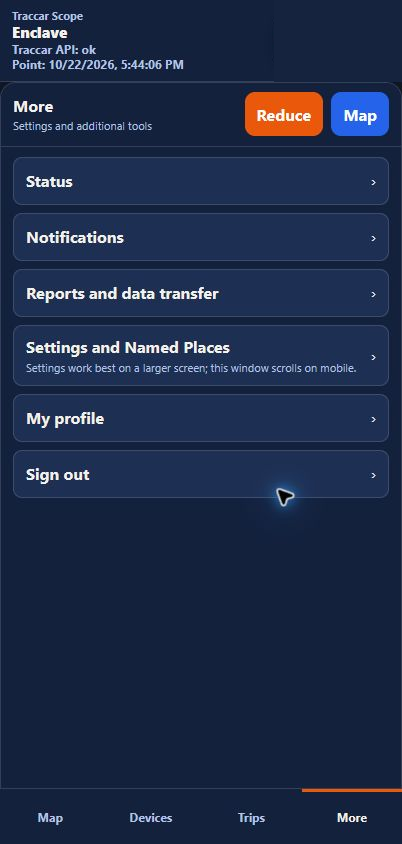
| More destination | What to expect |
|---|---|
| Status | Connection status and the selected device's Vehicle Status card; ‹ More returns to the menu. |
| Notifications | Stored trip events in a separate task with Close. |
| Reports and data transfer | Opens Import / Export Data for raw-position exports and CSV restore. Administrators also have operations reports there. |
| Settings and Named Places | Opens Settings. Personal preferences and alerts are available on narrow screens; shared vehicle, place, and protocol configuration uses the wider administration view. |
| My profile | Account/profile tools in a task window. |
| Sign out | Ends the application session. |
For the full Usage Summary, Trip Log, and other vehicle report catalog, use Stats in the wide workspace; see Reports. The current compact menu's report/transfer entry opens the import/export task.
Regular-user Settings focus on display units, theme, and personal Email/SMS Alerts. Shared configuration requires administrator permission. Vehicle Catalog and other wide configuration sections need at least 1024 CSS pixels; use a wider tablet orientation or a computer. Follow any width notice shown by Settings.
If a permitted Named Places form offers map location picking, it temporarily returns you to the map. Follow the location prompt or choose Cancel location to return to the form.
Close the active task to return to the sheet and bottom navigation. Use Map to leave an expanded sheet. If expected devices or tools are absent, check your account permissions with an administrator.
These are browser captures at a phone-sized viewport, not photographs of iPhone Safari. Safari/Chrome browser bars and safe areas vary by device. The same compact workflows also apply to narrower tablet and desktop windows.