Repository navigation
Reports
Choose Stats in the wide map workspace to open Reports. Reports summarize the vehicles and trips your account is authorized to access.
All twelve report types below remain available to regular users for their authorized vehicles. Admin / Operations Reports are separate administrator tools in Import/Export Data.
On a phone, More → Reports and data transfer currently opens Import / Export Data. Use the wide workspace's Stats button for the full vehicle report catalog.
- Choose a Report type.
- Choose one Vehicle or All authorized vehicles.
- Set From and Through.
- Choose Group by, Units, and Tag when those filters are available.
- Choose Run report and wait for the result.
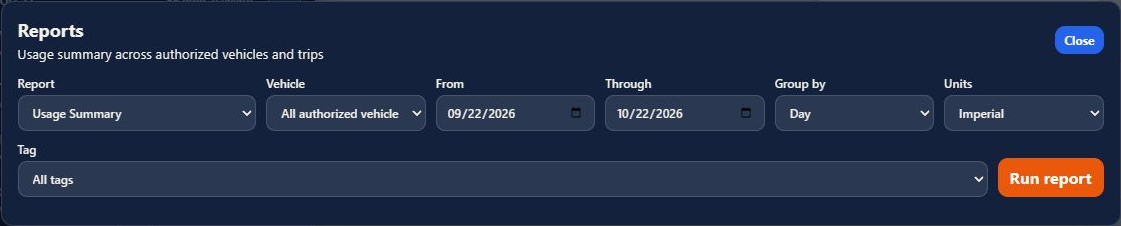
Usage Summary shows totals such as trip count, distance, duration, average trip distance, average duration, events, and maximum speed. The table groups results according to the selected grouping.
| Report | Useful starting question |
|---|---|
| Usage Summary | How much have these vehicles been used? |
| Trip Log | Which individual trips are in this period? |
| Monthly Summary | How does activity compare across months? |
| Named Places | How does activity relate to configured places? |
| Data Completeness | Where should I review missing or incomplete data? |
| Driving Events | Which recorded driving events occurred? |
| Utilization Calendar | On which days were vehicles used? |
| Business Mileage | What mileage is classified for business use? |
| Speed Bands | How is speed distributed across configured ranges? |
| Racer Report | What information is available for track analysis? |
| Vehicle Health | What does the recorded vehicle telemetry show? |
| Tracker Health | What does the recorded tracker telemetry show? |
Filters and result columns vary by report. Review the selected report's description and results rather than assuming every report uses the same calculations.
After results load, choose JSON, CSV, or PDF from the available export buttons. Report exports summarize report results; use Import and export for raw Traccar positions.