Repository navigation
Getting started
From installing the app to a library that keeps itself up to date, in about fifteen minutes. Every step links to the page that explains it in detail.
Pick the way that fits your setup in Installation: a Docker container on a server or NAS (Unraid, Synology, Portainer...), or the program for Windows, macOS, Linux or a Raspberry Pi. The app needs two folders:
- the data folder, where it keeps its settings, caches, covers and your keys;
- your games folder (NSP, NSZ, XCI, XCZ, also in subfolders), which it must be able to write to if you want it to organize, compress or delete files.
Open http://<address of the computer>:3000 in a browser.
On the first start the app downloads the titles database (the names, covers, updates and DLC of every game) and opens a setup wizard, one step at a time:
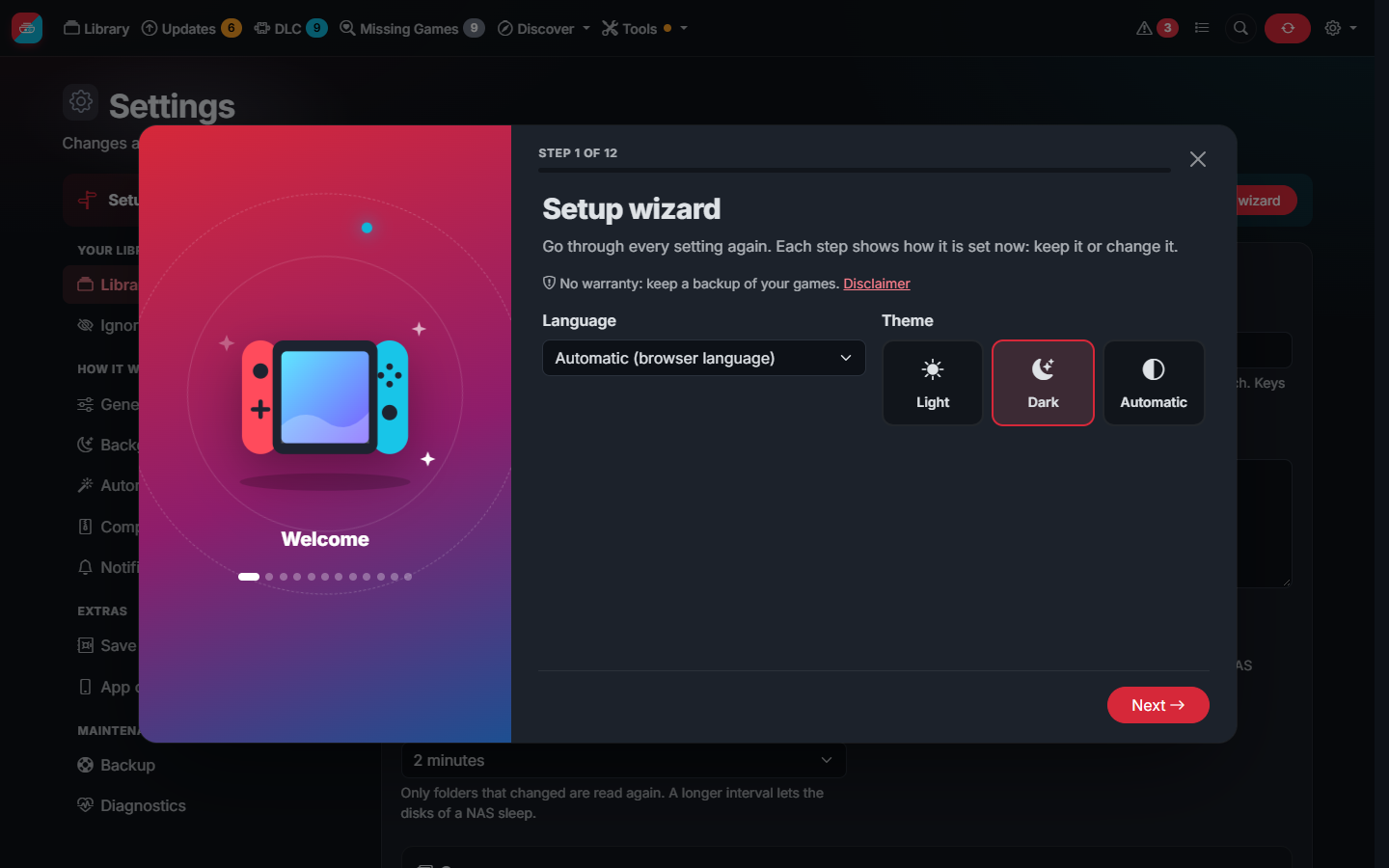
| Step | What to choose |
|---|---|
| Folders | The folders of your games. Each one is checked as you type: it must exist and be readable |
| Keys | Upload your prod.keys or tell where it is. Optional, see Keys and first start
|
| Your console | The firmware of your console, to be warned about games that need a newer one |
| Your library | Hide demos, list updates for DLC, show cheats |
| Background hours | When heavy work (thumbnails, file checks, compression) may run, for example at night |
| Compression, automations, notifications | Everything can stay off for now |
| Administrator | Create one now if the app can be reached from outside your home |
Every step can be skipped and the wizard can be opened again from Settings at any time.
The library shows up while it is scanned. A first scan of a big library on a NAS can take some minutes: with your keys the app reads every file, and the next scans only read what changed. Follow it on the Tasks page; you can close the browser meanwhile, the work goes on on the server.
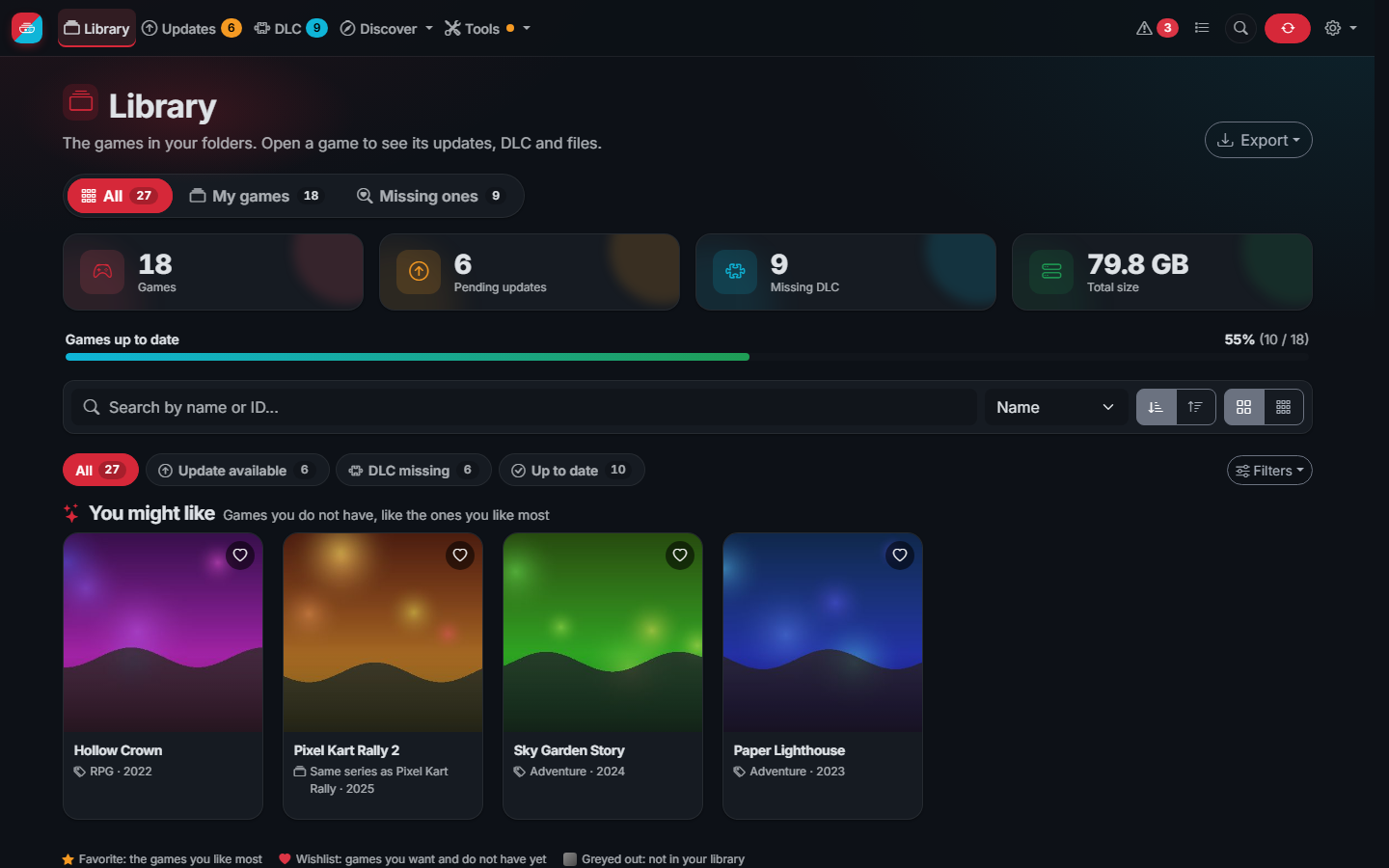
- The counters at the top: games, pending updates, missing DLC and the space your library takes.
- All / My games / Missing ones: your games, and the games of the eShop you do not have.
- The status pills (Update available, DLC missing, Up to date) and the Filters button (genre, players, language, region, format, collections, games with cheats...).
- Open a game for its details, versions, files, DLC and cheats.
- Updates lists the games and DLC with a newer update than the one you have. Ignore the ones you do not want.
- DLC lists the DLC you do not have.
- Missing ones (in the Library) lists the games you do not have; the heart adds one to your wishlist, and the app tells you when it comes out.
Open Tools › Tune-up: it lists the steps in the order they depend on each other, and marks the first one waiting.
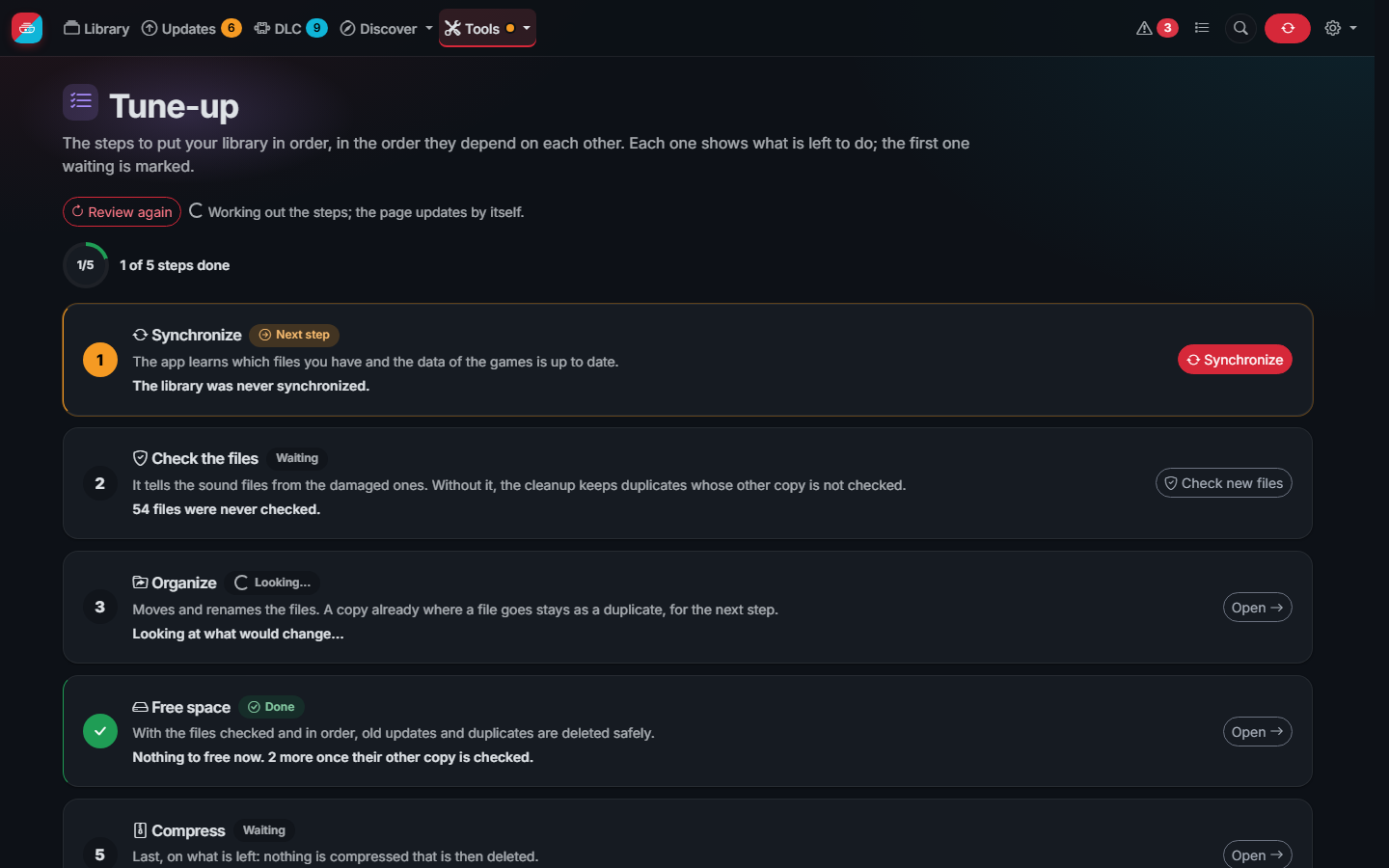
- Check the files: every file is read and compared with its content IDs, so damaged ones are found before anything is deleted (how files are checked).
- Issues: files that could not be added, damaged files, duplicates and old versions, each with what to do.
- Organize: folders and names from templates, with a preview first (Organize and duplicates).
- Space: delete old updates, duplicates and originals that already have a compressed copy.
- Compress: NSP to NSZ and XCI to XCZ, 10 to 60% smaller (Compression).
In Settings › Automations the app can check, compress and tidy every new file by itself, during the background hours, and send you a message of what it did. Settings › Notifications tells you about new updates, DLC and games through Discord, Telegram or a webhook (Notifications and API).
Create an administrator in Users (Users and security), and reach the app through a VPN, a Cloudflare Tunnel or a reverse proxy with HTTPS. Then install it on your phone like an app (App on your phone).
The screenshots show the demo mode: the games, publishers and covers are made up.