Repository navigation
Organize and duplicates
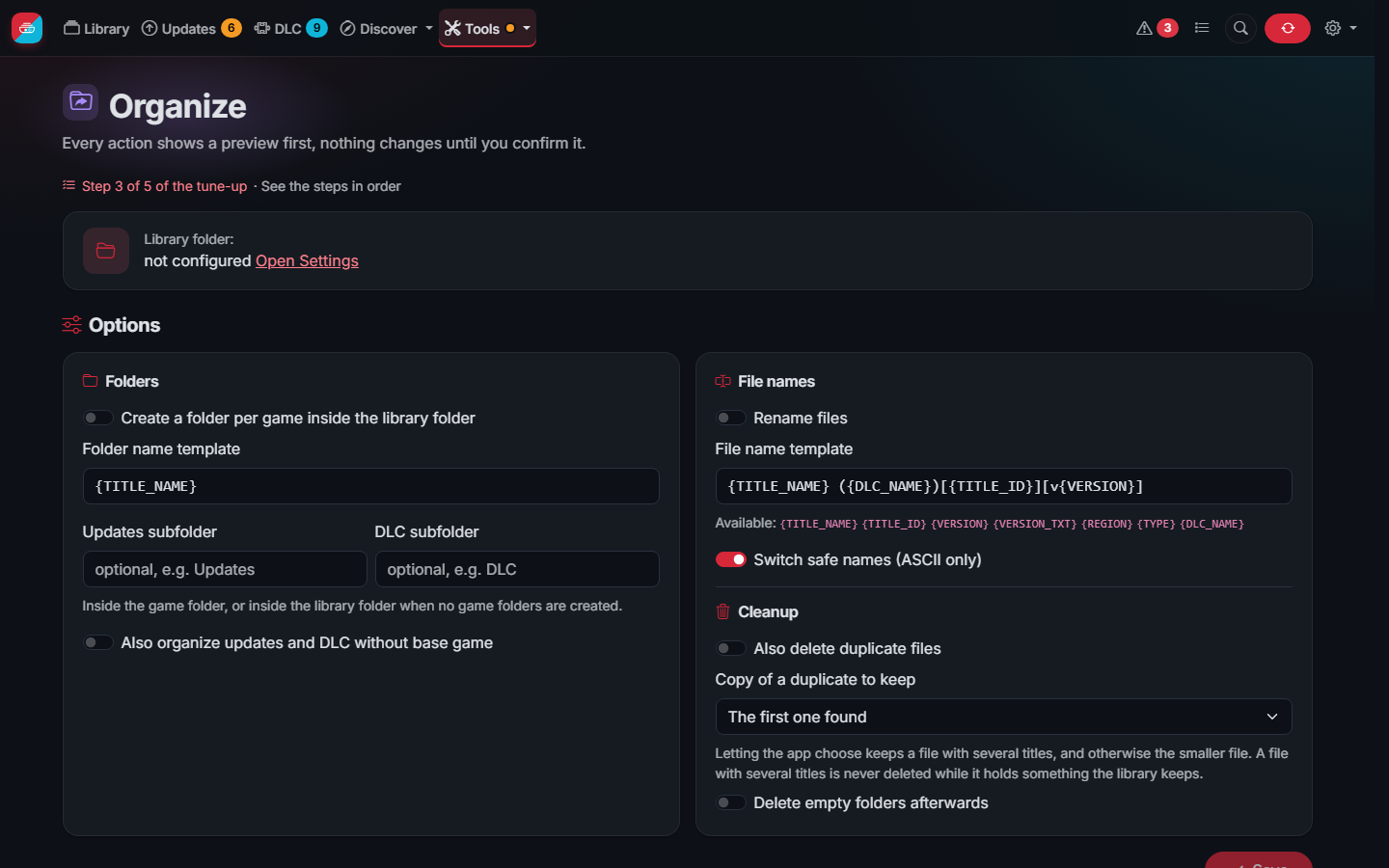
The Organize page moves and renames files according to its options. Every action shows the exact list of changes first, and nothing happens until you apply them. Existing files are never overwritten, files that changed since the last scan are not deleted, and split files are left untouched.
Templates for folder and file names can use:
| Placeholder | Value |
|---|---|
{TITLE_NAME} |
Game name |
{TITLE_ID} |
Title ID |
{VERSION} |
Version number of the file, like 65536
|
{VERSION_TXT} |
Version as shown on the console, like 1.0.1
|
{REGION} |
Region |
{TYPE} |
BASE, UPD or DLC
|
{DLC_NAME} |
DLC name |
Templates must contain {TITLE_NAME} or {TITLE_ID}.
Some examples, for the first update of Super Mario Odyssey:
| Template | Name |
|---|---|
{TITLE_NAME} [{TITLE_ID}][v{VERSION}] |
Super Mario Odyssey [0100000000010800][v65536].nsp |
{TITLE_NAME} {VERSION_TXT} [{TYPE}] |
Super Mario Odyssey 1.0.1 [UPD].nsp |
[{TITLE_ID}] {TITLE_NAME} ({REGION}) |
[0100000000010800] Super Mario Odyssey (US).nsp |
The name like the first one, the one of the shops, is what most tools understand best, also the app itself when it has no keys. Switch safe names keeps only ASCII letters, for SD cards formatted on the console.
A typical layout, with a folder per game and the updates and DLC in their own subfolders:
Switch/
├── Super Mario Odyssey [0100000000010000]/
│   ├── Super Mario Odyssey [0100000000010000][v0].nsz
│   ├── Updates/
│   │   └── Super Mario Odyssey [0100000000010800][v65536].nsz
│   └── DLC/
│       └── Super Mario Odyssey - Costume Pack [0100000000011001][v0].nsz
└── ...
Delete old updates (on the Organize page, or by itself in the automations) deletes the update and DLC files a newer version replaced. With Delete empty folders afterwards on, the folders left empty go too, also those a complete pack leaves. Every action shows its list first.
An old update stays when there are cheats for it and none for the newer one, so the game can still be played with cheats: see Keeping the update that has cheats. The switch Keep an old update that has cheats when the newer one has none turns it off.
When the same game, update or DLC is in two files, one is kept and the other is listed in Issues and Space as a duplicate. Organize › Copy of a duplicate to keep chooses which:
| Choice | Kept |
|---|---|
| The first one found | The file the scan found first (as before) |
| NSP or NSZ | The NSP or NSZ over the XCI or XCZ |
| XCI or XCZ | The XCI or XCZ over the NSP or NSZ |
| Let the app choose | A file with several titles, which stays anyway, and otherwise the smaller file |
Changing it scans the library again, and the message tells how many duplicates keep the other copy now. A file with a problem (identified by its name only, for example) is never preferred to one without.
Keep this one. Each duplicate in Issues has a button to keep that copy instead of the other one, whatever the choice above says. The choice is remembered for those files.
When the copy that stays was not checked whole. Space only deletes a duplicate once the copy that stays was verified. An update cannot be checked whole on its own (part of it changes its game, which is needed to check it), so its check ends "without errors, but not whole". Such a duplicate is not selected with the others, but you can tick it yourself: the page asks first, naming both files. Organize and the automations still keep it. A copy that stays and is damaged, not verified yet or missing still blocks the delete.
Files with several titles. A cartridge with a collection of games, or a pack, can be a duplicate of one game while it holds others the library keeps. Such a file is never deleted: Issues and Space say so, and the game page lists the games the file holds. To keep only some of them, split it (see Compression).
A dump of a cartridge with a collection of games (like KEMCO RPG Selection, with four games) holds every game and its update. Organize names it after all of its games, the first ones while they fit and how many more, with the ID of the first game and the number of games:
Switch/
└── Alphadia Genesis 2 + Asdivine Cross + 2 more/
    └── Alphadia Genesis 2 + Asdivine Cross + 2 more [01005CE015080000][4 games].xcz
With Create a folder per game off, it stays in its folder with that name; with Rename files off, it keeps its
name and only moves. The games it holds do not move it again as their update, so it is not left in the Updates
folder of one of them. To have each game in a file of its own, split it from Compress › Split multi-title files.
The Space page shows how much old updates, duplicates and already compressed originals take, and frees it safely.
The screenshots show the demo mode: the games, publishers and covers are made up.