Repository navigation
Getting Started
When you open Local Transcriber for the first time, the meetings list is empty and the app offers to set up on-device transcription.
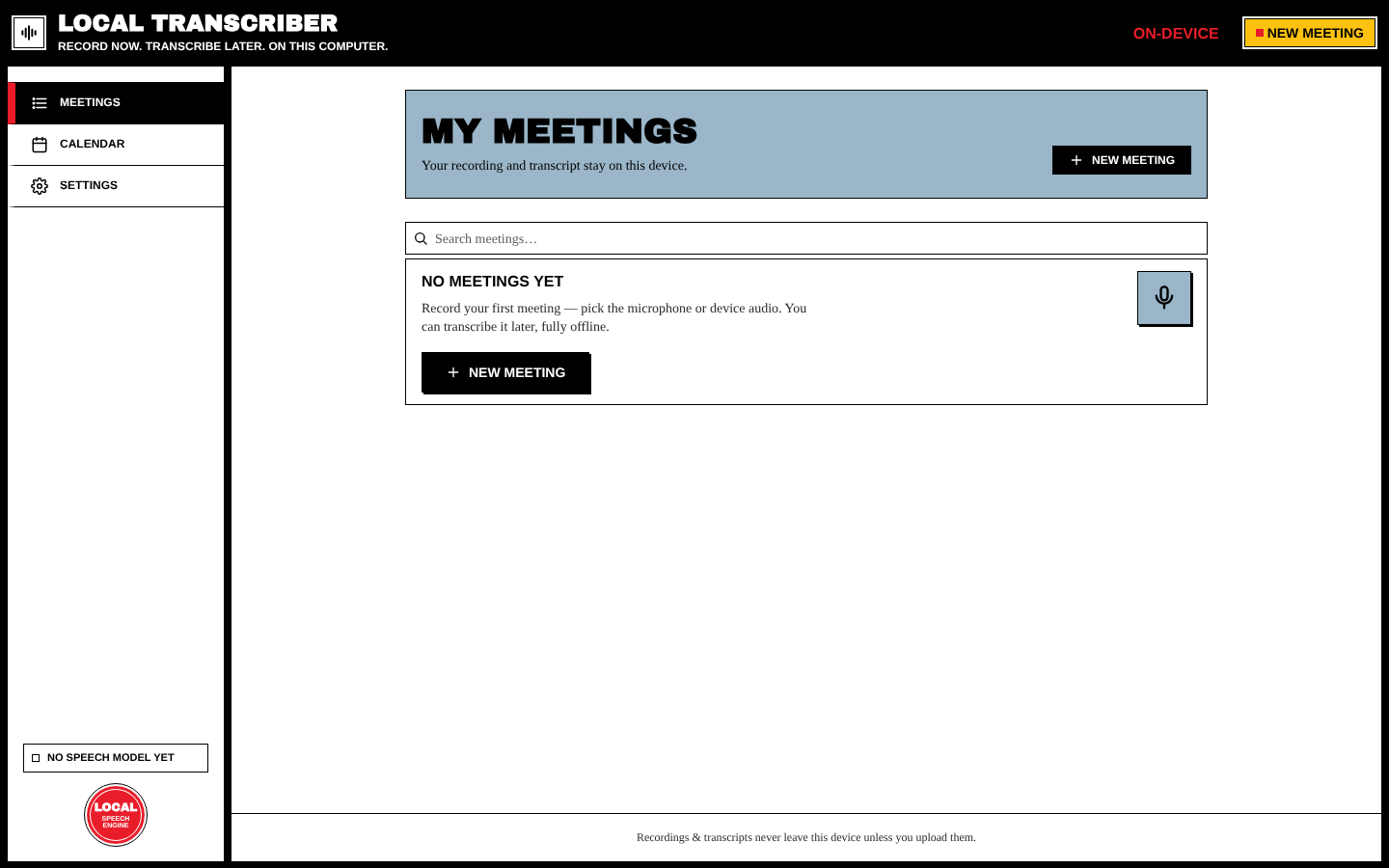
- Recording works right away. You don't need a speech model to record.
- To transcribe, click Set up transcription on the red card. The app downloads the default speech model (
large-v3-turbo, about 550 MB) once, with a progress bar. After that, transcription works fully offline. - To pick a different model, click Choose another model. See Transcription#speech-models.
On macOS, allow microphone access when asked. On Windows and Linux, the OS may ask the first time you record.
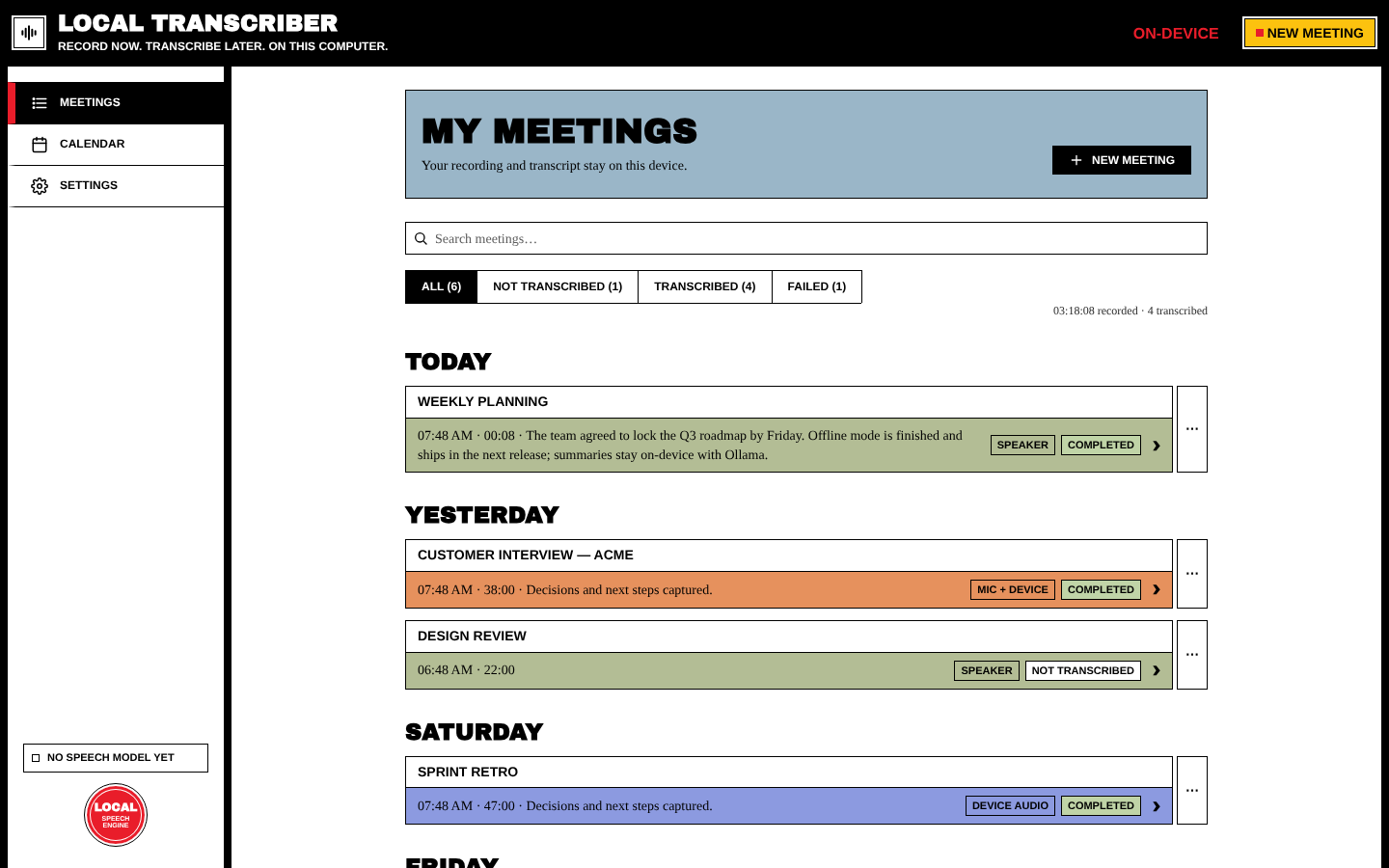
| Area | What it does |
|---|---|
| Top bar | App name (click it to go back to the meetings list). On the right, ON-DEVICE turns into a red REC 00:00 clock while you record; click it to go back to the recording. The yellow New meeting button starts a new recording (Ctrl/Cmd+N). |
| Sidebar | Meetings, Recording… (only while recording), Calendar and Settings. Lower down it shows the speech-model status (e.g. No speech model yet), any transcription running in the background, and update notices. |
| Content | The current screen: meetings list, new meeting, active recording, meeting details, calendar or settings. |
- Click New meeting.
- Choose Speaker (an in-room meeting) or Mic + Device (an online call, wear headphones).
- Optionally give it a name and an agenda, then press ● Start Recording.
- When you're done, press ■ Stop & save and confirm.
- On the meeting page, press Transcribe (or Download model & transcribe).
- Optionally press Summarize with LLM to get a summary, key points and action items (needs AI Summaries set up).
Each step is explained in detail in Recording a Meeting, Transcription and Meeting Details.
- Meetings, transcripts and settings are stored inside the app on this computer.
- Each finished meeting is also copied to a normal folder you can browse:
~/Documents/Local Transcribe/<title-id>/(audio, transcript, manifest). You can turn this off and open the folder from Settings#app. - Nothing is uploaded unless you turn on an integration yourself. See Privacy.