Repository navigation
App Icon
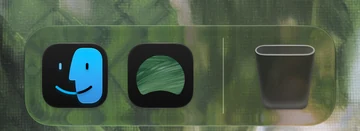
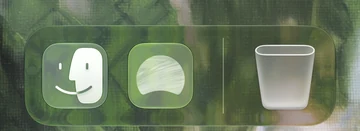
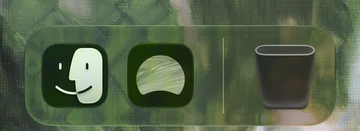
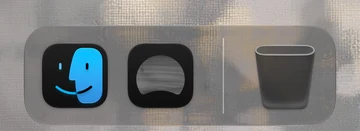
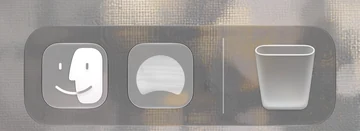
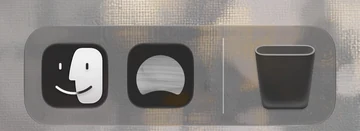
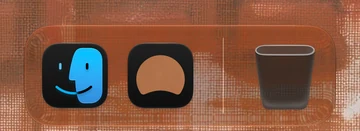
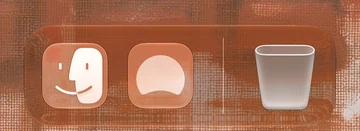
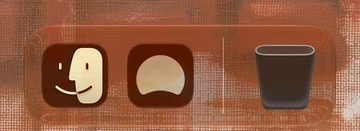
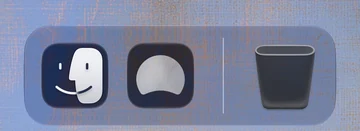
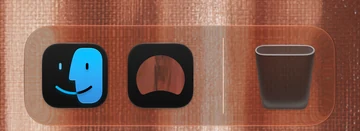
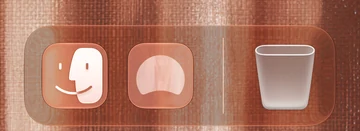
Changes the icon Dia shows in the Dock. Pick Dia's own icon, Classic (the old gradient icon), or one of eight colors. It follows the icon style you choose in System Settings.
Dia has one icon. A different one can suit your Dock or your wallpaper, and the change shows right away, with no relaunch.
- Handy if you want Dia to stand out less, or more.
- Skip it if you like Dia's own icon.
Open Dia → Settings → Patches and switch on App Icon. Or run:
diatweaks enable appIconThe menu under the switch in Settings lists the icons.
- Dia: Default, which is Dia's own icon, and Classic.
- Colors: Blue, Green, Neutral, Orange, Pink, Purple, Red or Yellow.
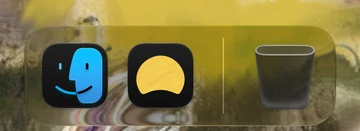
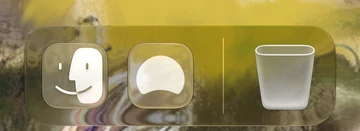
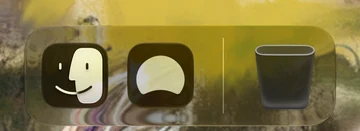
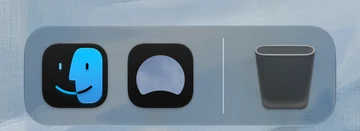
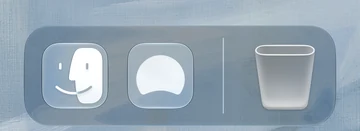
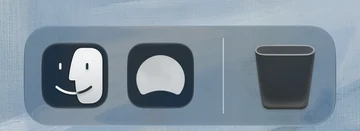
Every icon in each icon style, in the Dock.
| Light | Dark | Clear Light | Clear Dark | |
|---|---|---|---|---|
| Default |  |
 |
 |
 |
| Classic | 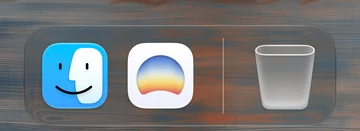 |
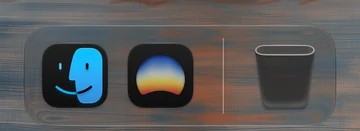 |
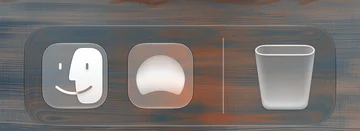 |
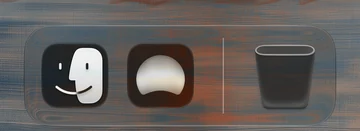 |
| Blue |  |
 |
 |
 |
| Green | 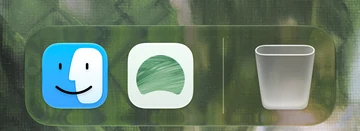 |
 |
 |
 |
| Neutral | 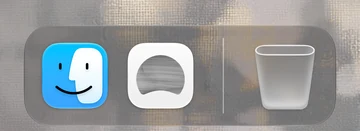 |
 |
 |
 |
| Orange | 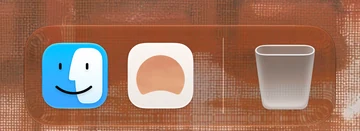 |
 |
 |
 |
| Pink | 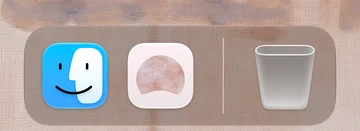 |
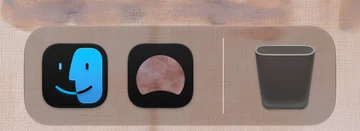 |
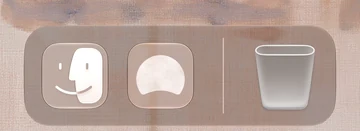 |
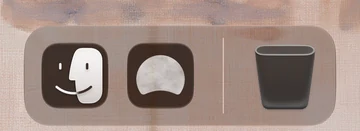 |
| Purple |  |
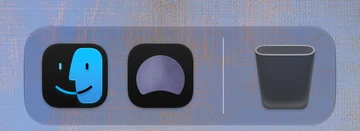 |
 |
 |
| Red | 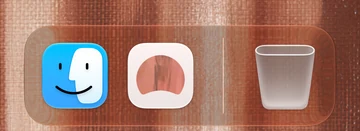 |
 |
 |
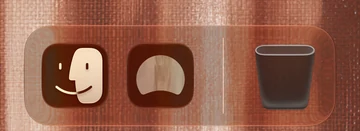 |
| Yellow |  |
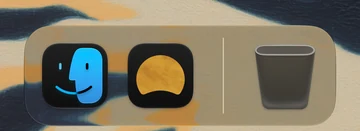 |
 |
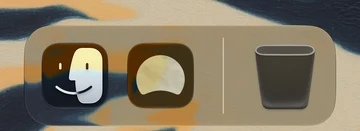 |
Does it work with the Dark, Clear and Tinted icon styles?
Yes. Every icon works in Default, Dark, Clear and Tinted. Change the style in System Settings, and the icon follows.
Do I need to relaunch Dia?
No. The Dock icon changes in about a tenth of a second. If Dia was set up before this tweak existed, turning it on the first time may ask you to relaunch once.
Why is my icon a little off in Clear?
If you pick a color while the Clear style is on, the color can look a bit different until the style changes next.
What happens when I turn it off?
Dia's own icon comes back.