Repository navigation
Dashboards and Tiles
              [ up 2 ]
              [ up 1 ]
 [ left ]    [ HOME ]    [ right ]
              [ down 1 ]
              [ down 2 ]
New installs start with three dashboards in a row: Home and the two beside it. The ones above and below are filled only when you ask, up to seven in all. Swiping only goes through the dashboards you have; a sideways swipe off the home row shows the way back instead of jumping. Each is a free 12 × 7 grid (7 × 12 on an upright screen). Status: daily use.
- The bar always shows which dashboard you are on; tap it to see them all.
- All at once: the Dashboards button in edit mode (or the bar's position) shows every dashboard in its place in the cross, as a small picture of its tiles. Tap one to go to it, + on a free spot adds an empty one there, the red − removes one at once and Undo brings it back with its tiles and name. While the car moves it only switches dashboards.
- New dashboard (edit bar): pick its name and spot; it comes on screen.
- While arranging, tap a dashboard's name to rename, move or remove it. Remove dashboard… asks whether to empty it or take it out of the swipes with its tiles; Undo brings them back.
Status of the overview and the three-in-a-row start: emulator-tested, new on 2026-10-08.
-
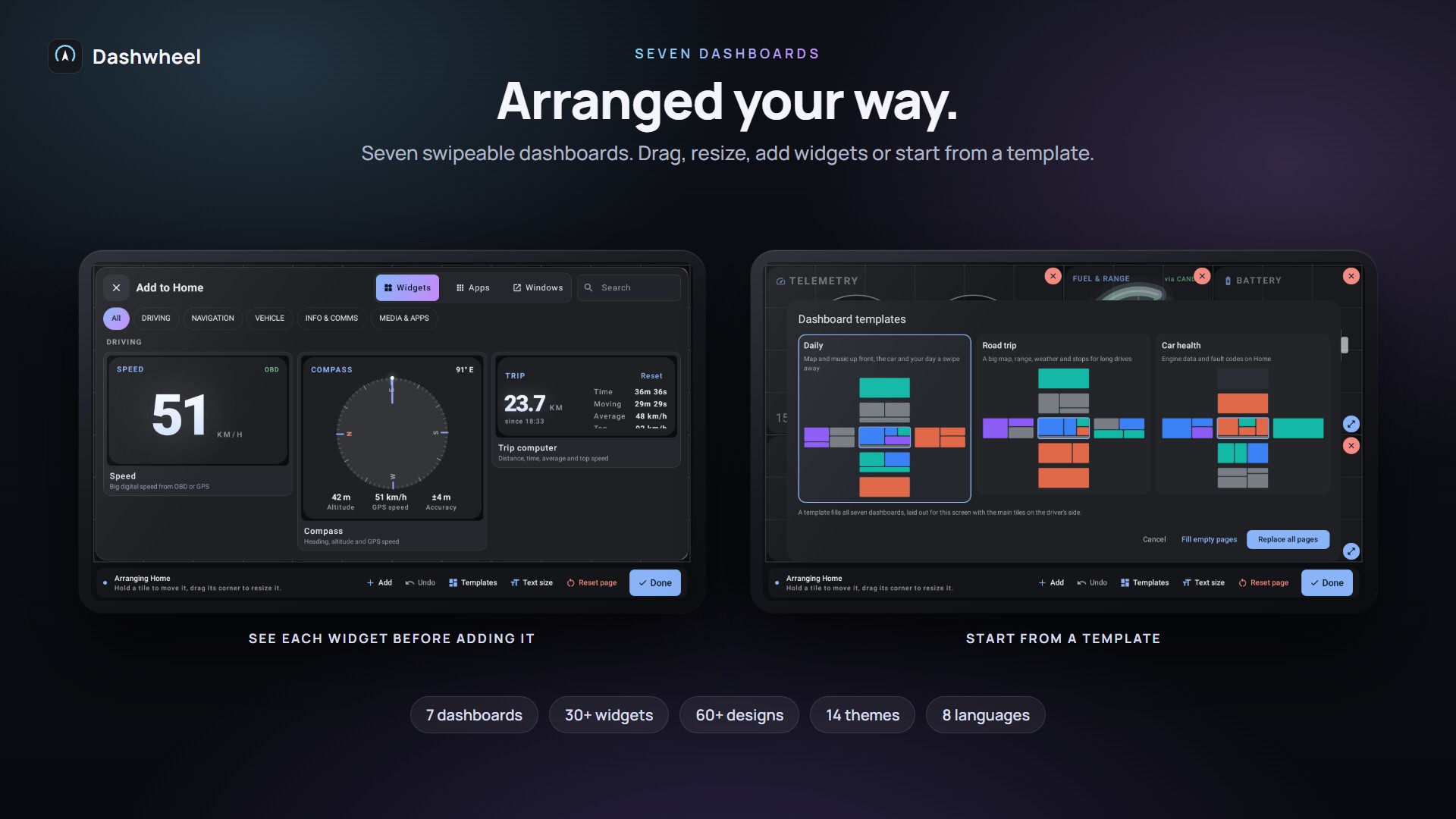
⋮ → Edit dashboards, or hold an empty spot, turns arranging on. Drag a tile to move it (other tiles move out of the way or swap); drag its corner bracket to resize (a
w×hpill shows the size). - Tap a tile while arranging to open the tile panel (on the driver's side): the design shelf with live previews, text size, a mini cross to move the tile to another dashboard (you stay where you are, with a chip to follow it), and Remove. Tiles that have settings of their own open them from the panel too: the LPG tank, servicing, places, the car's specs, the car picture, the AI mechanic, speed correction, the phone, and whether the car speaks speed cameras, speed limits and weather warnings.
- Add opens the add sheet with two lists, Widgets (each previewed live) and Apps; each app offers Icon or In a tile (see Apps on the Dashboard). It marks what needs an adapter, the phone or internet, and what is already on a dashboard. On a full dashboard it says so and offers the nearest one with room; a widget takes the largest size that fits.
- No adapter, no dead car tiles: car tiles are offered when an adapter is first chosen.
- 30 steps of undo, Android widgets included. Layouts are saved as JSON and survive restarts.
- Upright units with firmware bars (a shortcut bar on top, a climate bar at the bottom): menus stay inside the dashboard, above those bars; the first menu measures where the screen really puts it.
- Drive lock: arranging, settings and pickers wait until the car has stopped.
After the first setup, six tips over your own dashboard light up the real buttons: changing dashboard, moving and resizing tiles, adding things, the look, the OBD adapter, the steering-wheel buttons. Replay: Settings → System → About → Tour of the basics.
⋮ → Templates opens a full-screen showroom. Each set is shown on your own screen with its real tiles: Home in the middle, the dashboards beside it turned away on either side.
- Swipe, use the arrows or tap a card to try another set: Daily (map, Home and Work, music), Road trip, Car health, Calm (the map and your speed, nothing else).
- How far it reaches: Home, Home and beside it, or All seven. A set only changes the dashboards it has (Calm leaves the ones above and below alone).
- Use puts it on at once, laid out for your screen with the main tiles on the driver's side. No "replace?" question: Undo stays on the dashboard for 15 seconds instead.
- An empty dashboard's own Fill offers the same showroom for that dashboard alone.
Status: emulator-tested, new on 2026-10-11.
Home can change by itself to fit the moment of the drive; the dashboards beside it stay as they are. Off until you turn it on: Settings → Driving → Moments (or the Moments button in Templates), Switch by itself.
| Moment | Starts | Ends | Home shows |
|---|---|---|---|
| Engine on | When the engine starts | When the car sets off (10 min at most) | Fuel, weather, the day ahead, Home and Work |
| Guiding | When Maps, Waze or the built-in map guides | When the route ends | The map and the next turn up front, music |
| Long drive (off by default) | After an hour at the wheel, short stops included | When you park | Range, fuel stops and a break |
| Parked | After a drive, 2 min stopped | When the car sets off | Car health and messages |
| Something is wrong | When a new fault code shows, at any time | After 5 min, or the Home key | The fault code and the engine readings |
- A fault comes first, then the route, then the rest. A moment beginning brings Home on screen.
- Never under your finger: a moment waits 8 s after you last touched the screen, and while a menu, a sheet or arranging is open.
- Back to your own Home: the small chip in Home's corner, or the Home key while on Home; it stays yours until the next moment.
- Each moment has its own switch. Change what it shows gives it a copy of one of your dashboards (apps in windows and system widgets stay where they are), or its own Home back.
- Moments leave Home alone while an app runs in a window or inside a tile there (Waze in a tile, say): moving it would stop the app.
Status: emulator-tested with the demo drive, new on 2026-10-11.
The Canvas theme puts a full-bleed map behind glass tiles, with a journey strip at the top (next turn, ETA, rain, break, sunset, fuel on arrival):
- Under the dashboard (Settings → Look, with Canvas): the built-in map, or Google Maps / Waze (needs PMPatch3, see Root and PMPatch3).
- Side rail and tabs are choices in Settings → Look → Show all settings, for every look: Side rail instead of the bottom bar puts the bar's buttons down the driver's side, Tabs instead of swiping picks one dashboard at a time from the rail. Tabs show by themselves when a map app is under the dashboards; touches between tiles reach the map.
- The dashboard bar (rail, or the Dashboard bar widget in other themes) holds your dashboards and apps; add or rename dashboards from it.
- Auto-switch: a dashboard can open by itself when parked, when driving, when navigation starts, when the fuel gets low, or on a new engine fault. Parked comes up only after a drive, once the car has stood still for a while; the launcher always starts on Home.
Status: emulator-tested; first car report fixed rail taps.
Settings → System → Screen: Auto / Horizontal / Vertical. Auto reads the display's real shape. Upright screens get their own 7 × 12 layouts, and the Maps dock sits on top or at the bottom. Each screen direction keeps one arrangement: moving Google Maps left or right no longer makes a second copy of your dashboards. Status: emulator only.
The same bar sits under every look: Apps, Layout, the clock, the dashboard you are on, OBD and the ⋮ menu, with labels on wide screens. Layout holds Google Maps left or right, or another app beside the dashboards. The ⋮ menu keeps the frequent actions: Edit dashboards, Templates, Quiet, Settings. A long press beside the bar's buttons opens the bar's own settings: auto-hide, what it shows, side rail and tabs.
While Dashwheel shares the screen with another app, pages switch to a stacked, scrolling layout.
Getting started
Dashboard
Car
Road
Phone and screens
More
