Repository navigation
Android TV and Controllers
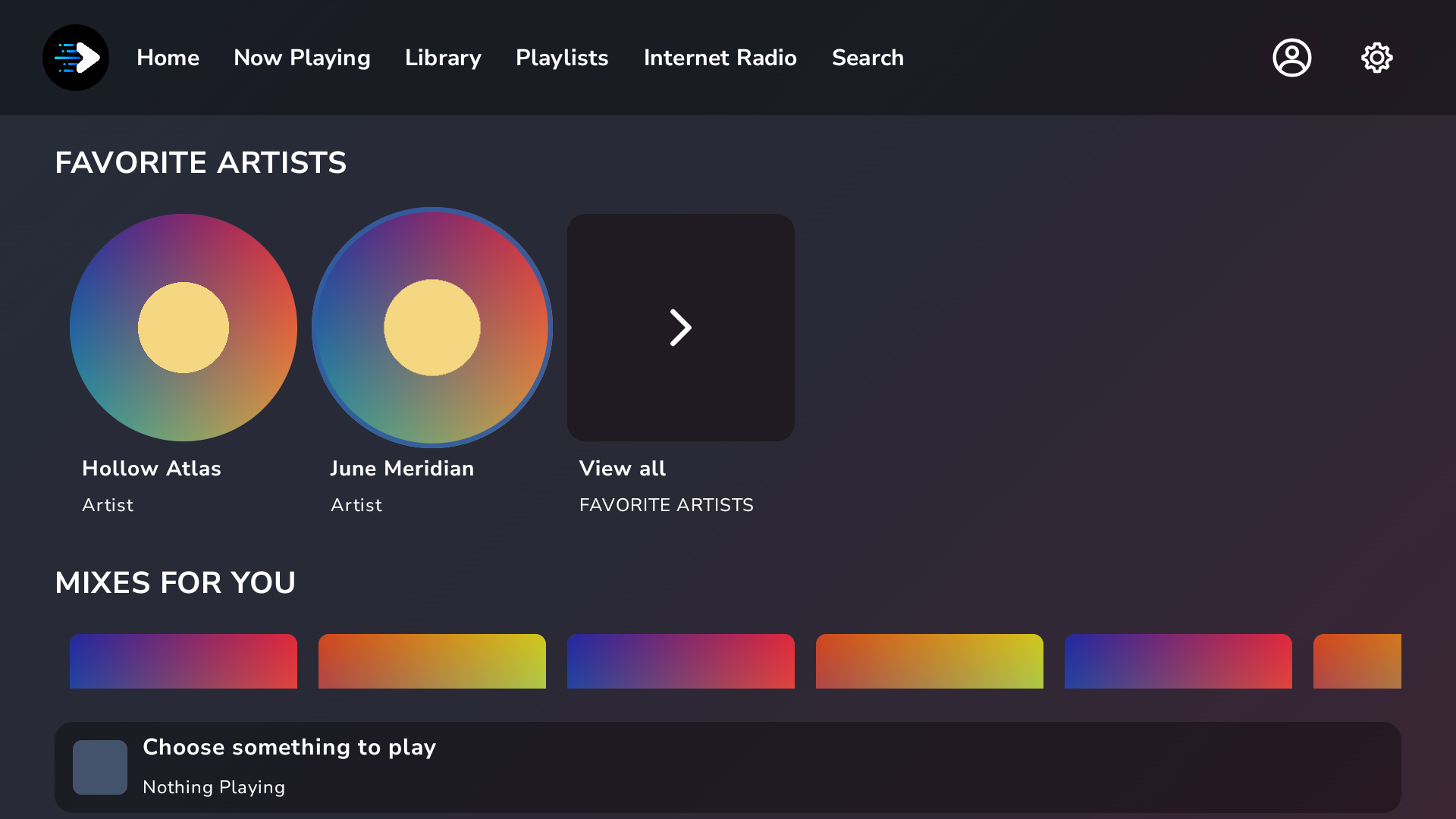
Use the remote’s Up, Down, Left, and Right buttons to move focus. Look for the raised or highlighted control. On an album or artist card, the focused artwork grows slightly and gains a blue halo. Press Select to open the highlighted item. Press Back to close a menu or return to the previous screen.
- On Home, press Down to enter the music rows. Use Left and Right to move within a row and Up or Down to move between rows.
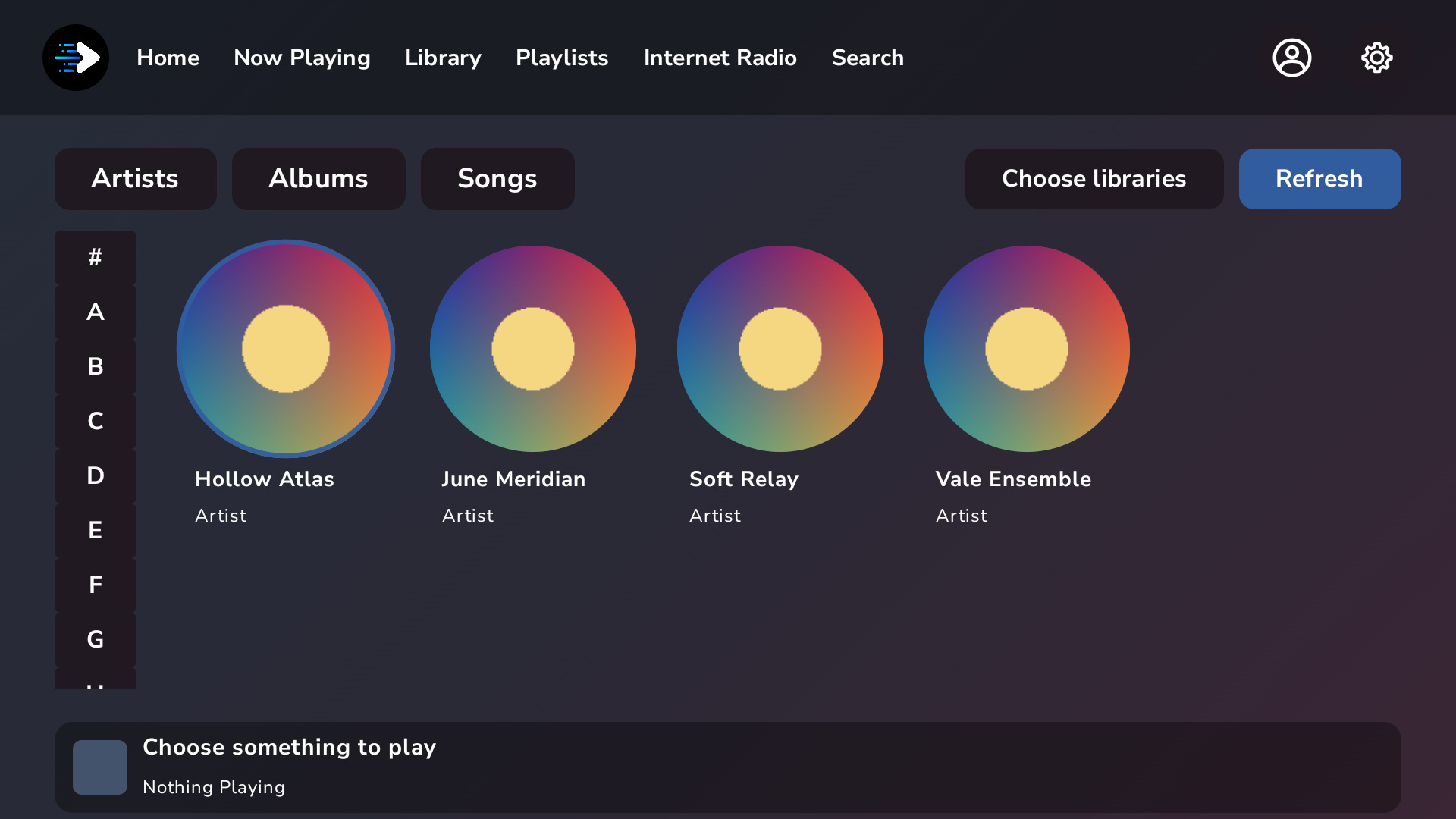
- To browse by type, return to the navigation bar and choose Library. Choose a category such as Artists, Albums, or Songs, then press Down to enter the results. Select an album to see its tracks and start playback.
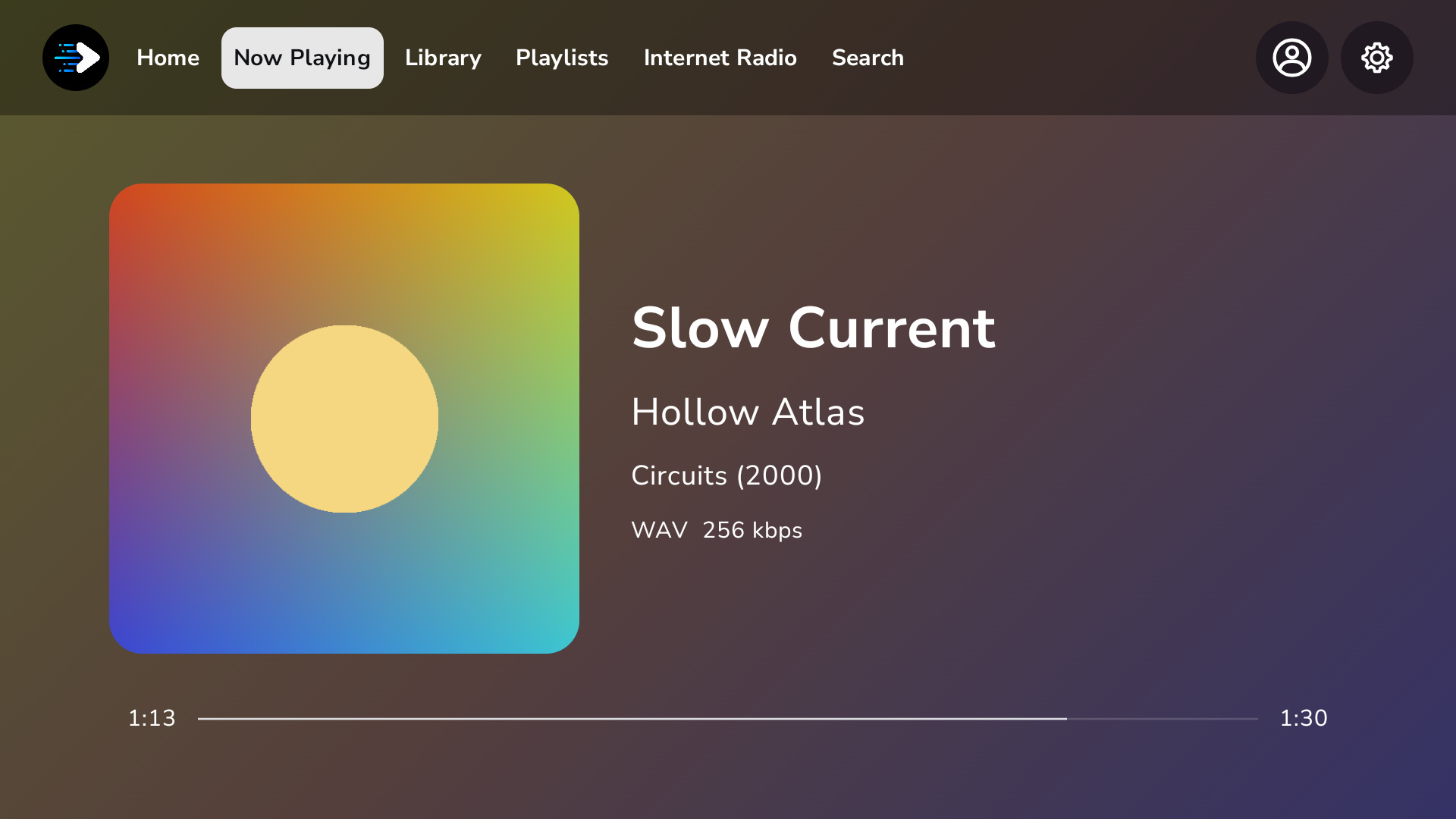
- Once music is playing, use the navigation bar to open Now Playing and the queue.
- Open the gear icon for Settings. Sources manages accounts, and Home lets you hide or reorder TV rows.
On Home, the blue ring around June Meridian shows which artist is in focus after pressing Down, then Right.
In Library → Artists, the focus ring is on Hollow Atlas. Press Select here to open that artist.
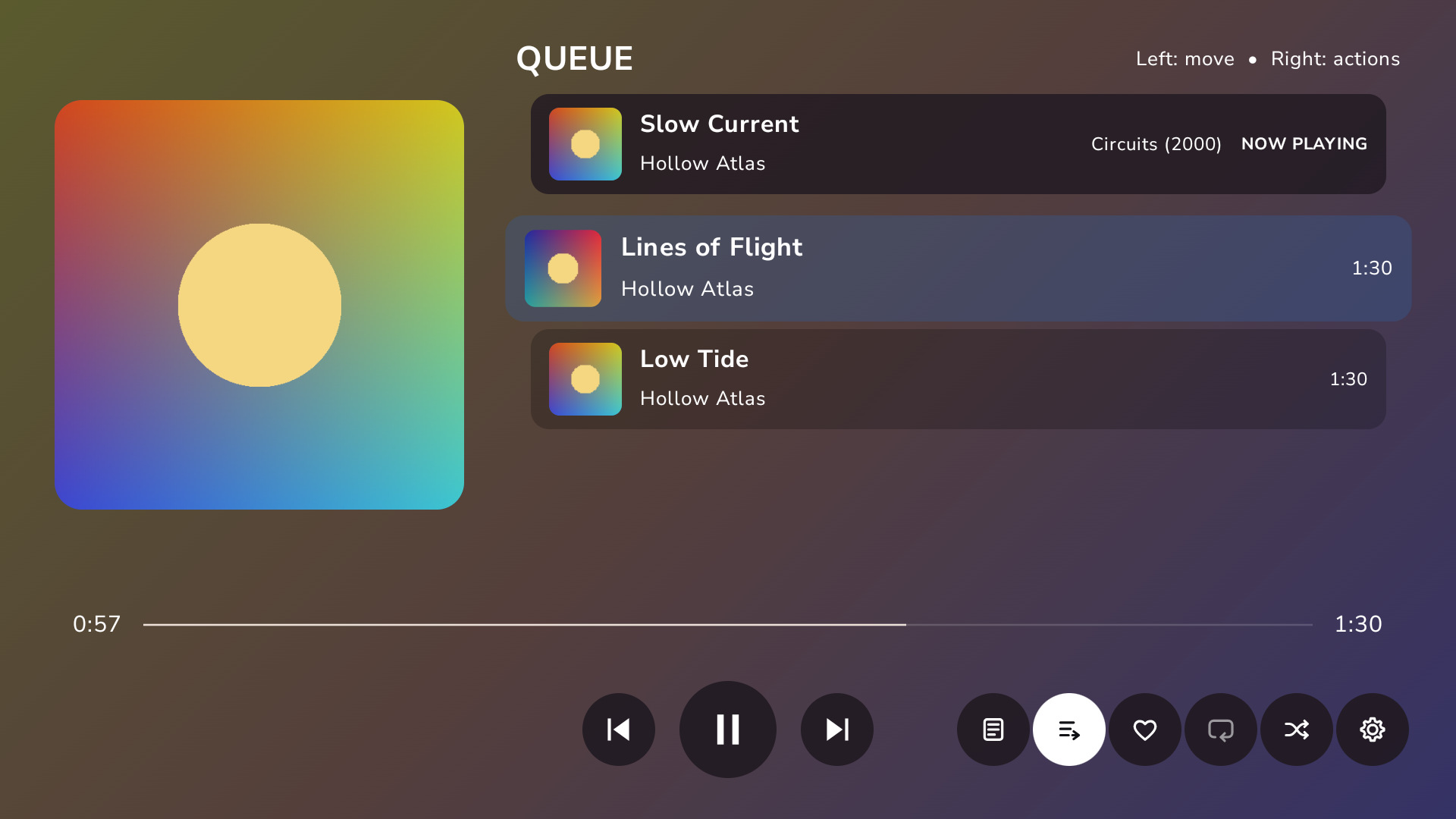
Start an album or playlist to give the queue some upcoming tracks. From a browsing screen, press Up until focus reaches the top navigation bar. Move Left or Right to Now Playing, then press Select to open the player. If playback already opened the player, go straight to Queue.
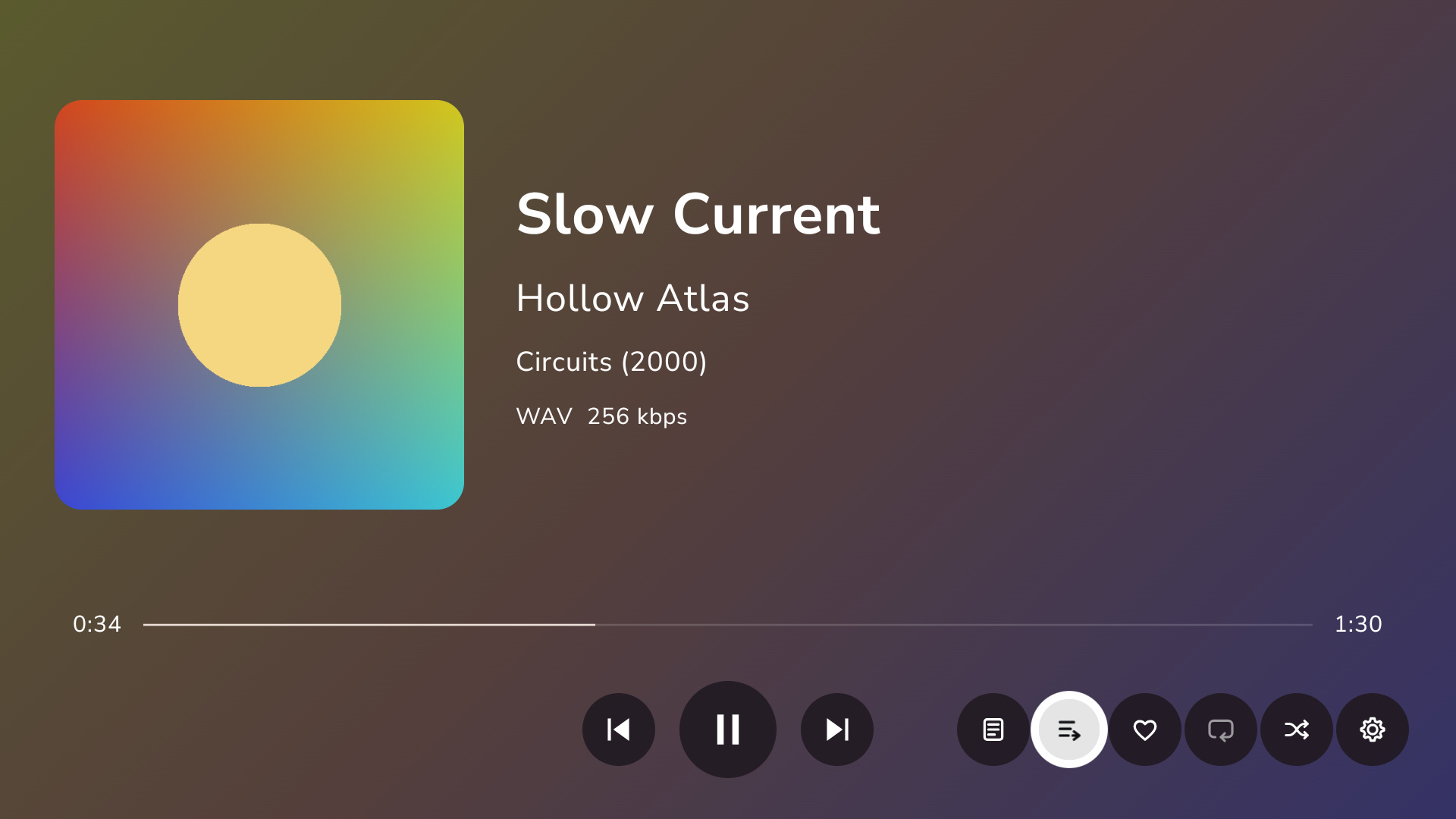
If the player controls have faded, press a direction to bring them back. From Play/Pause, press Right until Queue is highlighted, then press Select. Look for the list with a right-pointing arrow between Lyrics and the heart.
The queue opens beside the player. Use Up or Down to highlight a track and press Select to play it. On an upcoming track, Right opens its actions. To reorder it, press Left, move it with Up or Down, then press Select or Right to place it. Press Back to cancel a move or close the queue. From the player, press Back again to return to the navigation bar.
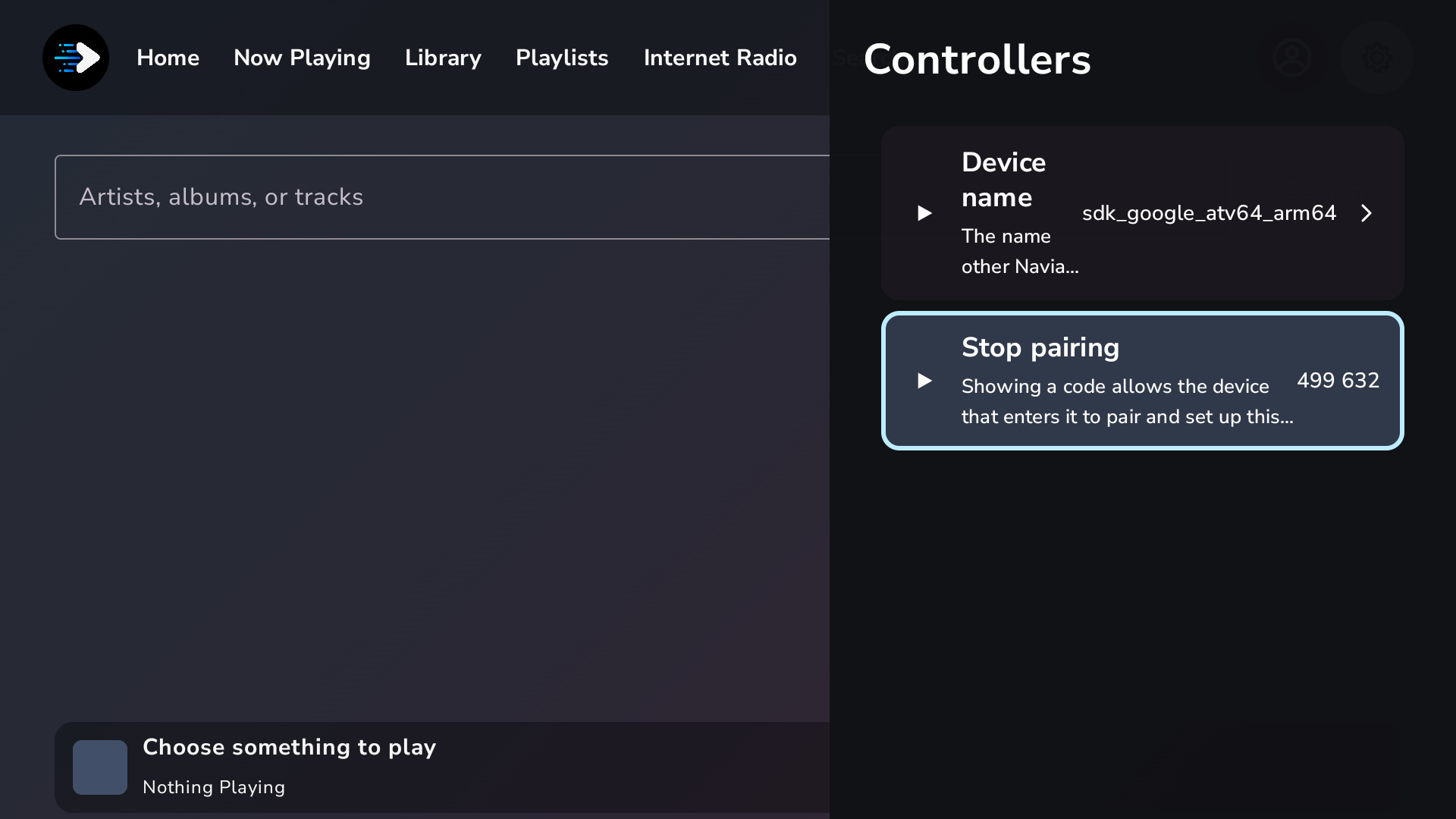
On Android TV, open Settings → Controllers → Pair a controller. Leave this page open so you can read the six-digit code. Showing the code lets the device that enters it pair with your TV. Share it only with the controller you want to use.
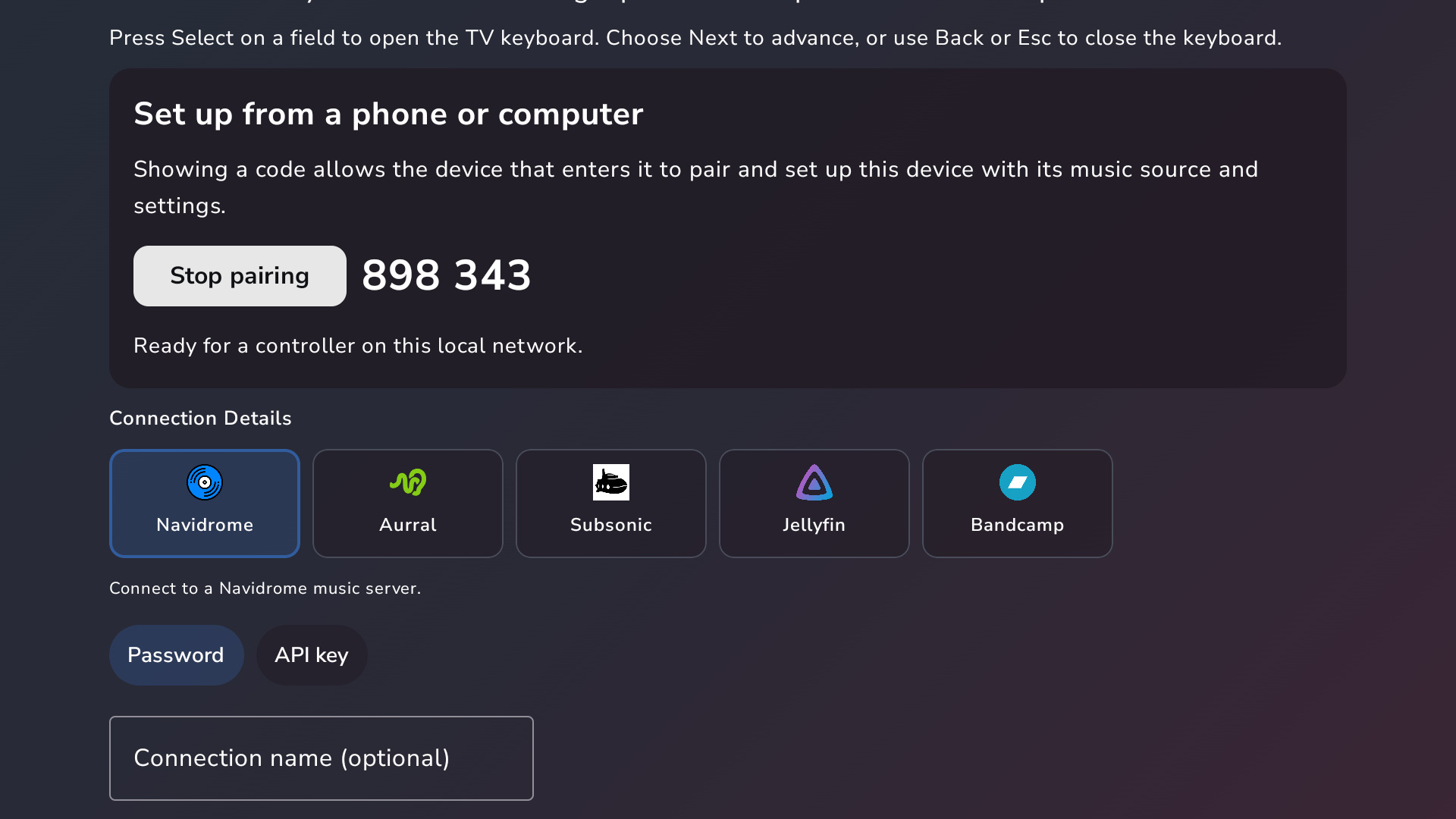
On a TV that has just opened Naviamp for the first time, choose Show pairing code under Set up from a phone or computer. The screenshots use a demo TV and expired pairing codes.
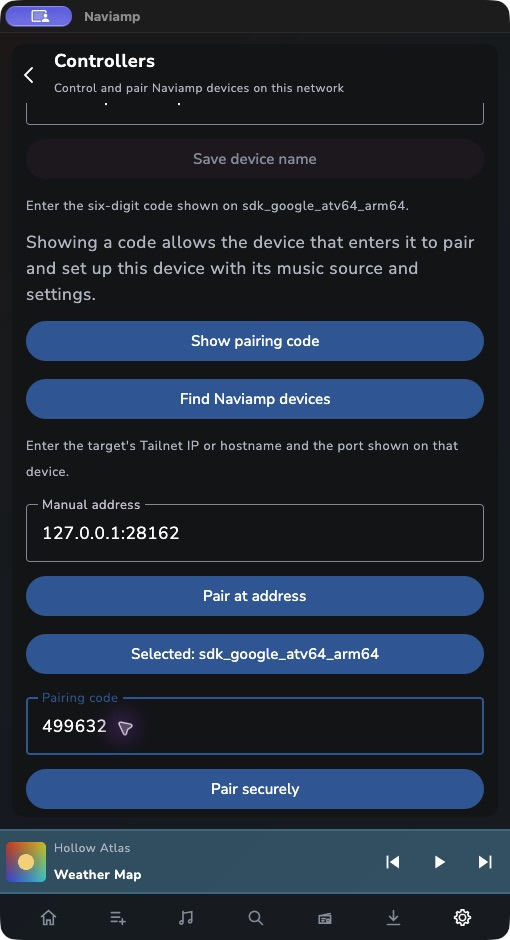
On a phone, tablet, or desktop build with Controllers, open Settings → Controllers → Find Naviamp devices. Choose Pair with followed by your TV’s name. Enter the six-digit code from the TV and choose Pair securely.
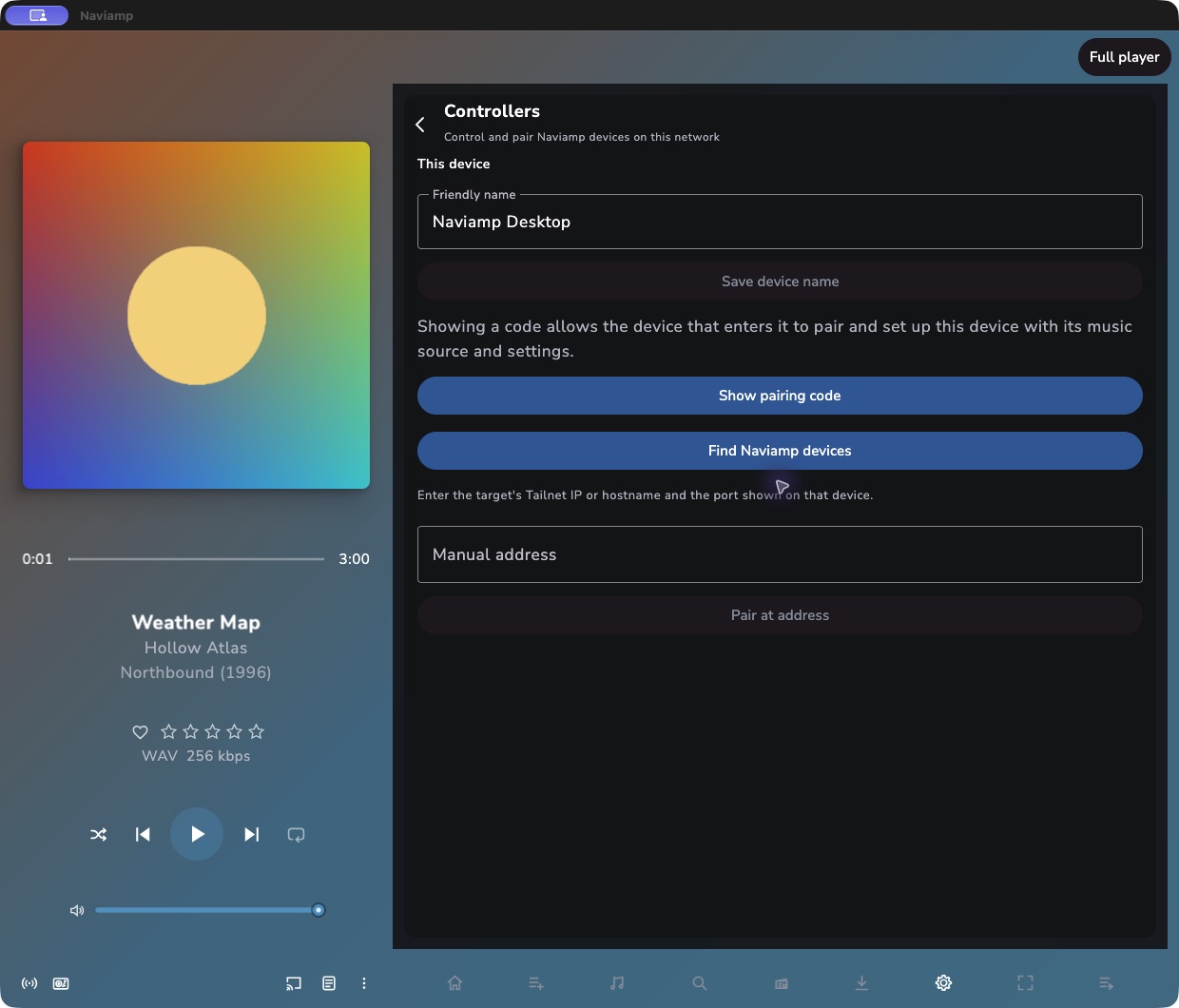
Controllers in a narrow window
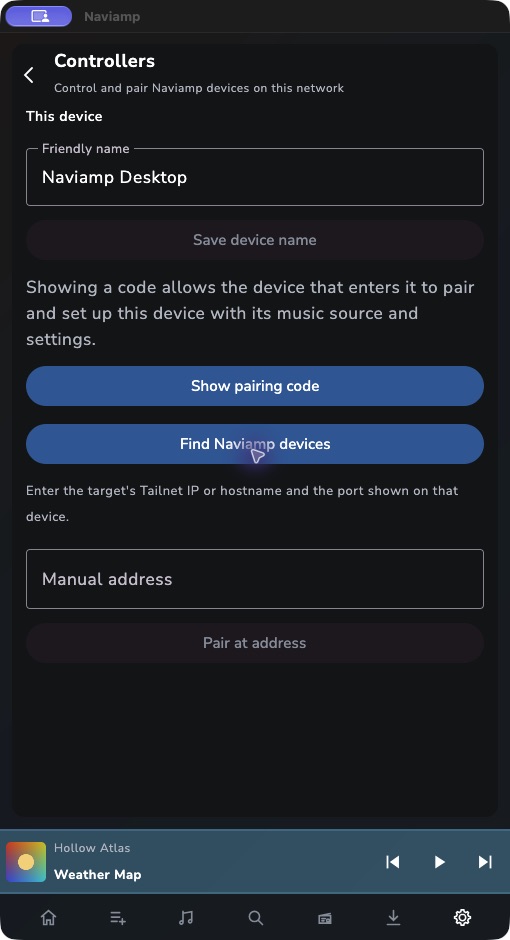
Enter the TV code in a narrow window
When pairing succeeds, Controllers shows Connected to and Controlling followed by the TV’s name. If your TV displays an Approve request, use Select on that row after checking the controller’s name. Use Reject request if you do not recognize it.
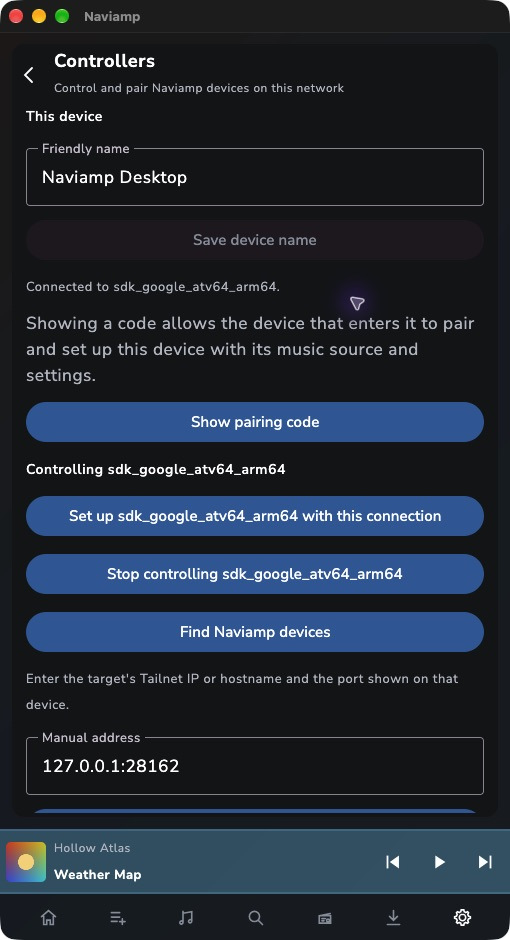
Select the TV as a playback destination when you want Naviamp to play there. Choose Stop controlling to disconnect while playback continues on the TV.
Check that the TV is still in pairing mode and the two devices can reach each other on the local network. Check local-network permissions where available. If the code expires, start pairing again on the TV. Where Manual address is available, enter the TV’s reachable address and the Manual connection port shown in the TV’s pairing row. Choose Pair at address, then enter the TV’s code in Pairing code and choose Pair securely.
Set up [TV name] with this connection sends a supported saved music connection to the TV. If the TV asks you to confirm the source setup, review the request there.