Repository navigation
A graph from a template
Scenarios · Русский · Contents
A video assembled from nodes on a canvas: from the idea through the writer to the finished file. At the end, how to do something the storyboard can't: two endings from shared scenes.
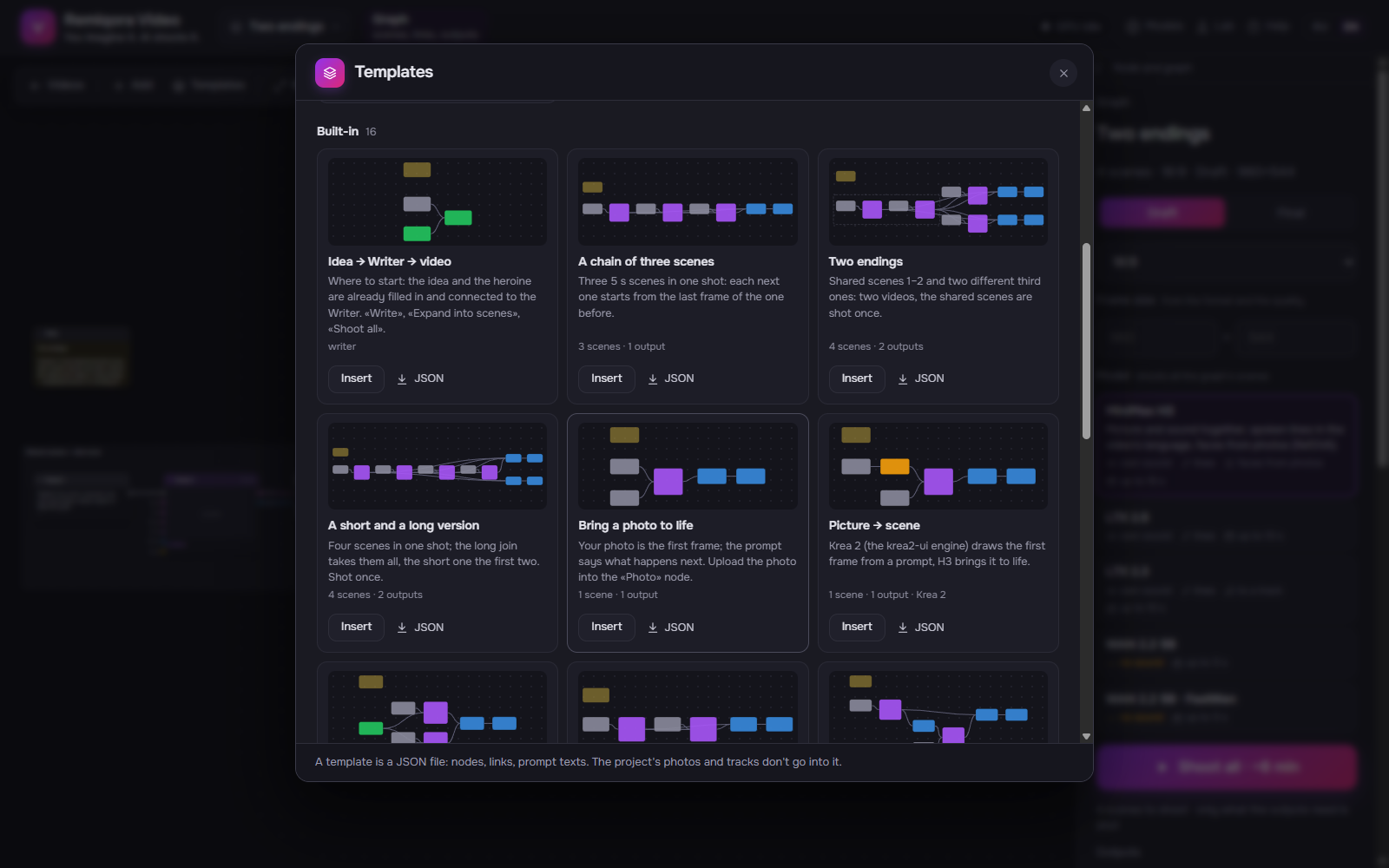 The templates dialog: 16 built-in and your own
10–15 minutes including shooting three scenes · the writer (LLM) and the graph's video model (H3, LTX or WAN) · nothing to prepare
On the home screen, among the ways to start, choose «Graph». Enter a «Title» (optional), choose «Frame» and «Model» — you can change it later. Click «Choose a template», and in the «New graph» window, next to the «Idea → writer → video» template, click «Create graph».
«Empty graph» is one scene with a join and an output; you build everything else yourself.
The canvas has a «How to use» note, the Idea, the Heroine and the Writer — already connected. The color of a node's header shows who does the work, the color of a port shows what flows through it. A link is drawn from an output on the right to an input on the left of the same color; a square input takes several links, a round one takes one. The wheel zooms, dragging empty space pans, «Whole graph» shows everything.
Click the Idea: its panel opens on the right — enter a couple of sentences in your language. At the top of any node's panel is «Next»: its next step. What a node is missing also shows on its card as a dashed badge. The Heroine has «Hero photo» and «Describe from photo», or a look in your language and «Translate to English».
Select the Writer: «Length», «People», «Mood», «Music and sound». Click «Write» — the scene plan appears in the panel (about a minute). Then «Expand into scenes»: prompts, scenes, a join and an output appear on the right.
The writer only works when you click the button. Changed the idea? The node shows «inputs changed — «Rewrite»».
«Arrange» above the canvas lays the nodes out along the flow from left to right (Ctrl Z undoes it). Select the first Scene and click «Shoot up to here» — it is shot along with what it needs, and nothing after it. At the bottom of a node is its state: «to shoot», «queued», «waiting for start», «done», «from cache».
Click an empty spot on the canvas — the graph panel opens on the right. «Shoot all» shoots what the outputs need and takes the rest from the cache. An error stops only its own branch. A finished output is in the «Outputs» list; the «Output» node has «Download MP4».
The storyboard can't do this. Select the last Scene and click «Duplicate branch»: a copy of the scene with its own prompt, its own join and output, while the scenes before it are shared. Rewrite the copy's prompt — «Shoot all» shoots the shared scenes once and builds two videos. A ready example: «Templates» above the canvas → «Two endings» → «Insert».
In the storyboard, «Graph» in the «Cards / Graph» switch shows it on the canvas; «Copy as a graph project» in its panel makes a separate graph with the same keys — shot scenes come from the cache. To go back, «Build storyboard» in the graph panel: only from a straight graph (one output, one join, 5 s scenes).
💡 Keys. Select a node and click «Add» — the new one appears next to it and connects by itself if the ports match. Ctrl C / Ctrl V copy nodes with their links, Ctrl Z undoes any edit, ? shows all keys.
💡 Until a scene copy is changed, its key is the same — it is shot once. Edit a scene and it is reshot along with everything that starts from its frame; neighboring branches are not.
Next: Graph nodes · Reshoot a finished video · Montage and export to DaVinci Resolve