Repository navigation
One scene in the Lab
Scenarios · Русский · Contents
At the end you will have one scene in several takes — and a prompt tested on the model you need, ready to move into the storyboard.
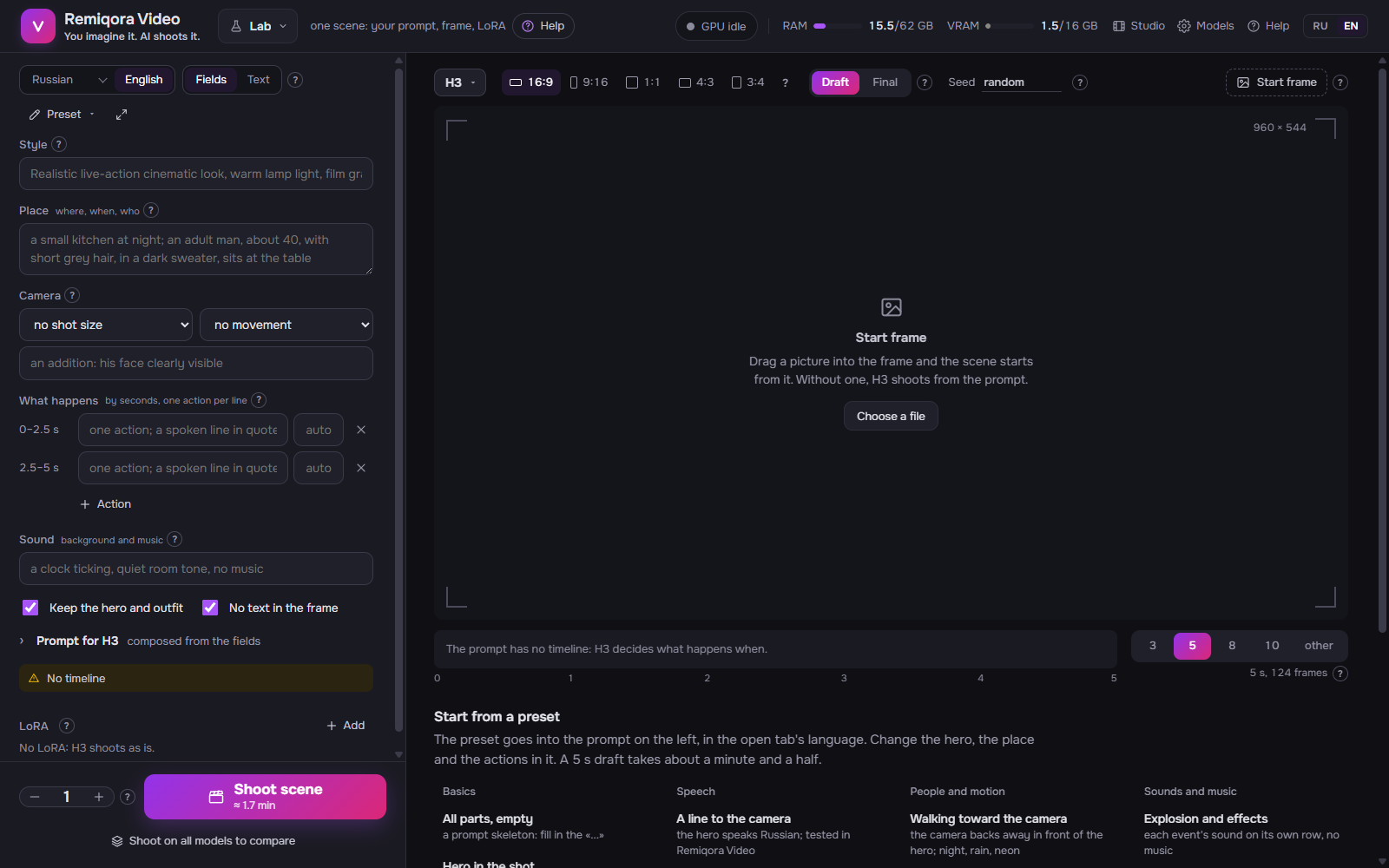 The lab: one scene by hand on any model
5–15 minutes for a take or two; any model. You only need a prompt, and optionally a start frame and a LoRA.
The «Lab» link in the header. On the left, the prompt, LoRA and «Shoot»; on the right, the frame of the scene to shoot with its settings above and the timeline below, the takes under it; while there are no takes, it shows presets.
The easiest way is «Preset ▾»: 16 complete prompts for common scenes; the scene length adjusts to their timeline. You can write your own text in your language on the «Russian» tab and click «Translate to English» — the translation opens on «English», check it. What gets shot is always the English.
Translation takes 10–30 s; the video model is unloaded for that time.
The «Fields» view: style, place, camera, «What happens» by line, sound; the timeline is computed automatically. The «Text» view: the whole prompt. Under the prompt are part labels: a dashed one with a plus means the part is missing, a click inserts it. Yellow lines under the field say what to fix, each with its own button.
Above the frame on the right: model, format, quality («Draft» while searching for the prompt), seed. Under the frame: the length (no longer than the model's limit: LTX 10 s, WAN 5 s). Want to start from a picture? Drag it right into the frame and make the first line of the prompt Continue seamlessly from <Picture 1>.
In «LoRA», click «Add» — a list from the selected model's folder. The slider is the strength, usually 0.6–1. If the LoRA shows «trigger: …», put that word into the prompt.
The number left of the button is how many takes in a row; each take's seed is 1 higher. Click «Shoot scene» (Ctrl Enter). An empty «Seed» means a new one every time.
«Shoot on all models — compare»: the same prompt and seed, one take on each model whose weights are present. The models load one after another; it takes a few minutes. The takes are labeled with the model.
On the right, in «Takes», the takes are grouped by prompt; hover to play, click for a large view. Under a take: «Repeat with seed» — change the prompt and see only its difference; «Continue from the last frame» — the next scene from its frame; «Download», «Delete».
💡 Search for the prompt on one seed: «Repeat with seed», an edit, then «Shoot scene» again. If the seed changes, the scene is different and you can't tell what the edit did. The seed you found gives the same scene in the final, only sharper.
Next: The Lab: reference, Prompt parts in order, Your own LoRA and another model