Repository navigation
Montage
Shooting and video · Русский · Contents
The fourth step: the shot scenes on a timeline. Here you trim the start and end of scenes, reorder chains, add transitions and put in your own track. Nothing is reshot: «Build video» joins the scenes from the cache following the montage.
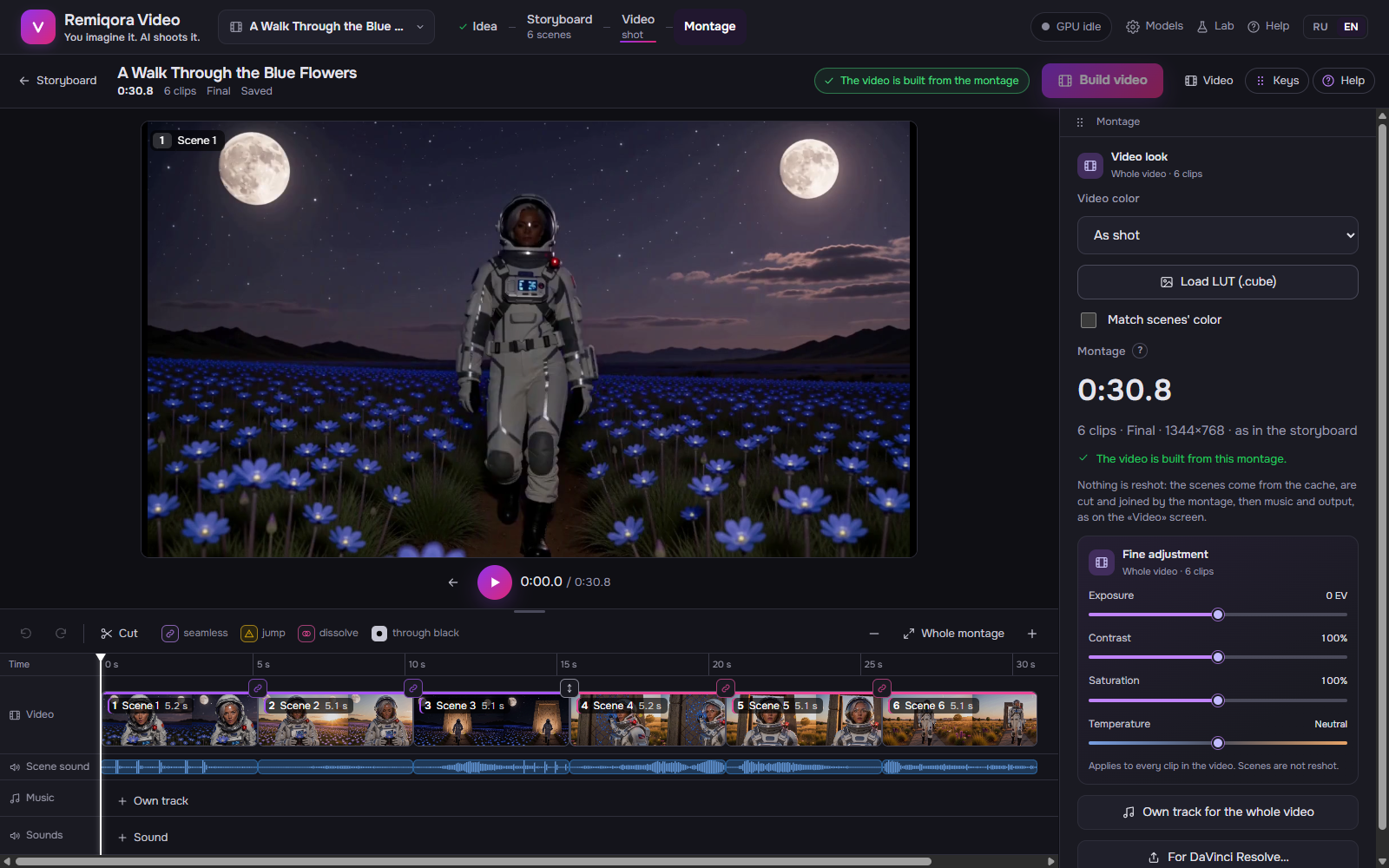 Montage: the player, the timeline with transitions and sound, the film's color
Drag a clip’s left edge to trim the scene’s start, its right edge to trim the end; the scenes after it shift on their own, and the player shows the frame at the cut. For precision, use the clip panel: «Start» and «End» in seconds within the shot, the ‹ › arrows step by a frame. A clip is no shorter than 0.5 s. «As it was» brings the whole scene back.
Like an editing program, all in one window: at the top, the project bar — the length, whether the montage is saved and whether the video is built from it, the «Build video» button; below it, the player above the timeline, and at the side the panel, a full-height column. The border above the timeline can be dragged to make the player bigger or smaller (a double click restores it). The panel moves by its handle, as on other screens: right, left or as a window.
Above every cut between two clips is an icon showing what kind of cut it is: a link in the chain’s color, seamless (a continuation from the last frame, the picture flows on); a yellow triangle, a jump (the chain’s cut is trimmed, a different take comes before the continuation, or the speed is not 1×); a bar, a cut between different scenes; a spark, a flash; two circles, a dissolve; a black dot, through black. A click on the icon opens the cut in the panel: the two clips on either side, why it jumps, «Restore the cut» (ends as shot, the same take, 1×) or «Hide with a dissolve», the transition and its length, «Play the cut» from one and a half seconds before it (a double click on the icon does the same). Delete on a cut removes the transition. With nothing selected, the panel lists the jumping cuts.
Each cut has one: cut (straight), flash (a cut with a white flash for 4 frames, doesn’t change the length; in a clip from a song, loud parts start this way by default), dissolve (picture and sound blend) or through black; a transition lasts 0.2–2 s. A dissolve shortens the video by its length: the scenes overlap. The selected clip’s panel has a «Cut before the clip» line; a click takes you to the cut.
A continuation starts from the previous scene’s last frame, so the scenes of a chain always stay together: drag a clip and the whole chain moves, a blue bar shows where. An untrimmed cut inside a chain is seamless (a link above the cut). Trim such a cut and the picture will jump: a yellow triangle above the cut; «Restore the cut» in the cut’s panel puts it back as it was.
S (or «Split») splits the clip at the playhead: two parts of one scene, the second continues the first seamlessly, and each can be trimmed, moved within the chain as a copy, slowed down. Ctrl D puts a copy of the clip right after it (a repeated moment, a «freeze frame» from a slowed copy). Delete removes the clip; if a scene has no clips left, it leaves the video but stays in the storyboard, and «Removed from the video» in the montage panel puts it back in place.
If a scene has several takes («Another take» in the storyboard), the clip panel has «Take» with thumbnails: the clip can use any of them, the storyboard doesn’t change (★ is the storyboard’s take, the continuations start from its frame). A different take before a continuation makes the cut jump; two parts of one take are seamless. The clip shows a «t» badge.
0.5–2× for each clip: the scene’s picture and sound slow down or speed up together (the sound keeps its pitch). The clip shows a «2×» badge; its length in the video changes and the scenes after it shift. A cut with a different speed is not seamless: a yellow triangle above the cut.
Ctrl Z undoes any montage edit, even «As in the storyboard»; Ctrl Shift Z or Ctrl Y redoes. Quick edits in a row (a slider) count as one step. The undo and redo buttons are above the timeline. Esc clears the selection, M turns the «Magnet» on and off. All keys: «Keys» in the project bar or ?.
Plays with its scene’s picture. Each clip has its own volume (0–200 %, the «Scene sound» slider): quieter for background under a line from the next scene, louder for a quiet line. The track shows the sound’s waveform. Sound is cut in whole frames together with its picture and is never shifted, so lines stay on the lips. At a cut, a short 0.03 s smoothing prevents clicks; at a dissolve, the sounds blend.
Your track, the same one as on the «Video» screen: volume, «scene sound under it», the second to start from, fade-in and fade-out. A click on the «Music» track shows these settings in the panel. No track: «Own track». Ducks under scenes is a 0–100 % slider («off» disables it): the track gets quieter on its own where scenes are loud (a line, a scream) and comes back in the pauses (a compressor keyed by the scene sound, 10:1 at 100 %); you hear it in the built video, not in the preview.
A button above the timeline, present when the video has your own track; M does the same. When on, clip trimming and sounds snap to the track’s nearest beat, and the time ruler shows beats and bars (when the zoom allows). The choice is remembered in this browser.
In the same place: every cut moves to the track’s beat before it, a clip gets shorter by less than a beat. Seamless chain cuts are left alone. If everything is already on beats, it will say so.
The «Sounds» track holds your files (mp3, wav, m4a, flac, ogg): «+ Sound» puts a file at the playhead. A sound can be dragged along the track, its edges trim its start and end; the panel has the second of the video it starts at, volume, fade-in, fade-out, copy. Sounds play over the scene sound and the track; the files are kept in the project’s sounds folder.
In the montage panel (nothing selected), one color for all scenes: «As shot», «Film», «Warm», «Cool», «Teal and orange», «Black and white» or your own LUT, «Load LUT (.cube)». Match scenes’ color: each clip is pulled 60 % toward the video’s average color and contrast, so scenes from different models and takes stop jumping in color. You see it in the built video; the preview shows it as shot. No frames are added or lost, the cuts stay in place.
Plays the montage in the browser: two videos taking turns, dissolves and black done with transparency, the scene sound and the track at their own volume. Space plays / pauses, ← → steps a frame, Shift + ← → a second, Home / End go to the start and end. It may stutter slightly at a cut; in the built video everything is exact.
A queue job, like «Shoot video»: scenes not yet shot get shot, the rest come from the cache; then the join following the montage, the track, 1080p / 4K / HDR / 48 fps. The button is always in the project bar, and next to it whether the video is built from this montage («Video built from the montage», «from an earlier montage», «not built», «There are unshot scenes», and then «Shoot and build»). On the «Video» screen, after montage edits: «Build from the montage».
The montage is stored in the project, its scenes by their own number, which doesn’t change. A reshot scene stays the same clip with its trims; a deleted one leaves; a new one goes after the scene before it. «As in the storyboard» erases the montage edits. Without edits, the video is built the same way as always.
The button in the montage panel (nothing selected) asks for a folder (next time the dialog opens in the same place), creates a «Video name · Resolve» folder in it with an FCPXML timeline and the files it plays, and opens it. Exporting again recreates this folder. If a foreign folder with that name is already there, it isn’t touched: the export goes to «… 2». In Resolve: File → Import → Timeline. The scenes go onto a video track with their sound, with trims, speed, dissolves and volume. The track and the sounds go onto their own tracks, with volume and fades. A flash becomes a marker. Track ducking and the video color are not carried over: Resolve does them its own way, and your LUT is placed next to the timeline. An unshot scene arrives as an empty gap of its length labeled «Scene N — not shot»: shoot it and export again. The graph’s montage can’t be exported this way yet.