Repository navigation
Project graph
A video built from nodes on a canvas: scenes, photos, LoRA, joins, music and outputs, with any links between them. The graph is for branches and versions: two endings from shared scenes, a short and a long version, a scene that starts from a frame of any other one. For a straight «idea → scenes» video, the storyboard is simpler.
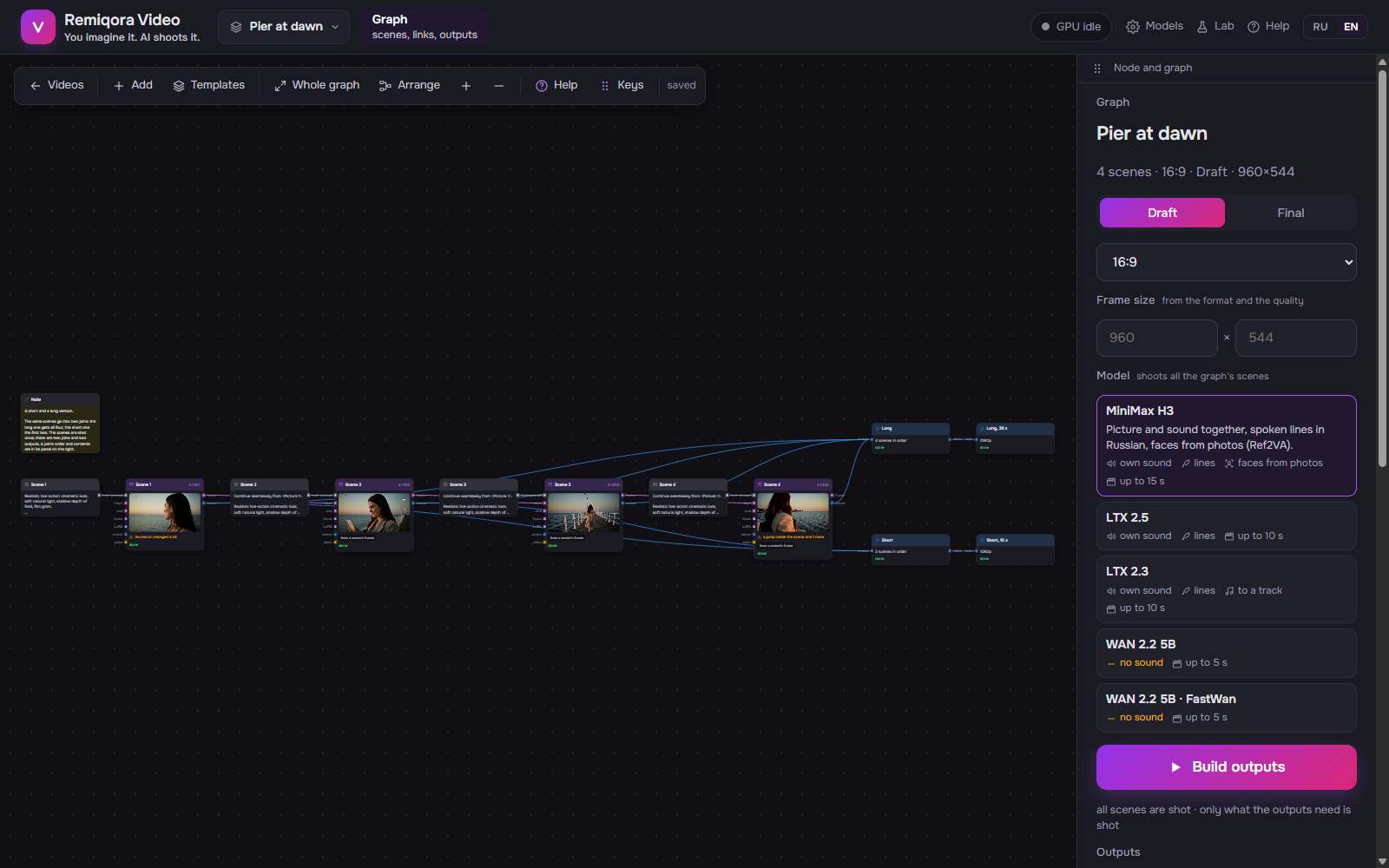 The graph: heroes, pictures, scenes and the output on one canvas
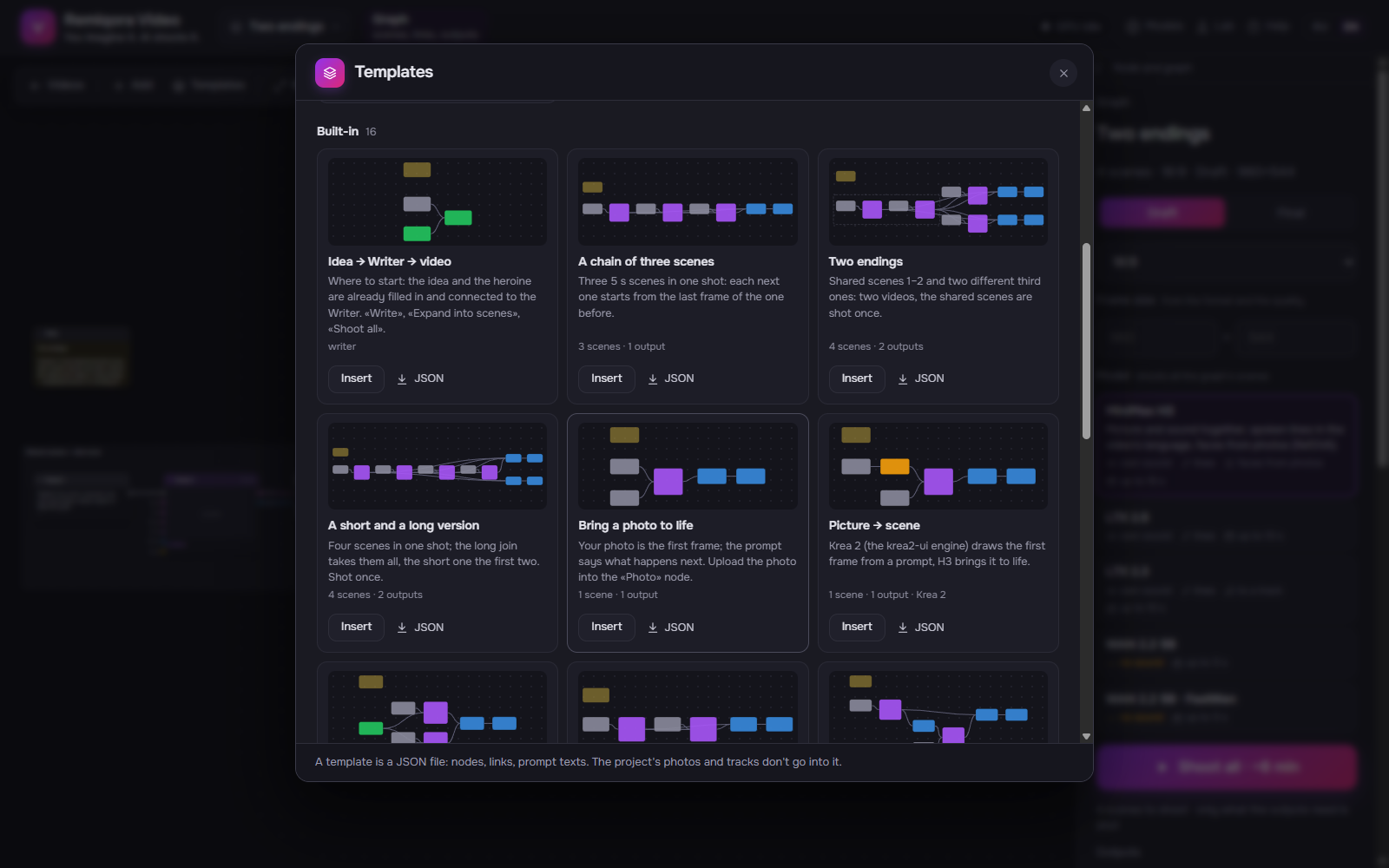 The templates dialog: 16 built-in and your own
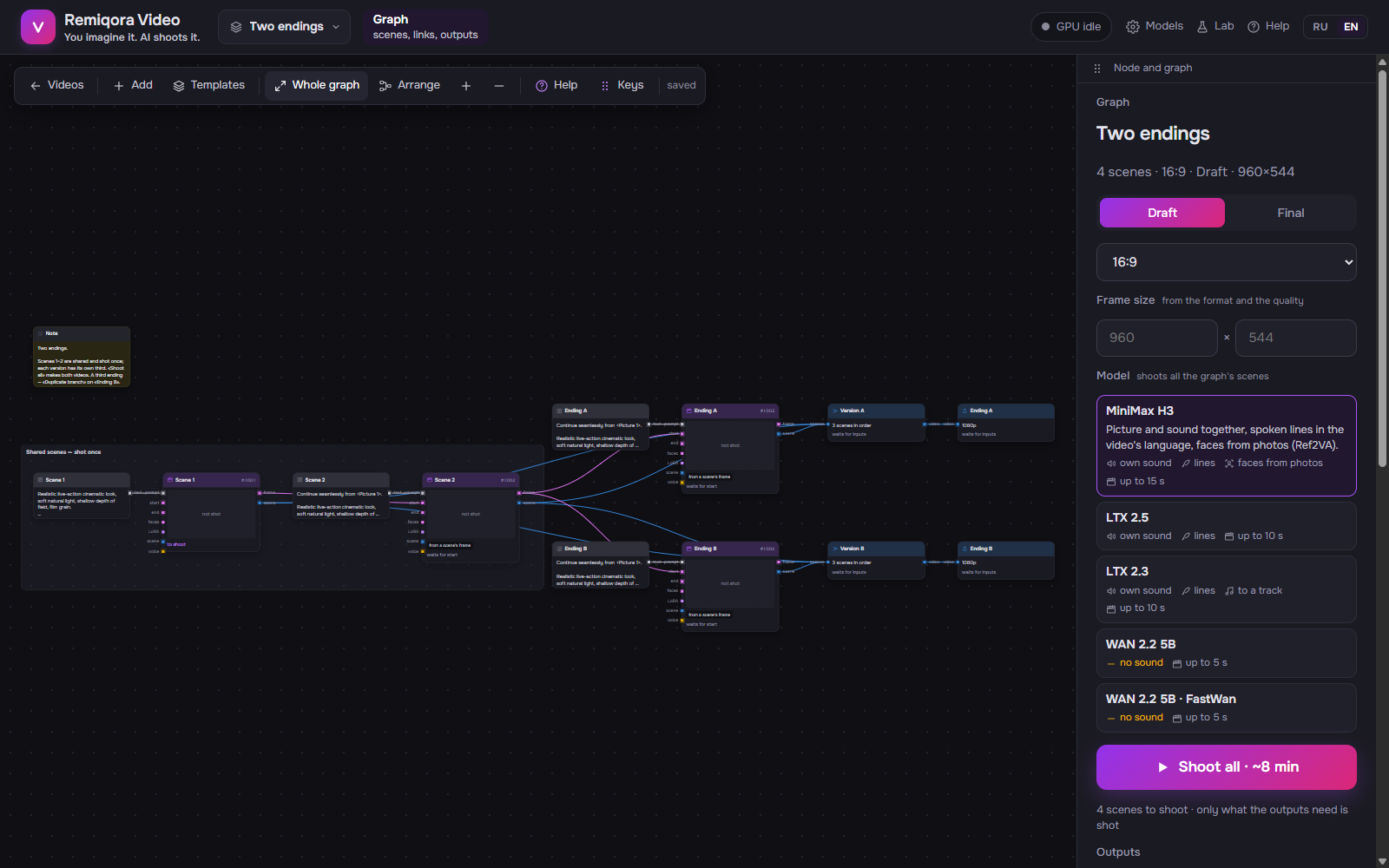
The «Two endings» template. Pink links: a scene’s last frame goes into the start of the next one; blue links: shot scenes go into the join, the join into the output.
💡 How to start. «Graph» among the ways to start on the home screen, then «Choose a template»: a template or an empty canvas with one scene. The first time, the easiest is the «Idea → Writer → video» template: the idea and the heroine are already filled in and connected to the Writer, and a note next to them says what to press. «Copy — project graph» from a storyboard gives the same storyboard as nodes, with all shot scenes taken from its cache.
«Add» above the canvas: each node has an icon and a line on what it’s for. If a node is selected, the new one goes next to it and links to it by itself when the ports match: select the Idea and add a Writer, and «text» goes into «idea». With nothing selected, the node goes to the middle of the screen. «Templates» is a ready piece of graph. Nodes move with the mouse, the panel on the right edits the selected one.
The selected node’s panel has «Next»: the next step for that very node («Connect the Idea», «Press «Write»», «Expand into scenes», «Connect «scene» to a Join»). What a node is missing also shows on the card itself, as a dashed badge.
Drag from an output on the right to an input on the left of the same color: text to text, picture to picture. A square input takes several links, a round one takes one: a new link replaces the old.
«Shoot all» in the project panel shoots what the outputs need and takes the rest from the cache. «Shoot up to here» on a node shoots only it and what it needs.
«Another take» on a scene, «Duplicate branch» for a second ending, several outputs for several versions of the video.
| Keys | What it does |
|---|---|
| Shift + box | select several nodes |
| Ctrl + click | add a node to the selection |
| Ctrl A | select all |
| Esc | clear the selection |
| Delete Backspace | delete the selection |
| Ctrl C · Ctrl V | copy and paste, with the links between the nodes |
| Ctrl D | duplicate the selection |
| Ctrl Z | undo |
| Ctrl Shift Z · Ctrl Y | redo |
| ? | the key sheet, the same list in a separate window (the «Keys» button above the canvas) |
The keys work on any keyboard layout. In an input field they belong to the field: Ctrl A there selects the text. One undo step is one save of the graph; a pause in typing is a step too.
One job in the queue. The order: pictures, then scenes (scenes of one model in a row and scenes with Ref2VA in a row, to switch models less often), «Video → video», «Scene sound», frames, joins and montages, music, outputs. An error stops only its own branch; the others get finished. «Stop after the current node» works as on the «Video» screen.
On the selected node: shoots it and everything it needs, and nothing after it.
Each scene has a key made of the prompt (in the form the model will get it), the seed, size, length, model, LoRA, the start and last frame, the photo for Ref2VA and the voice sample — the same as in the storyboard. Edit a scene and its key changes, along with the keys of everything that starts from its frame; neighboring branches are untouched. A node with a new key shows «to shoot».
They work only by button: «Write», «Describe from photo». If an input changed, the node is marked «Rewrite». «Rewrite outdated» on the right runs all such nodes in one job, so the Writer’s model loads once.
Each scene has its own: 3–15 s, but no longer than the graph’s model shoots (LTX 10 s, WAN 5 s); 5 by default (a slider and 3 · 5 · 8 · 10 · 15 buttons in the scene panel). The length is part of the key: change it and the scene will be reshot. The timeline of the prompt fields stretches to the length of the scene it feeds; «Frame at a moment» stays within that scene’s length. H3 was trained on 5–15 s: 3–4 s will shoot, but it’s outside what it’s used to.
The «Prompt» panel has a «Lines» section: who speaks, how and what, in the video’s language. «Who» is how the hero is named in the prompt: The heroine, Character 2, The man (suggestions come from the text). The server inserts the line into the timeline as a separate row ([1s-3s] The man says with a smile, in Russian: "…"), and the voice goes first in the Audio: line; on the scene, «Prompt with lines» shows what the model will get. About 2 words per second of the scene. «Suggest»: the Writer reads the prompt and suggests lines for those in it (by button). Lines from the storyboard via «Copy — project graph» and from the Writer via «Expand into scenes» land here too, and the scene keys don’t change.
With people, the face slowly drifts if scenes keep starting from the previous one’s frame. As in the storyboard, after three continuations in a row a scene shows «face may drift»: start a new scene or connect the hero’s photo to the «faces» input — Ref2VA (H3 only) checks the face against the photo, and the count starts over. With no people in the prompt, there is no warning.
«Another take» on a scene shoots it again with a different seed. All takes are kept in the cache; the chosen one goes into the join and into the continuations after it. «Clear takes» moves the unchosen takes and the files no node refers to anymore to the Windows Recycle Bin.
Copies a node and everything after it, with the copied scenes’ prompts and the links that enter the branch from outside. This is how scene 3 becomes a second ending: a copy of the scene, its own join and its own output, while scenes 1–2 are shared and shot once.
A button above the canvas: the nodes line up along the flow from left to right — idea and heroes, prompts, scenes, join and output; what only feeds another node (a track, LoRA, a photo) goes right before it. Each chain of scenes gets its own row, many chains go into several columns, the video’s tail on the right. A group is arranged inside and placed as a block, its frame fits itself; notes go in a row at the top. With two or more nodes selected, only they are arranged. Ctrl+Z puts things back.
The «Templates» button above the canvas opens a window: each template has a thumbnail graph, what’s in it («4 scenes · 2 outputs · track»), «Insert» and «JSON». There are 16 built in, from simple to complex: «Idea → Writer → video» (the first), a chain of three scenes, two endings, a short and a long version, animate a photo, picture → scene, one face in different places (Ref2VA), a dialogue of two, another angle from the middle, three takes and the best one, your own style via LoRA, a clip to your own track, a trailer from five places, a landscape as one chain, Writer, Writer and a face from a photo. Each has a note on what to do first. On the home screen, «Graph» → «Choose a template» opens the same window: a graph from a template or an empty one.
«Save as template»: the selected nodes (or the whole graph) become your template in data\graph_templates. «Download as JSON» and «JSON» on the card give a file you can edit, pass to someone or keep. «Load from JSON» turns a file into your template again; a taken name gets «(2)», nodes of unknown types and links between ports of different colors are skipped, and a message says how many. A project’s graph.json is accepted too. Project files (photos, tracks) and the Writer’s result don’t go into a template; load them into the nodes again.
Only from a straight graph: one output, one join, each scene 5 s long starting from nothing, from a photo or from the previous scene, the same LoRA everywhere. Ref2VA faces become storyboard heroes with photos (a hero from a «Hero» node keeps its look), and each scene remembers its faces in their order. The result is a new storyboard with its own prompts, the same seeds and keys; the shot scenes are already in it.