Repository navigation
Lab
The /lab page: one scene by hand, without a storyboard. Handy for trying prompts, start frames, LoRA and models.
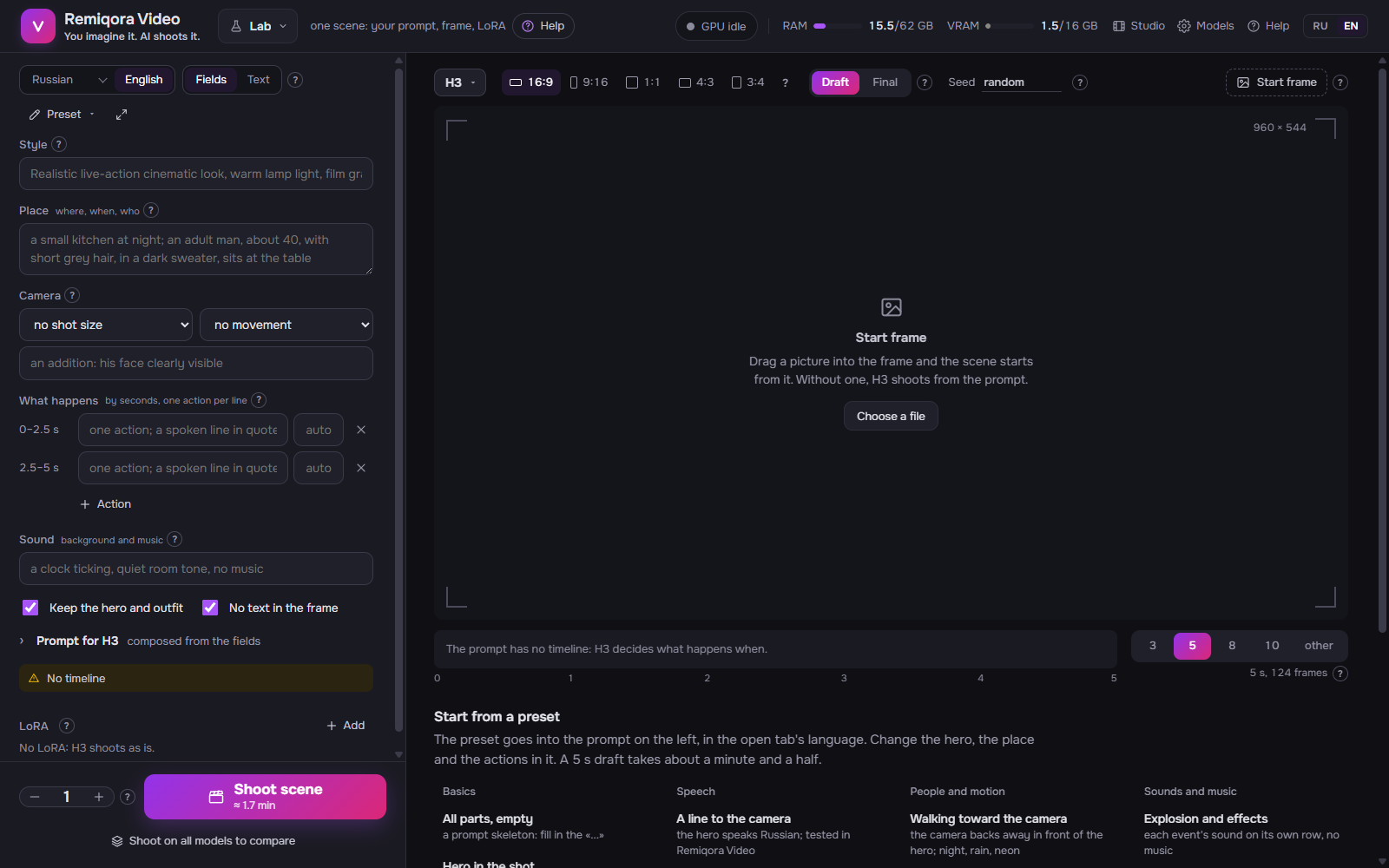 The lab: one scene by hand on any model
The button with the model’s name above the frame on the right: who shoots the take — H3, LTX 2.5, LTX 2.3, WAN 2.2 5B or FastWan. The prompt goes out as written: to H3 word for word, to LTX and WAN without H3 marks (the «How to write a prompt» section). The model determines the size, the length (no longer than its limit) and the LoRA list. The model is labeled on the take.
A button under «Shoot»: the same prompt and seed, one take on each model whose weights are present. Each model loads in turn, so this takes a few minutes.
Two switches above the prompt. Language: English is the prompt that goes to the model; Русский (or your texts' language) is the same scene in your language, for translation. English is always what gets shot. View: Fields, the scene in parts, and the prompt builds itself; Text, the whole prompt as your own text. «Preset ▾» fills the fields or inserts text in the language of the open tab.
Fields: style, place, camera, what happens second by second, sound and two tail checkboxes; they build an H3-format prompt (you see it in the collapsed «Prompt for …» under the fields). The timeline counts itself, and actions and lines go one per row, so timeline mistakes have nowhere to come from. Text: one big text with markup, as before, for those who write the prompt themselves or edit the built one («Edit as text»). Going from text to fields splits the text into parts; a paragraph without a label goes into «Place», and the page will say so.
What kind of film it is: live action or animation, light, color, film stock. One sentence; in the English prompt, the first paragraph without a label.
Where and when, who is there and what they look like: a room or a street, time of day, weather, people with age, hair and clothes. Becomes the Scene: line.
Shot size and movement from the lists, the same words as in the storyboard; the field below adds your own words («face clearly visible»). Together they become the Camera: line.
Actions one per row, up to six. The time on the left counts itself: the actions split the scene’s length evenly, three actions in 5 s get 2, 2 and 1, as in the storyboard. To make an action last longer, enter the seconds in the field on the right; empty means an even share with the rest. A hero’s line goes in quotes in the same row, and the row gets a pink mark on the left; on the English layer it must be preceded by in Russian: (or your language), which the translation adds by itself.
What is heard throughout the scene: the sounds of the place and actions, music by instruments and tempo, or «no music». Becomes the Audio: line. The sound of a single event is better written into its action row.
A collapsed block under the fields, named after the model — «Prompt for H3», «Prompt for LTX 2.5»: the text built from the fields. LTX and WAN get it without H3 marks. «Edit as text» switches to «Text» mode, where you can rewrite it entirely.
Yellow lines under the field: what’s worth fixing before shooting, each with a button that does it:
unfilled «...»: «Go to»; the timeline is longer or shorter than the scene: «Scene 8 s» or «Fit the timeline» (the times in brackets are recalculated); no timeline: «Add»; non-English words outside quotes, several actions joined by then in one row, walking with no direction toward the camera, lettering in the frame: «Show»; there is a start frame but no «Continue seamlessly from <Picture 1>.» line: «Add line», and the other way round.
These are hints, not a ban: you can shoot as is. Only with unfilled «...» will the program ask again.
The «Preset ▾» menu: 16 whole prompts for common scenes; they are inserted in the language of the open tab, and the scene length is set to fit their timeline:
Basics: all parts empty, a hero in the frame, a continuation from a frame (needs a start frame).
Speech: a line to the camera, a dialogue of two, a voice-over.
People and motion: walks toward the camera, three in the frame, a dance for a clip.
Sounds and music: an explosion and effects, a musician in the frame, music off screen.
No people: nature, an object in close-up.
Style: 3D cartoon, old film.
Change the hero, place and actions to suit you. «A line to the camera» is tested in Remiqora Video; the rest are written following the MiniMax guide, so shoot 2–3 takes each. While there are no takes, the same presets sit on the right, in place of the monitor.
On the «Русский» tab. The Writer chosen in the header translates the text into an English prompt by the H3 formula: splits it into parts, sets the times [0s-2s] over the scene’s length, keeps lines in quotes as written and adds in Russian: (or your language), so the hero says them in it. The translation opens on the English tab: check it before shooting. The source text stays; if you changed it, a yellow dot appears on the tab — translate again.
Translation takes 10–30 s and runs in the shared GPU queue. The Writer and the video model don’t fit in memory together, so the video model is unloaded for that time, and the next take loads it again (up to half a minute extra). A small model can make mistakes in translation; that’s what the check is for.
With examples and ready prompts: the «How to write a prompt» section and the ones after it.
The arrows button at the right above the prompt: the prompt opens across the whole Lab, your language and English side by side, each with its own parts and check. There, too, are «Shoot scene» and a summary of what will be shot. «Collapse» or Esc returns the prompt to the panel.
You can also just make the left panel wider: drag its right edge (or click the edge and press ← →); a double click on the edge restores the previous width. The width is remembered.
A checkbox above the prompt. Each part is labeled in the interface's language above its paragraph («Место: где, когда, кто», «Таймлайн: что по секундам»), the labels Scene:, Camera:, Audio: are in the parts’ colors, times [0s-2s] in green, lines in quotes in pink, <Picture 1> in blue, and «...» still to be filled in purple. Non-English words outside quotes get a red wavy underline: the model understands them worse, so translate them, and put a hero’s line in quotes. The labels are visible only to you; only the prompt goes to the model. Uncheck it and the field becomes a plain one.
The line under the prompt: Style, Place, Camera, Timeline, Sound, Tail, in the same colors as in the prompt breakdown at the start of the help. One with a dot means the part is there; a click selects it. A dashed one with a plus means the part is missing; a click inserts its template in its place, with the «...» in it left selected so you can type right away.
The picture the scene starts from: the model brings it to life and continues it. Drag a file (png, jpg, webp) into the frame on the right or click «Start frame» above it; even easier, «Continue from the last frame» under a finished take. With a frame, write Continue seamlessly from <Picture 1>. as the prompt’s first line.
«Describe the person»: the Writer looks at the frame and describes the look in English (~10 s, the GPU is busy for that time); «Insert into prompt» puts the description where the cursor is. «Remove frame»: the scene is shot from text again.
On the right under the frame: 3, 5, 8 or 10 seconds; any from 1 to 15 s in 0.5 steps in the «other» field next to them. Left of the length is the scene’s ruler with the prompt’s timeline lines on it: you see what happens when and whether something runs past the end (that piece is red); a click on a piece selects its line in the prompt. No longer than the model shoots: LTX 10 s, WAN 5 s (longer buttons are hidden). H3 was trained on scenes from 5 to 15 seconds; shorter can be shot, but it’s outside what it’s used to. Under the length: how many frames you’ll get; the models shoot 24 frames per second and round the length up to their frame grid. The longer the scene, the longer the shoot; the estimate is under the «Shoot» button.
Above the frame: its shape, 16:9 horizontal, 9:16 for a phone, 1:1 square and others. The frame takes that shape at once; in its corner is the size in pixels, which differs per model. «Like the frame» takes the start frame’s shape, so it isn’t cropped.
Draft: smaller and faster, for searching for the prompt. Final: bigger and more detailed, 2–3 times longer. Hover a button: the size and time for 5 seconds with the selected model on this machine. The same seed in the final gives the same scene, only sharper.
Fine-tunes of the model you shoot with (H3, LTX or WAN; FastWan uses WAN’s LoRA): style, character, motion. «Add» opens the list from that model’s folder, with search. The slider is the strength (usually 0.6–1; higher, and the LoRA overrides the prompt), ↺ resets it to 0.8, × turns it off. A yellow label means it may not suit the model (on LTX 2.3, LoRA from LTX-2 19B are marked this way). If a LoRA has a trigger word, put it in the prompt.
A field above the frame. A number that drives the randomness: the same prompt with the same seed gives the same take. Empty means a new one every time. To see what a prompt edit does, keep the seed the same.
The number to the left of «Shoot»: how many takes to shoot in a row, each with a seed 1 higher. Handy for picking the best of several.
On the right under the frame, by prompt: each group shows what happens in the scene, with the takes and their seeds below. Hover and a take plays without sound; a click plays it in the frame. A running shoot shows up in its group with its step.
«Continue from the last frame» makes it the start for the next scene; «Repeat settings» (new seed) or «Repeat with seed», to change the prompt and see only its difference; «Download», «Delete» (to the Windows Recycle Bin).
In the status bar while a take is shooting: stops only the Lab’s takes; the studio’s video keeps shooting.