Repository navigation
host_ng_volume_locally
Hosts a neuroglancer volume of meshes locally for testing using the cloudvolume package.
Arguments:
-
volume_path(string, mandatory)- the absolute path to folder of the neuroglancer volume that contains the mesh you want to host
- e.g. '/home/username/ng_volumes/volume_01'
In this example, we'll host a hypothetical local volume names volume_01 stored in the directory `/home/username/ng_volumes'.
INPUT:
import tracertools as tt

tt.host_ng_volume_locally(
    volume_path = "home/user/ng_volumes/volume_01"
)
OUTPUT:
Neuroglancer server listening to http://localhost:1337
This script will continue hosting the volume as long as it's running. When you want to stop hosting, stop the script.
Then you can open a neuroglancer instance in your browser of choice and create a new layer by clicking the + button to the right of the last current layer in the layer bar.
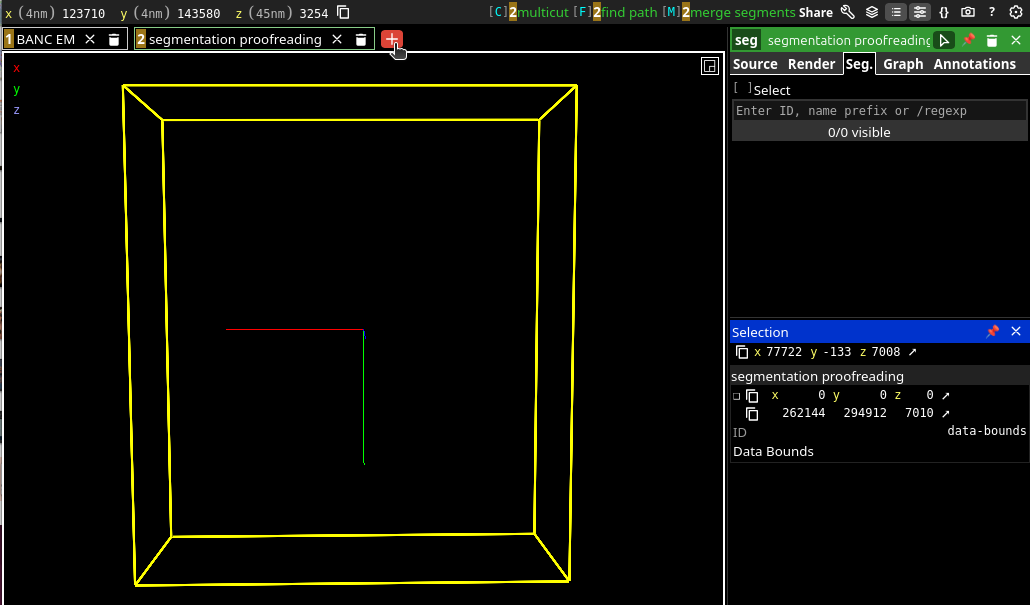
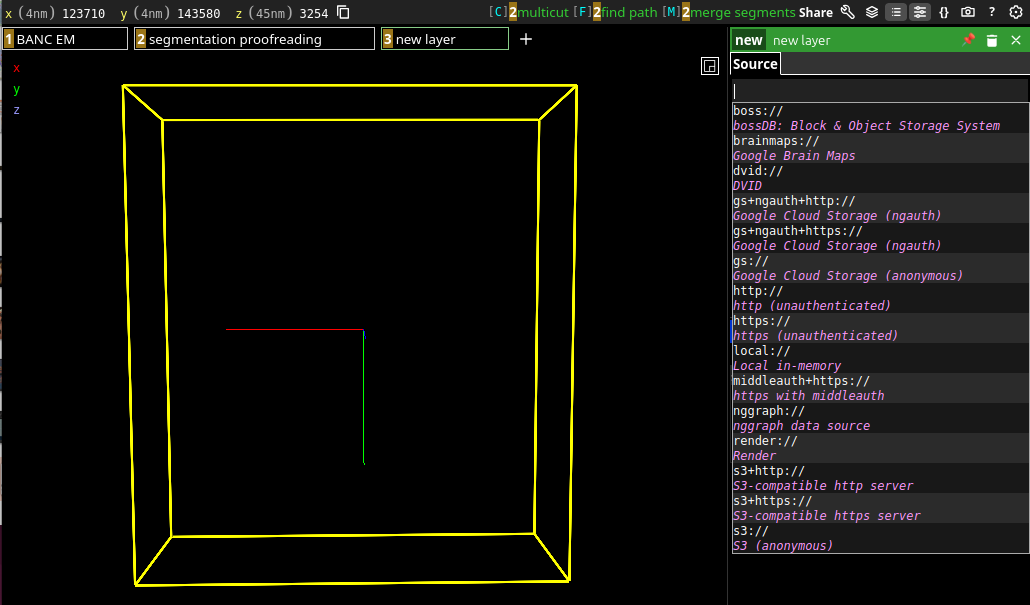
You should then be prompted to enter a Data Source URL at the top of the Source tab of the new layer menu on the right side of the neuroglancer window, as shown below.
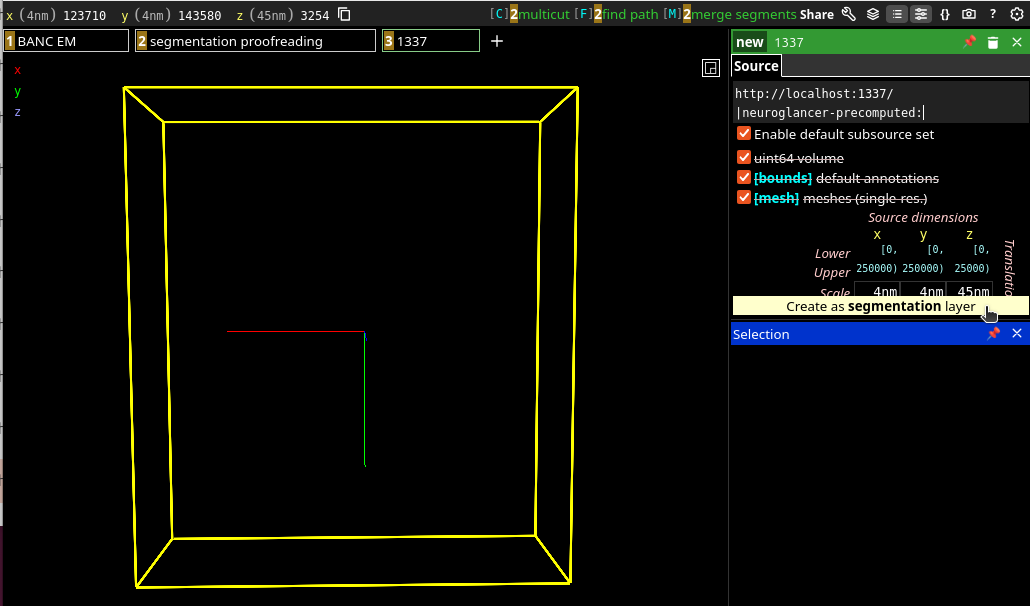
Into this field, paste http://localhost:1337/|neuroglancer-precomputed: and hit the Enter key. You should see a pale yellow bar appear that says Create as segmentation layer. Click this.
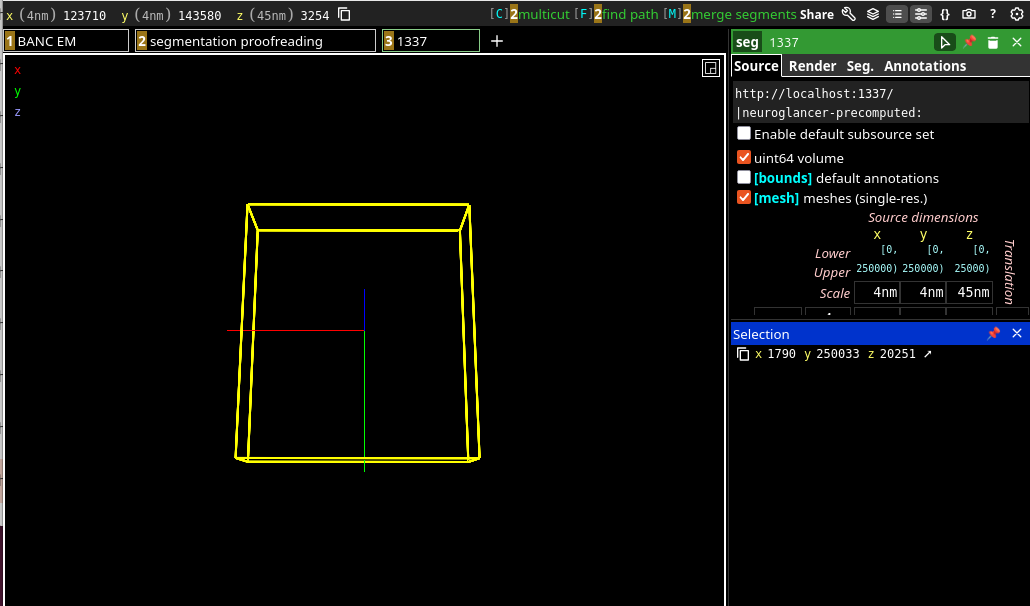
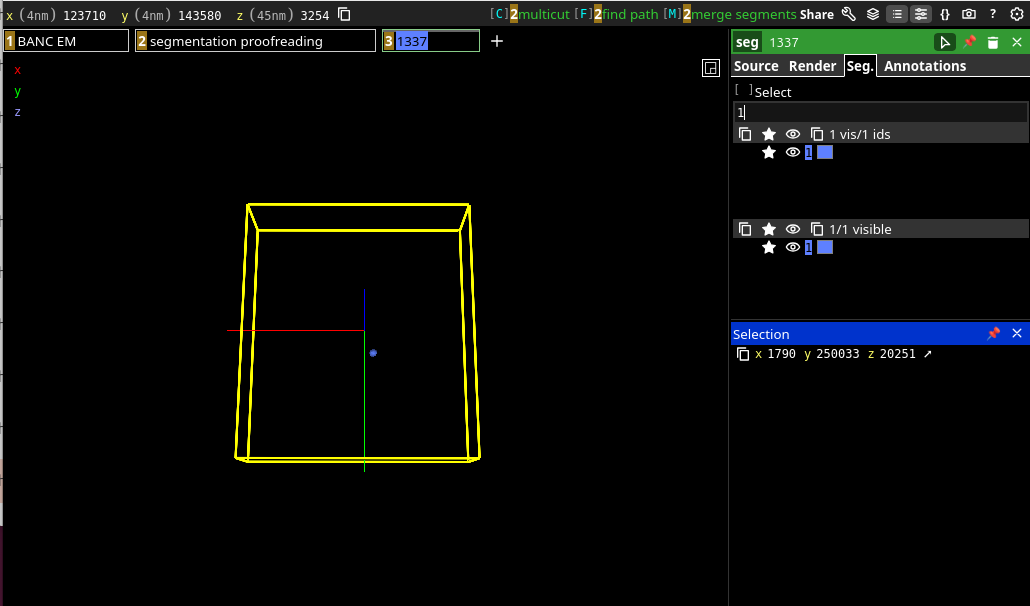
Once you click the pale yellow bar, it should create a segmentation layer named 1337. Depending on the volume's default settings, this may bring up a yellow bounding box that can be turned off by unchecking the [bounds] default annotations option in the Source tab of the seg menu on the right.
If you've used one of the functions in this package to create a mesh and/or volume that you're hosting, it likely has a single segment with an ID of 1 that's turned off by default. To turn this on, go to the Seg. tab of the seg menu on the right, type 1 into the input field, and hit Enter. Your mesh should show up.
Note
This function doesn't work with older pre-spelunker versions of neuroglancer that don't allow http hosting, like Flywire.
Note
This function is effectively impossible to use on Windows machines when working with legacy-format neuroglancer volumes containing single-resolution unsharded meshes, as these require several files to have colons : in their filenames, a practice forbidden by the Windows OS. If you've downloaded such a volume on Windows using the functions in this package, a stopgap measure has been applied which converts colons to triple-underscores ___ in file names. While this allows volumes to be passed to and from Windows machines, it doesn't allow for local hosting, as the host software requires the colons.
Note
If the volume_path passed doesn't begin with a slash / (e.g. home/user/... instead of /home/user/...) on Linux or MacOS, this function will assume you want to add the passed path to the path of the directory you run this function from instead of starting at your machine's root directory. You can run this either way if you format the path properly, but should be aware of the behavior if you're getting errors related to the volume_path argument.