Repository navigation
Bluetooth
Setup > Joysticks > Bluetooth pairs wireless controllers: Xbox, PlayStation, 8BitDo, Switch Pro and the others. It only shows when the cabinet has a Bluetooth adapter (a USB dongle, or one built into the motherboard).
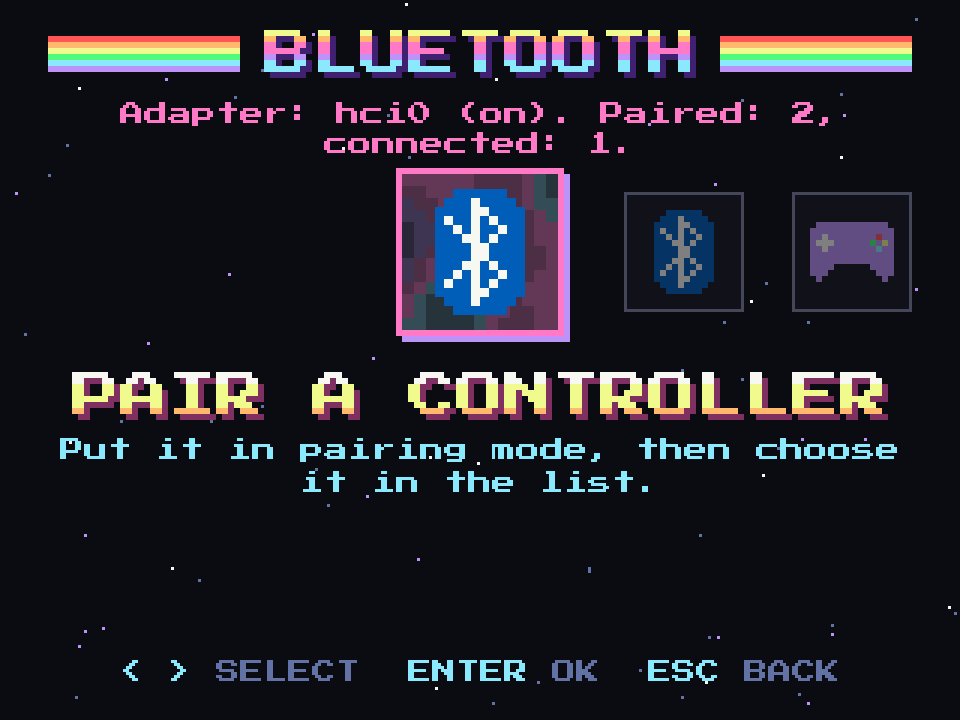
- Put the controller in pairing mode (usually a long press of its pairing button, or Share + PS, or the 8BitDo's own pairing button).
- Pair lists what is in range; pick the controller. Or Pair automatically pairs every controller in pairing mode for 30 seconds.
- Map it in Setup > Joysticks > Controllers / Arcade panel > Map controllers, where it shows with the wireless icon (Button mapping).
A failed pairing is tried once more, after forgetting the device. From then on the controller connects by itself when it is turned on.
| Item | What it does |
|---|---|
| Paired devices | Each paired controller: Connect, Disconnect, Forget; and Forget all |
| On / off | Turns the Bluetooth adapter on or off |
Wired controllers take the first players; Bluetooth ones take the players left, in the order they connect. A Bluetooth controller remembers its mapping by its own ID, so it gets the same buttons each time. A controller turned on while the frontend is open moves in the list at once.
-
config/fliperos-bluetoothis a front end ofbluetoothctl:status,power on|off,scan S,devices,pair MAC,autopair S,connect|disconnect|remove MAC. The screen isscreens/bluetooth.sh. - Bluetooth mappings are kept by the controller's GUID in
/etc/fliperos/buttons-bt.map.
See also: Controls, Controller light.