Repository navigation
Monitors
Which preset to choose for your tube, how to centre the picture, and what sits between the video card and the monitor.
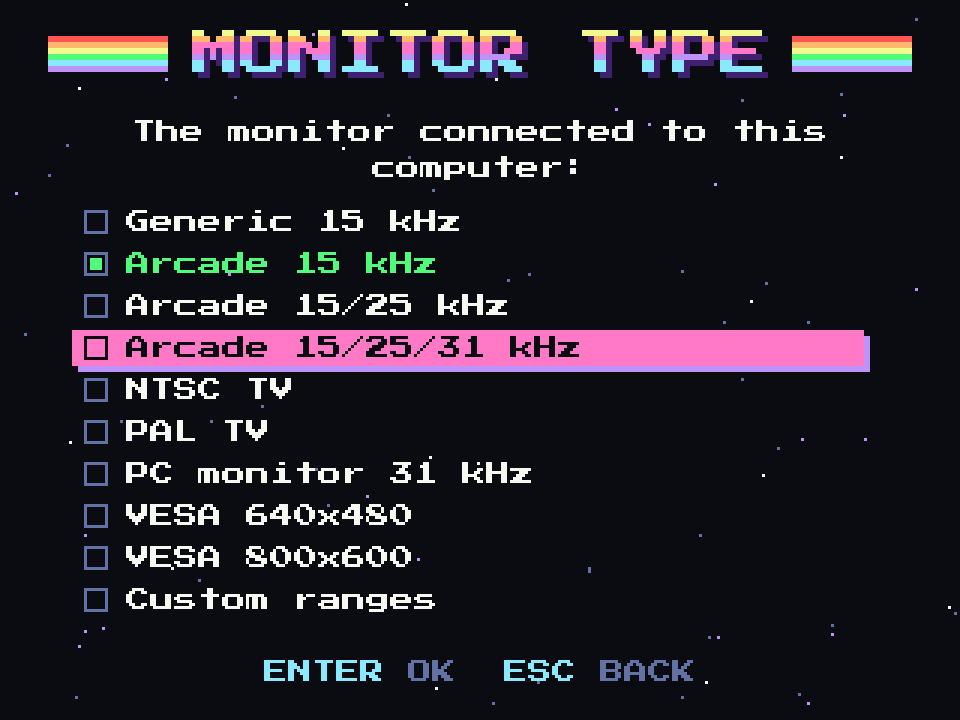
Choose it in Setup > Video Setup > Monitor Type. A preset tells Switchres which frequencies the monitor accepts, so it can make a mode for each game.
-
Arcade monitor, model unknown: start with
generic_15, the narrowest range. If the picture is stable,arcade_15and thenarcade_15exallow more games at their exact frequency. - Your model is on the list: use its preset.
-
TV:
generic_15if it accepts it.ntscorpalonly if the TV is strict about one standard: those run at one refresh rate only, so games made for another rate won't match. - Nothing fits: Custom, made on the Geometry grid (below).
Mind the "Boots at" column. A preset for a multi-frequency monitor boots at 31 kHz. On a monitor that only takes 15 kHz, 31 kHz can damage the tube, so never pick one of those just because its list of frequencies includes 15 kHz.
| Preset | Monitor | Horizontal (kHz) | Refresh (Hz) | Boots at |
|---|---|---|---|---|
generic_15 |
Generic 15.7 kHz | 15.625-15.75 | 49.5-65 | 15 kHz |
arcade_15 |
Arcade, standard resolution | 15.625-16.2 | 49.5-65 | 15 kHz |
arcade_15ex |
Arcade, extended resolution | 15.625-16.5 | 49.5-65 | 15 kHz |
k7000 |
Wells Gardner K7000 | 15.625-15.8 | 49.5-63 | 15 kHz |
k7131 |
Wells Gardner 25K7131 | 15.625-16.67 | 49.5-65 | 15 kHz |
h9110 |
Hantarex MTC 9110 | 15.625-16.67 | 49.5-65 | 15 kHz |
polo |
Hantarex Polo | 15.625-16.67 | 49.5-65 | 15 kHz |
ntsc |
NTSC TV | 15.734 | 59.94 | 15 kHz (720x480i) |
pal |
PAL TV | 15.625 | 50 | 15 kHz |
arcade_25 |
Arcade, medium resolution | 24.96 | 49.5-65 | 25 kHz |
arcade_15_25 |
Arcade dual-sync | 15.625-16.2, 24.96 | 49.5-65 | 25 kHz |
ms929 |
Nanao MS9-29 | 15.45-16.05, 23.9-24.9 | 50-65 | 25 kHz |
arcade_31 |
Arcade, high resolution | 31.4-31.5 | 49.5-65 | 31 kHz |
arcade_15_25_31 |
Arcade tri-sync | 15.625-16.2, 24.96, 31.4-31.5 | 49.5-65 | 31 kHz |
d9200 |
Wells Gardner D9200 | 15.25-16.5, 23.9-24.42, 31-32, 37-38 | 40-80 | 31 kHz |
d9400 |
Wells Gardner D9400 | 15.25-19, 20.5-38 | 40-80 | 31 kHz |
d9800 |
Wells Gardner D9800 | 15.25-19, 20.5-38 | 40-80 | 31 kHz |
m3129 |
Wei-Ya M3129 | 15.25-16.5, 23.9-24.42, 31-32 | 40-80 | 31 kHz |
pstar |
Hantarex Polostar 25 | 15.7-15.8, 16.2-16.3, 25.3-25.4, 31.5-31.6 | 50-65 | 31 kHz |
ms2930 |
Nanao MS-2930, MS-2931 | 15.45-16.05, 23.9-24.9, 31-32 | 50-65 | 31 kHz |
r666b |
Rodotron 666B-29 | 15.45-16.05, 23.9-24.9, 31-32.5 | 50-65 | 31 kHz |
m2929 |
Makvision 2929D | 30-40 | 47-90 | 31 kHz |
pc_31_120 |
PC CRT, 31 kHz at 120 Hz | 31.4-31.6 | 50-65, 100-130 | 31 kHz |
vesa_480 |
PC CRT, VESA GTF 640x480 | 31 kHz | ||
vesa_600 |
PC CRT, VESA GTF 800x600 | 800x600 | ||
vesa_768 |
PC CRT, VESA GTF 1024x768 | 1024x768 | ||
pc_70_120 |
PC CRT, up to 70 kHz at 120 Hz | 30-70 | 50-65, 100-130 | 1024x768 |
vesa_1024 |
PC CRT, VESA GTF 1280x1024 | 1280x1024 | ||
lcd |
LCD | Its own EDID |
The frequencies are Switchres' presets, as listed in GroovyArcade's monitor definitions, with the exact timings of each one. The last column is what lib/monitor.sh does. The project hasn't checked each preset on a real monitor: they are as Switchres defines them.
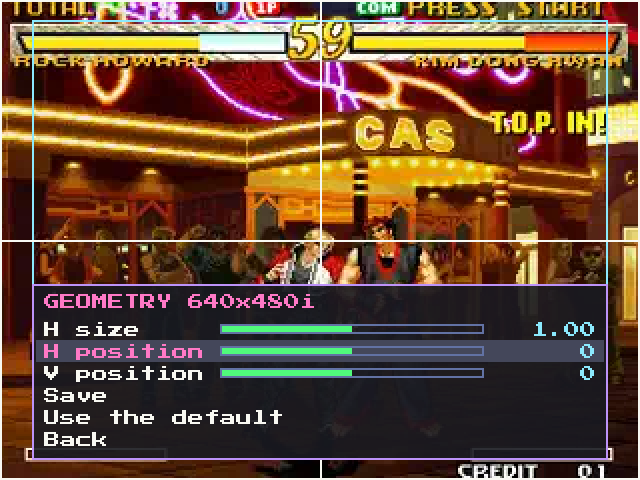
- Put the monitor's own controls back in the middle first. In most cases Switchres gives a centred picture that fills the screen.
- Use Setup > Video Setup > Geometry: it stretches, shrinks and moves the picture on a grid, and saves the result as the Custom monitor (Install).
- Go in small steps. Too large a change makes the monitor lose sync.
- Finish on the monitor. No software changes the vertical size: that is the monitor's V-SIZE, or the service menu on a TV. Arcade monitors take this well; TVs are the most troublesome.
To check one mode by hand, on the cabinet's own screen (not over SSH), open the grid with the lines and refresh of a game. Tab switches between two patterns. World Rally, for example:
switchres 368 232 60 -s -l gridA Custom monitor is one crt_range0 line in /etc/switchres.ini, 16 values:
HfreqMin-HfreqMax, VfreqMin-VfreqMax, HFrontPorch, HSyncPulse, HBackPorch, VFrontPorch, VSyncPulse, VBackPorch, HSyncPol, VSyncPol, ProgressiveLinesMin, ProgressiveLinesMax, InterlacedLinesMin, InterlacedLinesMax
Horizontally, the two porches decide the size and the position:
- Wider picture: lower both porches by the same amount. Narrower: raise both.
- Move left: lower the front porch and raise the back porch by the same amount. Move right: the opposite.
Vertically they only move the picture. Up: lower the front porch and raise the back porch. Down: the opposite. Switchres takes the vertical porches as minimums, so it may not move as far as you asked.
The video card gives VGA: red, green, blue and separate horizontal and vertical sync. An arcade monitor usually expects composite sync and its own signal level, so something has to sit in between.
-
JAMMA cabinet: the Ultimarc J-PAC connects a VGA card and USB to the JAMMA connector and has a video amplifier for arcade monitors. It also works as the keyboard encoder of the panel.
Forum posts say it makes composite sync from the VGA's two sync lines and checks the frequency before passing it on. It doesn't make the 15 kHz signal: FliperOS does.
-
SCART TV or monitor: a VGA to SCART cable. A GTX 980 Ti was seen on a CRT that way (Video cards).
Neither the project nor the GroovyArcade wiki documents the wiring of each monitor, so follow the manual of your monitor and of the interface. Keep the tube off until the card is known to output 15 kHz if you are not sure of the boot mode.