Repository navigation
FliperOS frontend
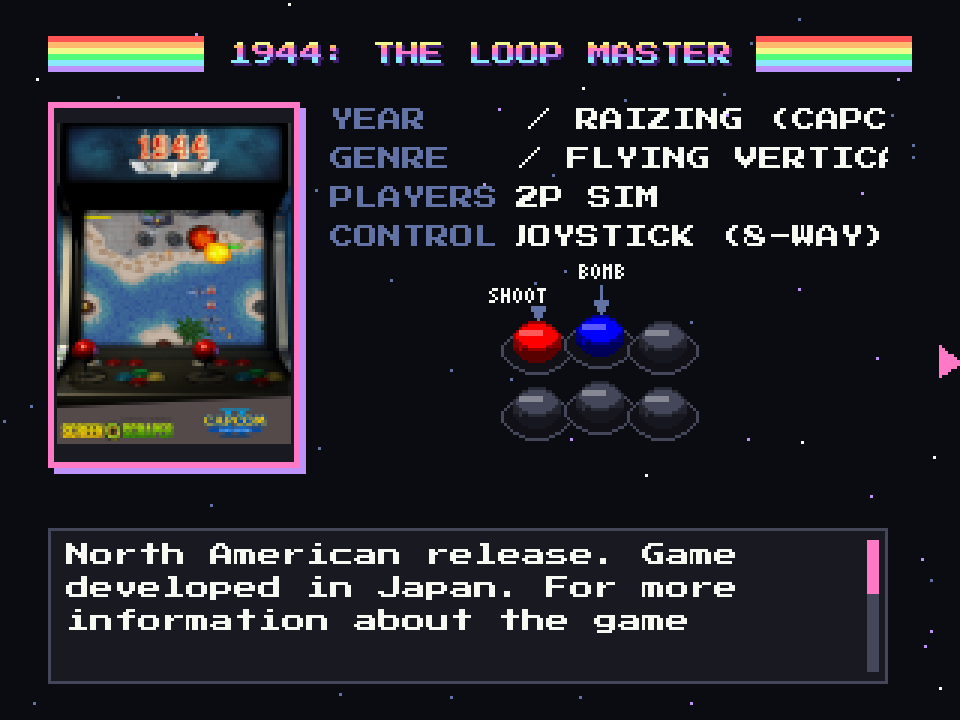
The game list that opens at power on: FliperOS's own frontend, in the look of the Setup menu (Press Start 2P, Dracula colours, the animated background), drawn for the tube at 320x240. It comes in the image, and it is the default launcher.
The buttons and their shortcuts have their own page: Frontend controls.
Each games folder is a system, and Arcade has all the arcade folders together. The systems are a strip of tiles, each with the system's written logo (NAOMI, ATOMISWAVE, SEGA MODEL 3…) and the emulator's icon on its corner.
- Left and right move along the strip. Under the tile you are on, it says how many games that system has.
- Button 1 opens that system at once. Stopping on a tile also opens it, after a moment.
- Button 2 cancels and stays on the system you were in.
The new list comes in with an animation (below), and the tiles stay a moment with the number of games, so it can be read; moving in the list closes them.
Each system remembers where the cursor was, also after the frontend closes or the cabinet powers off. With a CD/DVD drive or a cartridge reader connected, down from the strip goes to the physical media row.
Start switches the view, and so does Tab > VIEW.
| View | What it shows |
|---|---|
| List | The games on the left; the picture, logo and information on the right |
| Full screen | The game's video or picture behind, the name, year and icons in front, and on the right a vertical wheel of logos like the cards of a rotary file: five at a time (seven on a vertical monitor), the chosen one in the middle (the biggest, closest to the centre of the screen), the others on a shallow arch, tilted in perspective, smaller and overlapping, the first and the last fading out. A game with no logo gets a 4:3 card with its title in a smooth (not pixelated) font, in colours picked from its name. After 2 seconds without touching the controls the logos disappear (the cards turn edge-on), the game's logo fades in above its name at the bottom left, and a small arcade ball-top joystick appears in the bottom right corner, pushing up and down on its own at random times; the first touch brings the wheel back and the logo above the name fades out in a tenth of a second (still the logo of the game that was there, never the next one's) |
| Grid | Three thumbnails a row, two rows, each playing its video, silent except the chosen one |
A game with clones has a + on its left in the list: button 1 unfolds the clones under it, each with what differs in its name (the region, the set, bootleg).
In full screen and in the grid the clones are grouped in their parent: it shows once, with a badge (two small squares and how many versions it has). Button 1 on it opens a dialog with all the versions, MAIN SET and one line per clone, the same ones the list shows when the + opens. The dialog grows from the thumbnail (or the logo) in five steps; up and down move through the versions (a long list scrolls, and a name that doesn't fit rolls), button 1 chooses one and button 2 closes it. Choosing blinks the line and opens the game's menu (PLAY, star, +) for that version, so PLAY, the star and the + are the chosen version's.
Tab > SHOW CLONES turns the clones off and on.
At the very start of the list (not in the grid or full screen) there are two groups that open and close like a game with clones:
- RECENT: the last 10 games played;
- FAVOURITES: all of them, with a star.
Each shows its number of games on the right, and a group with no games doesn't show. Button 1 on a group opens it; button 2 on a game inside closes it.
Each view has five ways for a new list to come in, picked in Tab > TRANSITION:
| View | Animations (the first is the default) |
|---|---|
| List | double door, slide, cascade, slot drum, blinds |
| Full screen | mosaic, slide, TV, zoom, curtain |
| Grid | pop, slide, card flip, falling cards, explosion |
- Video: the game's video plays with its sound, half a second after the cursor stops on it; without one, its picture shows.
- Icons: genre, players, control (a pistol for light-gun games) and buttons, in one row.
- Synopsis: under the icons, the start of the game's arcade-history text, scrolling slowly upwards. Console games have no synopsis.
-
Tags: PLAYED and FAV, and a yellow trophy with your RetroAchievements (
3/24) when the game has achievements.
A game missing some art (screenshot, cover, marquee, logo or video) gets it scraped by itself when the cursor stays on it for 2 seconds.
Button 1 on a game opens its menu:
| Item | What it does |
|---|---|
| PLAY | Opens the game |
| LINK PLAY / PARTY PLAY | Plays with other cabinets on the local network, for the games that have it (Linked cabinets) |
| FAVOURITE | Marks or unmarks it (also button 4 in the list) |
| ACHIEVEMENTS (a trophy) | The game's achievements, the ones you have first (RetroAchievements) |
| + | The game's information, in two pages |
The menu moves, at 60 frames a second by the clock. It opens with the card growing and the tiles coming in one after the other. The chosen tile is alive: the PLAY triangle breathes from green to light green, the star beats, rocks and glints, and the + turns a quarter turn every second or so. Pressing a tile plays its own animation before it does its job: PLAY lights solid green and the screen switches off like a tube TV (the picture squashes into a bright line, the line shrinks to a dot), and the game starts 0.3 s later, when it is all black, so the cut to the emulator is not seen; FAVOURITE bursts into sparks and the menu closes (button 4 bursts the star and keeps the menu open); the + spins and dives into its page, which comes in from close up; button 2 shrinks the menu away. No key counts during those fractions of a second. The screenshots (--shot) skip all of it.
The + page has the cover, year, genre, players and control, the player 1 buttons drawn on the panel where Buttons layout puts them, and the description. A blinking arrow leads to the second page: the pictures, maker, series, screen, status, set, rating and the rest of the arcade-history.com text.
When another cabinet opens a game for link or party play, a notice with a bell says NAME IS PLAYING. When other cabinets play the same game in separate parties, its row gets a green [+] with how many parties there are: button 1 opens one row per party, and you join the one you want.
A game whose emulator isn't installed yet installs or builds it first, with a progress bar, and then opens. A missing RetroArch core is downloaded the same way.
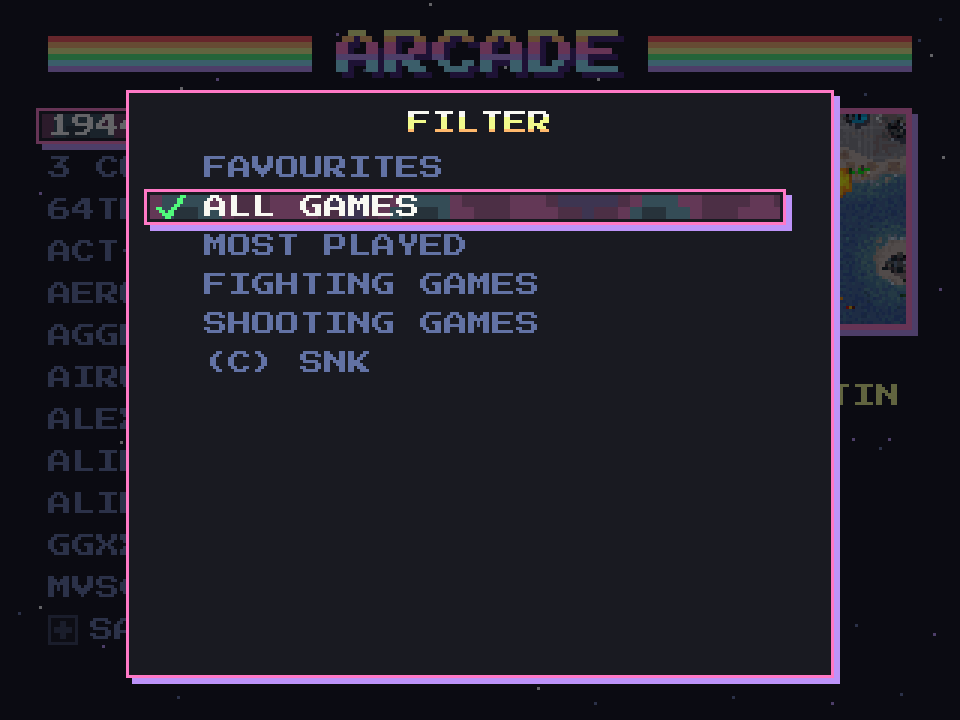
Button 5 opens the filters. Each system keeps its own.
- CONTROL, the first line, picks a control type with left and right: joystick 8-way, 4-way or 2-way, twin joystick, analog stick, trackball, spinner, paddle, positional, pedal, lightgun, keyboard, mahjong. It shows only the types some game of the list has.
- Below: All Games, Most Played (the 25 most played), the genres, the manufacturers (© Capcom, © SNK…) and the release years.
The menu lists only the filters that leave at least one game, and CONTROL combines with the filter.
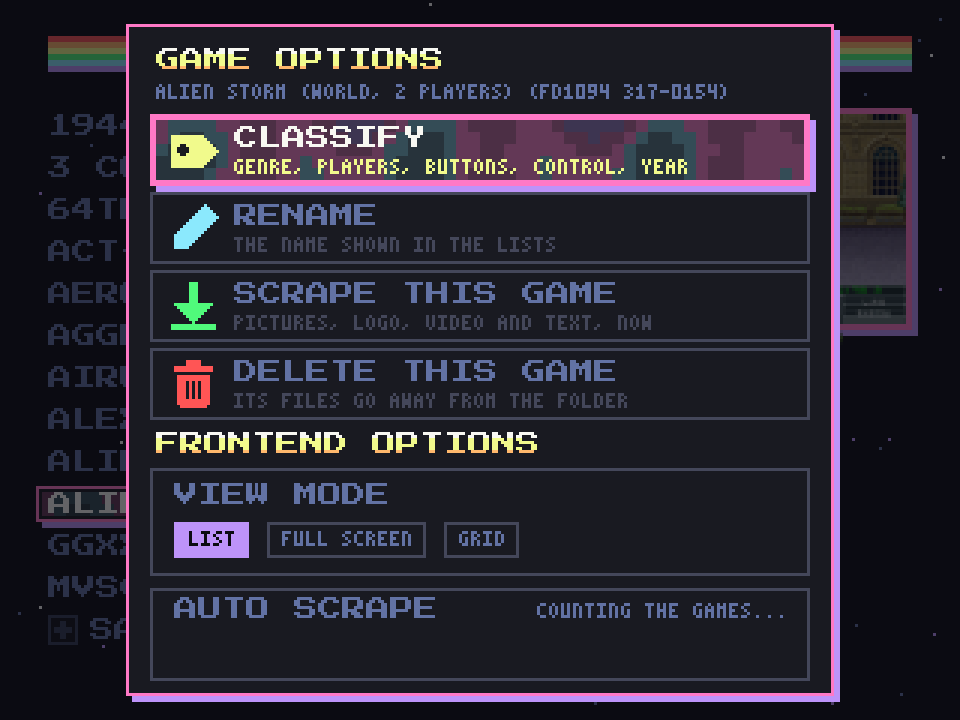
Tab (on a keyboard, or the button you set in Frontend controls) opens the options. One list, the game's options first:
| Item | What it does |
|---|---|
| CLASSIFY | Genre, players, buttons, control, year, maker, rotation and series of this game; the filters use them |
| RENAME | A new name, with an on-screen keyboard |
| SCRAPE THIS GAME | Its information, pictures, logo and video, right away |
| HIDE THIS GAME | Takes it out of the lists, without deleting the file |
| DELETE THIS GAME | After a YES/NO question (NO comes selected), deletes its file; its art stays |
Then the frontend's options:
| Item | What it does |
|---|---|
| VIEW | List, full screen or grid |
| TRANSITION | The switch animation of this view |
| SHOW CLONES | Clones on or off |
| HIDDEN GAMES | The hidden games; button 1 brings one back |
| FRONTEND CONTROLS | What each button does (Frontend controls) |
| FRONTEND SOUNDS | The six sounds, the music and the volumes (below) |
| POWER CLOSES GAME | On (default), the power button closes the open game; off, it does nothing during a game (Power and volume buttons) |
| COMMERCIAL MODE | Play by the time bought with coins (below) |
| MINUTES PER COIN | 1 to 60, with commercial mode on |
At the bottom, two boxes show while there is something to say: BIOS DOWNLOAD (missing BIOS being downloaded, or some that couldn't be found) and AUTO SCRAPE (the art still to fetch, and the torrents' progress).
Tab > FRONTEND SOUNDS is the same list as Setup > Audio > Menu sounds: the six sounds, with their files and volumes, are one set, so a change here is a change in the Setup and the other way round. It adds the music:
| Row | What it does |
|---|---|
| BROWSE, ENTER, BACK, OPEN GAME, CLOSE GAME, ALERT DIALOG | The sound of each event. Left and right change its volume (steps of 5), button 1 opens the file picker, button 4 plays it and button 5 brings the default back |
| MUSIC | The soundtrack: one music file, or a folder whose songs all play at random. DEFAULT is the music folder |
| MUSIC VOLUME | How loud the music plays |
| PAUSE MUSIC | ON or OFF (left, right or button 1). With it on, the music waits while a preview video with sound plays. Off by default: the music and the preview play together, and PREVIEW VOLUME balances them |
| PREVIEW VOLUME | The sound of the game preview video; 0 mutes it |
The file picker starts in ~/media/fliperos-sounds and cannot go above it. At its top, DEFAULT and NO SOUND (or NO MUSIC); for the music there is also USE THIS FOLDER, which is only offered inside ~/media/fliperos-sounds/music, so a folder of songs goes in a subfolder of music. Button 4 plays the sound under the cursor. |
When a song starts, a bar with its name slides in at the bottom, like an unlocked achievement in a game: a circle with a note and a comet running around it, the title and a green line that empties in 5 seconds. The bar is only as wide as the name needs, always clear of the screen's edges; a name that does not fit runs, and the bar stays until it gets to the end. The name is the file's ID3 title and artist, or the file name when there is no tag. The music stops when a game opens and goes on with the next song when you are back. It keeps playing under a preview video's sound, unless PAUSE MUSIC is on.
The songs that come with FliperOS are Retrowave by BurtySounds (Pixabay), Information Flow (Liquid Jungle Breakbeat Drum And Bass) by Musinova (Pixabay) and Looking For A Way Back - 1970s Glam Rock by kaazoom (Pixabay), credited in the README. With MUSIC on DEFAULT, the songs of the music folder play at random, the first one included: each time the frontend opens it starts with a different song, never the one that played last the time before (the frontend remembers its name in frontend.json). They are distributed with the authors' authorization, in the image and in the updates (fliperos-setup/gui/sounds/music), and each one is copied to ~/media/fliperos-sounds/music the first time, as BurtySounds - Retrowave.mp3, Musinova - Information Flow.mp3 and Kaazoom - Looking For A Way Back.mp3 (the file name is what the bar shows, since they have no ID3 tag). A song you delete does not come back. Any other MP3, OGG, FLAC or WAV you put in music joins the random order.
The sounds FliperOS comes with are copied to ~/media/fliperos-sounds the first time, so you can see and replace them.
After a minute without a button pressed, the cursor jumps to a random game and its video plays; every 30 seconds it jumps to another one. The first press only wakes the frontend, on the game it stopped at.
After 30 seconds idle, a Pixelcade or ZeDMD marquee plays the FliperOS logo animation (LED displays).
For a cabinet that charges by the time played (Tab > COMMERCIAL MODE):
- Without time, the customer can browse the games but not choose one: button 1 shows INSERT COIN.
- Each coin (the panel's COIN, also during a game) adds the minutes per coin to the time left. The time runs by the clock, also on the menu and with the cabinet off.
- When the time runs out during a game, the game closes and the frontend says TIME IS UP.
- The indicator shows a coin going into a slot and INSERT COIN blinking, or a clock with the minutes left (the seconds in red in the last minute).
- It is a kiosk: the controller's button 2 never closes the frontend, the coin can't be part of a game shortcut, and the on-screen menu stays closed. The Esc key of a real keyboard (the operator's) still asks whether to go back to the FliperOS menu.
Turning commercial mode off clears the time left.
With Setup > Video Setup > Monitor Orientation on a vertical setting, the frontend is laid out standing up (240x320) and turned to the monitor's side, the same side GroovyMAME turns the games to.
- In the list, the 3:4 picture goes at the top right with the logo over its bottom edge, the information in the column on its left, and ten rows of games below.
- The grid has three rows of 3:4 thumbnails.
- In full screen the wheel of logos stays on the right, with seven logos instead of five, and the name and information take the room on its left.
- Text that doesn't fit rolls.
The buttons are the panel's own, from Setup > Joysticks > Button mapping. Without a mapping, a common pad works, and so does a keyboard encoder in MAME's layout.
A controller connected while the frontend is open moves in the list at once. A Bluetooth controller gets its player from the Button mapping, and one the mapping doesn't have works like an unmapped one.
-
fliperos-setup/gui/fliperos-frontend(Python and pygame), with its modules in the same folder:feview.py(drawing, animations, rolling text),fedata.py(lists, favourites, stats),feinput.py(controls),femedia.py(physical media),fecheevos.py(achievements),felink.py(link and party),fepads.py(joypad drawings),fenamco.py(Namco 246/256 packs),febios.py(the BIOS box),feharvest.py(the automatic scrape),fevideo.py(videos),fesound.py(sounds and music). It is thefliperosrow ofconfig/fliperos-sessions.conf. -
Lists: FliperOS's own, in
~/.local/share/fliperos/lists(Attract-Mode's romlist format; Attract-Mode Plus is optional). Arcade lists carry the name, year, manufacturer, clones and category from MAME's XML (fliperos-romclean romlist). When the frontend opens, and whenever a games folder changes, it asks the Setup to redo them in the background (fliperos-setup --romlists); the first time, GroovyMAME's-listxmlis read once (about a minute). The other systems' lists are read in the background, neighbours first, and the game counts are kept in~/.cache/fliperos/frontend-counts.json. -
Favourites are
~/.config/fliperos/favourites, the same file as the web panel's; hidden games~/.config/fliperos/hidden; play statistics (RECENT, Most Played)~/.local/share/fliperos/stats, independent of Attract-Mode. CLASSIFY writes~/media/info/<folder>/<set>.user.json. Every option is saved at once in~/.config/fliperos/frontend.json(the transitions astransitions). -
System logos are drawn with Arcadeflow's logo font and system table, which ship in the image (
config/syslogo) with its author's permission, made once and kept in~/.cache/fliperos/syslogo. A system the font does not have can bring its own logo as a PNG (white on a transparent background) inconfig/syslogo/extra/NAME.png, named after the system in lowercase with the rest as-: the Sega Chihiro hassega-chihiro.png, its board's own mark taken from the boot screen (tools/make-chihiro-logo.py). That PNG wins over the font logo of the same name, and over a generic nickname such as "arcade" (without it the Sega Chihiro was drawn as ARCADE); its date goes into the cache name, so a logo made before is replaced by itself. A system with neither gets a square tile with the emulator's icon and its name. -
Icons are Arcadeflow's, shipped in
fliperos-setup/gui/icons/metapics. -
Videos are
~/media/preview/<folder>/<set>.mp4; the videos of the games around the cursor are opened ahead and held on their first frame, so a new one starts at once. The synopsis is the arcade-history text saved by the scrape in~/media/info. -
Automatic scrape: while the frontend is open, it fetches in the background, one game at a time, what each game lacks: arcade information, screenshot, flyer, marquee and logo from the Arcade Database; console cover and screenshot from libretro-thumbnails; videos and missing logos from the art packs of Scraper, file by file. It pauses during a game, tries a game once every 30 days (
~/.local/share/fliperos/scrape-state.json), and also runs as the Auto scrape service when the frontend is closed. -
Attract mode: after a minute without a button the cursor jumps to a random game (and to another every 30 s). The first button you press takes the cursor back to the game you were on and does its job right there: one press is enough.
FLIPEROS_ATTRACT_SECONDS(0 turns it off) andFLIPEROS_ATTRACT_STEPchange the two times;FLIPEROS_IDLE_SECONDSthe marquee's. -
Sounds and music:
fesound.py, shared with the Setup. The six sounds are the Setup's too, in~/.config/fliperos/sounds.json({"move": {"file": "", "volume": 60}, ...}; an empty file is the default,offis silence); the rest is thesoundsoffrontend.json({"music": {"source": "", "volume": 40, "pause": false}, "preview": 100}). The six sounds are loaded into pygame's mixer; OPEN GAME is played by a separateaplay, because the mixer closes before a game opens. The music ispygame.mixer.music(MP3, OGG, FLAC and WAV; a format the mixer cannot read goes throughffmpeg). The preview volume is thevolumefilter of theffmpegthat plays the video, so changing it reopens the video once you stop pressing. The preview's sound goes through ALSA's queue, and with Live screen sound (fliperos_tee, a 16384-frame buffer) it only starts once the queue is full, so it is about 320 ms behind the picture. When it opens, and after each game, the frontend writes 0.65 s of silence to thedefaultPCM and readssnd_pcm_delay(fesound.py alsa-latencyshows the same number), and the picture of a video with sound waits that long (fevideo.SYNC) before it is shown, so picture and sound come out together. There is nothing to set. -
The wheel of logos and the clones dialog:
feview.py(draw_full,wheel_item,draw_clones). The logos are read once at up to 192x96 (the same loader and cache as the pictures,wanted()loads the neighbours ahead); each one is tilted bywheel_warp(rows of two lines, the width falling from one end to the other) and faded bywheel_fade, and kept by its size and tilt. The wheel hides whenlast_input(the loop's last touch on the controls) isWHEEL_IDLE(2 s) old and no menu is open (wheel_hide: the cards turn edge-on in 0.35 s and come back in 0.3 s); in its placedraw_stickdraws the ball-top (stick_draw: a 3D projection where the shaft pivots, so the ball walks an arc), whichstick_leanpushes up or down at random, 0.35 to 2 s apart, and dissolves in and out through a 4x4 dither. The text card istext_card, infonts/DejaVuSans-Bold.ttf(shipped with its licence,fonts/DejaVu-LICENSE.txt), the colours from the CRC of the game's name (card_colors). In full screen and in the gridrebuildmakes one row per parent with the list of its clones; the dialog is theclonesoverlay (open_clones,clones_actandclones_tickinfliperos-frontend), and the chosen version isself.version, whichgame()returns while the game menu, the + or the launch uses it. -
Power button: the frontend tells
fliperos-powerkeywhich process is the game throughFLIPEROS_POWERKEY=games:FILE($XDG_RUNTIME_DIR/fliperos-frontend.game), since its other children (the video player, the scraper) are not games. -
A missing emulator is installed by
fliperos-setup --emulator-ensure.
See also: Frontend controls, Frontends, Web panel.