Repository navigation
TREK Studio
TREK Studio turns a journey into a photo book you can print. It lays the journey's entries, photos and route out as pages, lets you change every one of them, and makes a print ready PDF at the end. A book belongs to its journey: the photos, words, places and figures it shows come from there, and several people can design it at the same time.
Open a journey and press Studio in its header. The designer opens over the journey at /journey/:id/studio, so the journey stays open underneath and Back to the journey returns you straight to it.
Studio needs room to work. It is desktop only and needs a window at least 1024 px wide. In a narrower window, or on a tablet, it shows Studio needs a bigger screen with a way back, and on a phone it is not offered at all. Making the PDF is desktop only as well.
Who may do what follows the journey exactly: anyone who may read the journey may open its book, and only those who may edit the journey may change or delete it. A reader sees Read-only, not saved in the header.
| Area | What it holds |
|---|---|
| Header | Page format, Auto layout, undo and redo, paste, the Assistant, help, and Export |
| Left rail | The sections that put things on a page: Pages, Content, Layouts, Elements, Travel, and set apart below them Theme and Layers |
| Workbench | The spread you are working on, with zoom (Zoom in, Zoom out, Fit to view) and Book view |
| Properties | Everything about what is selected, on the right |
The rail and the tabs inside its panels answer to the arrow keys.
Page format offers Square 21 × 21 cm (the default), Square 30 × 30 cm, A4 landscape, A4 portrait, A5 landscape and Custom size in millimetres. Every page has 3 mm of bleed (what is cut off at the edge) and a 5 mm safe area, both of which the header can show as guides.
A book follows the shape of a bound one:
- the Cover, whose inside stays blank,
- a single first page on the right, page 1, where a title page or a dedication goes,
- the double pages (spreads) in between,
- a single last page on the left,
- the Back cover, whose inside stays blank too.
The covers and the single first and last pages stay where they are; new spreads always go between them. Page numbers can be switched on with nothing selected: outer, inner or centred, with where they start and their margin. They count from the first page, and the number on screen is the number that prints.
The Pages panel lists the book. Add spread adds one after the last, and each spread offers Insert a spread after this one, Duplicate spread, Move earlier, Move later and Delete spread. Book view, beside the zoom buttons, draws the fold down the middle of each spread on the workbench and in the page list; it is on by default.
Auto layout in the header builds pages out of the journey for you:
- This spread lays the spread on screen out again from the journal entry it came from, on another design. It is only offered on a spread that auto layout made.
- The whole book replaces every page, keeping your title and page setup.
Both are ordinary undo steps: press one, look at the result, and undo it if you liked the old one better.
An element that auto layout tied to a journal entry follows that entry, so a corrected caption in the journal reaches the book. Editing the element in Studio breaks the link (Follows the journal entry. Editing it here breaks that link.).
Content holds the journey's own Photos and Entries. Search photos and entries finds one, and Filter photos narrows the photos to All photos, Not in an entry, Just uploaded or This page. Drag a photo onto the page or onto an empty frame, or use Add to this page. An entry adds its title, story, place or Pros & Cons as blocks of their own.
- Upload photos adds pictures from your computer. They go into the open entry, or into the journey's gallery when none is open. Videos are left out: a book holds pictures.
- With Immich or Synology Photos connected, From Immich or From Synology Photos picks photos from your library the way the journey gallery does. See Photo-Providers.
Layouts arranges a whole page at once, with that page's own photos and words.
Designed pages come first: pages laid out by a designer, 48 for the cover and the other single pages and 60 double spreads, in twelve styles (Spine band, Poster, Cut-out, Postcard, Grid and badge, Minimal, Stamps, Riso, Editorial, Vintage poster, Night film and Field notes). Each card shows the page you are on as the click would lay it, with its own photos and words and in the book's theme. The Style chips narrow the set to one look. What a design has no room for stays with the page.
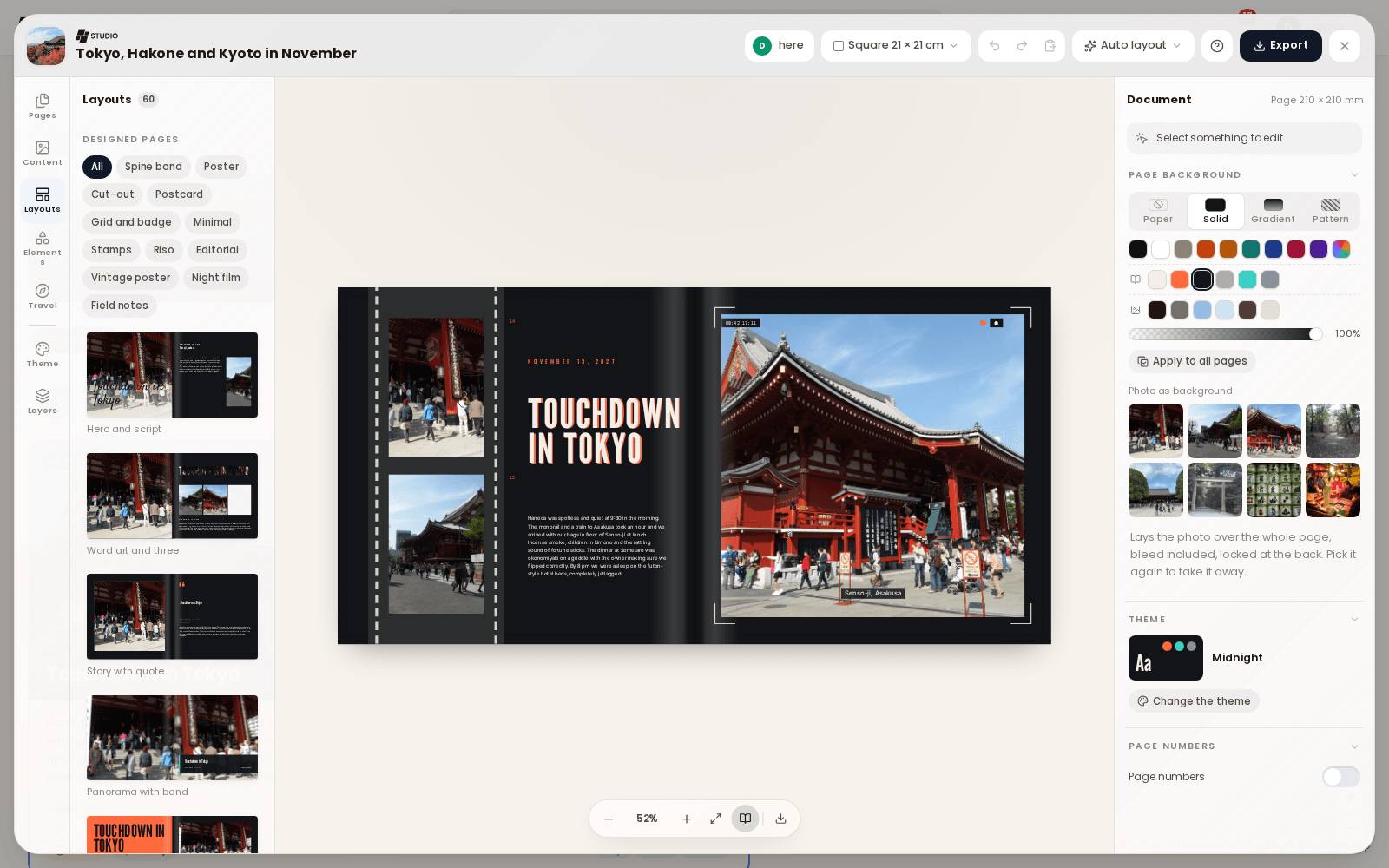
Below come My layouts and the Built in ones: thirteen spread layouts (Hero and story, Four up, Strip and text, Mosaic and more) and five for the cover and back.
Save this page as a layout keeps the arrangement of a page without its photos, for every editor of this book. Applying it lays another page out the same way and keeps that page's photos and words. A book keeps up to 24 layouts.
Elements adds things to a page, in six tabs:
| Tab | What it adds |
|---|---|
| Text styles | Ready made titles, badges and stamps, chapter numbers, quotes, captions and coordinates, set in your book's title and sized to fit. A style arrives selected as one set; click a single part to change its words. |
| Shapes | Basic shapes, polygons, stars, arrows, speech bubbles, travel shapes, decoration and banners |
| Lines | Straight and drawn lines in several strokes |
| Frames | Empty frame, frame styles (Plain, Polaroid, White border, Drop shadow, Film, Taped), frame shapes and Grids of empty frames |
| Icons | A searchable icon library, For travel or All icons |
| Stickers | A sticker library in twelve themes, from travel things and landmarks to doodles and ornaments, with Recently used. Click one to place it in the middle of the page, or drag it where it should go. |
An empty frame marks where a picture goes; drop a photo on it from Content.
Travel builds figures out of the journey itself. When the journey changed since they were taken, Update from journey refreshes them.
- Maps: a Route map of the journey, either Whole journey or One trip at a time, in the styles Minimal, Outline, Paper or Dark. The source can be outlines, relief, satellite or map tiles. Roads asks a routing service for the way each leg was driven and keeps it in the book, so it prints the same line offline. A map can sit In a box or be Cut to shape of a country, and shows how sharp it prints at its size.
- Figures: distance, days, steps, photos, countries, places and the furthest point, as single figures or together, in looks from Classic and Ticket to Odometer, Road sign and Sketch.
- Countries: the countries of the journey as outlines, lists or flags, in looks such as Visa, Stamp, Postcard or Luggage label.
- Marks: Date, Day counter, Coordinates, Flag and Distance.
- Stops: every stop counts toward the route, the distance and the countries. Switch one off to leave it out, your home airport for instance.
Theme sets the look of the whole book. Pick one of seventeen themes, such as Poster pop, Postcard, Riviera, Nordic, Alpine, Riso print, Magazine, Midnight or Field notes, then Apply to the book or Apply to this page. Colours and type that follow the theme change with it; everything else stays as it is.
- Palette: the paper, ink, muted and accent colours. Colours from the photos takes them from your pictures.
- Typefaces: the display, heading, body and script faces.
- Motifs: the sticker themes that suit the look.
- Decoration: None, Light or Rich.
- Also restyle what isn't linked yet first links backgrounds, text and shapes to the theme. White words over photos stay as they are.
A colour that follows the theme reads Theme colour in the properties; Stop following the theme frees it. Back to the original theme undoes a theme change.
Properties on the right edits whatever is selected, in the same order for every kind: what the element is or says, then its position and size, then its look, then its effects, and last Arrange. The groups you use are open, and a group opens by itself on an element that already uses it. With nothing selected the panel shows the page background, the book's theme and the page numbers.
- Crop: Fill or Fit, zoom, Mirror, and a focal point you drag to choose what stays in frame.
- Look: the filters Original, Black & white, Warm, Cool, Faded and Punchy, and Adjust for brightness, contrast, saturation and warmth.
- Border and shadow, a Cutout edge, a corner radius, and Cut to shape to put the photo in a shape.
- Fill page or Fill spread stretches the picture over the whole page, bleed included, and sends it behind everything else.
- Studio says how sharp a photo prints (Prints at about so many dpi) and warns when it would look soft.
- Typeface, weight, size, line height, tracking, alignment (including Justified) and colour. Change typeface searches the faces by kind: sans serif, serif, elegant display, condensed and poster, heavy and retro, script and handwriting, monospace. Used in this book lists the faces you already have.
- Case and placement: As typed, Capitals, Lower case or Small caps; the text's place in its frame; and Shrink to fit, which treats the size you set as the largest.
- Effects: Hard shadow, Marker band, Curve (Arc, Circle or Bend), Hollow letters, and Photo inside the letters, where a photo shows through the type.
A shape, a sticker's colours and the page background take a fill: Solid, Gradient (linear or radial, with colour stops) or Pattern. Shapes also take an outline (Solid, Dashed or Dotted), opacity and rotation.
Arrange aligns and stacks: Bring to front, Bring forward, Send backward, Send to back, Lock, Duplicate, Delete, grouping, Copy style and Paste style, and Show in Layers. Several selected elements can be aligned to each other, to the page or to the safe area, and spaced evenly.
Layers lists the page front to back. Drag a row to restack it, double click a name to rename it, Hide or Show an element, and Group or Ungroup several. Double click an element on the page to work inside its group.
| Keys | Action |
|---|---|
| Ctrl+Z, Ctrl+Shift+Z | Undo, redo |
| Ctrl+C, Ctrl+V | Copy and paste elements, onto any page |
| Ctrl+D | Duplicate |
| Ctrl+A | Select everything on the page |
| Ctrl+G, Ctrl+Shift+G | Group, ungroup |
| Ctrl+Alt+C, Ctrl+Alt+V | Copy style, paste style |
| Ctrl+], Ctrl+[ | Bring forward, send backward; with Shift to the front or the back |
| Arrow keys | Move by 1 mm, by 10 mm with Shift |
| Delete or Backspace | Remove what is selected and not locked |
| Escape | Inside a group, back to the whole group |
On a Mac, Ctrl is Cmd. While you type in a field or a text on the page, the keys are the text's.
Studio saves as you go. The header shows Saving, Saved, or Not saved with Try again.
Several people can design the same book at once. Everyone sees the others' pointers with their names, and who is here. A save is passed to the others live. When a save lands on a version somebody else changed in the meantime, Studio does not overwrite their work: Someone else saved this book offers Take theirs or Keep mine.
Download this spread saves the design of the spread you are on as a file, without the photographs, and Import adds such a spread to another book.
Export opens the print settings:
- Layout: Single pages (one leaf per sheet, in reading order, what a printer wants) or Spreads (two pages at a time, the way the book opens, for reading).
- Finishing: Crop marks adds the bleed on every edge and marks where to cut.
The note under it says how many sheets at what size you get. Print view opens the book in your browser's print view, and Save as PDF turns it into a PDF there. The button waits (Preparing) until every photo and typeface has loaded, so nothing prints as an empty box or in the wrong font.
With the AI Assistant set up, Assistant in the Studio header opens the Book assistant beside the page (Design the book together with the assistant). Ask it What should the book look like? and it can:
- start the book, add, change, move, duplicate and delete pages, change the cover, the page format and the theme, and save a page as a layout,
- propose a whole book design in a style such as Classic design, Minimal design, Editorial design, Journal design, Bold design or Scrapbook design, with its colours and typefaces. You choose per page which pages take the new design,
- check a page and list what to fix, such as text running past its frame, something in the fold or past the edge, an empty photo frame, a photo that may print blurry, text that is hard to read, too many typefaces or the same layout again and again.
Every change arrives as a card you apply or discard, with Show this page, and can be undone, the same as in a trip. Someone who can only read the book can ask questions, but the assistant changes nothing for them.
Pictures of your pages. The assistant always reads a page as a description. To let it look at the page itself, Studio asks once: The assistant can look at the page you are working on. Only that page goes to the provider, as a picture showing just the photos you added yourself. Show it pages allows it for that connection, Not now keeps to descriptions. Photos added by other people are drawn as empty frames, and nothing of the picture is stored.