Repository navigation
Editor Openings
Doors and windows ("openings") belong to a wall of a room. Edit them in the Rooms mode.
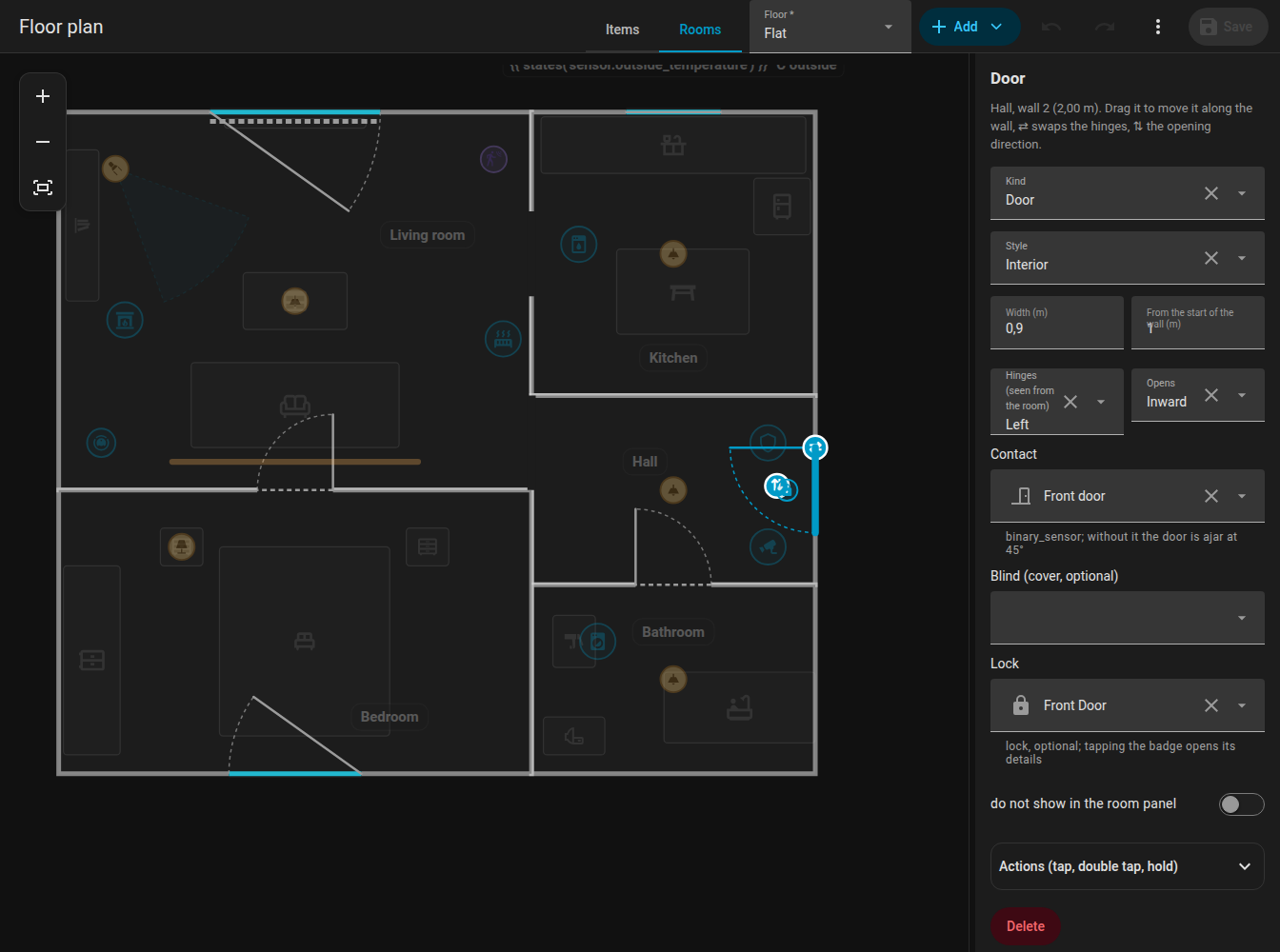
- Select a room and choose the wall in the side panel (or select the room and use the add buttons for door / window on the chosen wall).
- A new door or window appears on that wall.
- Click it to select it and drag it along the wall to slide it. Arrow keys nudge it by 5 cm.
- Drag it to the wall of another room and it moves there (the nearest wall on the floor wins).
Adding or removing a room corner never moves an opening away from where it was.
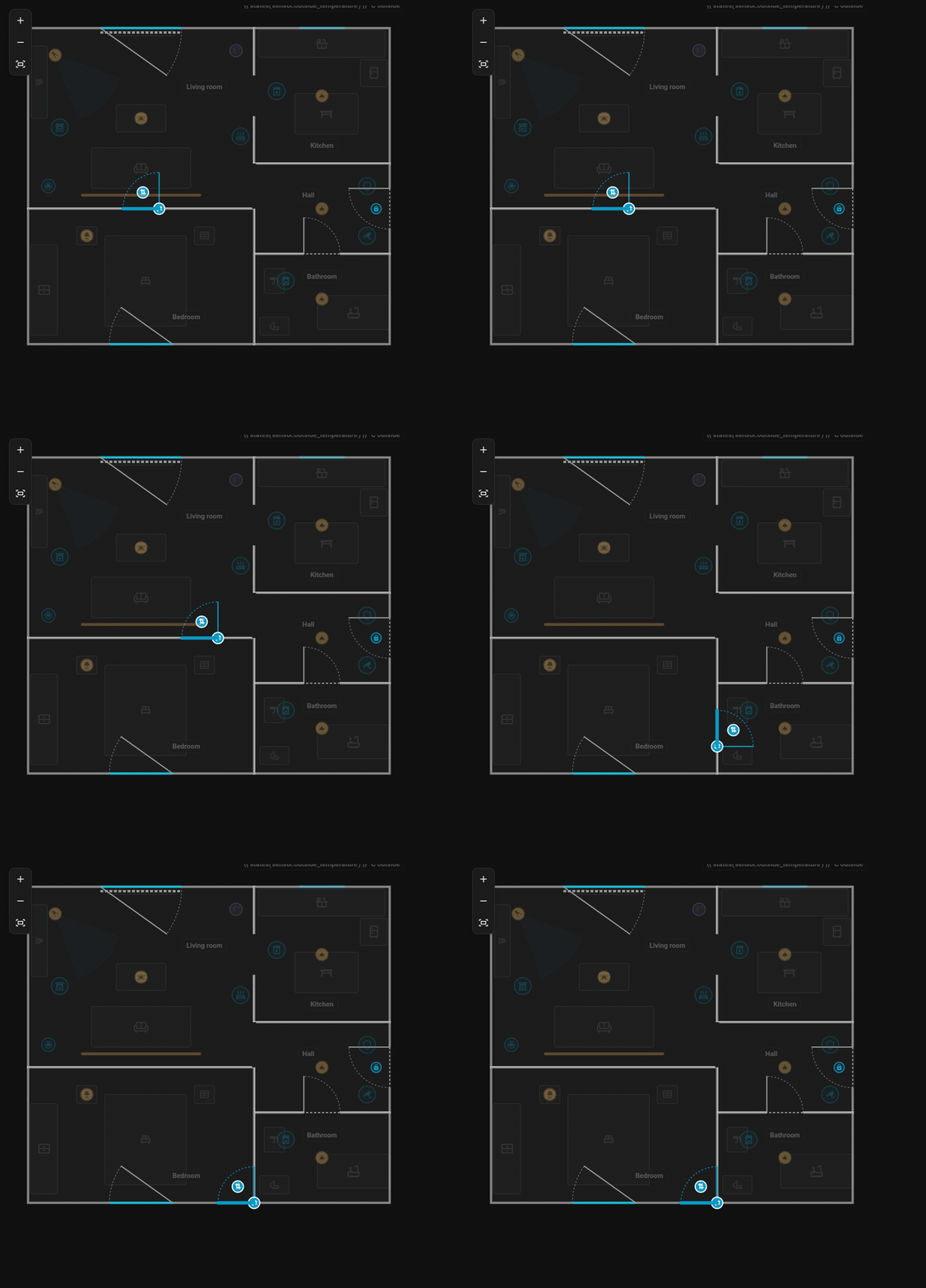
Sliding a door along its wall and dragging it onto the wall of another room.
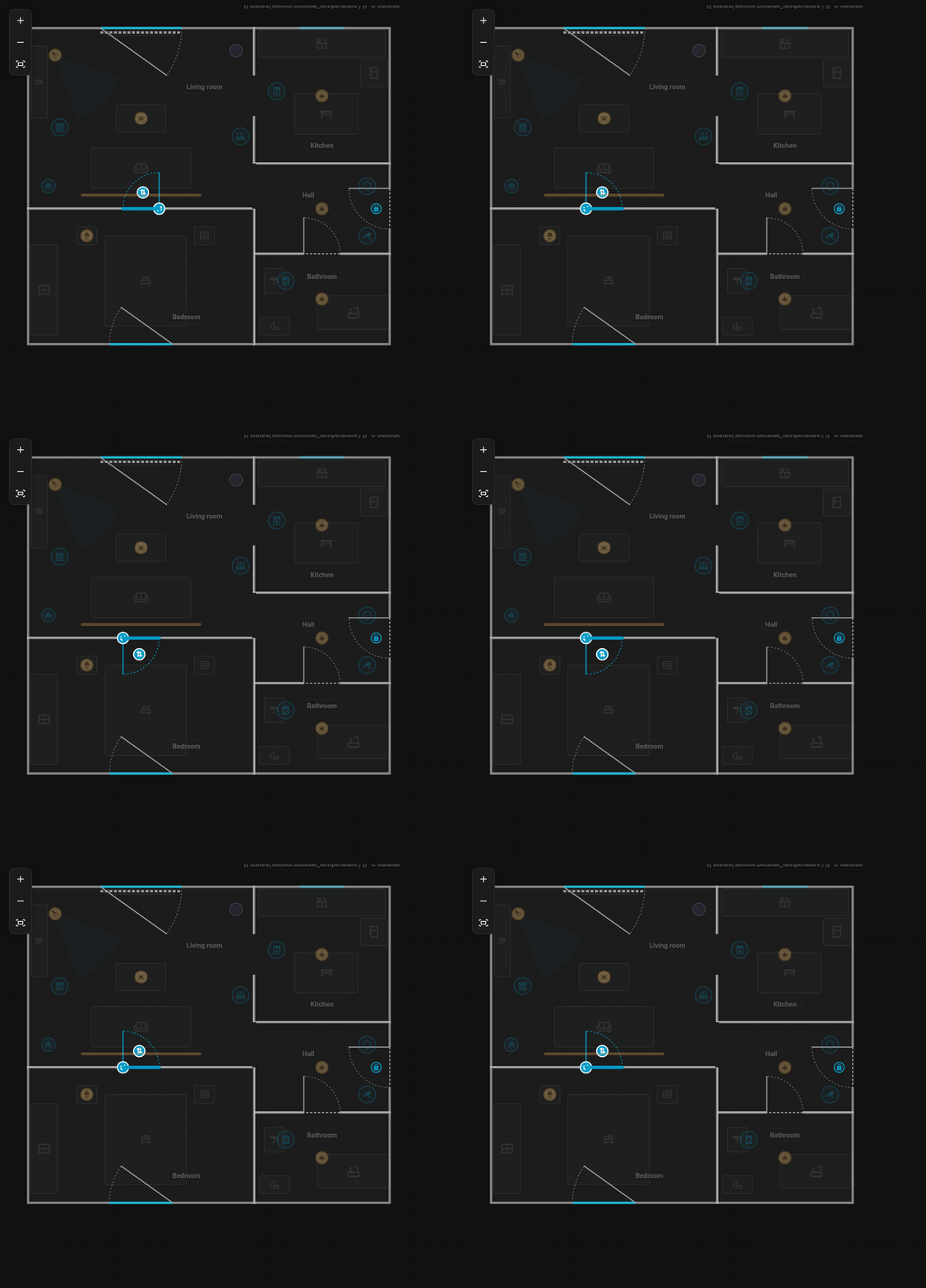
The two handles of a selected door swap the hinge side and the opening direction.
| Setting | Key | Meaning |
|---|---|---|
| Type | type |
door or window
|
| Door style | style |
A normal door (interior, entrance, glazed) or passage = only an opening without a leaf |
| Width | width |
In metres |
| Offset | offset |
Distance of the opening's centre from the start of the wall |
| Hinge | hinge |
left or right, seen from inside the room |
| Swing | swing |
in or out
|
| Contact | contact |
A binary sensor (door / window contact) |
| Lock | lock |
A lock entity shown at the door |
| Blind | blind |
A cover entity drawn as a bar along the window |
The leaf and the arc show the hinge and the swing. With the opening selected, the button flip hinge mirrors the hinge side and flip swing the opening direction, right on the plan.
With a contact, the opening animates open (doors swing to 90 degrees), glows orange while open, and pulses for the first 6 seconds after opening. Without a contact:
- a door is drawn ajar at 45 degrees,
- a window or glazed balcony door stays closed.
Tapping an opening on the card opens the contact's details (more-info). You can set tap actions on openings too.
lock takes a lock entity and draws a small lock badge at the door, inside the room. It is green when locked, orange when unlocked, red when jammed and blue with a ring while locking or unlocking. Tapping it only opens the details, so a door is never unlocked by accident. The size is lock_size (default S).
blind is a cover entity (a roller shutter or blind). It is drawn as a bar along the window that gets longer as the blind closes, on a dotted track along the whole width of the window: 50 % closed fills half of it. While the cover is moving the bar animates. Tapping the blind opens its details.
| Key | Effect |
|---|---|
blind_side: out |
Draws the blind outside the wall instead of inside |
blind_invert: true |
For blinds that report 100 for "closed" |
The position comes from the cover's current_position, without it from closed.
openings:
- id: d_front
room_id: hall
edge: 0
offset: 1.1
width: 0.9
type: door
hinge: left
swing: in
contact: binary_sensor.front_door
lock: lock.front_door
- id: w_living
room_id: living_room
edge: 2
offset: 1.8
width: 1.4
type: window
contact: binary_sensor.living_room_window
blind: cover.living_room_blind
blind_side: outNext: Items. Reference: Plan format.
Documentation site | Repository | Issues | Support: Ko-fi · PayPal · Bitcoin
English
- FNS Floorplan – help
- Installation
- Quick start
- Editor overview
- Rooms
- Doors and windows
- Items
- Rules
- Look
- Card
- Room panel
- Robot vacuum
- History and check
- Plan format
- Websocket API
- FAQ and troubleshooting
- Changelog
- The card is not found after the installation
- "Custom element doesn't exist" or a configuration error appears
- Icons are missing
- Some texts are not translated
- A light does not glow in the colour I expect
- The card shows the old version after an update
- The card is slow or choppy
- Saving says the plan changed meanwhile (conflict)
- The plan is empty
- A rule does not apply
- The sidebar entry is missing
- Something else does not work
- The card says it is waiting for the integration
- Support
Česky
- FNS Floorplan – nápověda
- Instalace
- Rychlý start
- Přehled editoru
- Místnosti
- Dveře a okna
- Položky
- Pravidla
- Vzhled
- Karta
- Panel místnosti
- Robotický vysavač
- Historie a kontrola
- Formát plánu
- Websocket API
- Časté otázky a řešení potíží
- Změny
- Po instalaci se karta nenajde
- Občas se objeví „Custom element doesn't exist“ nebo chyba konfigurace
- Chybí ikony
- Některé texty se nepřekládají
- Světlo nesvítí v barvě, kterou čekám
- Po aktualizaci karta zobrazuje starou verzi
- Karta se seká nebo je pomalá
- Při ukládání se hlásí, že se půdorys mezitím změnil (konflikt)
- Půdorys je prázdný
- Pravidlo se neuplatní
- V postranním menu chybí položka
- Něco jiného nefunguje
- Karta hlásí, že čeká na integraci
- Podpora
Deutsch
- FNS Floorplan – Hilfe
- Installation
- Schnellstart
- Editor-Übersicht
- Räume
- Türen und Fenster
- Elemente
- Regeln
- Aussehen
- Karte
- Raum-Panel
- Saugroboter
- Verlauf und Prüfung
- Planformat
- Websocket-API
- Häufige Fragen und Fehlerbehebung
- Änderungen
- Die Karte wird nach der Installation nicht gefunden
- „Custom element doesn't exist“ oder ein Konfigurationsfehler erscheint
- Symbole fehlen
- Einige Texte werden nicht übersetzt
- Ein Licht leuchtet nicht in der erwarteten Farbe
- Die Karte zeigt nach einem Update die alte Version
- Die Karte ruckelt oder ist langsam
- Beim Speichern heißt es, der Plan habe sich inzwischen geändert (Konflikt)
- Der Plan ist leer
- Eine Regel greift nicht
- Der Seitenleisten-Eintrag fehlt
- Etwas anderes funktioniert nicht
- Die Karte meldet, dass sie auf die Integration wartet
- Unterstützung
Polski
- FNS Floorplan – pomoc
- Instalacja
- Szybki start
- Przegląd edytora
- Pomieszczenia
- Drzwi i okna
- Elementy
- Reguły
- Wygląd
- Karta
- Panel pomieszczenia
- Odkurzacz
- Historia i kontrola
- Format planu
- Websocket API
- FAQ i rozwiązywanie problemów
- Lista zmian
- Karta nie jest znaleziona po instalacji
- Pojawia się „Custom element doesn't exist” lub błąd konfiguracji
- Brakuje ikon
- Niektóre teksty nie są przetłumaczone
- Światło nie świeci w kolorze, jakiego oczekuję
- Karta pokazuje starą wersję po aktualizacji
- Karta działa wolno lub się zacina
- Zapis zgłasza, że plan w międzyczasie się zmienił (konflikt)
- Plan jest pusty
- Reguła nie działa
- Brakuje pozycji w pasku bocznym
- Coś innego nie działa
- Karta pisze, że czeka na integrację
- Wsparcie