Repository navigation
Quick Start
From zero to a working plan in ten steps. It assumes the integration is installed.
-
Open the editor. Click Floor plan in the sidebar, or open
/fns-floorplan. -
Switch to Rooms. The tabs at the top are Items, Rooms and Look. Choose Rooms.
-
Add a room. Open Add and choose Room. A square of 2 by 2 metres appears. Drag its blue corner points to the shape of your room, drag the half-transparent points between corners to add a corner. Details in Rooms.
-
Name it. In the side panel enter the room name, and optionally a temperature and a humidity entity.
-
Add more rooms. Drag them next to each other, corners snap to the corners of neighbours within 15 cm.
-
Add doors and windows. Select a room, choose a wall in the side panel and add a door or a window; slide it along the wall. See Doors and windows.
-
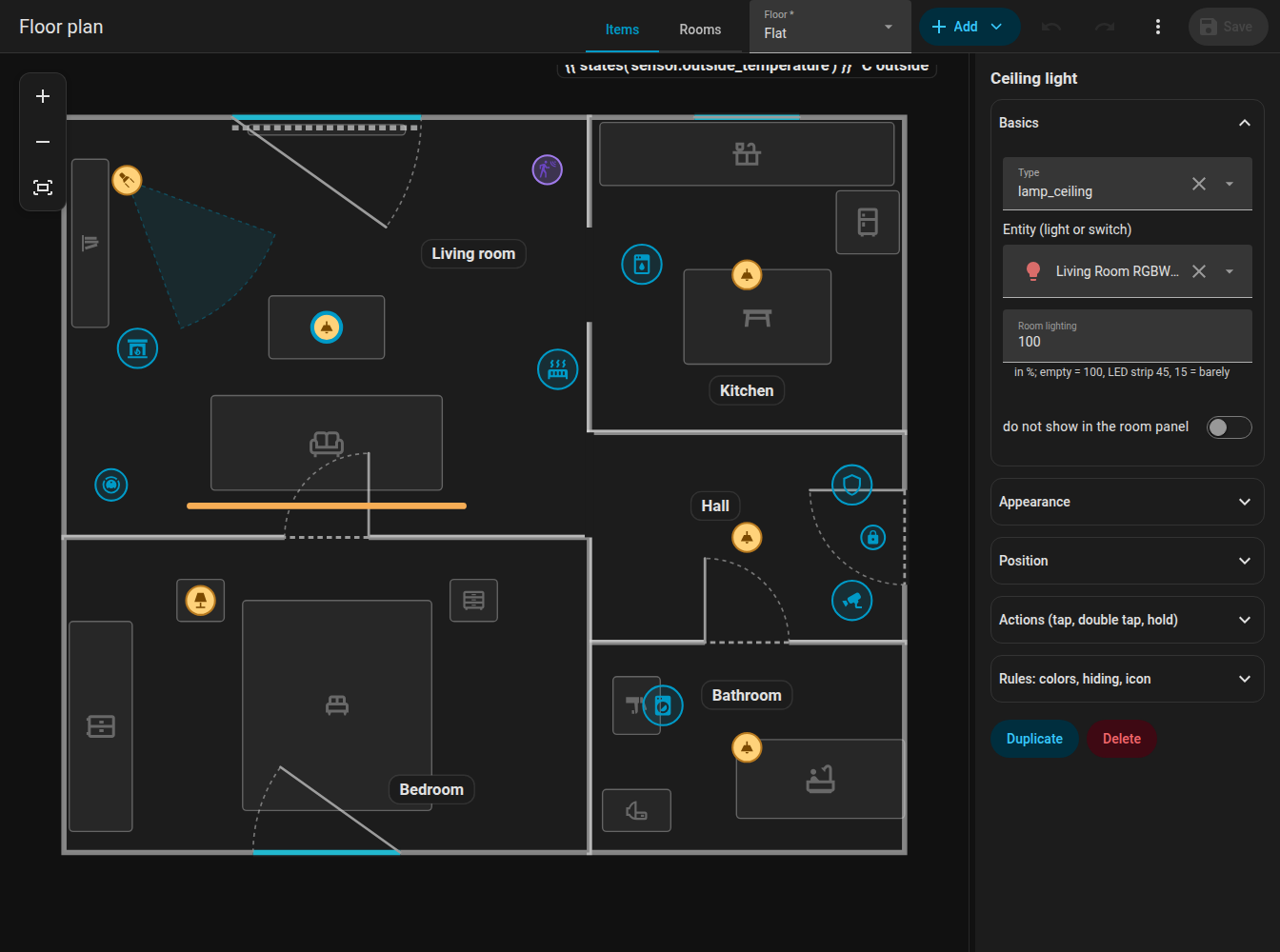
Switch to Items. Add lights, appliances, sensors and furniture with Add. Pick an entity for each. See Items.
-
Save. Click Save. The plan is stored in Home Assistant and every open card redraws by itself.
-
Add the card. Edit a dashboard, Add card, search for FNS Floorplan, or use YAML:
type: custom:fns-floorplan-card mode: auto rotate: auto
-
Try it. Turn a light on, open a door contact, start the dishwasher. Tap a room to open the room panel.
FNS Floorplan was inspired by NeonPlan 3D. If you already drew your home there, you can convert it once instead of starting from scratch:
-
Get the building from NeonPlan with the websocket command
neonplan3d/building/getand save the result asbuilding.json. -
Convert it:
python3 tools/import_neonplan.py building.json > plan.jsonAn optional second file (
extras.json) adds what NeonPlan does not know: devices, label positions and rules. See the comment at the top of the script. -
Save
plan.jsonwithfns_floorplan/plan/save(see Websocket API) and fine-tune the result in the editor.
Warning: The import replaces the whole plan. Run it once at the beginning, not after you have edited the plan.
- Make an appliance react to more than its state with Rules.
- Add a robot vacuum: Robot vacuum.
- Put a floor plan image under the plan and trace it: Editor overview.
- Several floors: Editor overview.
- Change the colours of walls, floors, labels and states in the Look tab.
Documentation site | Repository | Issues | Support: Ko-fi · PayPal · Bitcoin
English
- FNS Floorplan – help
- Installation
- Quick start
- Editor overview
- Rooms
- Doors and windows
- Items
- Rules
- Look
- Card
- Room panel
- Robot vacuum
- History and check
- Plan format
- Websocket API
- FAQ and troubleshooting
- Changelog
- The card is not found after the installation
- "Custom element doesn't exist" or a configuration error appears
- Icons are missing
- Some texts are not translated
- A light does not glow in the colour I expect
- The card shows the old version after an update
- The card is slow or choppy
- Saving says the plan changed meanwhile (conflict)
- The plan is empty
- A rule does not apply
- The sidebar entry is missing
- Something else does not work
- The card says it is waiting for the integration
- Support
Česky
- FNS Floorplan – nápověda
- Instalace
- Rychlý start
- Přehled editoru
- Místnosti
- Dveře a okna
- Položky
- Pravidla
- Vzhled
- Karta
- Panel místnosti
- Robotický vysavač
- Historie a kontrola
- Formát plánu
- Websocket API
- Časté otázky a řešení potíží
- Změny
- Po instalaci se karta nenajde
- Občas se objeví „Custom element doesn't exist“ nebo chyba konfigurace
- Chybí ikony
- Některé texty se nepřekládají
- Světlo nesvítí v barvě, kterou čekám
- Po aktualizaci karta zobrazuje starou verzi
- Karta se seká nebo je pomalá
- Při ukládání se hlásí, že se půdorys mezitím změnil (konflikt)
- Půdorys je prázdný
- Pravidlo se neuplatní
- V postranním menu chybí položka
- Něco jiného nefunguje
- Karta hlásí, že čeká na integraci
- Podpora
Deutsch
- FNS Floorplan – Hilfe
- Installation
- Schnellstart
- Editor-Übersicht
- Räume
- Türen und Fenster
- Elemente
- Regeln
- Aussehen
- Karte
- Raum-Panel
- Saugroboter
- Verlauf und Prüfung
- Planformat
- Websocket-API
- Häufige Fragen und Fehlerbehebung
- Änderungen
- Die Karte wird nach der Installation nicht gefunden
- „Custom element doesn't exist“ oder ein Konfigurationsfehler erscheint
- Symbole fehlen
- Einige Texte werden nicht übersetzt
- Ein Licht leuchtet nicht in der erwarteten Farbe
- Die Karte zeigt nach einem Update die alte Version
- Die Karte ruckelt oder ist langsam
- Beim Speichern heißt es, der Plan habe sich inzwischen geändert (Konflikt)
- Der Plan ist leer
- Eine Regel greift nicht
- Der Seitenleisten-Eintrag fehlt
- Etwas anderes funktioniert nicht
- Die Karte meldet, dass sie auf die Integration wartet
- Unterstützung
Polski
- FNS Floorplan – pomoc
- Instalacja
- Szybki start
- Przegląd edytora
- Pomieszczenia
- Drzwi i okna
- Elementy
- Reguły
- Wygląd
- Karta
- Panel pomieszczenia
- Odkurzacz
- Historia i kontrola
- Format planu
- Websocket API
- FAQ i rozwiązywanie problemów
- Lista zmian
- Karta nie jest znaleziona po instalacji
- Pojawia się „Custom element doesn't exist” lub błąd konfiguracji
- Brakuje ikon
- Niektóre teksty nie są przetłumaczone
- Światło nie świeci w kolorze, jakiego oczekuję
- Karta pokazuje starą wersję po aktualizacji
- Karta działa wolno lub się zacina
- Zapis zgłasza, że plan w międzyczasie się zmienił (konflikt)
- Plan jest pusty
- Reguła nie działa
- Brakuje pozycji w pasku bocznym
- Coś innego nie działa
- Karta pisze, że czeka na integrację
- Wsparcie